Onboarding teardown · ClickUp
ClickUp onboarding, screen by screen: from signup to a first task
We had an AI agent sign up for ClickUp as a fictional product manager and go through onboarding until a first task of its own was saved in a list. A person stepped in once, to tick the terms box and press Sign up with Email. ClickUp's setup has no Product answer, so the agent chose PMO, and ClickUp's AI built a project portfolio from that answer; the first task went into its Intake & Triage list. These are the screens it saw, in order, with what each one does well and what gets in the way.
By the UserOnboarding Academy teamRecorded 5 Nov 2026How we recorded it
UserOnboarding Academy isn't owned by ClickUp or any onboarding tool, and ClickUp didn't sponsor or review this page. The account was created for this recording only.
In short
ClickUp asks for an email in a modal, then a full form with separate boxes for the terms and for marketing email, then a four-digit code. Eight setup questions follow on nine screens under a progress bar: what you use it for, what you manage, how you heard about ClickUp, an optional phone number, invites (asked twice), the tools you use, the features you want and the Workspace name, prefilled from the email's domain. Nothing asks about role or team size, and the department list has no Product, so a product manager ends up answering PMO. Then two setups arrive at once: a generic Team Space with Project 1 and Task 1 to 3, and, from ClickUp's AI, a PMO Project Portfolio with statuses, fields, views and an intake form, announced in a chat that opened by itself with a message in the user's name. The first task saves with Enter, beside four sample projects. The account stayed on the Free Forever plan: no trial, no card.
- Screens to first value
- 17
- Setup questions
- 5
- Form fields shown
- 10
- Steps a person did
- 1
The flow at a glance
marks a step a person did
 01The ClickUp homepage with its cookie dialog
 02A sign-up modal asks for a work email
 03The full sign-up form, with a terms checkbox
 04A four-digit code to verify the email
 05What would you like to use ClickUp for?
 06What would you like to manage?
 07How did you hear about us?
 08An optional phone number for help with setup
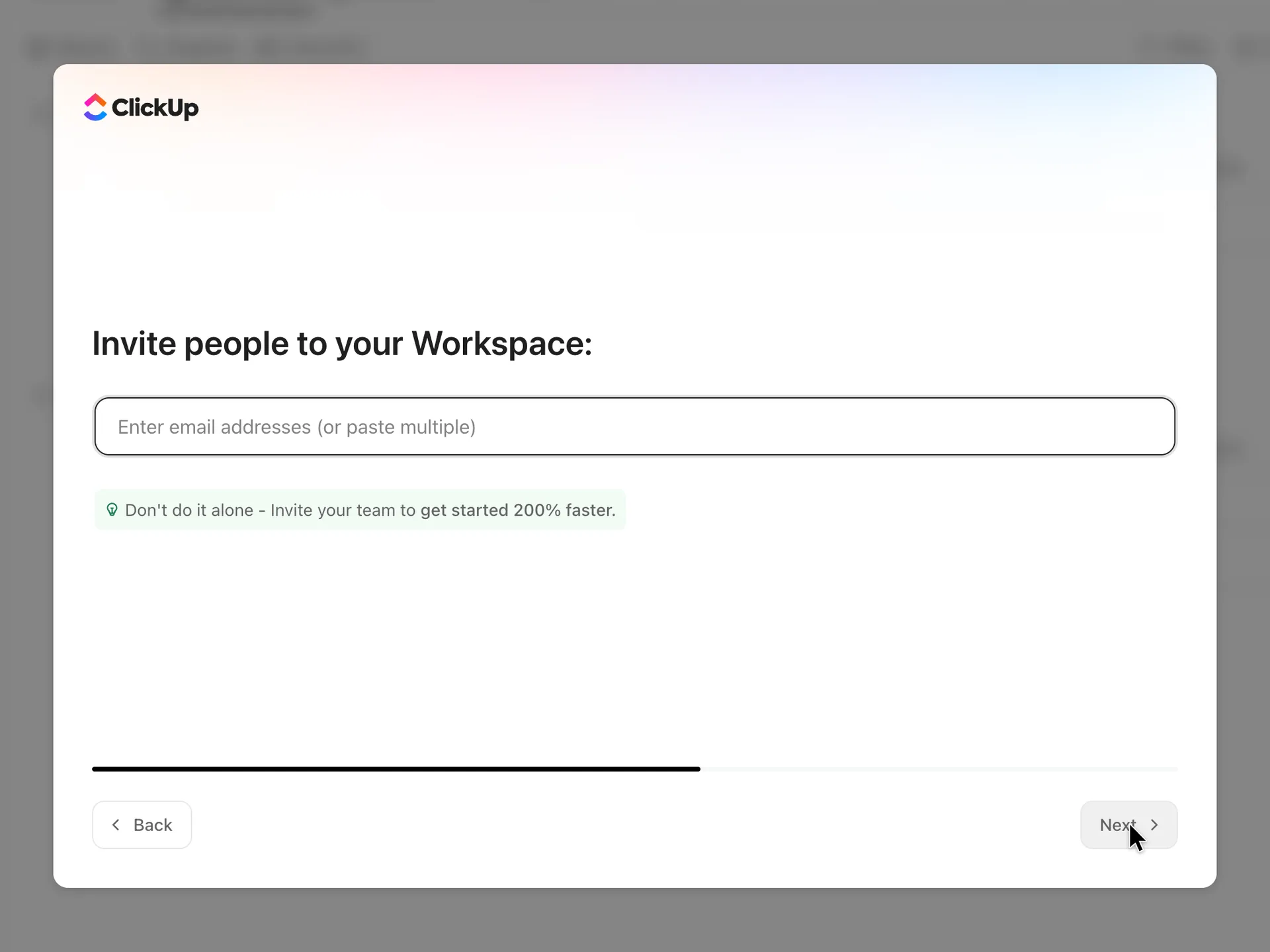 09Invite people to your Workspace
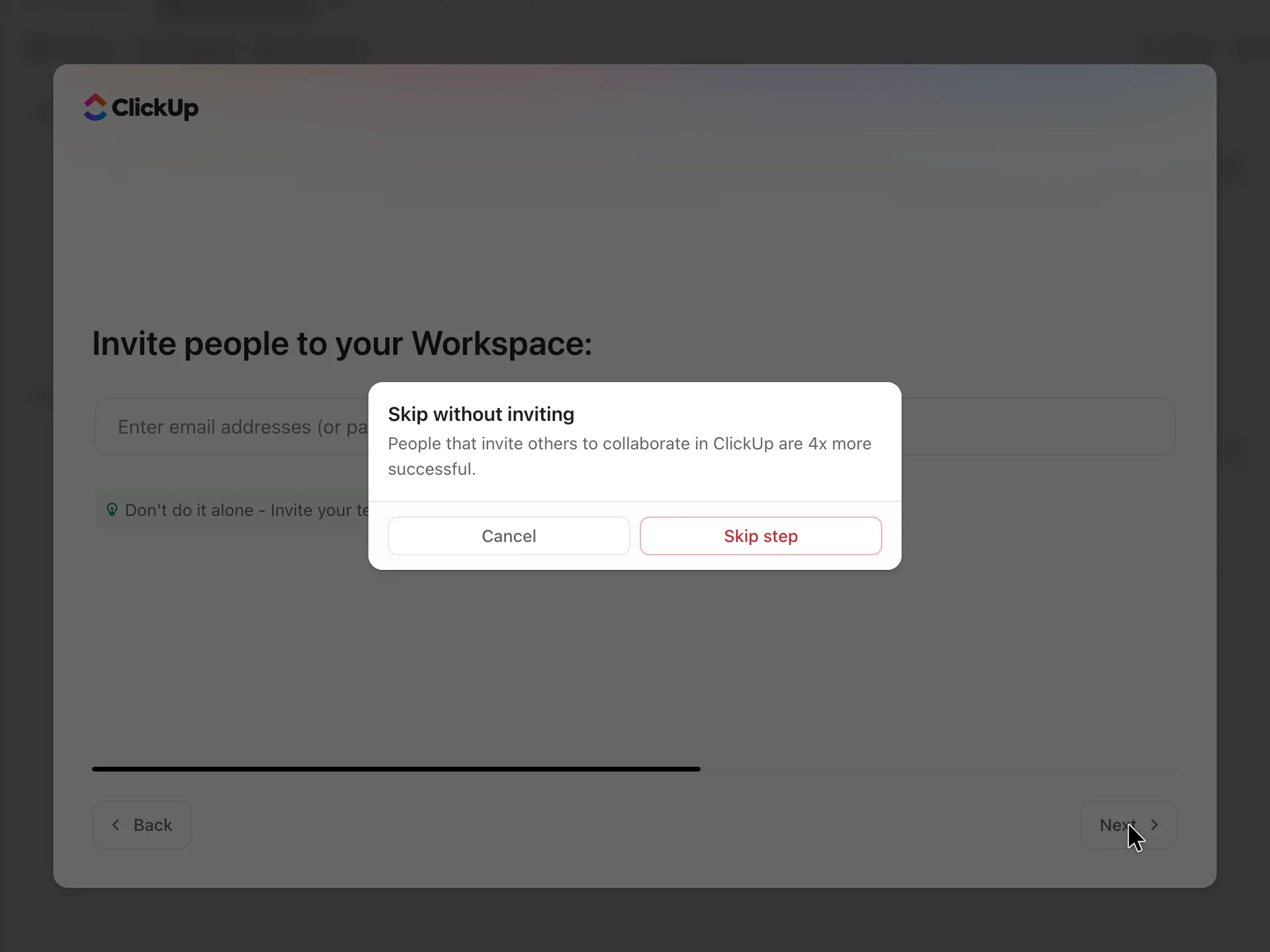 10A second ask before skipping the invites
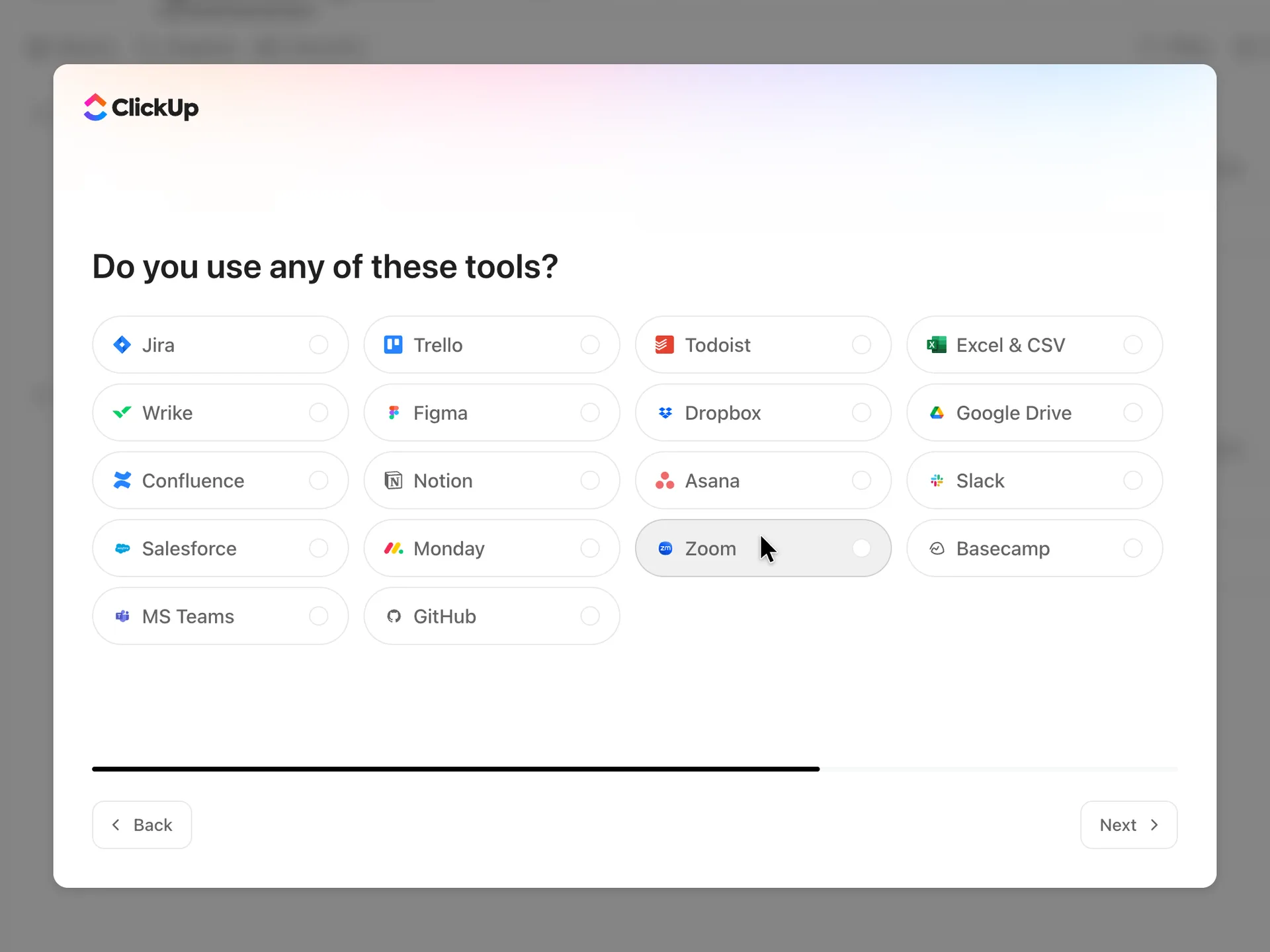 11Do you use any of these tools?
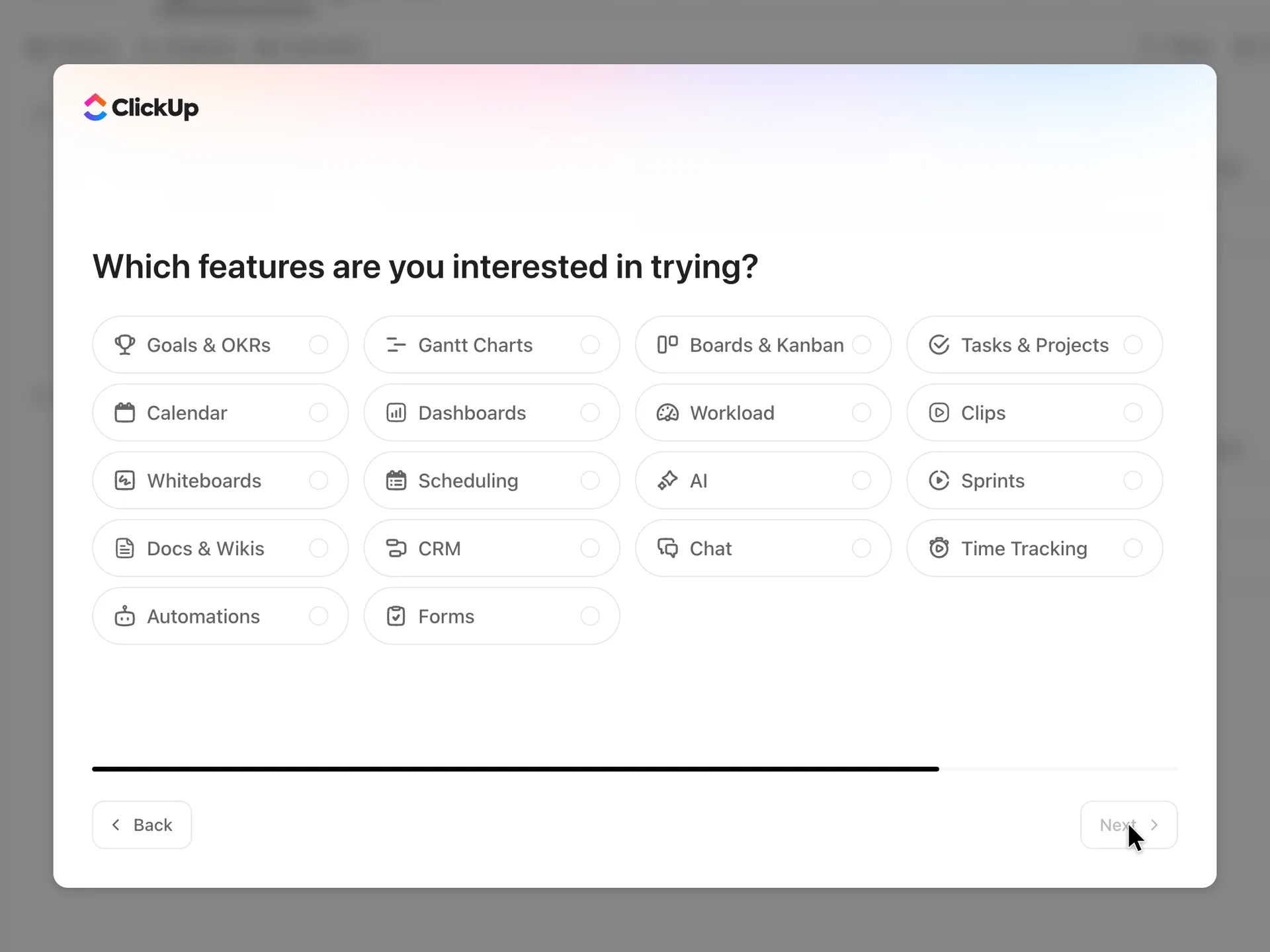 12Which features are you interested in trying?
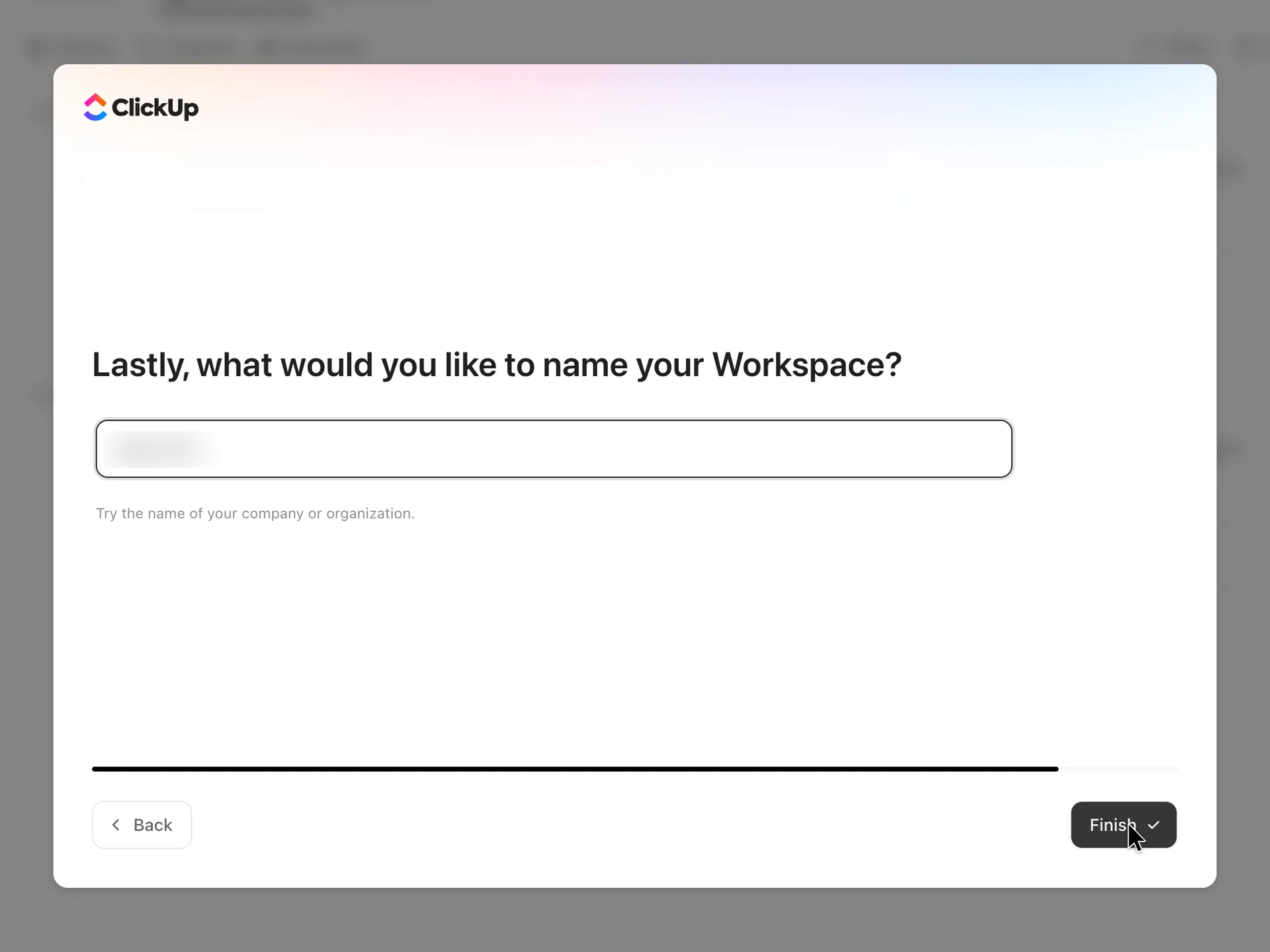 13Name the Workspace, prefilled from the email
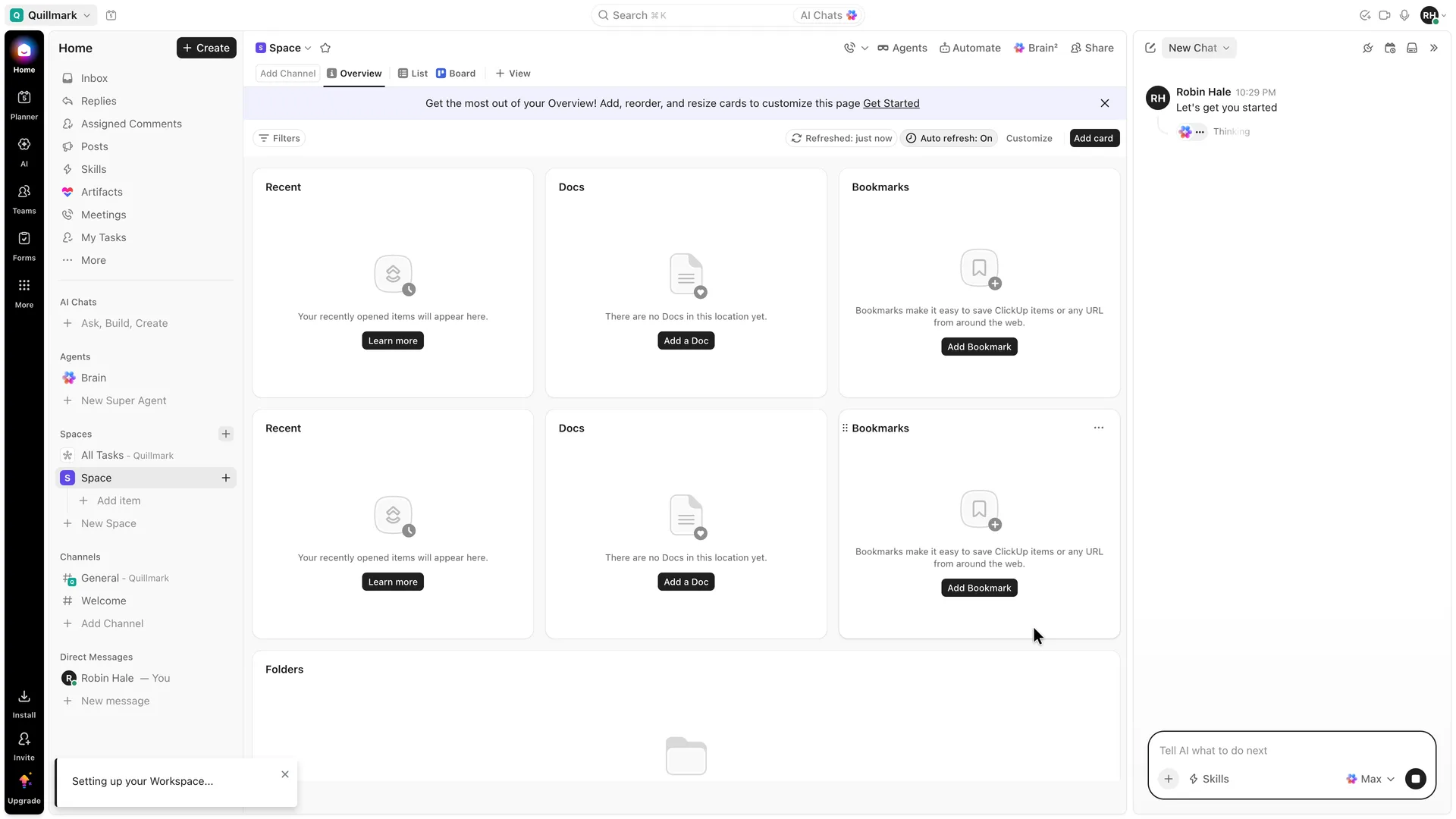 14The workspace opens on an empty Space overview while AI starts a chat
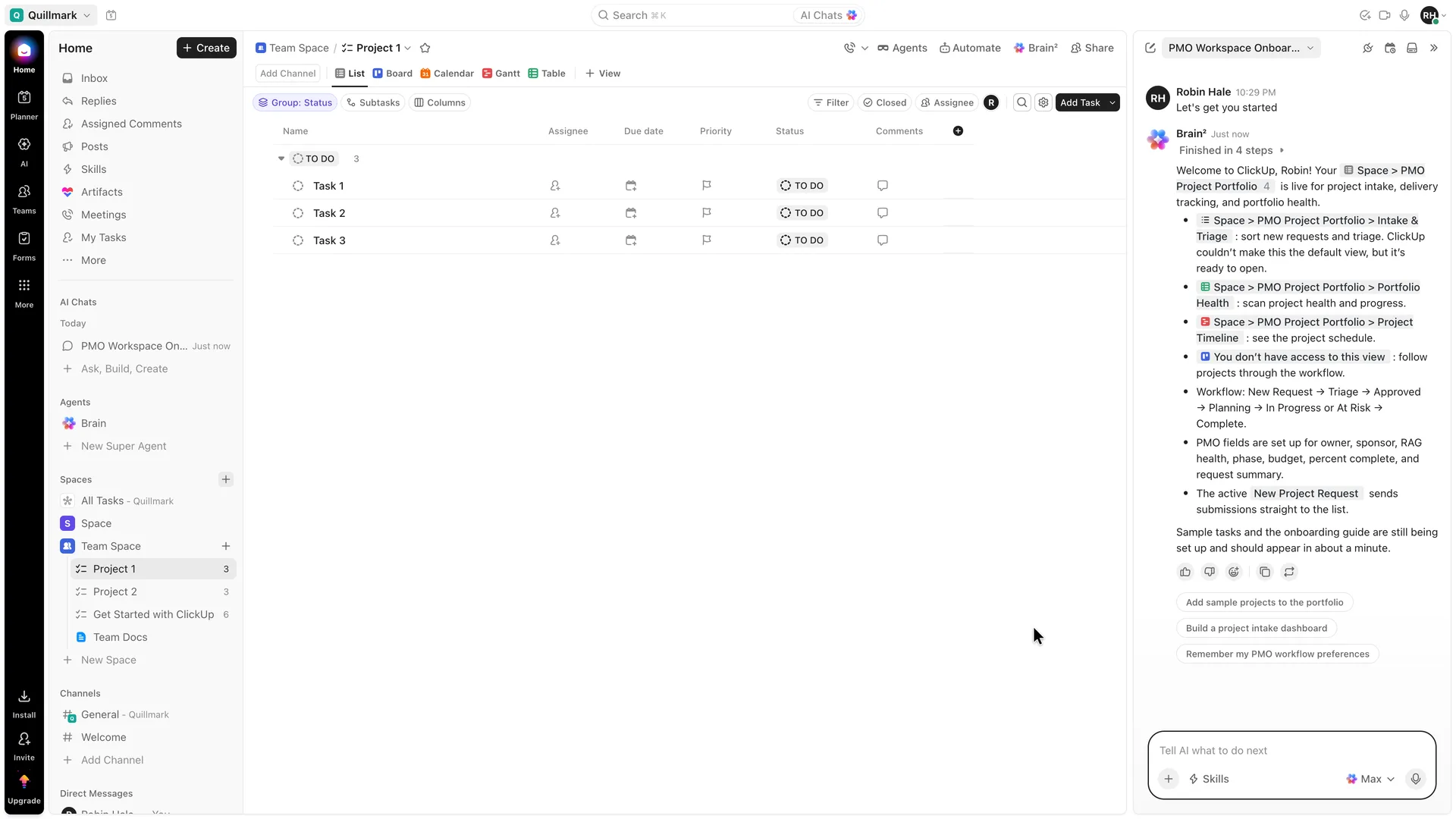 15A sample list opens and Brain describes the PMO portfolio it built
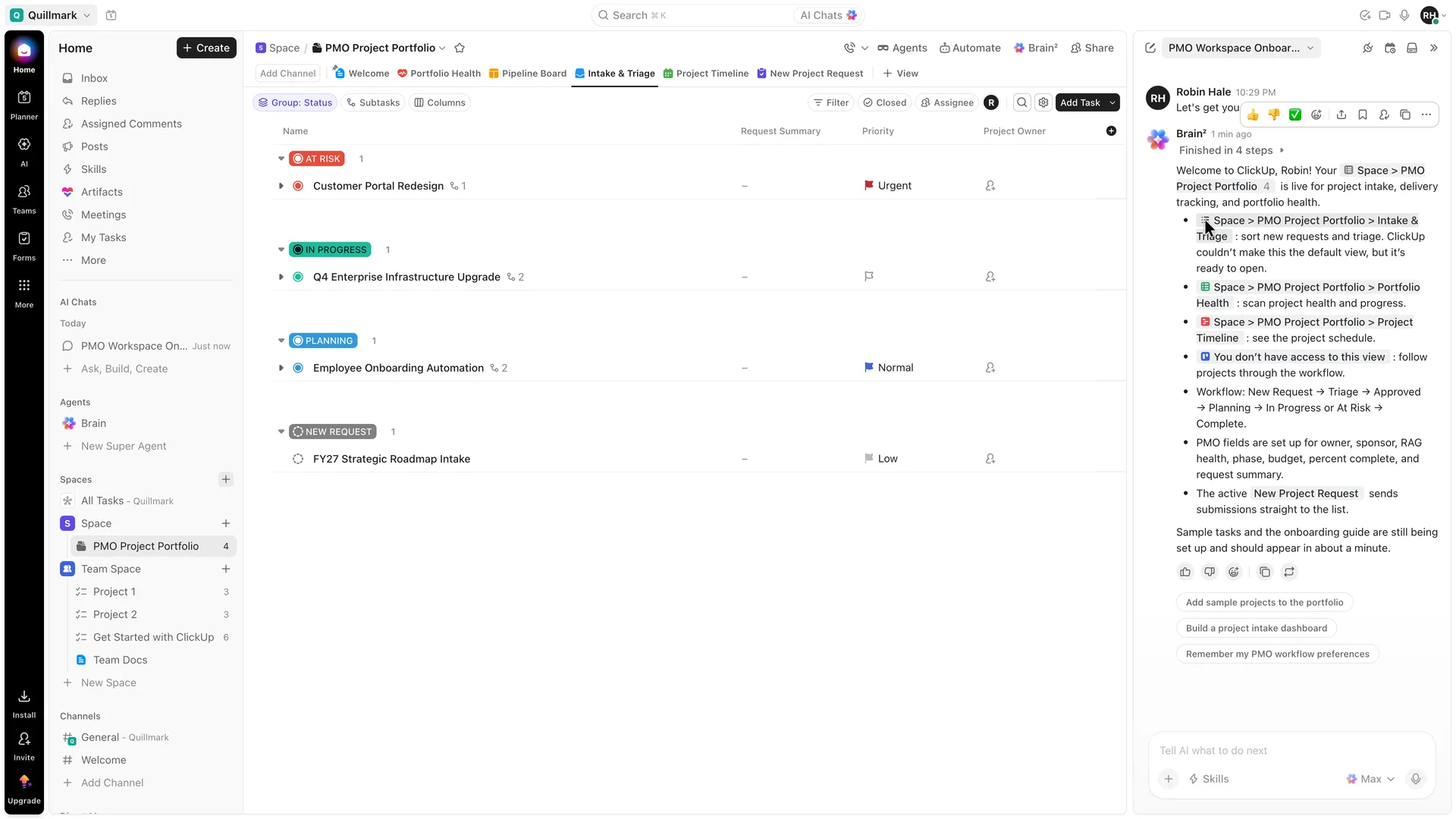 16Intake & Triage, with four sample projects
 17 · first valueRobin's first request saved under New Request
Step 1 of 17:Other
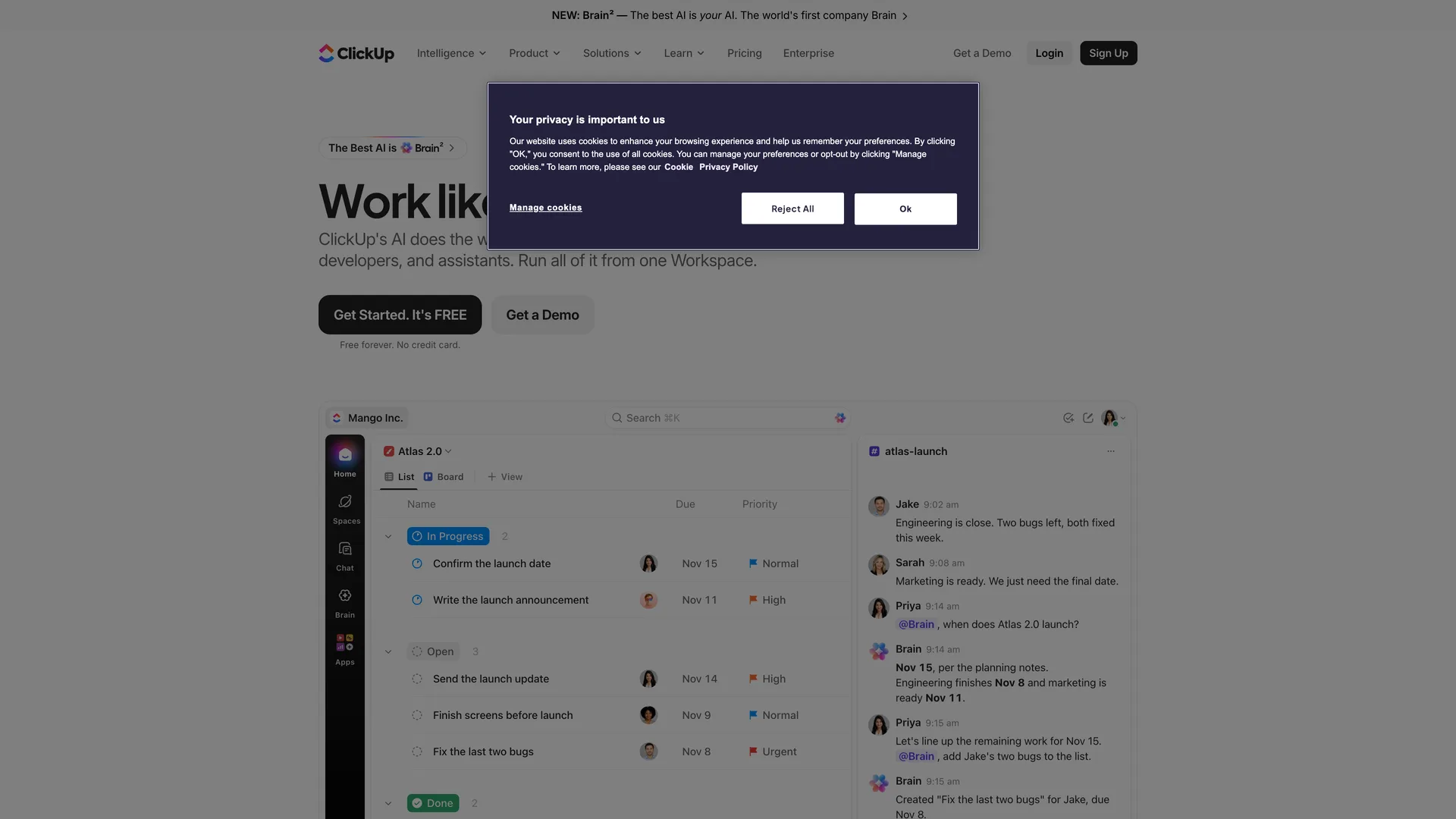
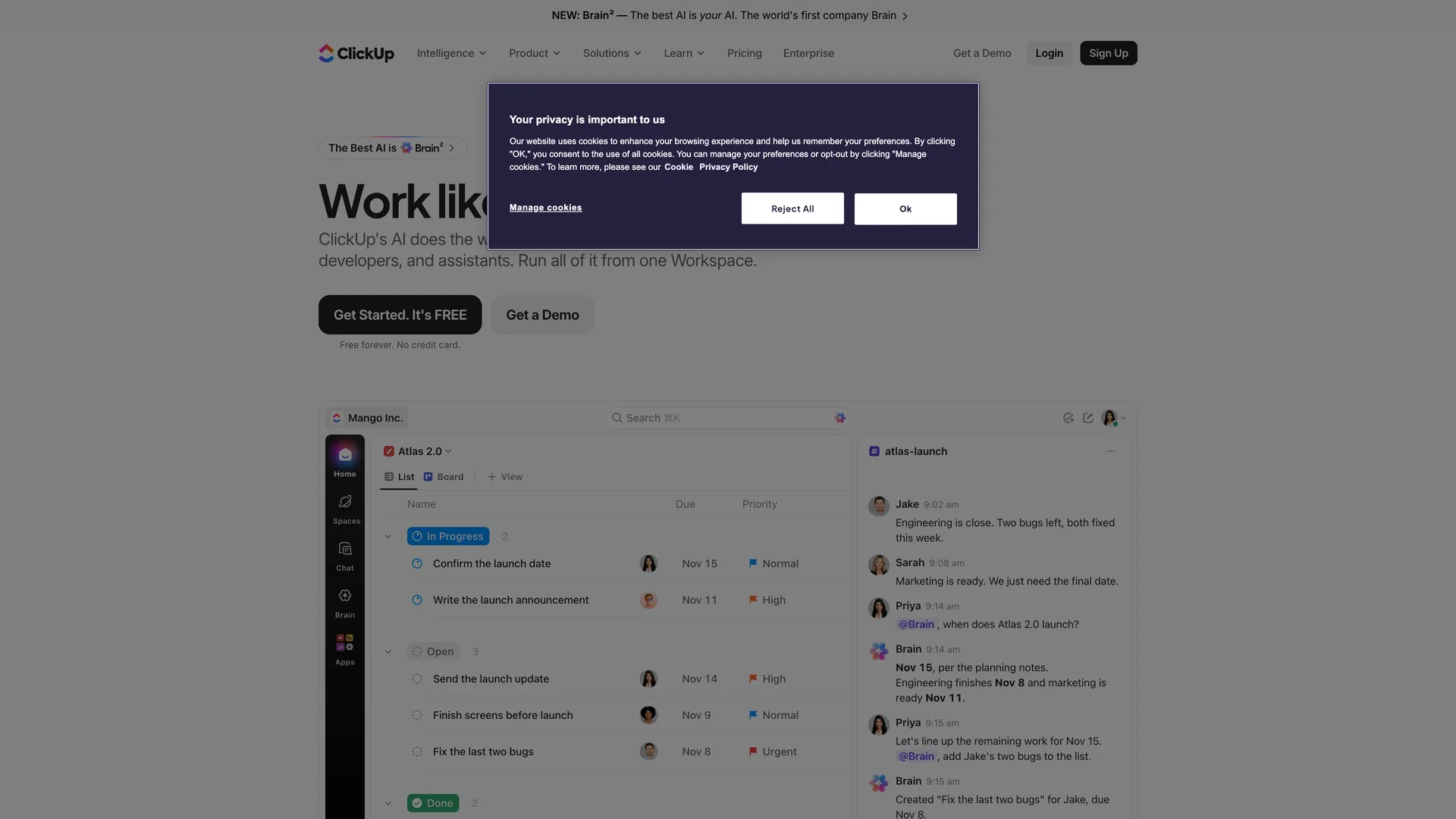
The ClickUp homepage with its cookie dialog
Pressed Reject All in the cookie dialog, then Sign Up in the header
Why it works
The free plan and the absence of a card are stated right under the main button, so a visitor knows the price of trying before clicking. Refusing cookies takes one click.
What gets in the way
The hero markets ClickUp's AI agent more than its core capabilities, such as tasks and lists.
What’s on this screen
The hero reads "Work like there are 100 of you" (partly behind the cookie dialog here) with Get Started. It's FREE and, under it, "Free forever. No credit card.", beside Get a Demo. A top bar announces Brain² and the header has Get a Demo, Login and Sign Up. A cookie dialog, "Your privacy is important to us", offers Manage cookies, Reject All and Ok, with Reject All and Ok the same size. Every signup control on the page is a button, not a link.
Step 2 of 17:Signup form
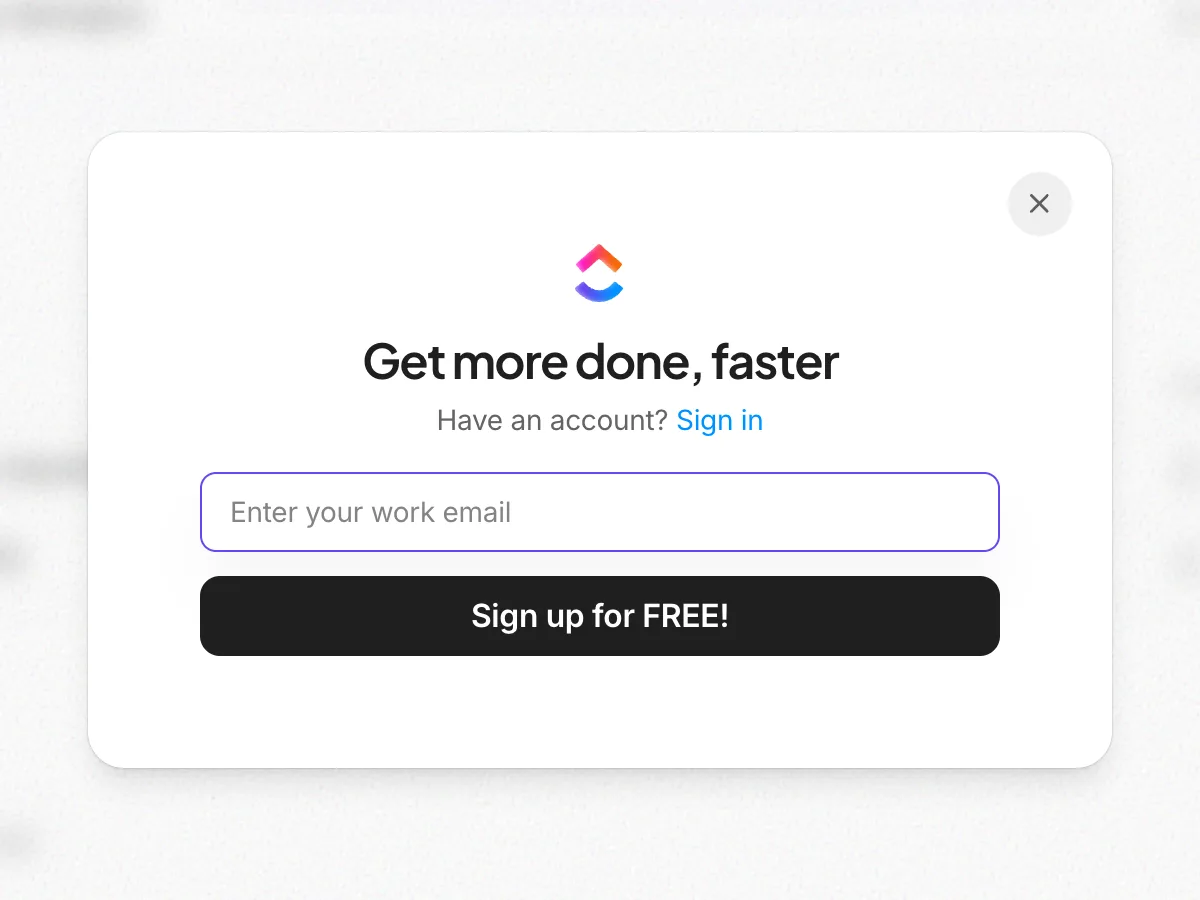
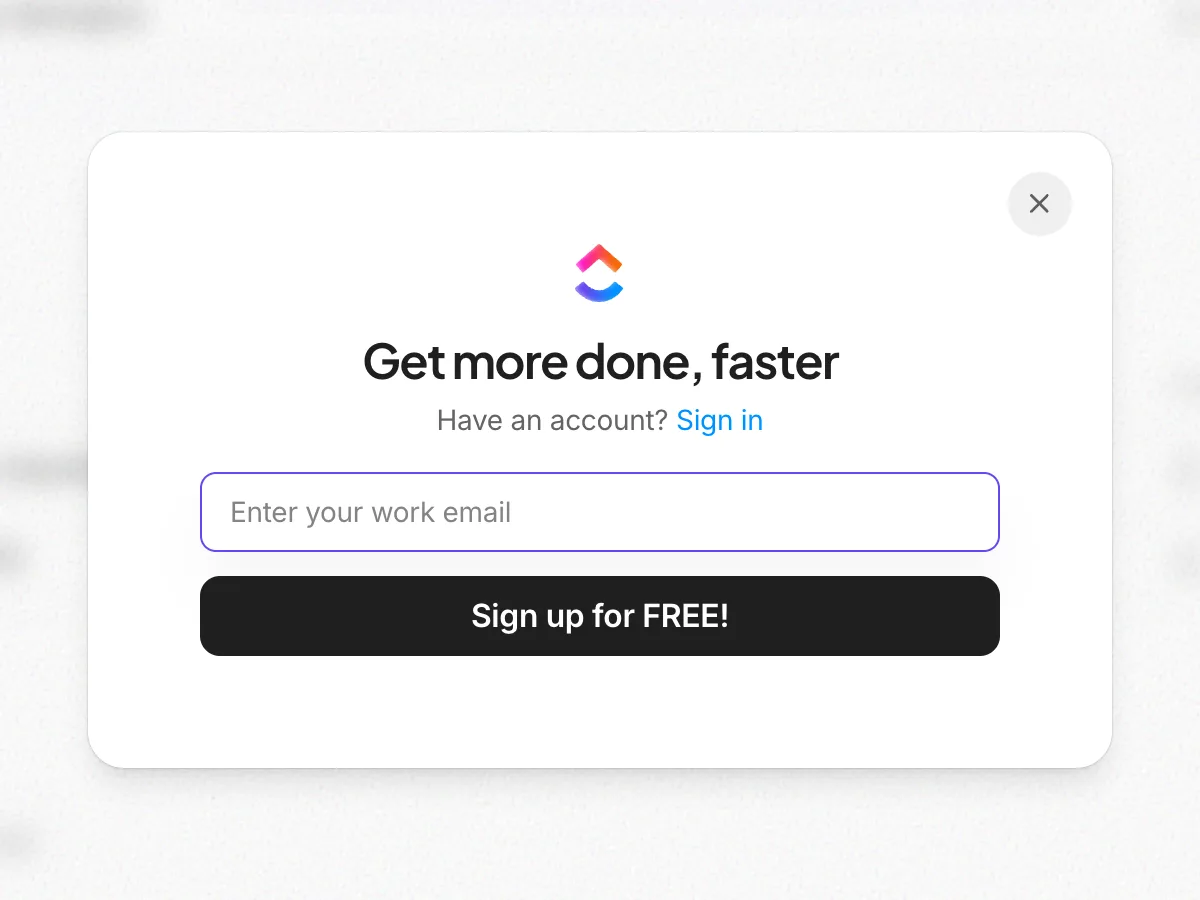
A sign-up modal asks for a work email
Typed the email address and pressed Sign up for FREE!
Why it works
One field and one button: the visitor commits only an email address before seeing the real form.
What’s on this screen
Sign Up opens a modal over the homepage instead of a new page: "Get more done, faster", "Have an account? Sign in", one field "Enter your work email" (already focused) and Sign up for FREE!. There is no terms notice and no Google button in the modal.
Step 3 of 17:Signup formDone by a person
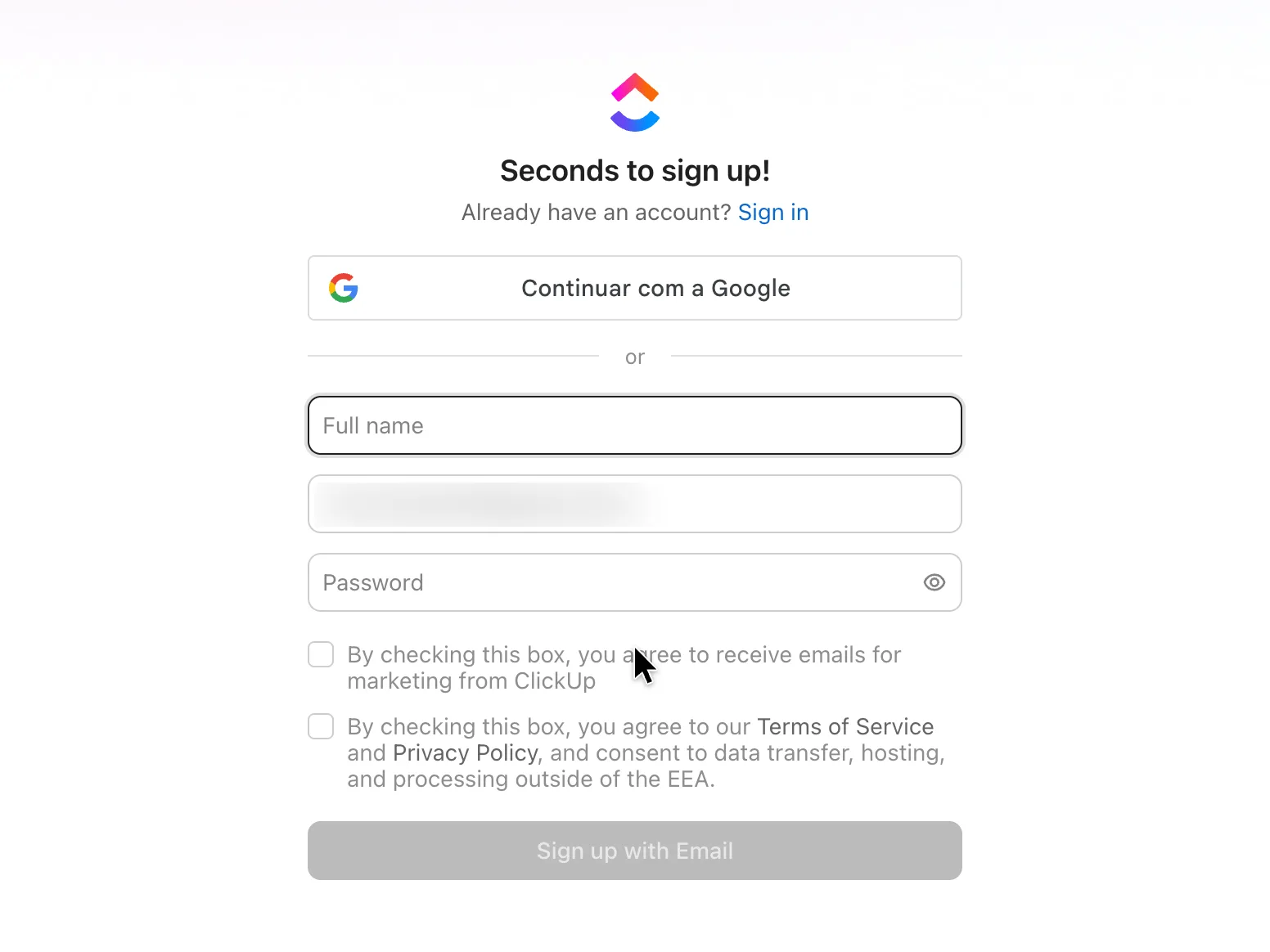
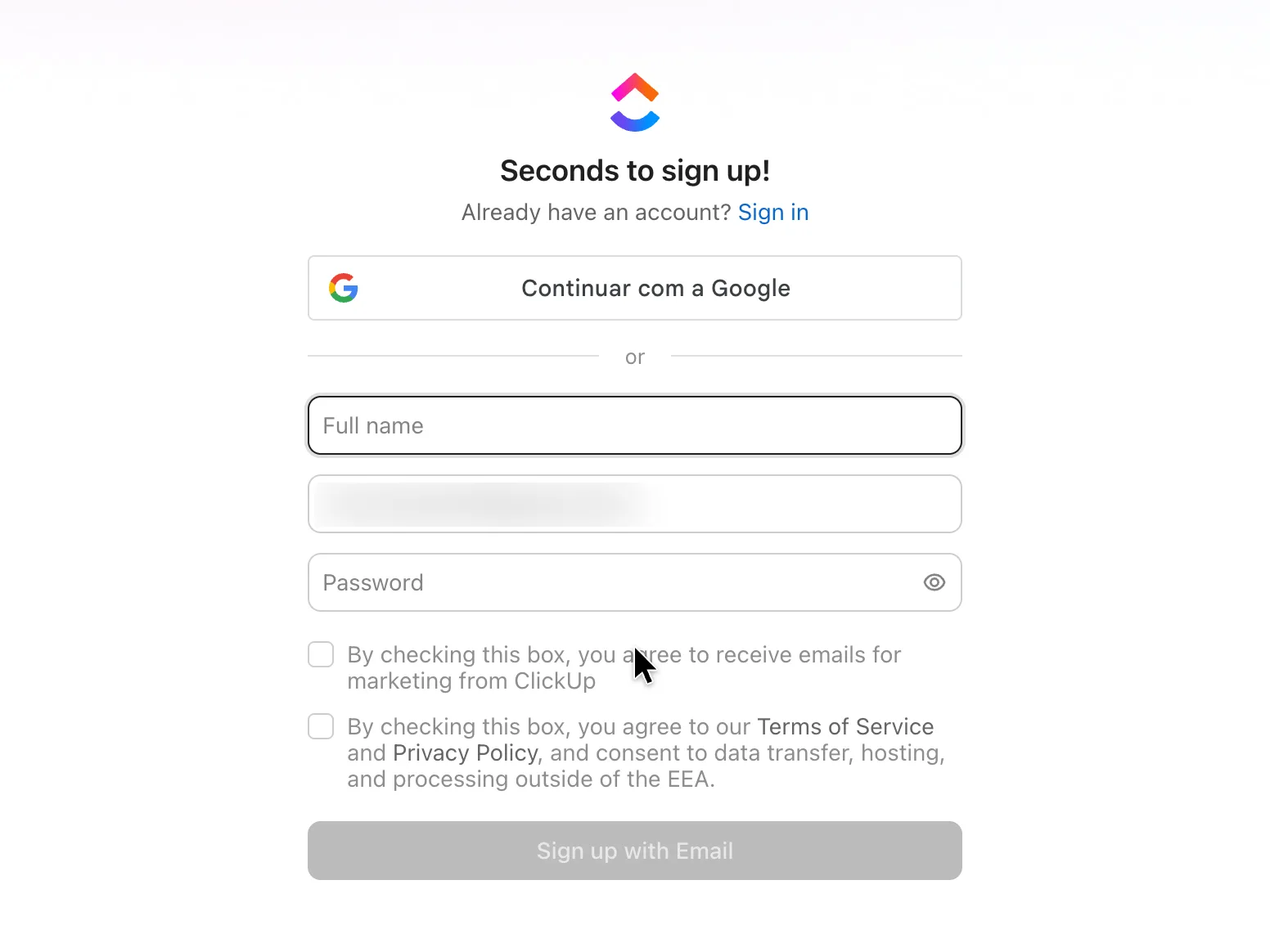
The full sign-up form, with a terms checkbox
Typed the full name and a password; a person (Mert) ticked the terms checkbox and pressed Sign up with Email. The marketing checkbox stayed unticked.
Why it works
Marketing consent and the terms are separate boxes and neither is ticked for the user, so agreeing to the terms doesn't sign anyone up for marketing.
What gets in the way
The modal asked for the email alone, so the visitor meets a second form with three fields and two checkboxes.
What’s on this screen
The modal hands over to app.clickup.com/signup, "Seconds to sign up!": a Google sign-in button, then Full name, Work email (filled in from the modal), Password with Show, and two unticked checkboxes: one to receive marketing emails, one to agree to the Terms of Service and Privacy Policy and to data processing outside the EEA. Sign up with Email stays disabled until the terms box is ticked. A footer line, below the part shown here, repeats "By continuing, you agree to our Terms of Service and Privacy Policy".
Step 4 of 17:Email verification
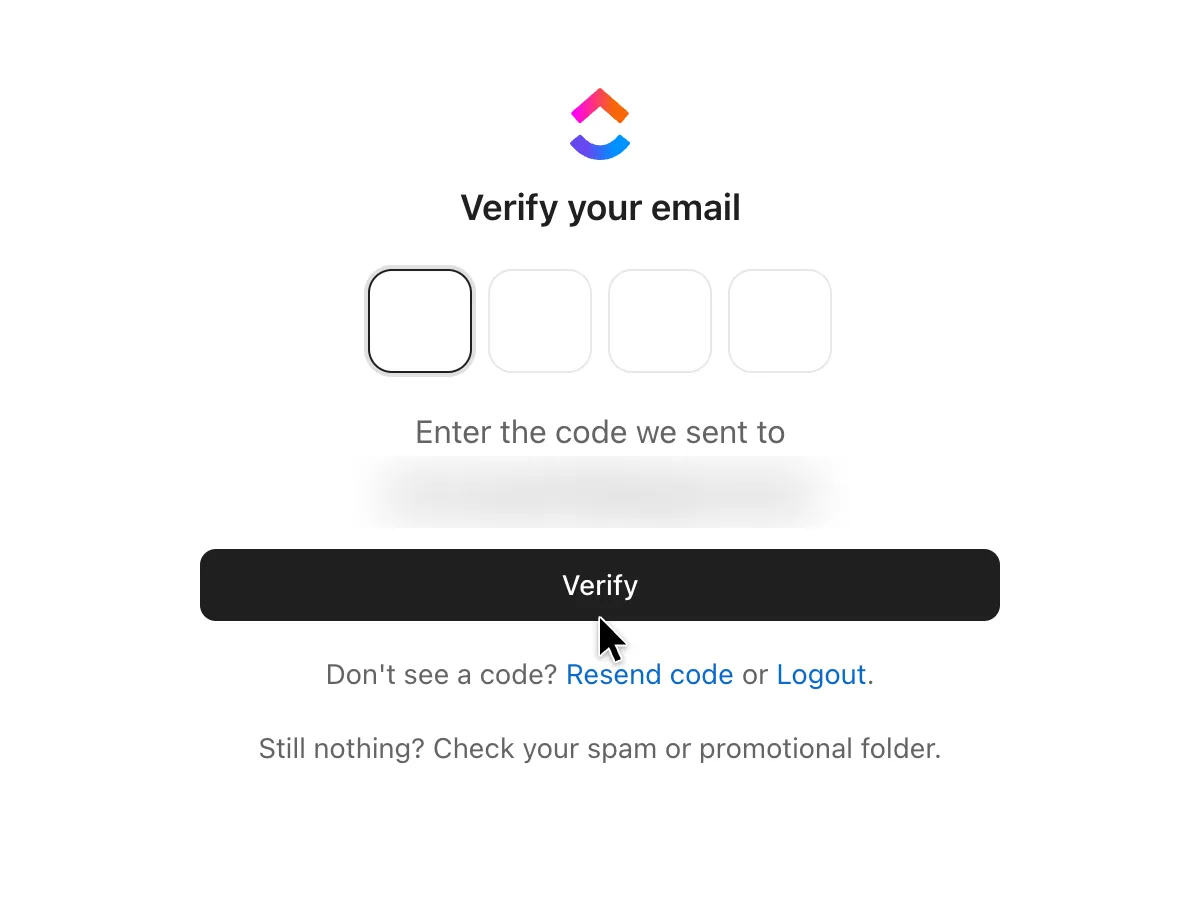
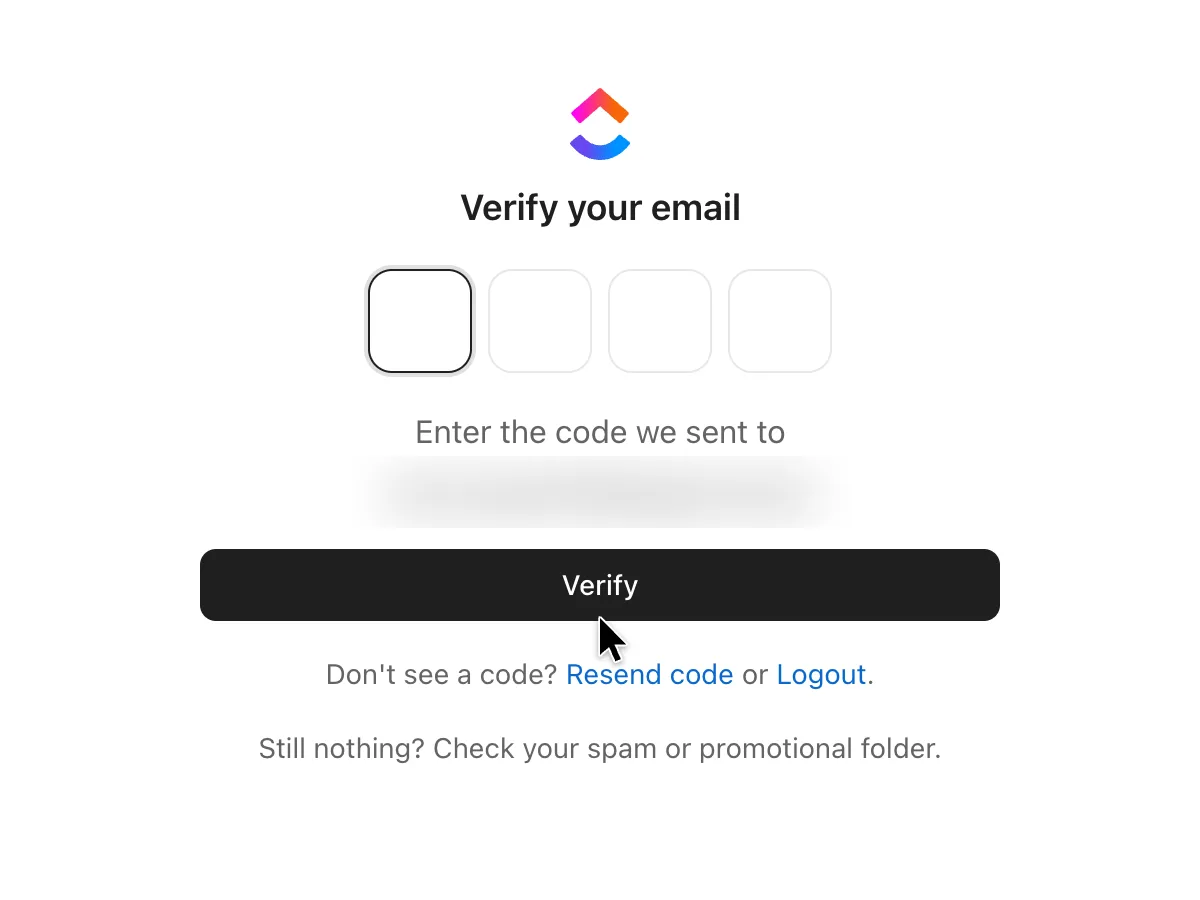
A four-digit code to verify the email
Read ClickUp's email and typed the four-digit code; the form submitted itself on the last digit
Why it works
Four digits, the code in the subject line and an automatic submit keep the check short. The spam hint answers the most common problem before anyone asks.
What’s on this screen
"Verify your email" with four digit boxes, "Enter the code we sent to" and the address, Verify, Resend code or Logout, and "Still nothing? Check your spam or promotional folder." The email ("ClickUp Verification Code" with the code in the subject, from verify@clickup.com) arrived within seconds. It holds the code and a Go to verify button and asks for nothing else.
Step 5 of 17:Setup question
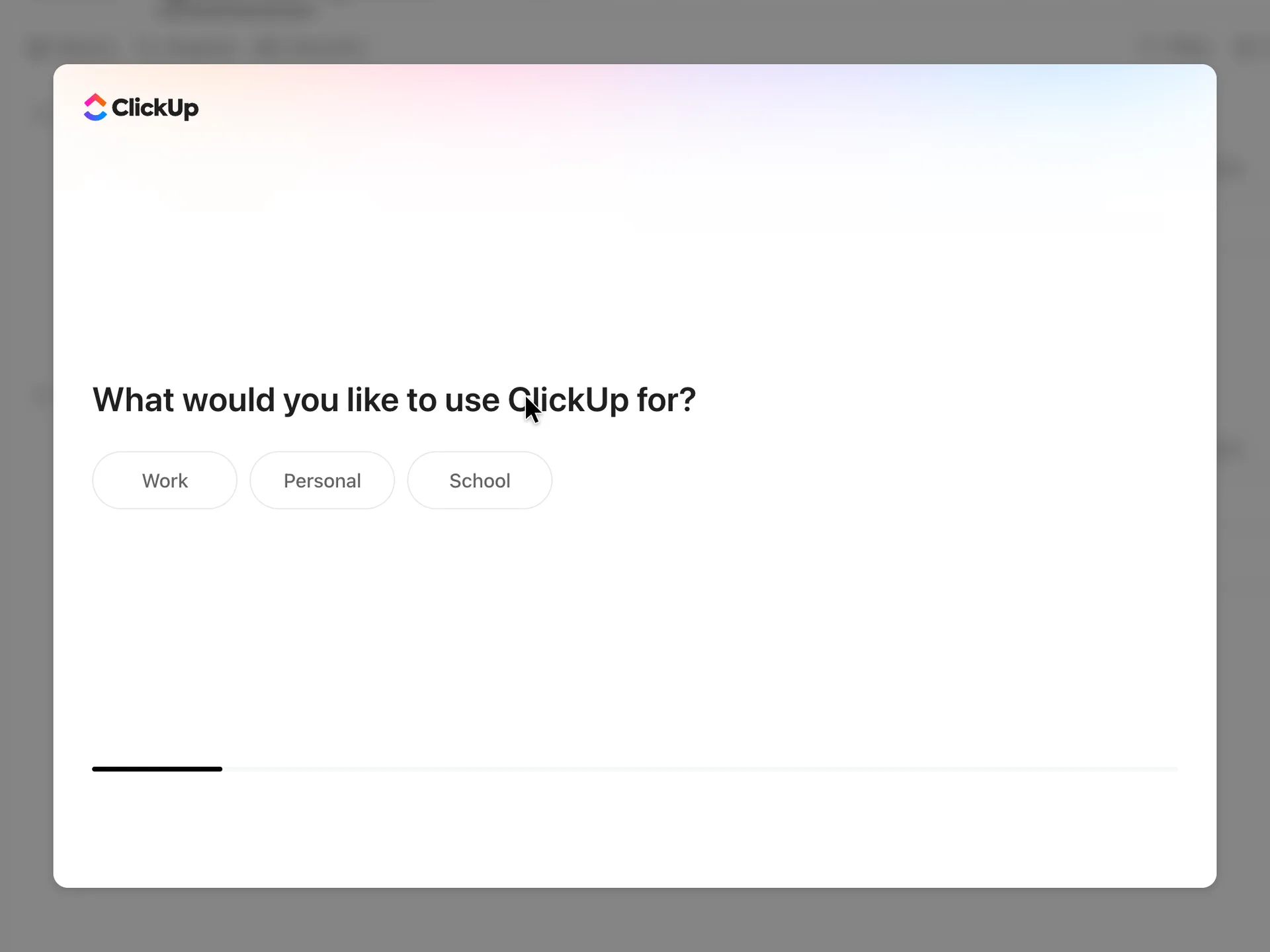
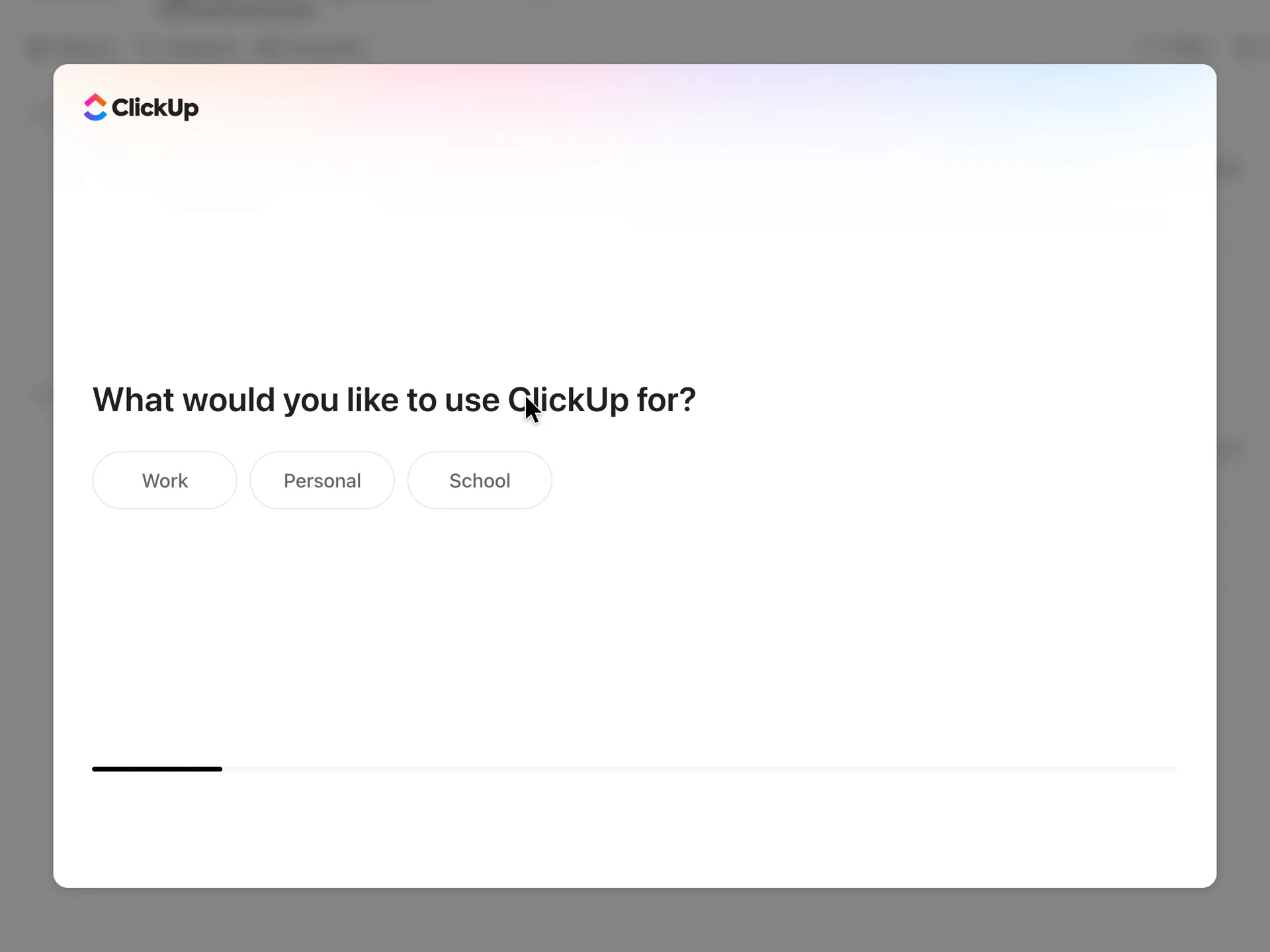
What would you like to use ClickUp for?
Chose Work
Why it works
One tap, three clear answers, and the screen moves on by itself; the progress bar shows how much is left.
What’s on this screen
A large white dialog over a blurred picture of a workspace, with only the ClickUp logo: "What would you like to use ClickUp for?" and three buttons, Work, Personal and School. A thin progress bar along the bottom is about an eighth full. No Back on the first screen.
Step 6 of 17:Setup question
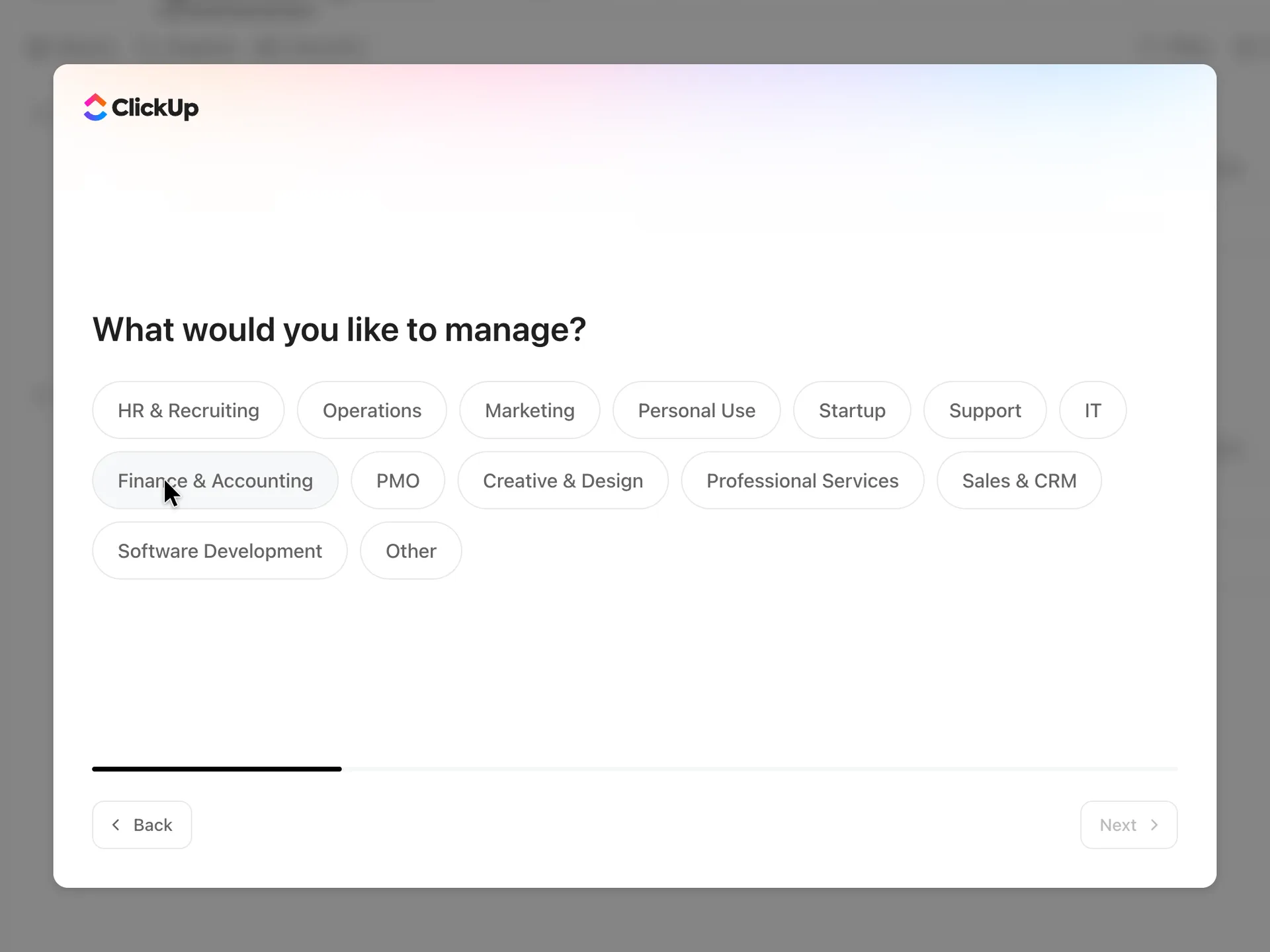
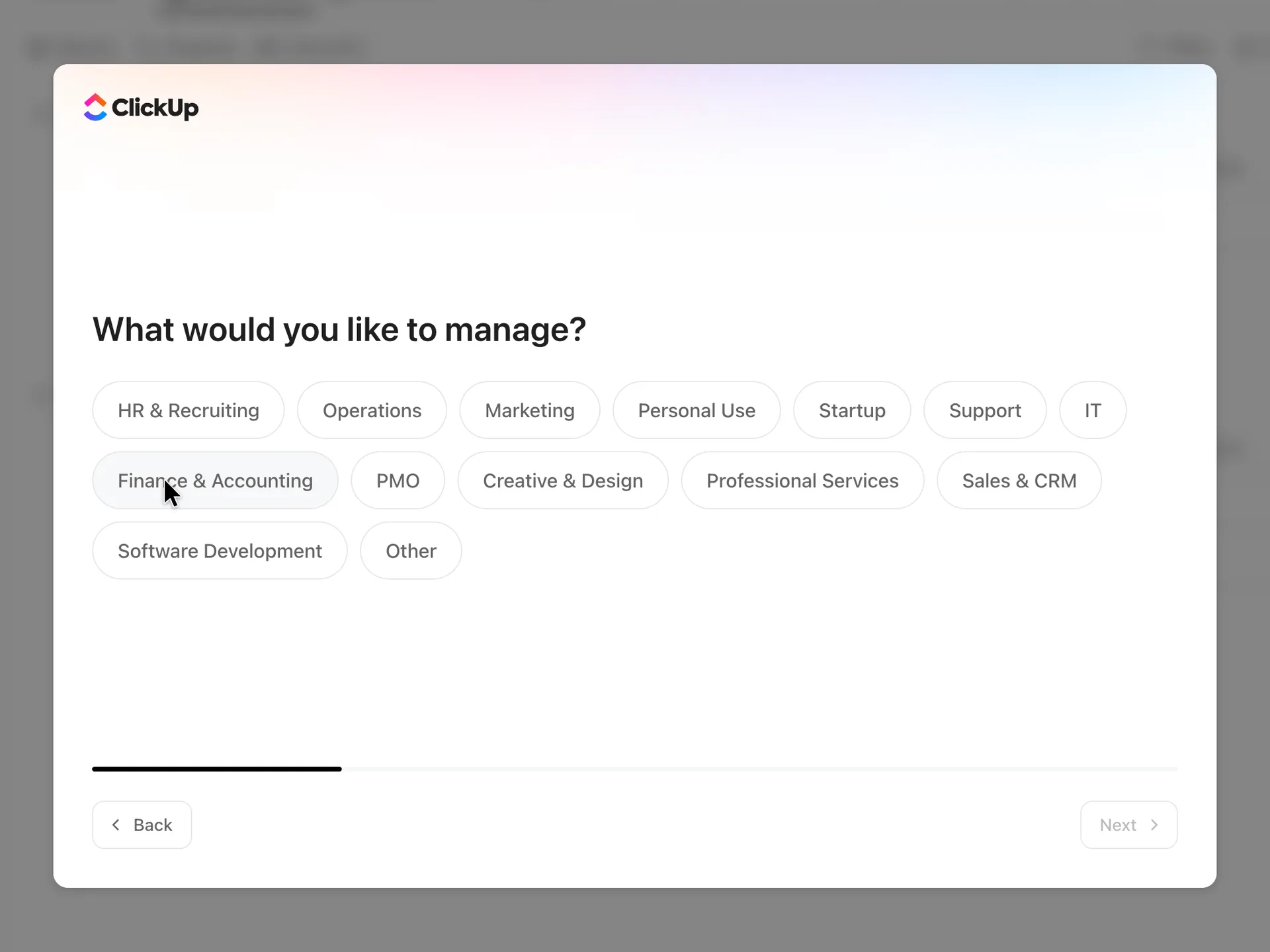
What would you like to manage?
Chose PMO, the closest to project work: there is no Product option
Why it works
The answers are departments, which most people can pick without thinking.
What gets in the way
There is no Product option, so a product manager has to pick PMO, Software Development, Startup or Other; the answer later decides what ClickUp builds.
What’s on this screen
Fourteen chips: HR & Recruiting, Operations, Marketing, Personal Use, Startup, Support, IT, Finance & Accounting, PMO, Creative & Design, Professional Services, Sales & CRM, Software Development and Other. Back and a disabled Next sit at the bottom; one tap moved on without Next.
Step 7 of 17:Setup question
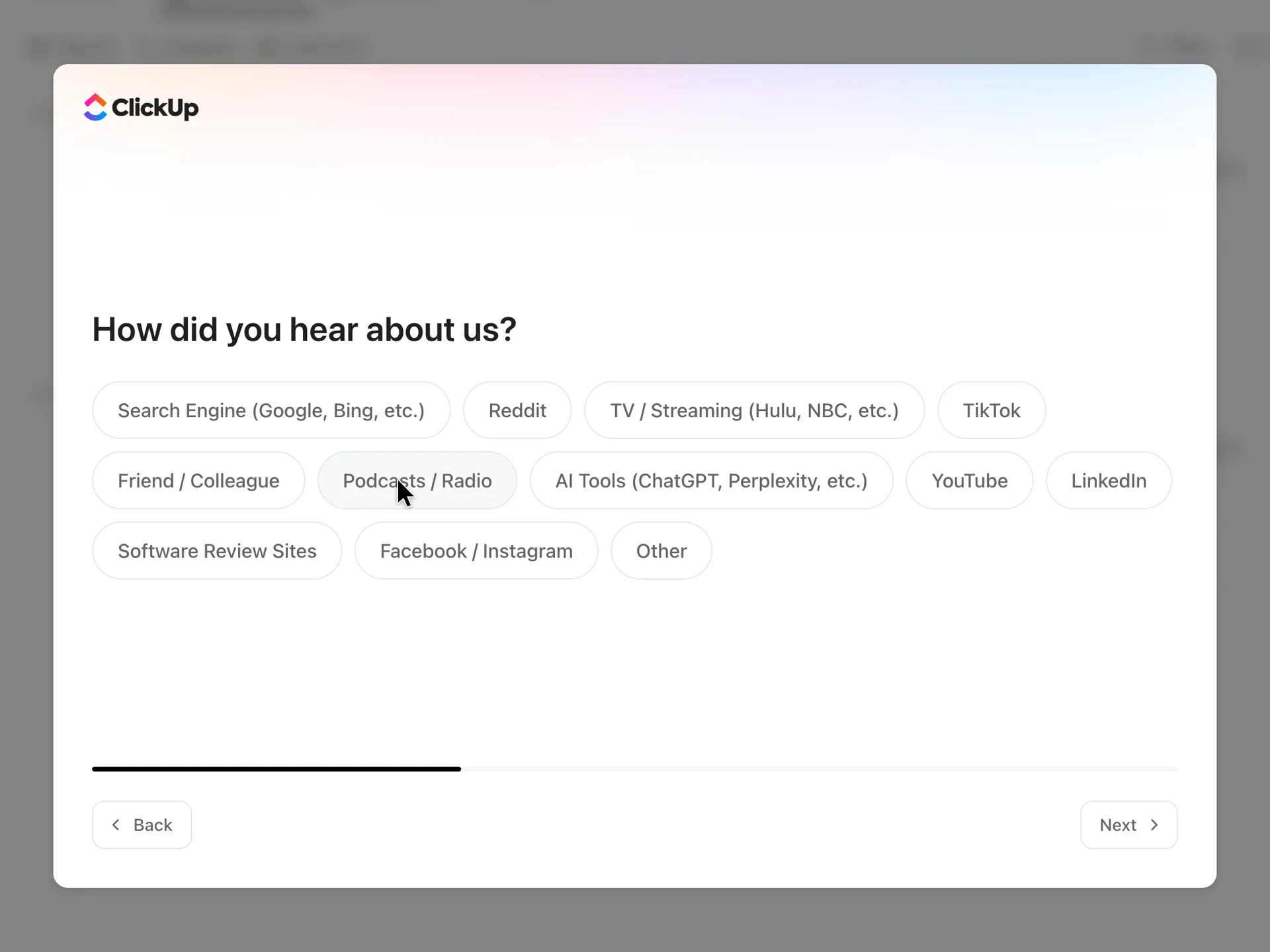
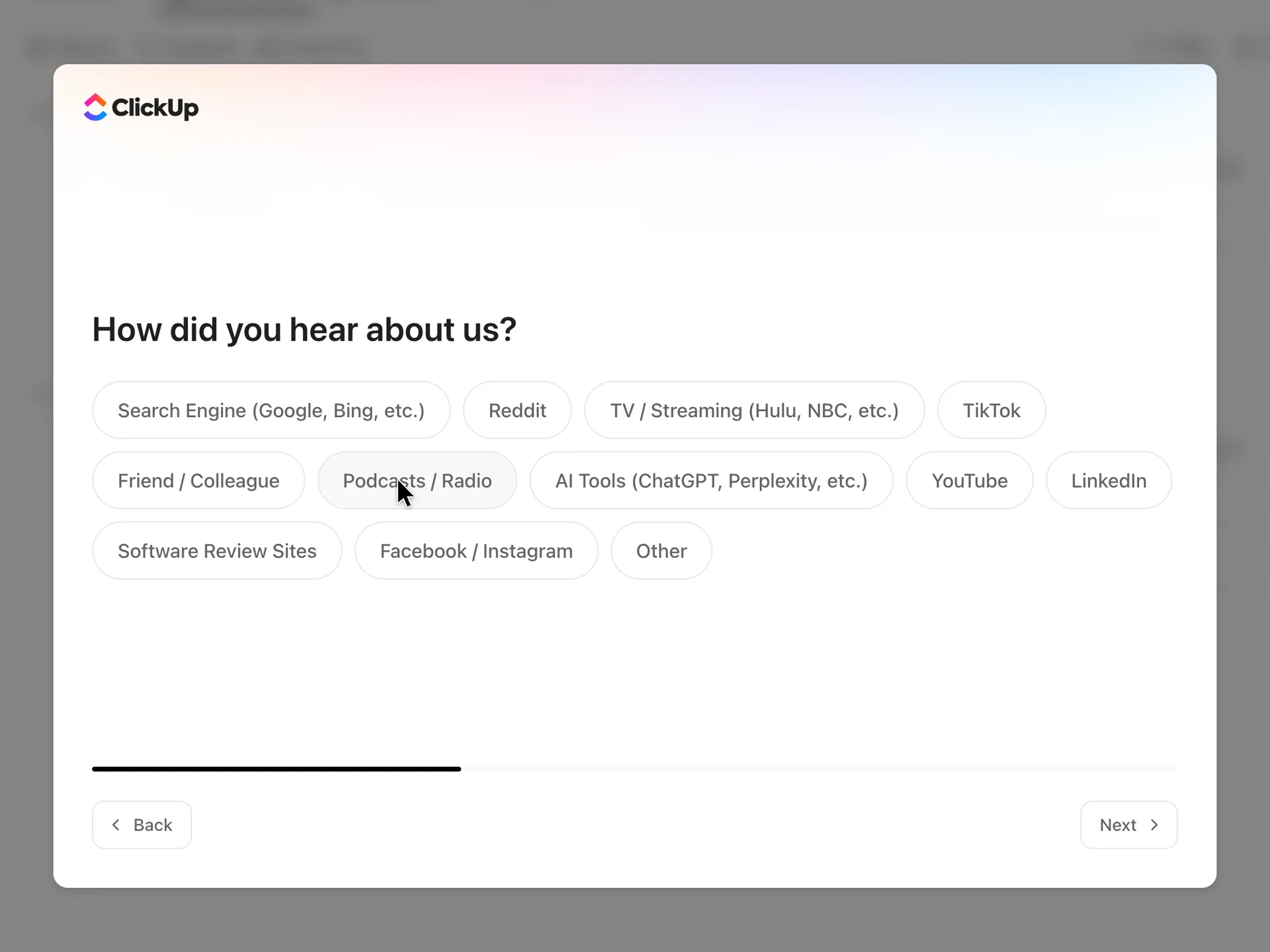
How did you hear about us?
Chose Search Engine (Google, Bing, etc.)
Why it works
A single tap, and Next works without an answer.
What gets in the way
A marketing question in the middle of setup, before the user has seen the product.
What’s on this screen
Twelve chips, from Search Engine and Reddit to AI Tools (ChatGPT, Perplexity, etc.), Software Review Sites and Other. Next is enabled before any choice.
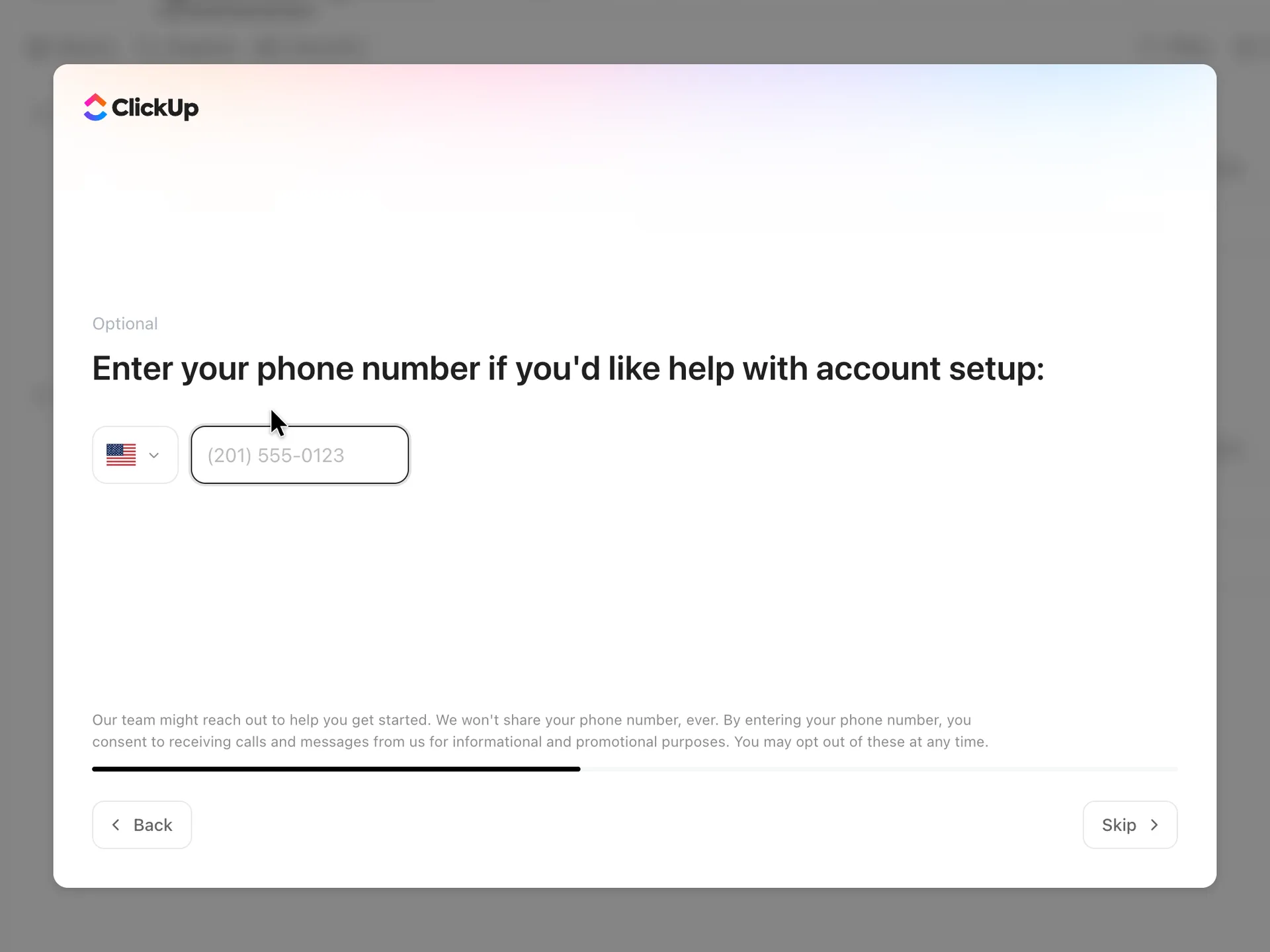
Step 8 of 17:Other
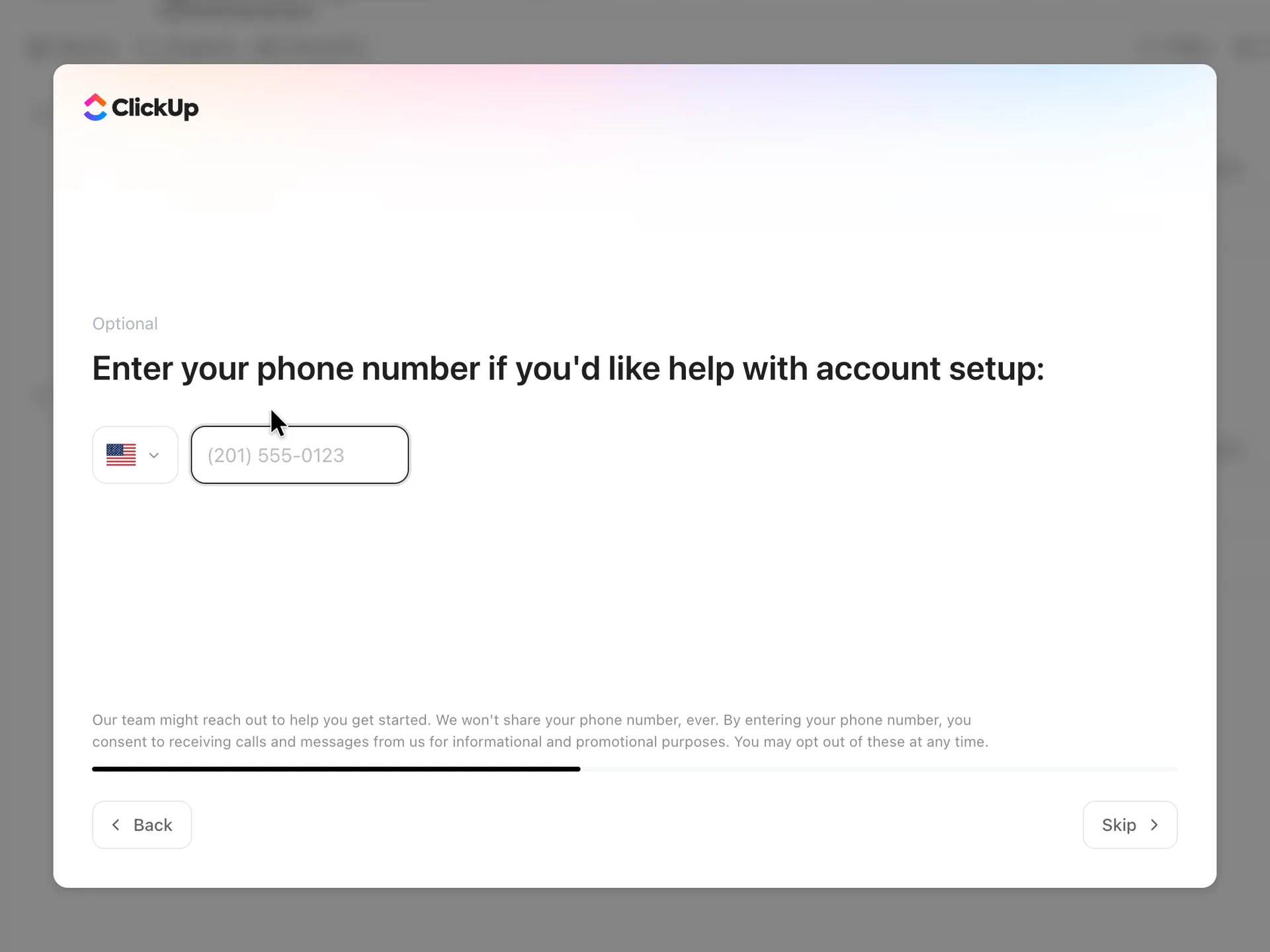
An optional phone number for help with setup
Left the field empty and pressed Skip
Why it works
It is labelled optional, Skip is the only way on, and the small print says plainly that giving a number means agreeing to calls and messages, promotional ones included.
What’s on this screen
"Optional" above "Enter your phone number if you'd like help with account setup:", a country picker preset to the United States and a phone field with the placeholder (201) 555-0123. The small print says ClickUp's team might reach out and that entering a number consents to calls and messages for informational and promotional purposes. Back and Skip; the progress bar is about half full.
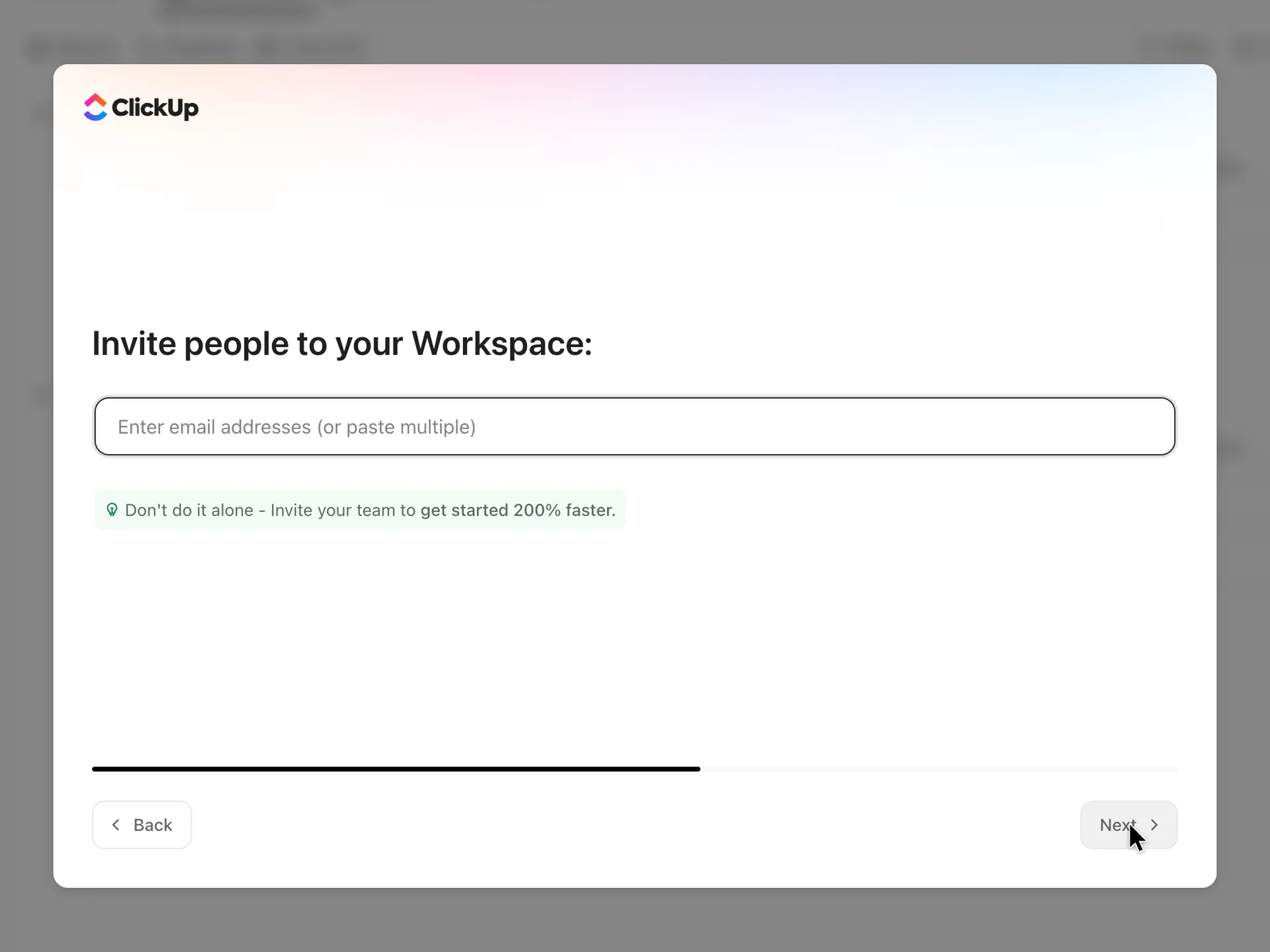
Step 9 of 17:Invite teammates
Invite people to your Workspace
Left the box empty and pressed Next
Why it works
One box takes several addresses at once, and nothing is filled in for the user.
What gets in the way
The 200% figure has no source, and there is no Skip: Next with an empty box leads to another question.
What’s on this screen
"Invite people to your Workspace:" with one empty box, "Enter email addresses (or paste multiple)", and a line urging the user to invite the team to "get started 200% faster". Back and Next; there is no Skip. The box was not prefilled.
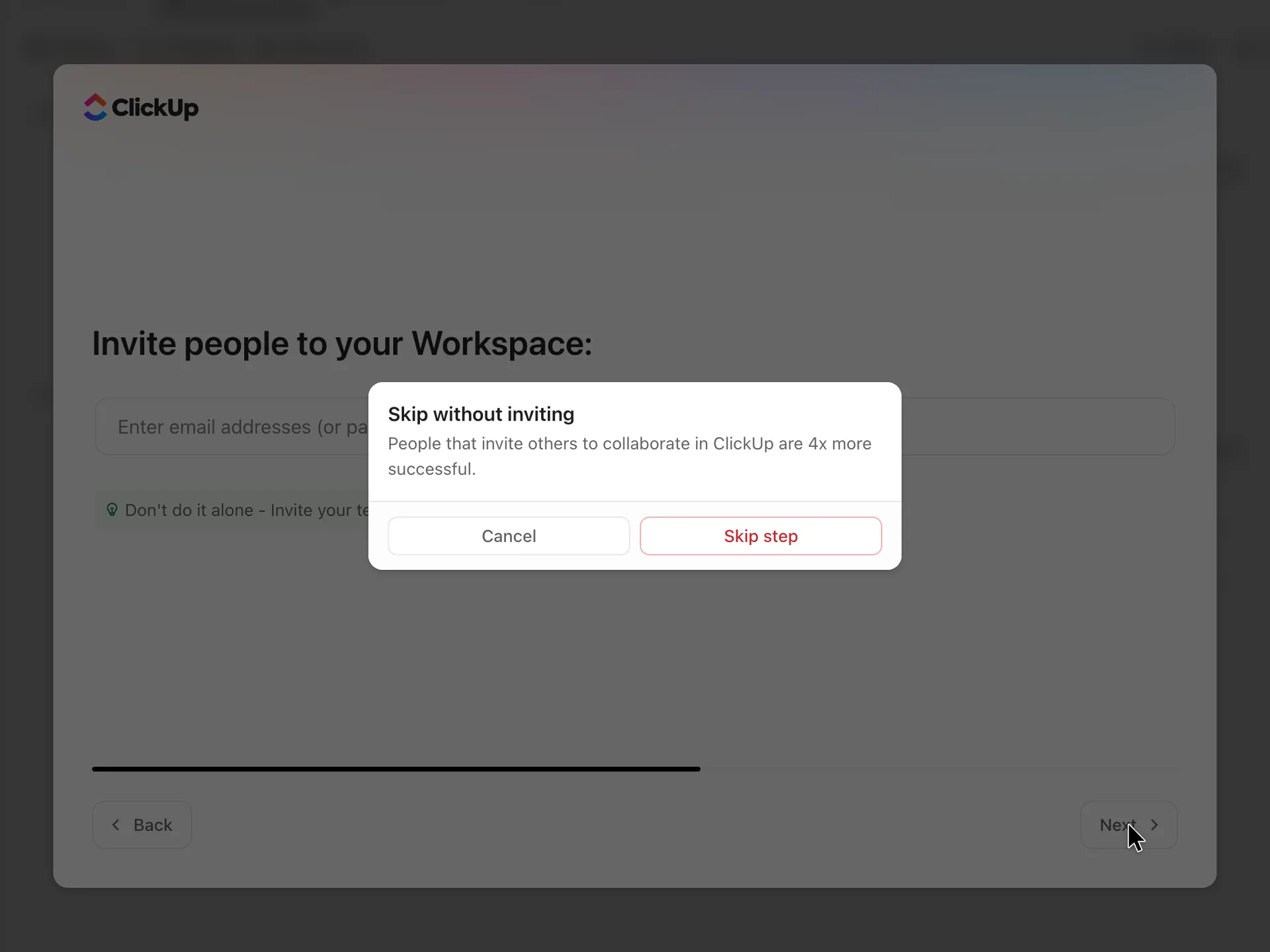
Step 10 of 17:Invite teammates
A second ask before skipping the invites
Pressed Skip step
Why it works
Skip step, in red, stands out more than Cancel, so the user can still skip in one click.
What gets in the way
The same ask twice, now with an unsourced "4x more successful".
What’s on this screen
A small dialog over the invite step, "Skip without inviting": "People that invite others to collaborate in ClickUp are 4x more successful." Two buttons of the same size: Cancel in grey and Skip step in red.
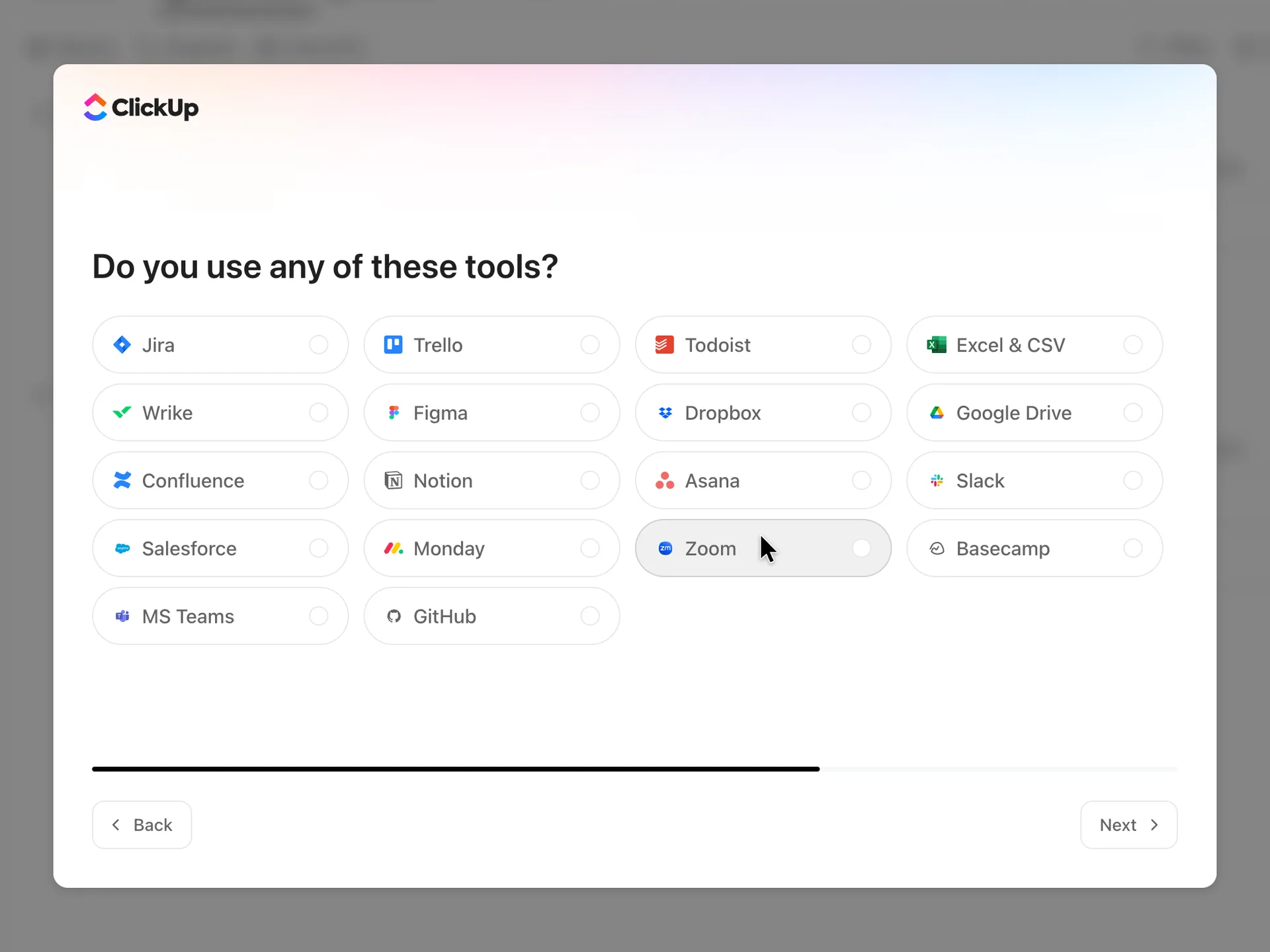
Step 11 of 17:Connect your apps
Do you use any of these tools?
Chose none and pressed Next
Why it works
It only asks: nothing is connected or imported here, and Next works without an answer.
What gets in the way
The screen doesn't say whether picking a tool means importing from it or connecting it.
What’s on this screen
Eighteen tool tiles: Jira, Trello, Todoist, Excel & CSV, Wrike, Figma, Dropbox, Google Drive, Confluence, Notion, Asana, Slack, Salesforce, Monday, Zoom, Basecamp, MS Teams and GitHub. Next works with none chosen.
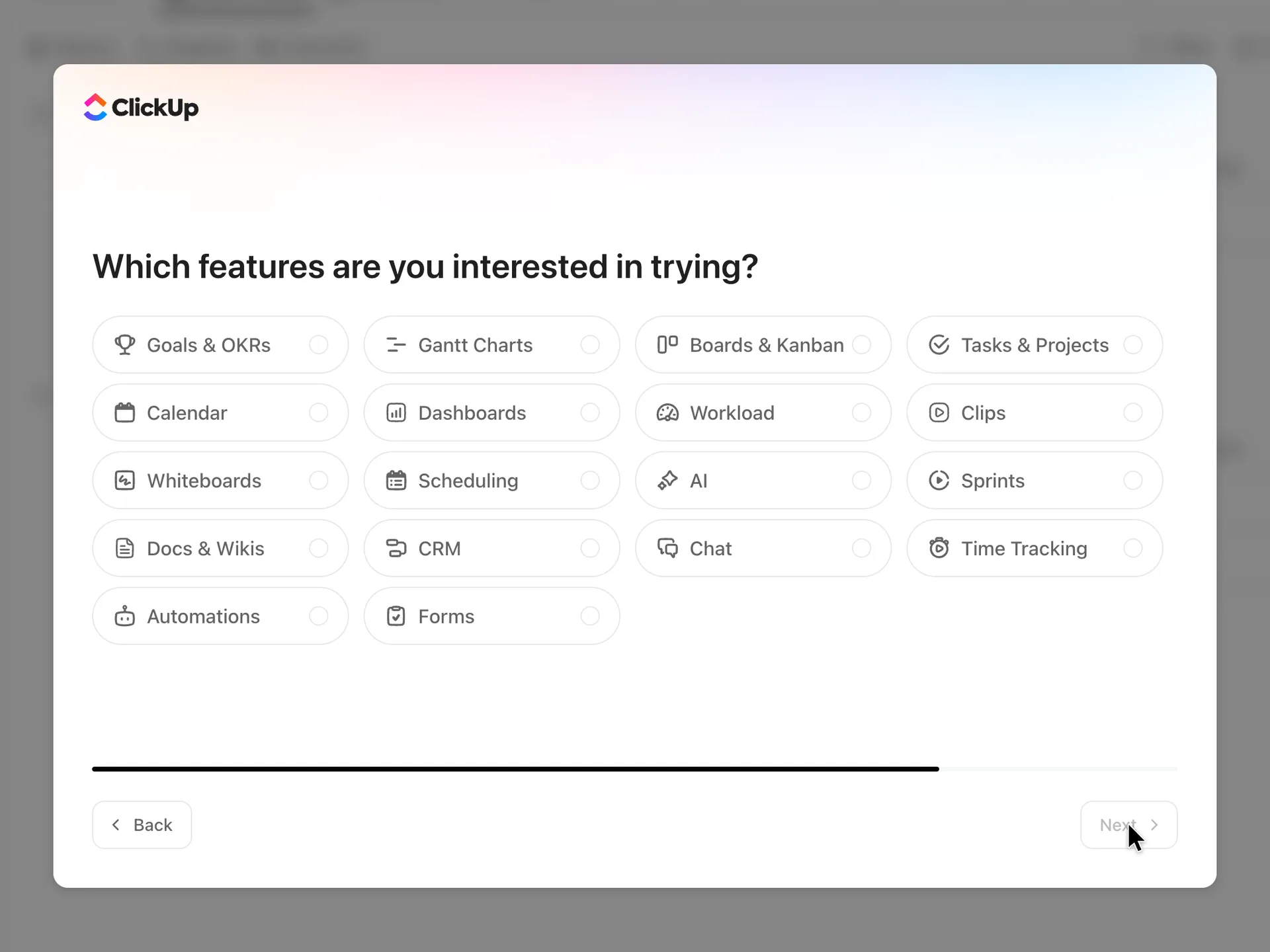
Step 12 of 17:Setup question
Which features are you interested in trying?
Chose Tasks & Projects and Forms, then pressed Next
Why it works
The chips double as a short tour of what the product does.
What gets in the way
Unlike the tools question, this one can't be skipped, and it asks a new user to choose among product feature names before seeing any of them.
What’s on this screen
Eighteen feature chips: Goals & OKRs, Gantt Charts, Boards & Kanban, Tasks & Projects, Calendar, Dashboards, Workload, Clips, Whiteboards, Scheduling, AI, Sprints, Docs & Wikis, CRM, Chat, Time Tracking, Automations and Forms. Several can be chosen; Next stays disabled until at least one is.
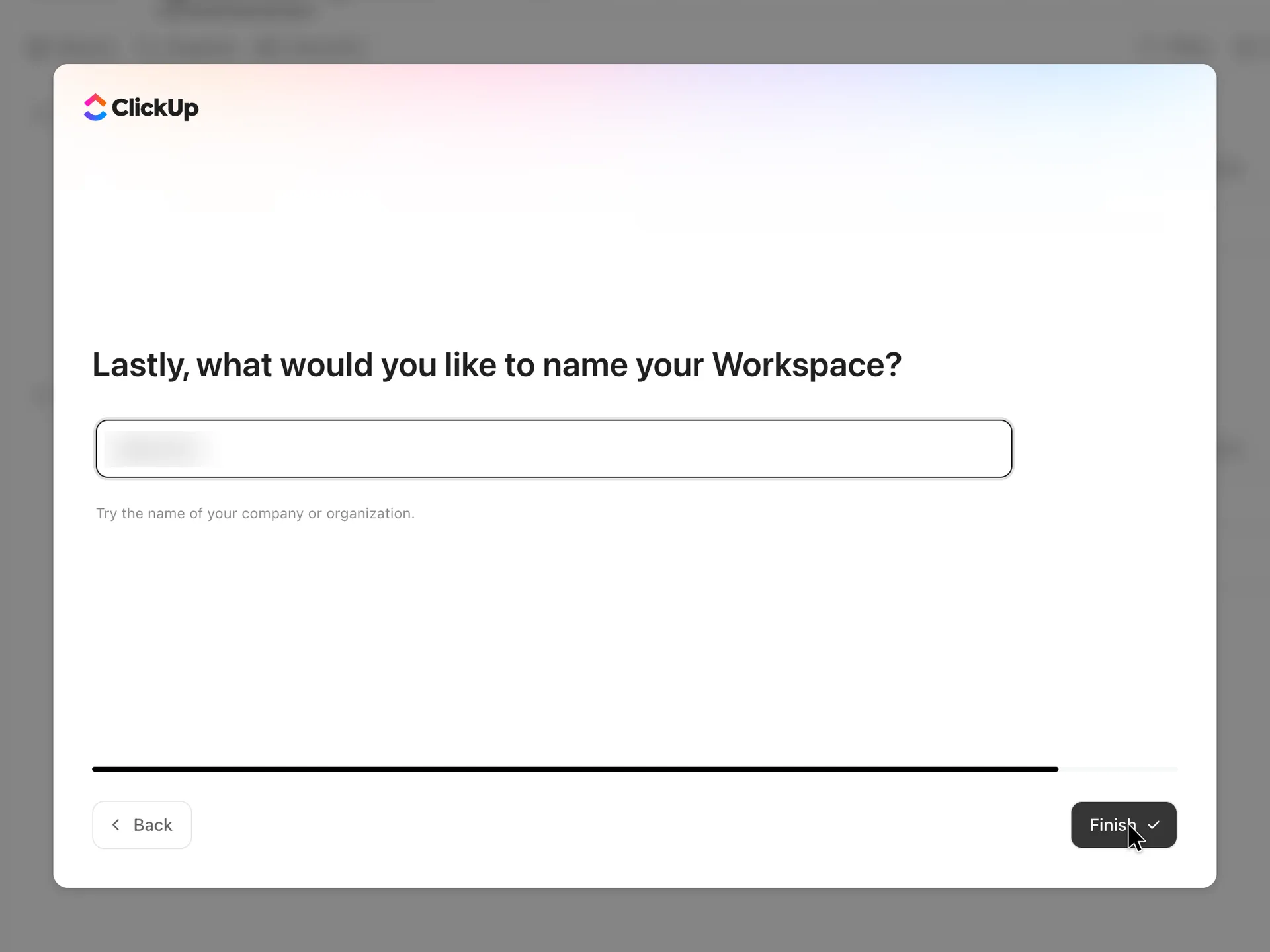
Step 13 of 17:Setup question
Name the Workspace, prefilled from the email
Replaced the prefilled name with Quillmark and pressed Finish
Why it works
"Lastly" tells the user this is the end of setup, and for a company domain the guess saves typing.
What gets in the way
For anyone on a shared mail domain the guess is the mail provider's name, and it goes through unless the user notices.
What’s on this screen
"Lastly, what would you like to name your Workspace?" with the field already filled in with the email address's domain name, capitalised, and the hint "Try the name of your company or organization." Back and Finish.
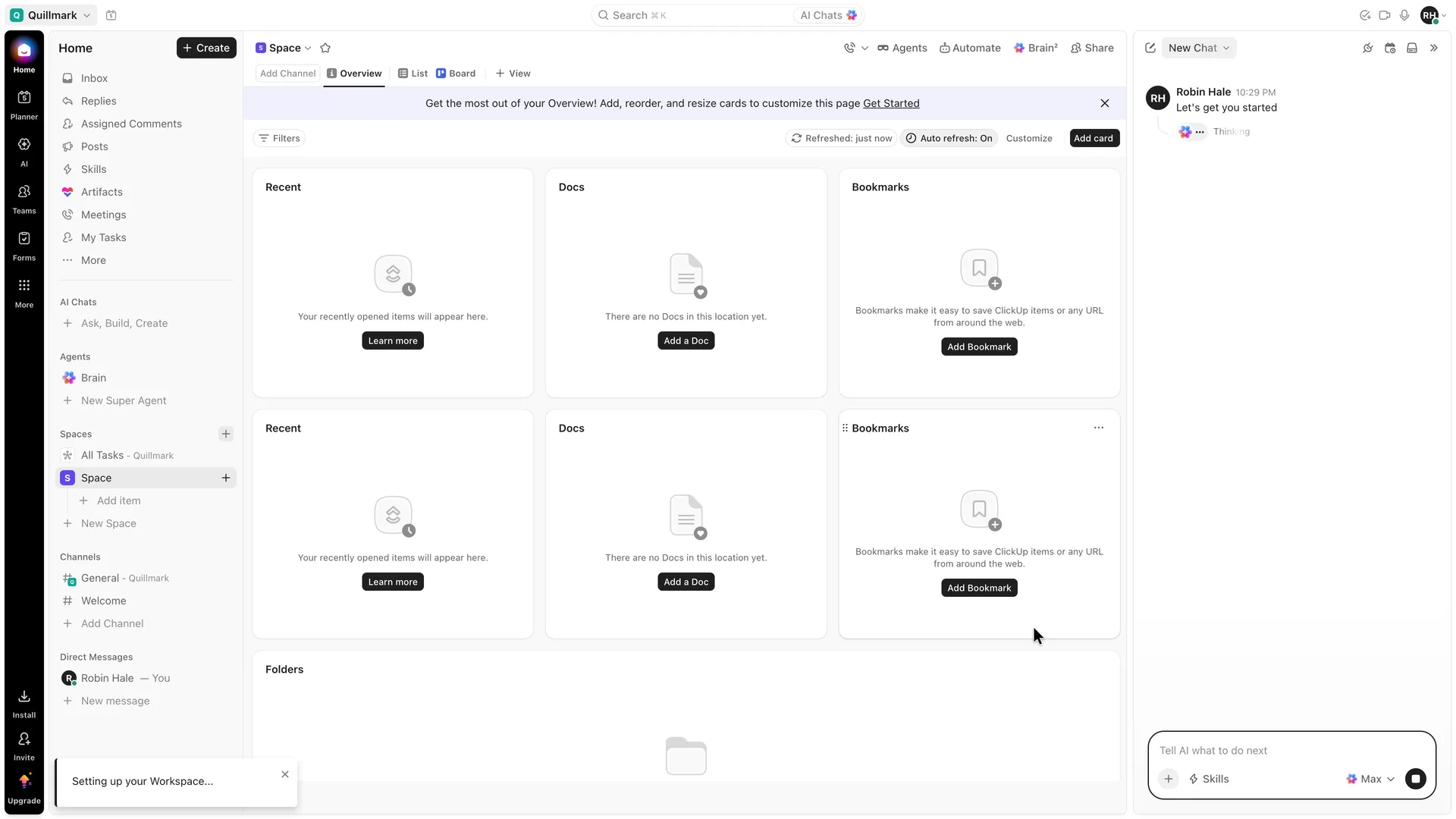
Step 14 of 17:Empty state
The workspace opens on an empty Space overview while AI starts a chat
None: Finish showed a loading screen, then the workspace opened by itself
Why it works
The setup notice says the work is still going on, so the empty cards don't read as the finished workspace.
What gets in the way
The first screen is a dashboard of empty cards, and the AI chat starts with a message posted in the user's name.
What’s on this screen
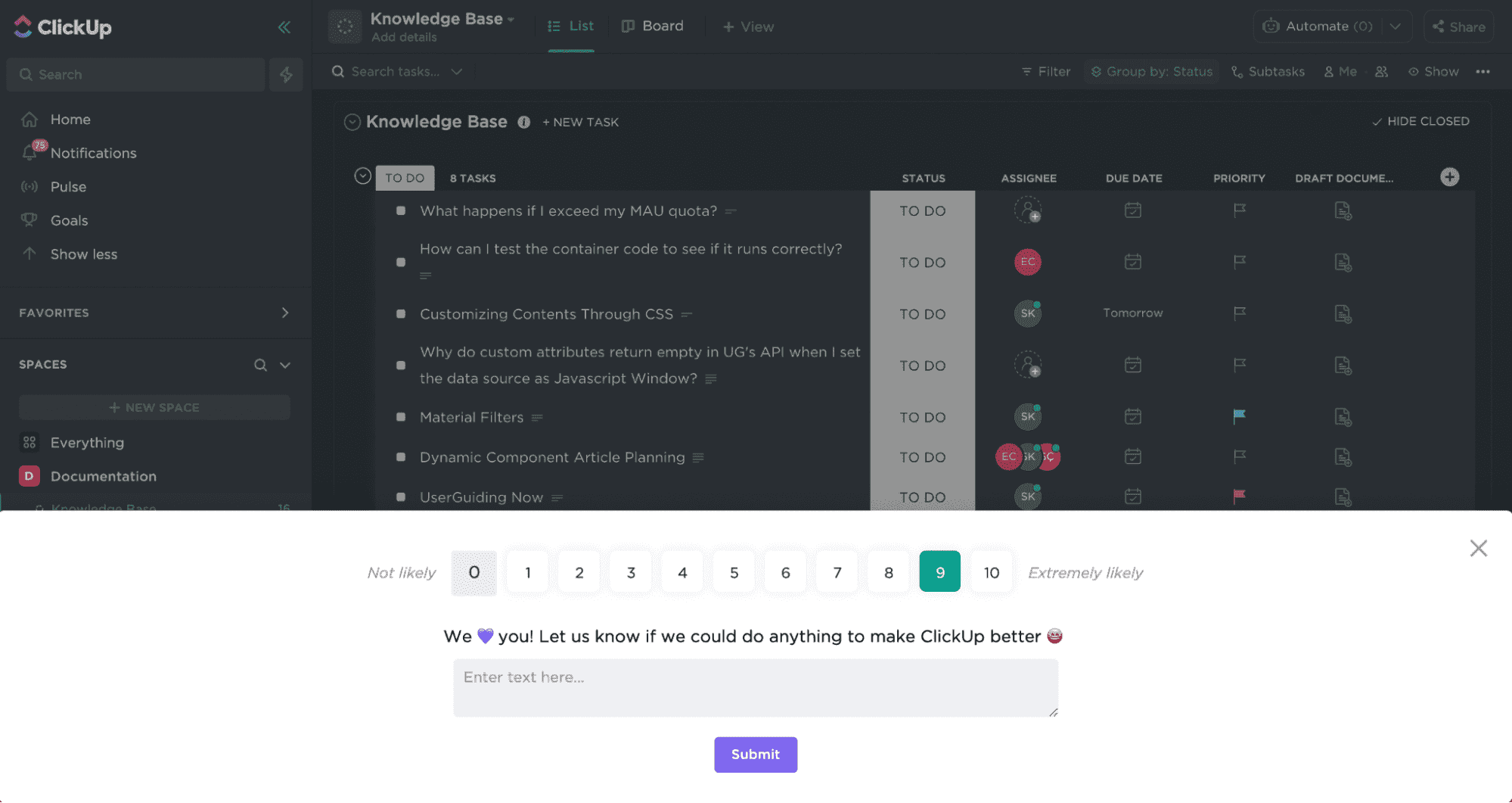
Finish first showed "You're all set! Now go change the world!" with a spinner for a few seconds (not in a screenshot). The workspace then opened on a Space named Space, Overview tab: a banner inviting the user to customise the page, empty cards for Recent, Docs and Bookmarks (each shown twice) and Folders, and a notice at the bottom left, "Setting up your Workspace...". A chat panel opened on the right by itself, with a message under Robin Hale's name, "Let's get you started", that Robin didn't type, and Brain thinking under it. The sidebar lists Home items, AI Chats, Agents (Brain, New Super Agent), Spaces, Channels (General, Welcome) and Direct Messages; the left rail ends with Install, Invite and Upgrade.
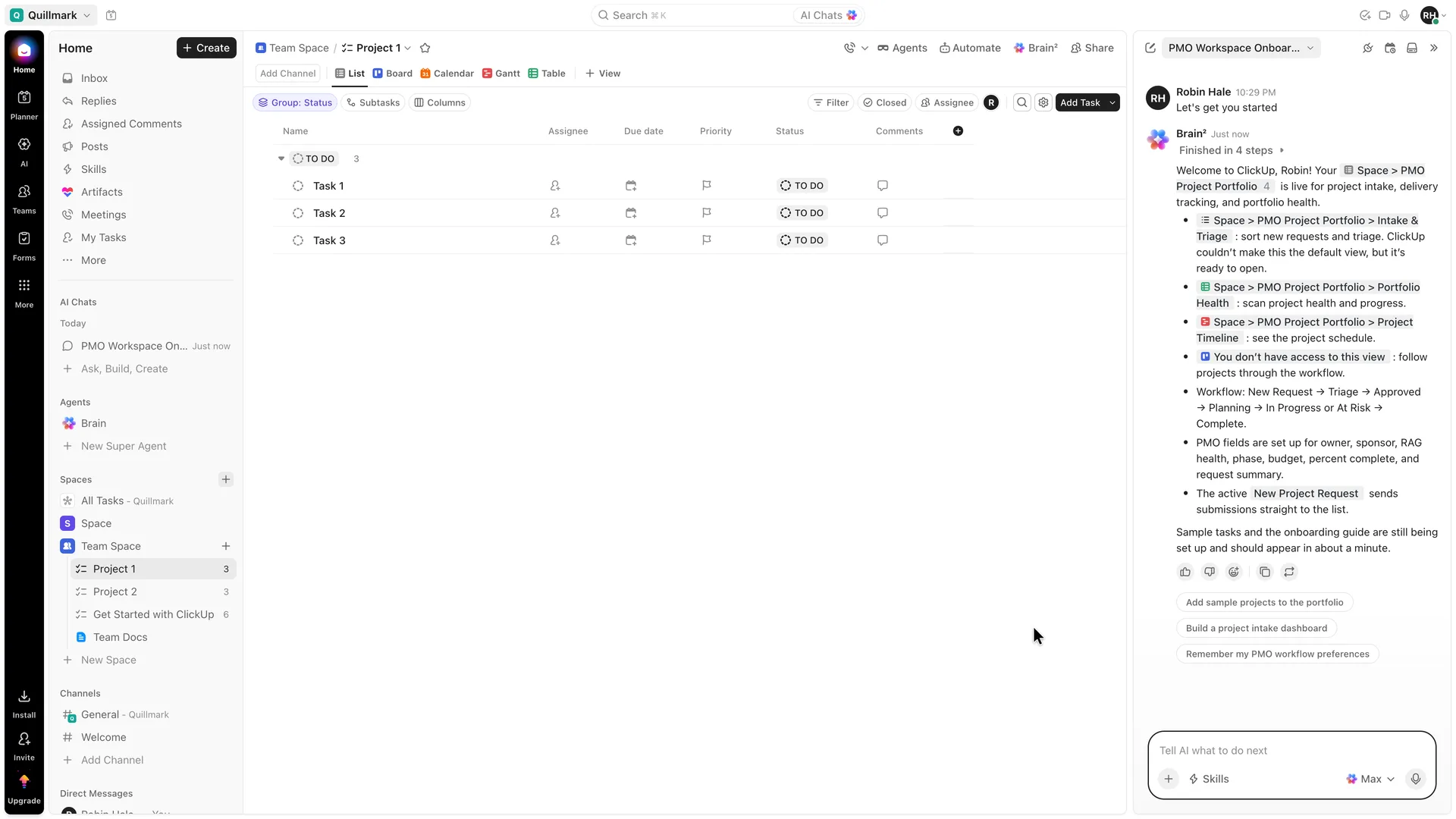
Step 15 of 17:Other
A sample list opens and Brain describes the PMO portfolio it built
Waited for Brain's reply, then opened Intake & Triage from its first link
Why it works
Brain turned one survey answer into a working structure (statuses, fields, views and an intake form) and links each part.
What gets in the way
Two setups compete: the main panel shows a generic Project 1 in Team Space while the AI's portfolio sits in another Space, and one of Brain's links says the user has no access to the view. Everything is named after the PMO answer, which a product manager gave only because the list had no Product option.
What’s on this screen
ClickUp moved on by itself to Team Space > Project 1, a list with Task 1, Task 2 and Task 3, all To Do, with no assignee, date or priority (views List, Board, Calendar, Gantt, Table). The sidebar now shows Space and Team Space, with Project 1, Project 2, Get Started with ClickUp (6) and Team Docs. Brain² answered, "Finished in 4 steps": "Welcome to ClickUp, Robin! Your Space > PMO Project Portfolio is live for project intake, delivery tracking, and portfolio health", with links to Intake & Triage ("sort new requests and triage. ClickUp couldn't make this the default view, but it's ready to open"), Portfolio Health and Project Timeline, an item that reads "You don't have access to this view", a workflow from New Request to Complete, PMO fields (owner, sponsor, RAG health, phase, budget, percent complete, request summary) and "The active New Project Request sends submissions straight to the list." It ends: "Sample tasks and the onboarding guide are still being set up and should appear in about a minute." Three suggestions follow: Add sample projects to the portfolio, Build a project intake dashboard, Remember my PMO workflow preferences.
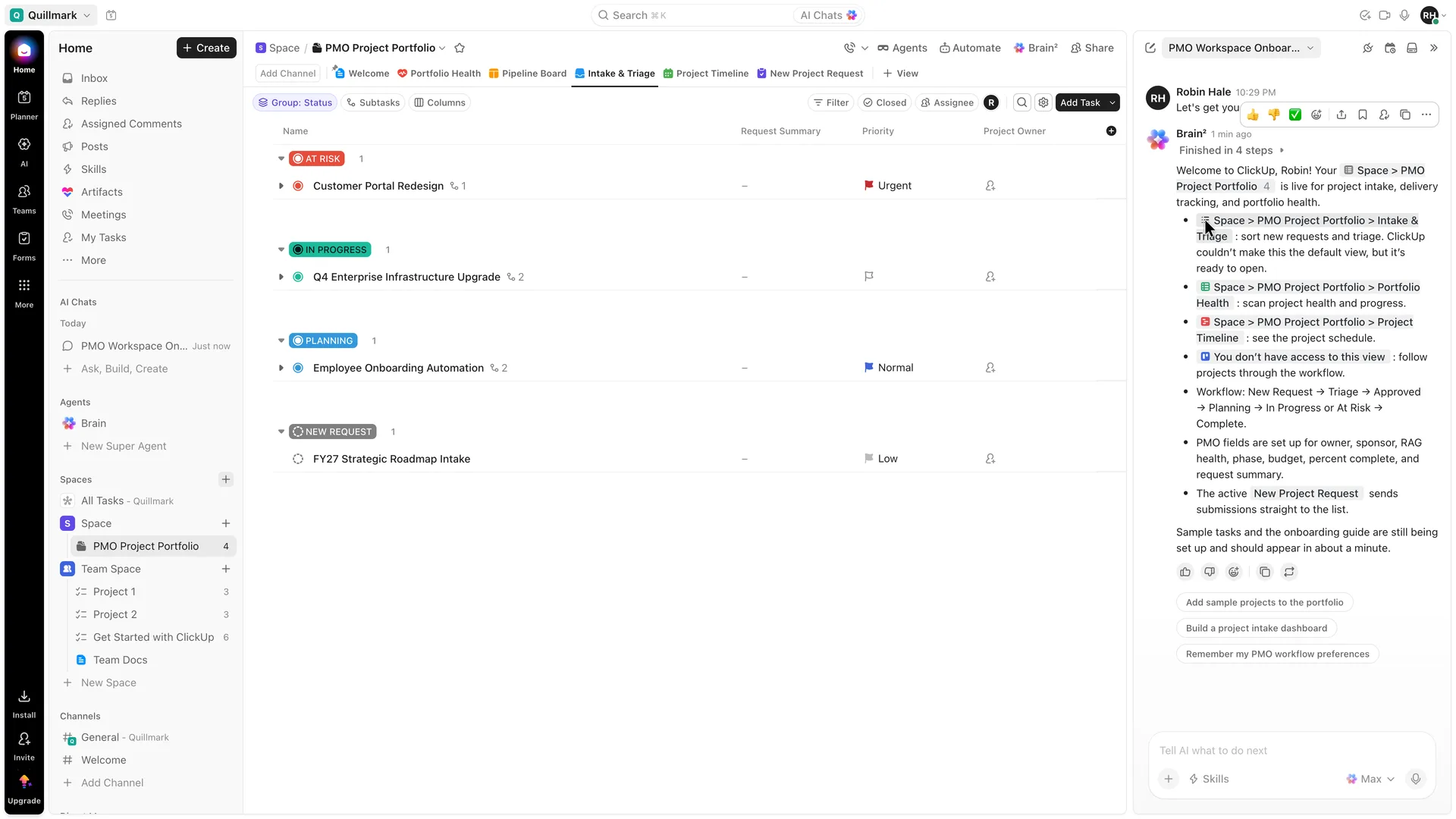
Step 16 of 17:Other
Intake & Triage, with four sample projects
Pressed Add Task under the New Request group (it shows on hover), typed the request and pressed Enter, then Escape to close the next empty row
Why it works
The groups follow the workflow Brain described, so New Request is an obvious place for an incoming request.
What gets in the way
Four made-up projects fill the list, none with a summary or owner, and the statuses are a project pipeline rather than a way to triage feedback. Add Task under a group appears only on hover.
What’s on this screen
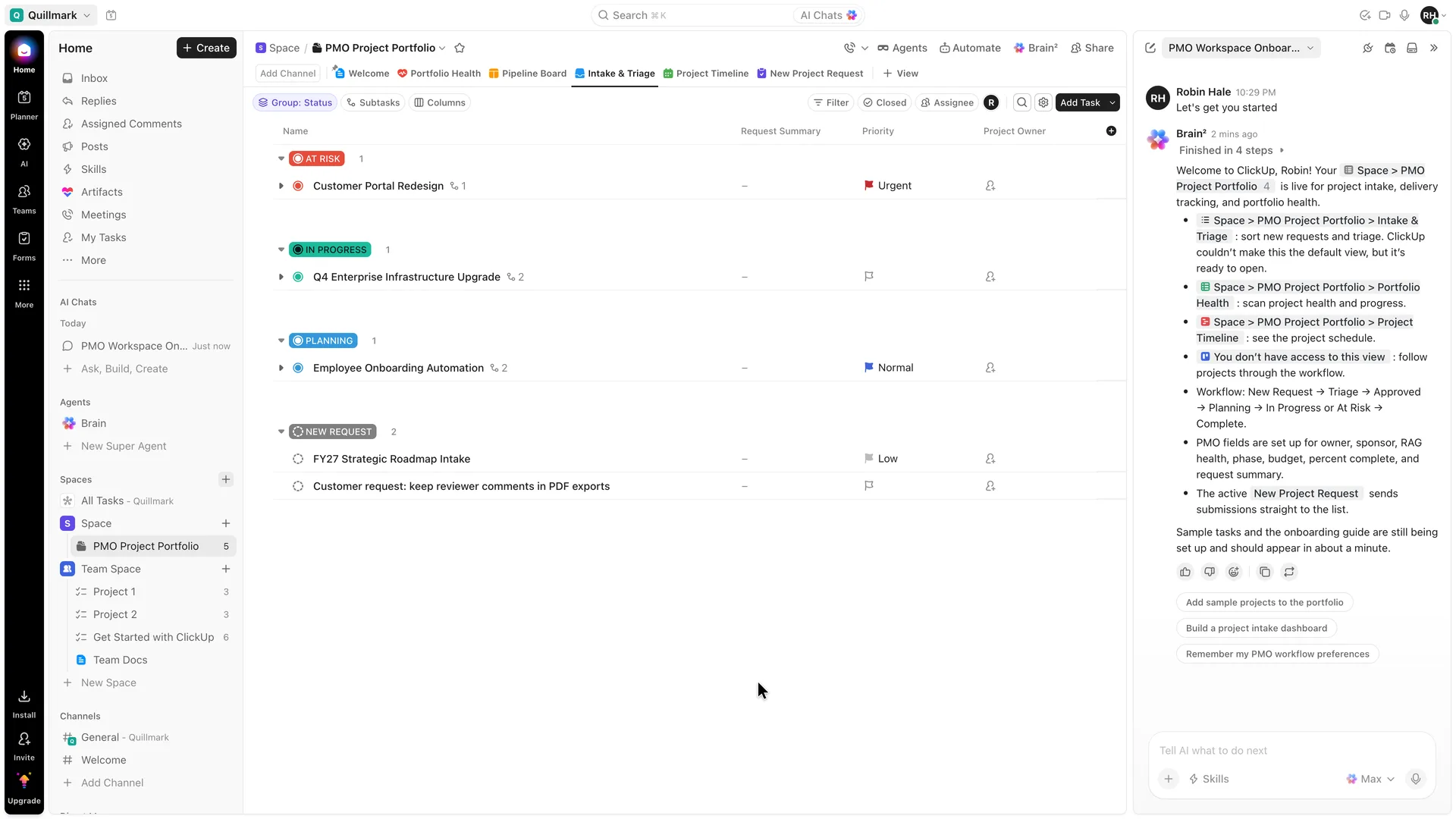
Space > PMO Project Portfolio, Intake & Triage tab, between Welcome, Portfolio Health, Pipeline Board, Project Timeline and New Project Request. Grouped by status: At Risk, Customer Portal Redesign (Urgent); In Progress, Q4 Enterprise Infrastructure Upgrade; Planning, Employee Onboarding Automation (Normal); New Request, FY27 Strategic Roadmap Intake (Low). Request Summary and Project Owner are empty on all four. The reaction bar over Robin's chat message is the pointer's hover after the click.
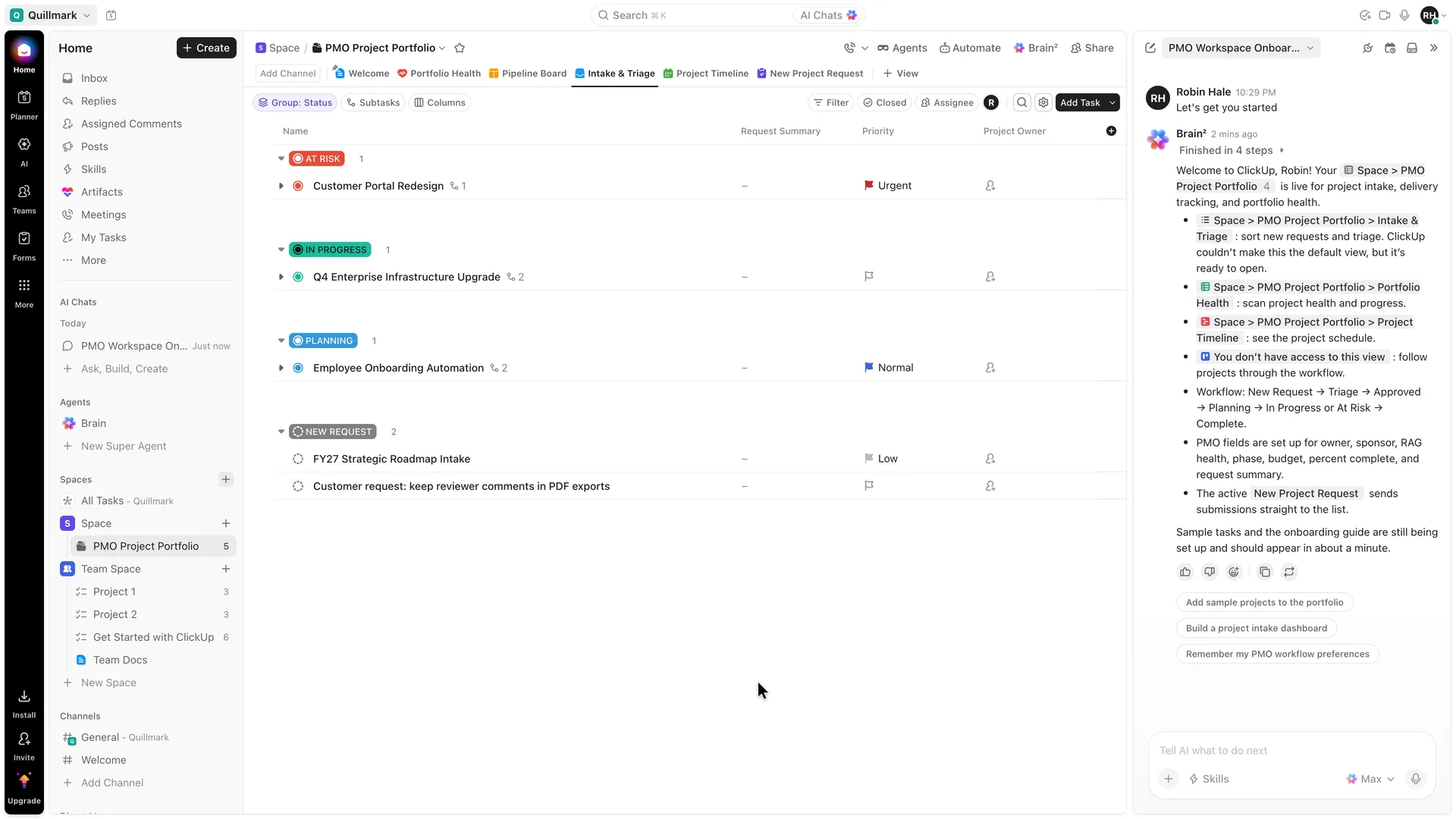
Step 17 of 17:First value
Robin's first request saved under New Request
None: first value
Why it works
Enter saves the task in place, in the group it was added to, and opens a row for the next one.
What gets in the way
The new task has none of the fields the samples show, and nothing points to the next step, such as moving it to Triage.
What’s on this screen
"Customer request: keep reviewer comments in PDF exports" sits under New Request, now 2, below the sample FY27 Strategic Roadmap Intake, with no priority, owner or summary. The sidebar counts 5 items in PMO Project Portfolio. Brain's chat panel is still open.
Verdict
What ClickUp gets right
- The free plan is stated under the homepage's main button, and the account stays on Free Forever: no trial and no card come up anywhere in the flow.
- Marketing email and the terms are separate, unticked boxes, so agreeing to the terms doesn't sign anyone up for marketing.
- Verification is a four-digit code that also sits in the email's subject line, and the form submits itself on the last digit.
- Most setup screens take one tap and move on by themselves, a progress bar shows what is left, and the phone, invite and tools questions can all be passed without an answer.
- ClickUp's AI turns the setup answers into a working structure (statuses, fields, views and an intake form) and links each part from its message.
What we’d change
- Add Product to "What would you like to manage?". A product manager has to pick PMO, Software Development or Other, and that answer names everything the AI builds.
- Open one workspace, not two. The main panel shows a generic Project 1 with Task 1 to 3 while the AI's portfolio sits in another Space; land the user in what the AI built, or leave the generic one out.
- Don't post in the user's name. The AI chat opens with "Let's get you started" under Robin's name, a message Robin never typed.
- Ask about invites once, and drop the unsourced figures ("200% faster", "4x more successful") from both asks.
- Leave the Workspace name empty, or guess it only from a company domain: for anyone on a shared mail domain, the prefilled name is the mail provider's.
How we recorded it
- Recorded
- 5 Nov 2026
- Agent
- Claude Opus 5.5 in Claude Code
- Browser
- Chromium driven through Playwright MCP 0.0.84, a 1920 × 1080 window at 2× pixel density
- Signed up as
- Robin Hale, product manager at Quillmark (a made-up B2B SaaS company); a team of 26 to 50 people; wants one list for customer feedback and feature requests, triaged each week into what the team builds next
- Stopped at
- Added a first customer request, 'Customer request: keep reviewer comments in PDF exports', under New Request in the Intake & Triage list that ClickUp's AI built
- Done by a person
- step 3, the full sign-up form, with a terms checkbox. An agent never accepts a product’s terms or gets past a verification on its own.
The agent answered every setup question as that person and skipped anything that would connect real data or invite real people. Screenshots are cropped to the part of the screen each step is about, and personal data in them is blurred. The figures at the top count the screens up to first value; form fields count every field shown, filled in or not.
Onboarding flows change, and this one is as ClickUp showed it on 5 Nov 2026. Seen a different flow, or want this page corrected or removed? Write to hello@useronboarding.academy.