Onboarding teardown · Duolingo
Duolingo onboarding, screen by screen: a first lesson before any signup
We had an AI agent go through Duolingo's onboarding on the web as a fictional learner, from the homepage to a finished Spanish lesson and on to an account. Duolingo asked for no email or password until the lesson was done, and a person stepped in once, to accept the terms. These are the screens it saw, in order, with what each one does well and what gets in the way.
By the UserOnboarding Academy teamRecorded 5 Nov 2026How we recorded it
UserOnboarding Academy isn't owned by Duolingo or any onboarding tool, and Duolingo didn't sponsor or review this page. The account was created for this recording only.
In short
Duolingo lets a new learner finish a whole lesson before it asks for anything personal. Six one-tap questions shape the course, and the first exercise can be answered from a picture, so the first right answer comes almost at once. The cost is the clicks around them: six screens before the lesson are the mascot talking or a promise, with nothing to choose, and after the lesson five reward screens and a second goal question stand between the learner and the signup that saves it all.
- Screens to first value
- 18
- Setup questions
- 6
- Form fields shown
- 0
- Steps a person did
- 0
The flow at a glance
marks a step a person did
 01The homepage offers Get started or an existing account
 02Pick what to learn from a grid of courses
 03Duo, the owl mascot, introduces himself
 04A second mascot screen before the first question
 05How did you hear about Duolingo?
 06Why are you learning Spanish?
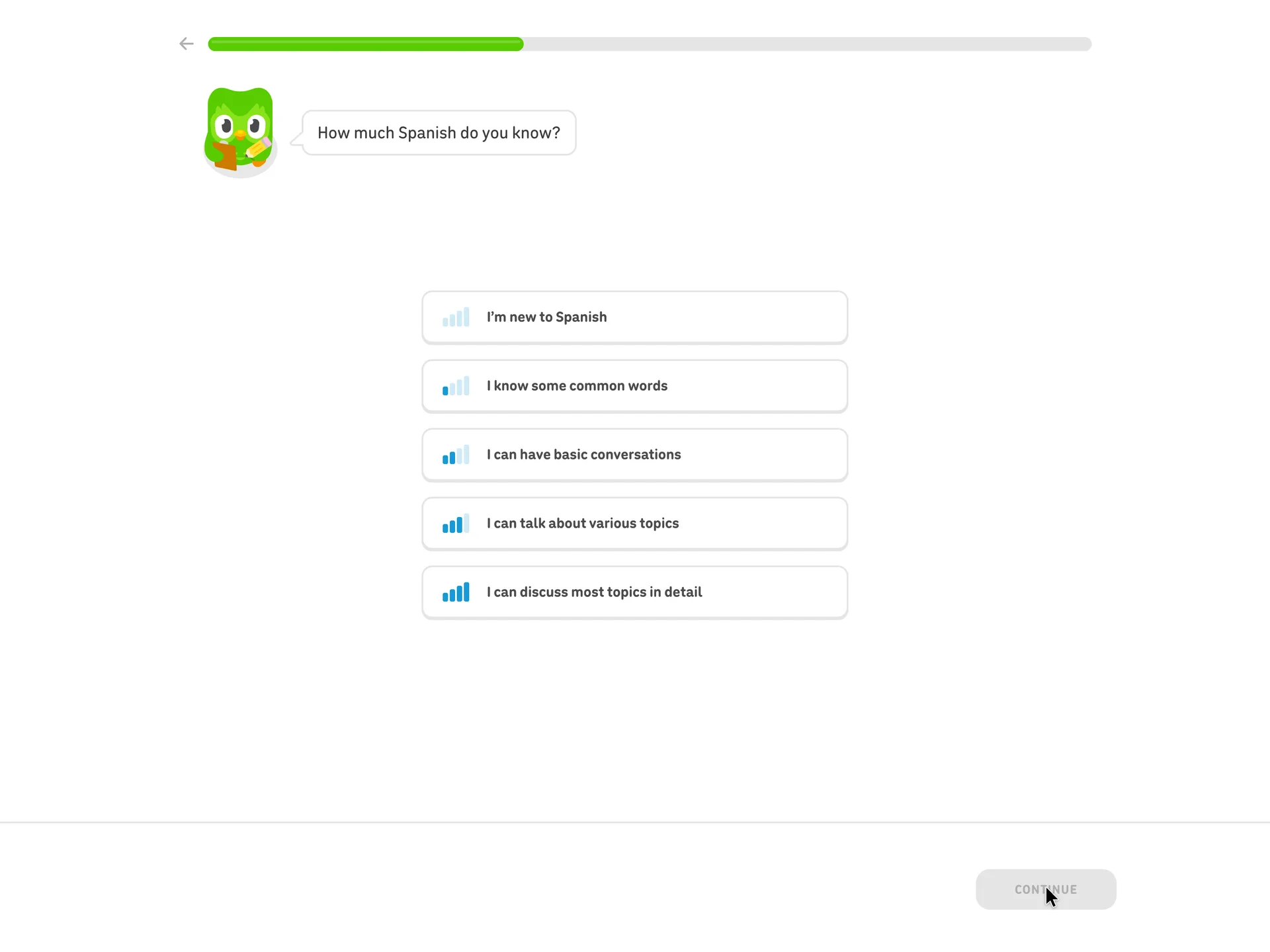 07How much Spanish do you know?
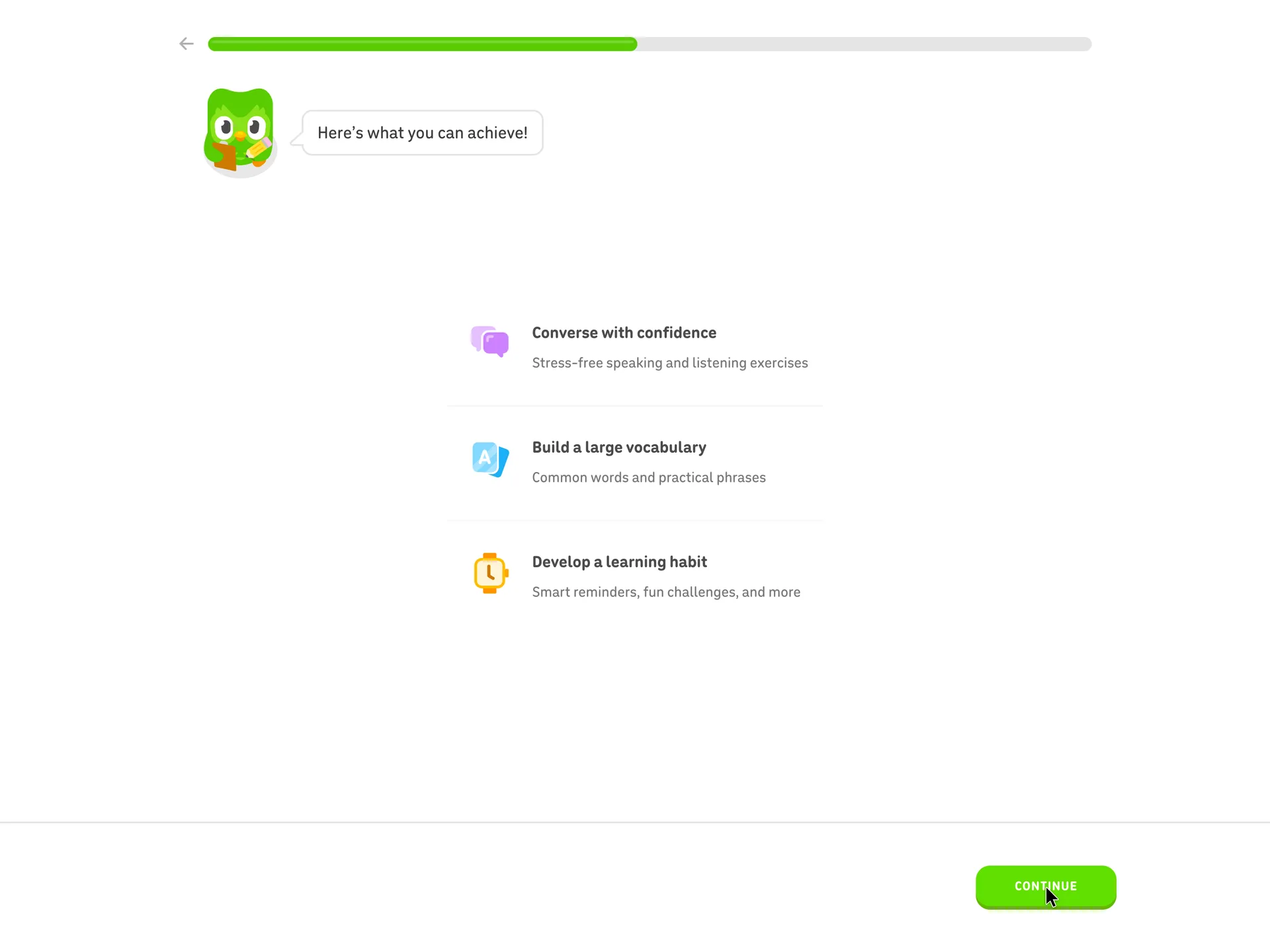 08Here's what you can achieve, in three promises
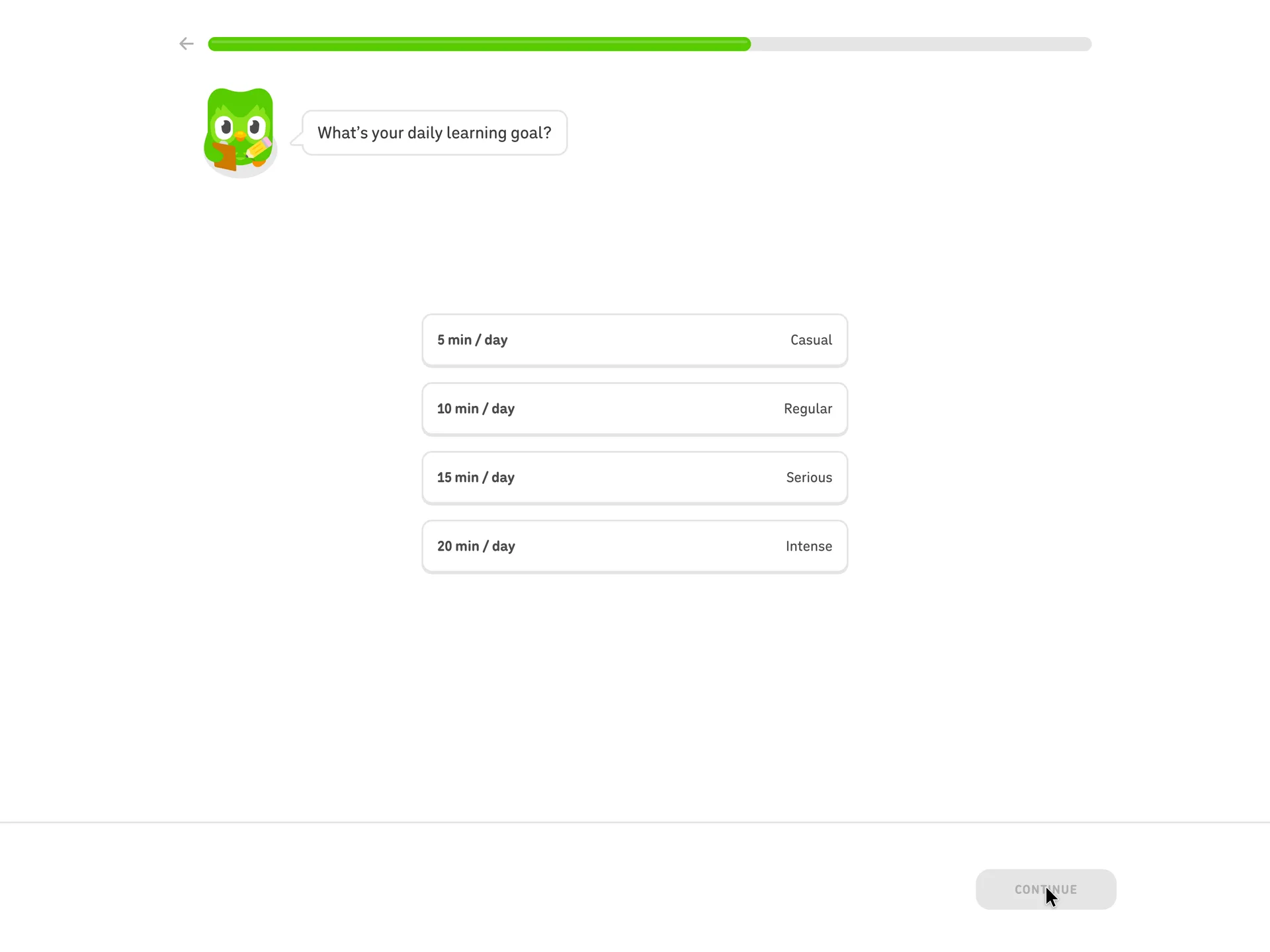 09What's your daily learning goal?
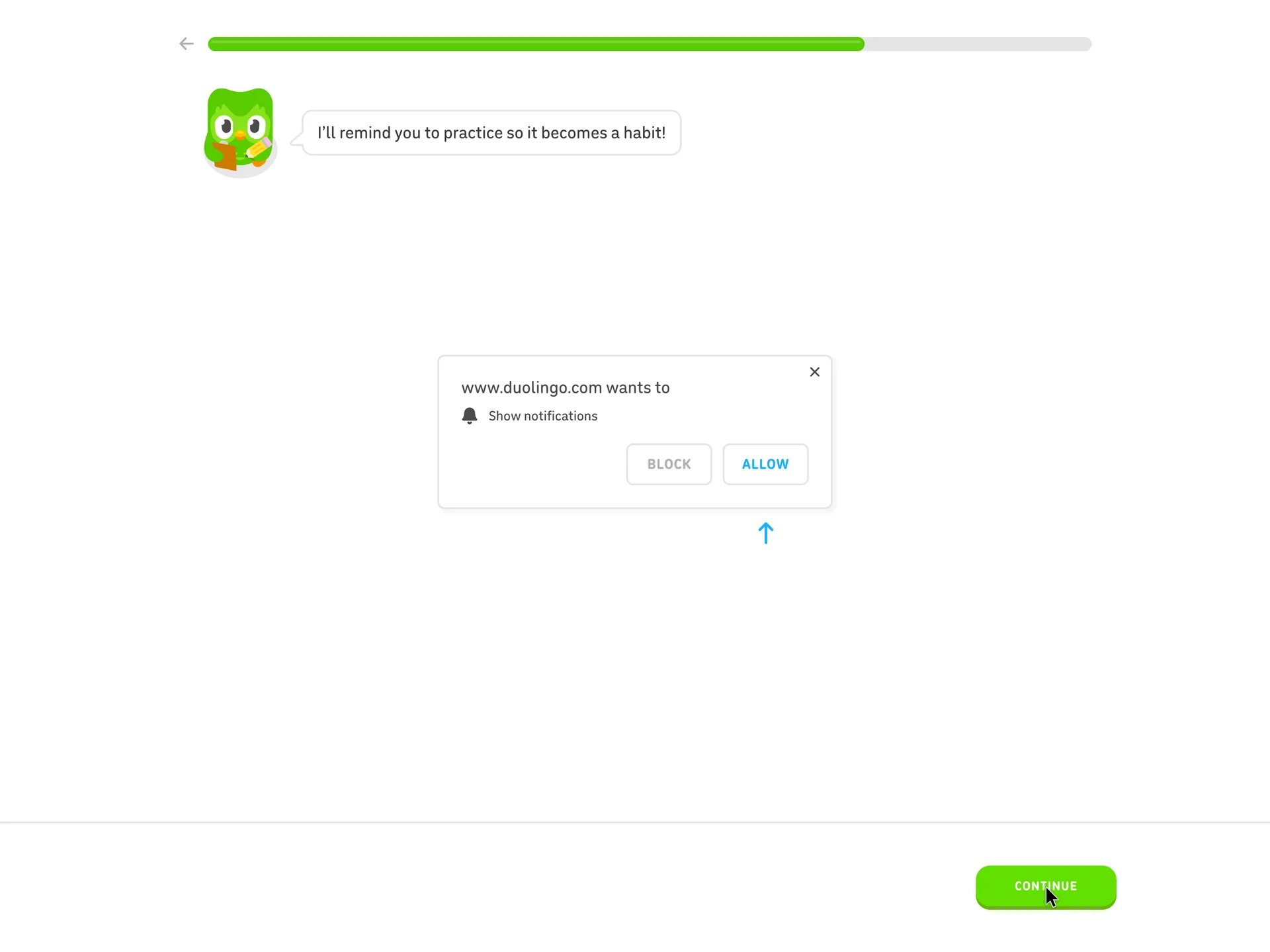 10A notification primer drawn inside the page
 11Start from scratch or find my level
 12Duo warns that motivation is hard
 13Duo finishes the thought: fun like a game
 14The first exercise: pick the picture for a new word
 15Instant feedback on the first answer
 16Match the five new words to their meanings
 17A mid-lesson cheer for five in a row
 18 · first valueLesson complete, before any account exists
 19A Duolingo Spanish Score of 1 is unlocked
 20A 1 day streak starts on the first day
 21Commit to a Streak Goal
 22All Daily Quests complete after one lesson
 23Time to create a profile, with Later as an option
 24Age first, on a screen of its own
 25Choose a sign-up option: Google, Apple or email
 26Create your profile: name, email and password
 27The learning path, with the first lesson already done
Step 1 of 27:Other
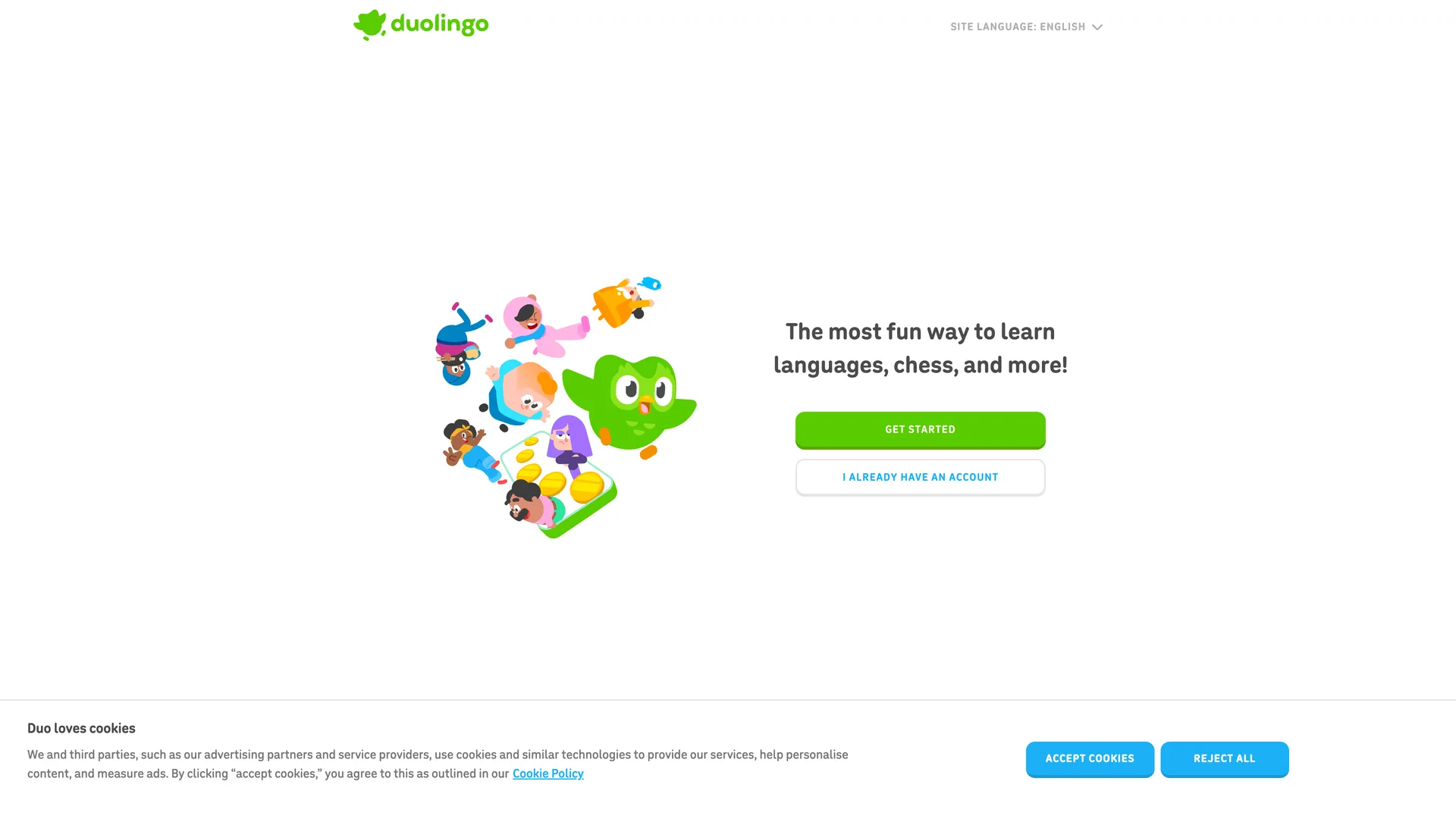
The homepage offers Get started or an existing account
Clicked Get started
Why it works
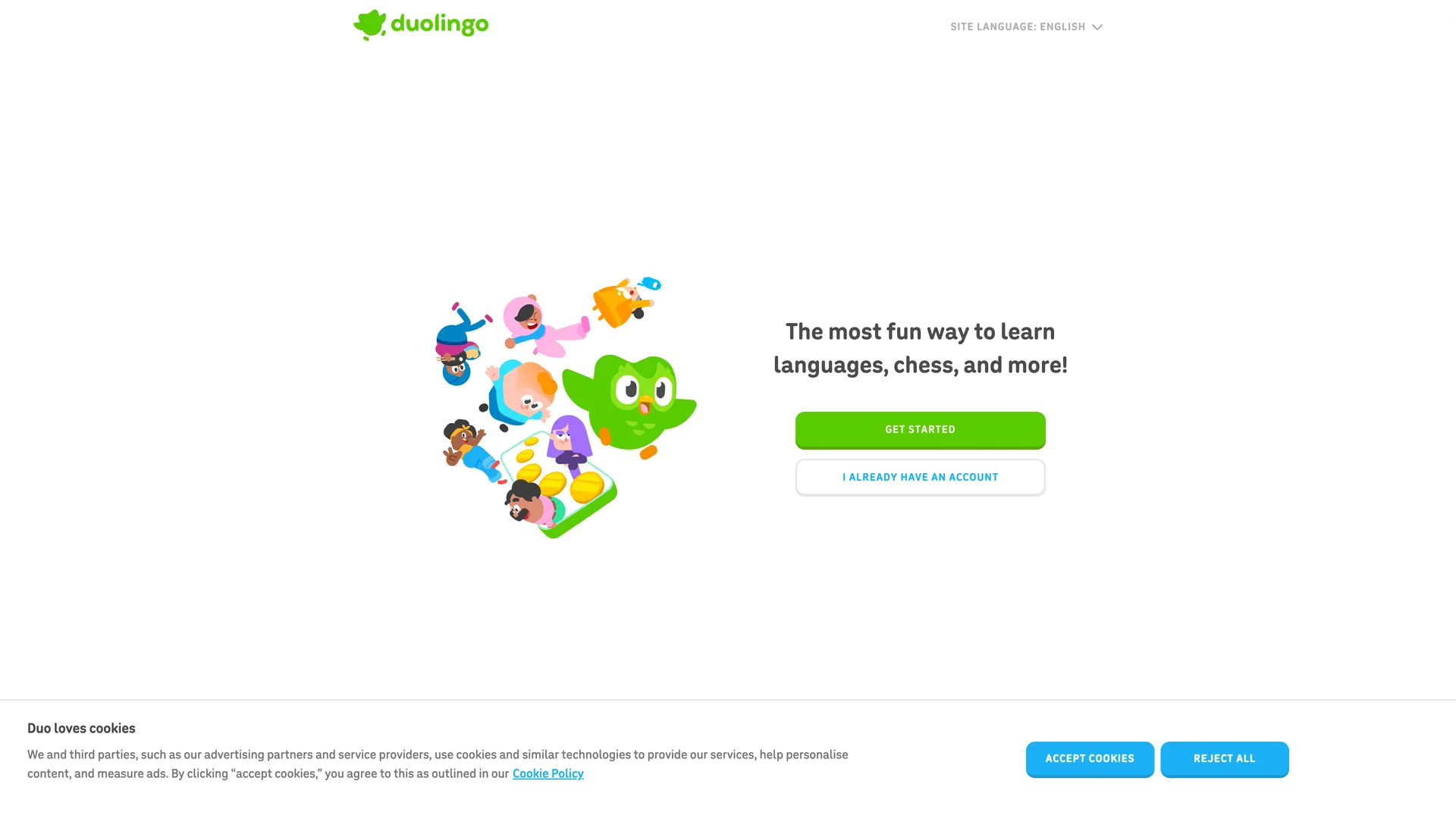
The first button starts the product rather than an account: there is nothing to type before the first choice.
What’s on this screen
The headline reads 'The most fun way to learn languages, chess, and more!' over two buttons: Get started and I already have an account. A strip of course links (English, Chess, Math, Spanish, French and more) runs along the bottom. There is no email field and no signup form on the page.
Step 2 of 27:Setup question
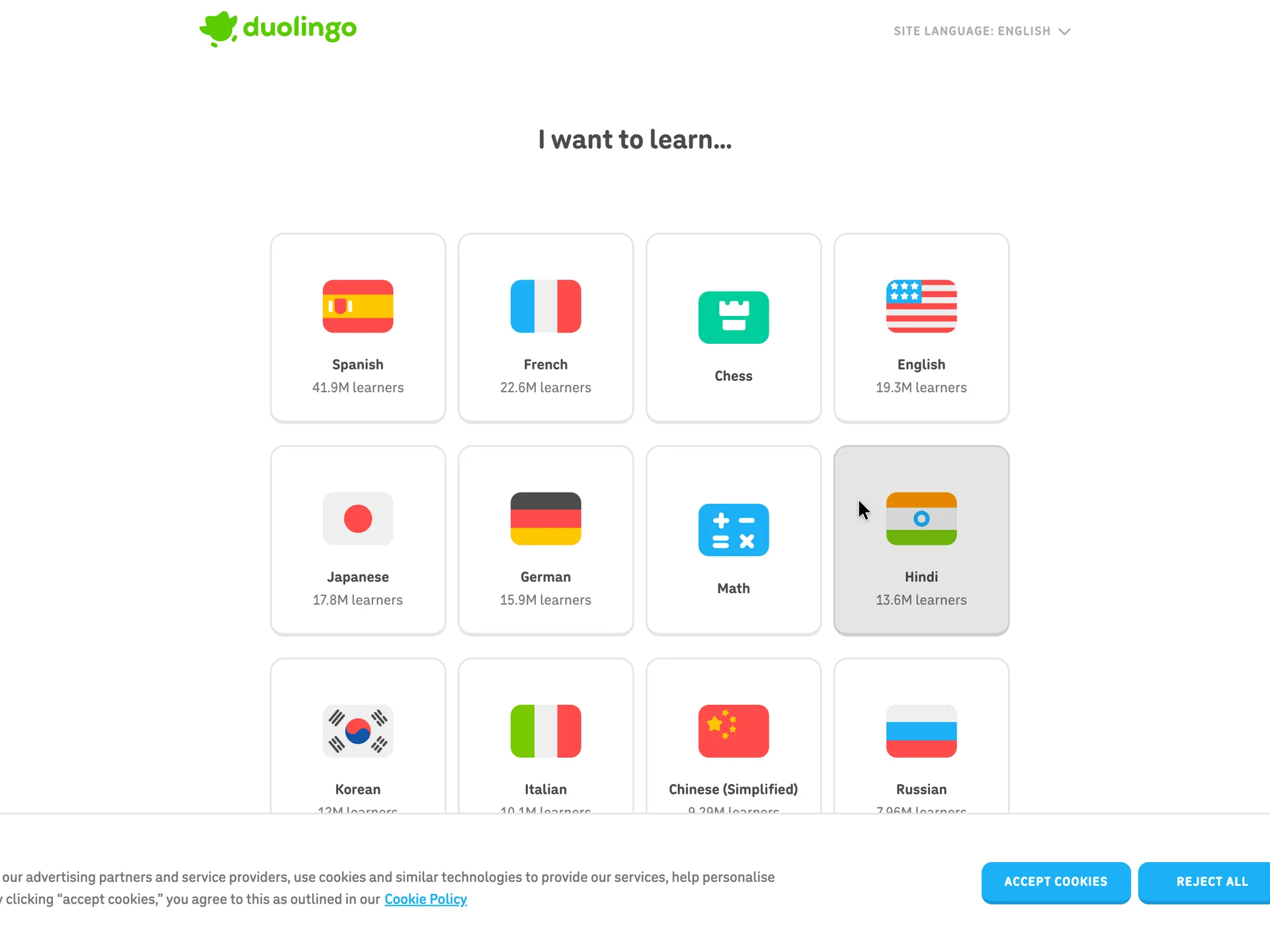
Pick what to learn from a grid of courses
Picked Spanish
Why it works
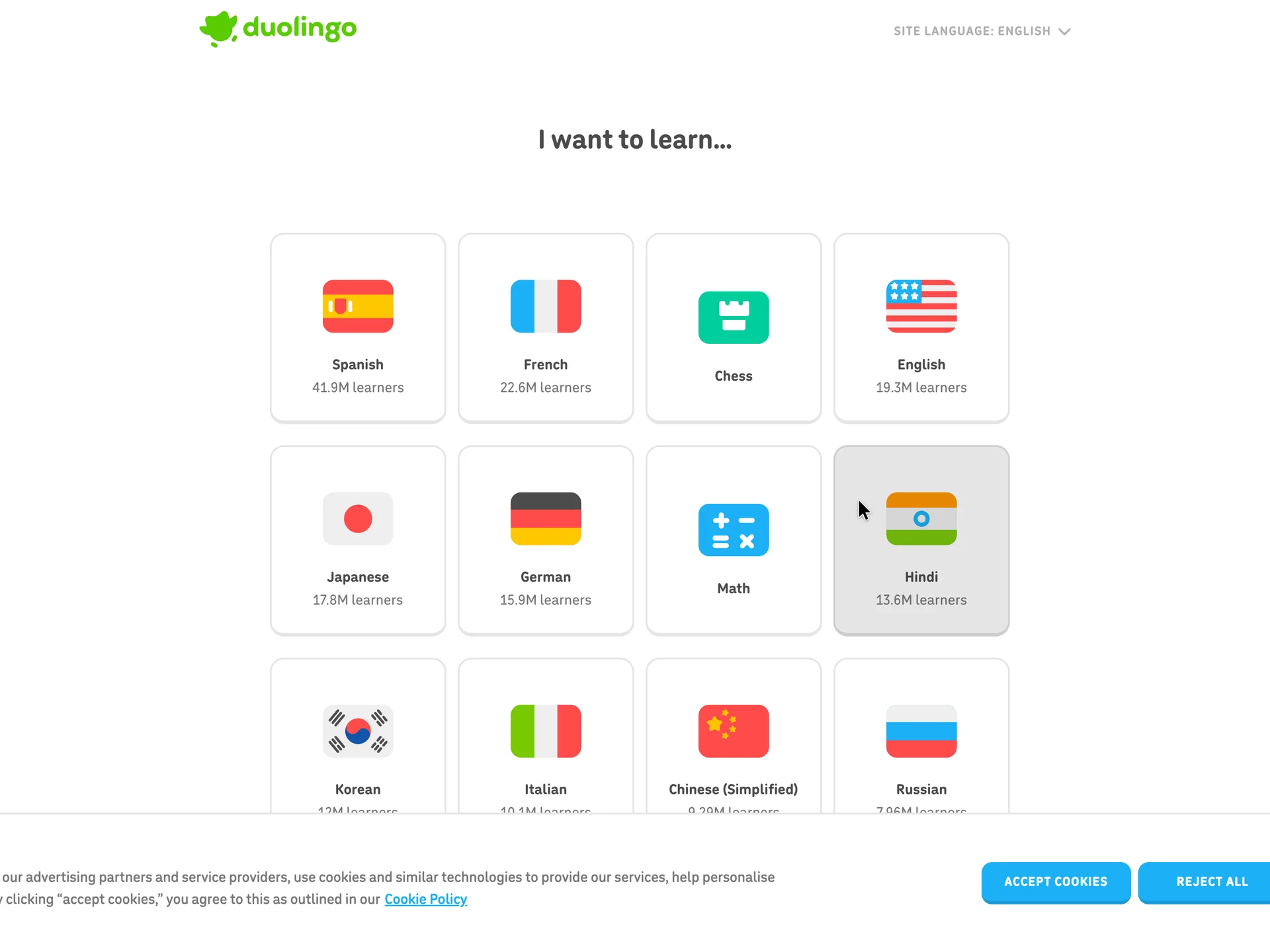
The first question is the one the learner came with, and it is one click. The learner counts work as social proof on the choice itself.
What gets in the way
Chess and Math sit in the same grid as the languages without a label, so the page mixes two kinds of choice.
What’s on this screen
'I want to learn...' heads a grid of course cards, each with a flag and a learner count: Spanish 41.9M learners, French 22.6M, English 19.3M, Japanese 17.8M and on down, with Chess and Math cards among the languages. The page is titled Learning Goal and asks for nothing else.
Step 3 of 27:Welcome modal
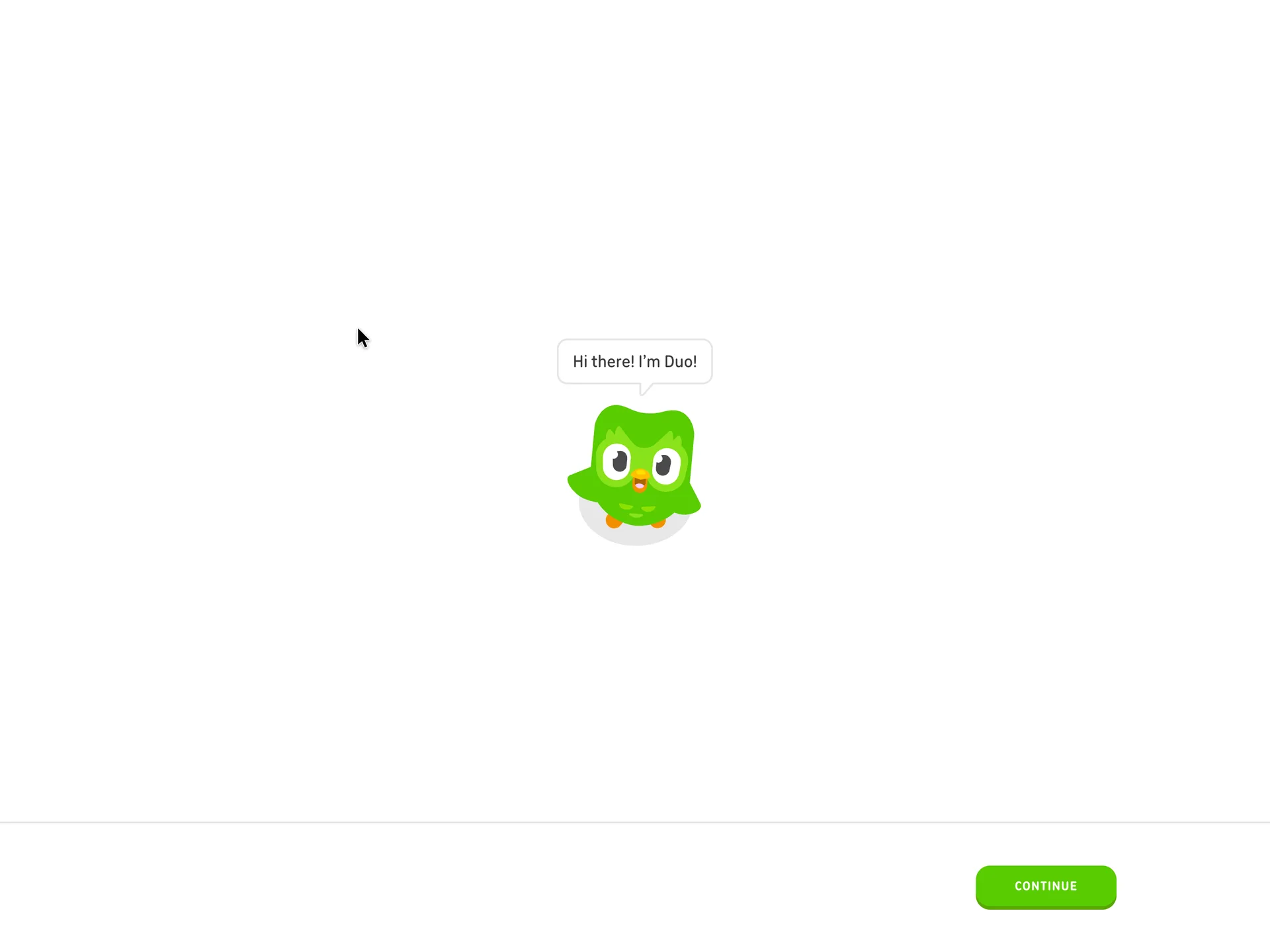
Duo, the owl mascot, introduces himself
Clicked Continue
Why it works
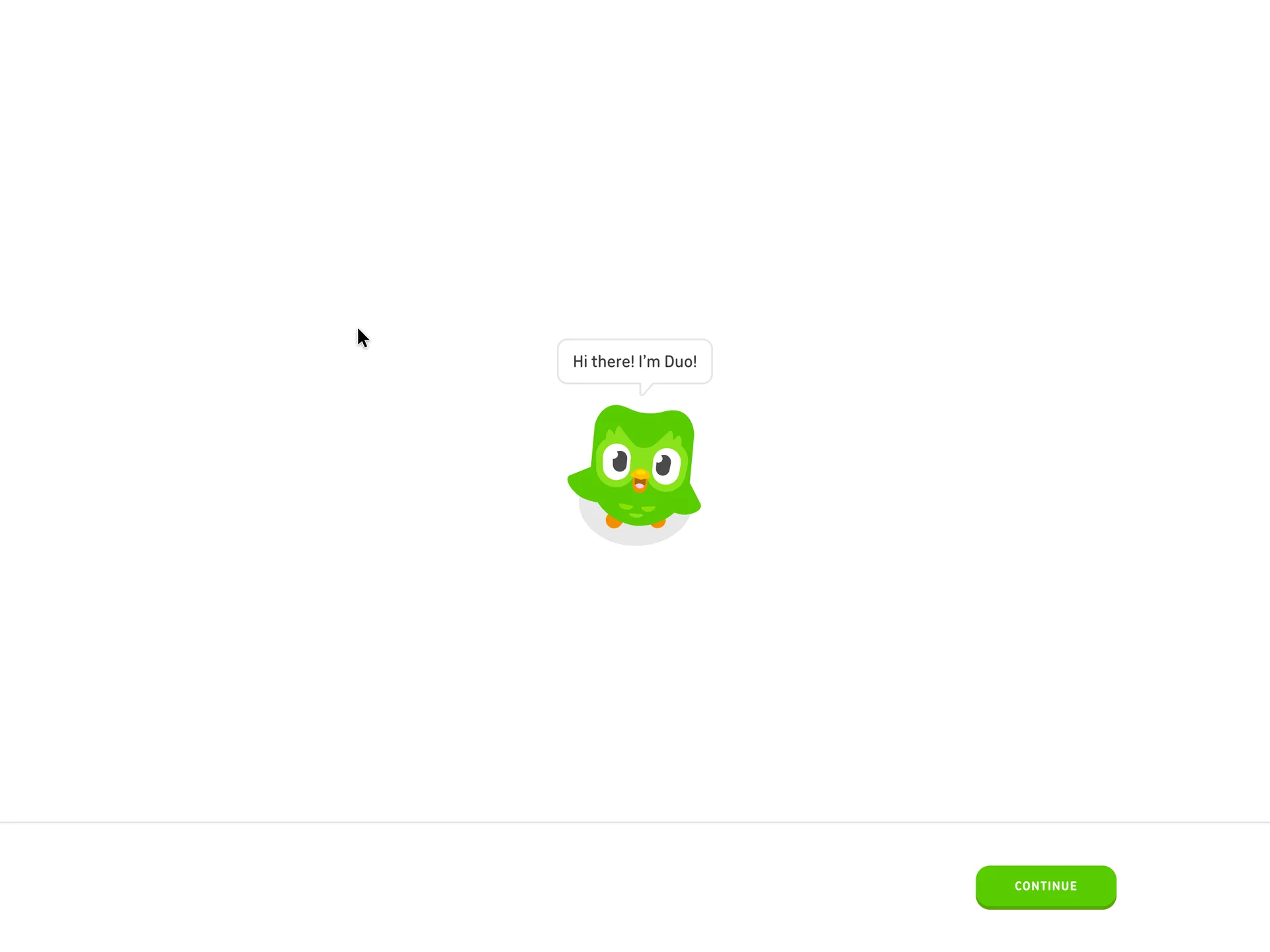
The mascot speaks in the first person from the first screen, so the questions that follow read as a conversation, not a form.
What’s on this screen
A full-screen page with only the green owl mascot and a speech bubble: 'Hi there! I'm Duo!'. A Continue button sits at the bottom right, and a thin, empty progress bar with a back arrow runs across the top. A cookie banner (Reject all, Accept cookies) showed briefly while the page changed.
Step 4 of 27:Welcome modal
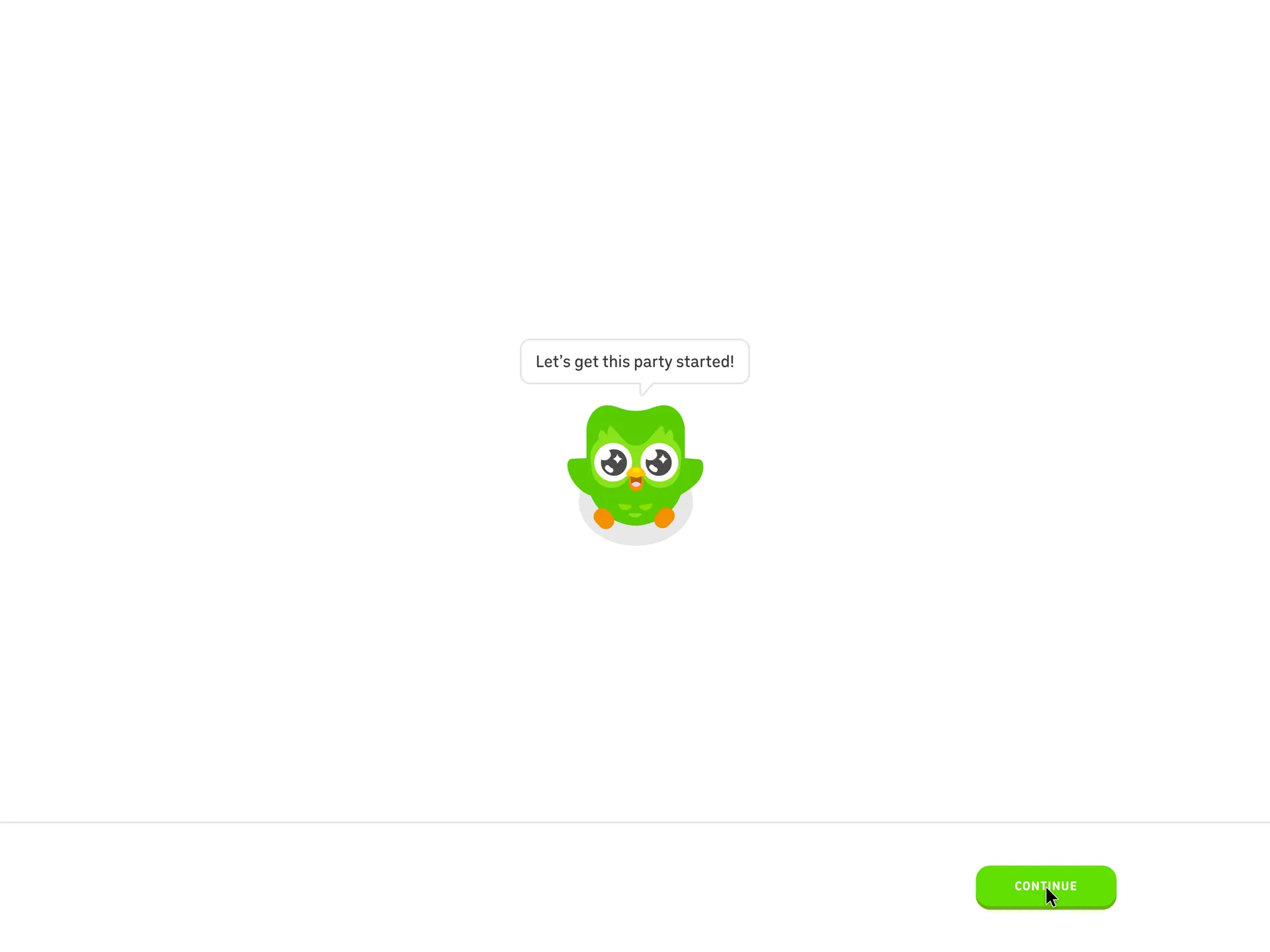
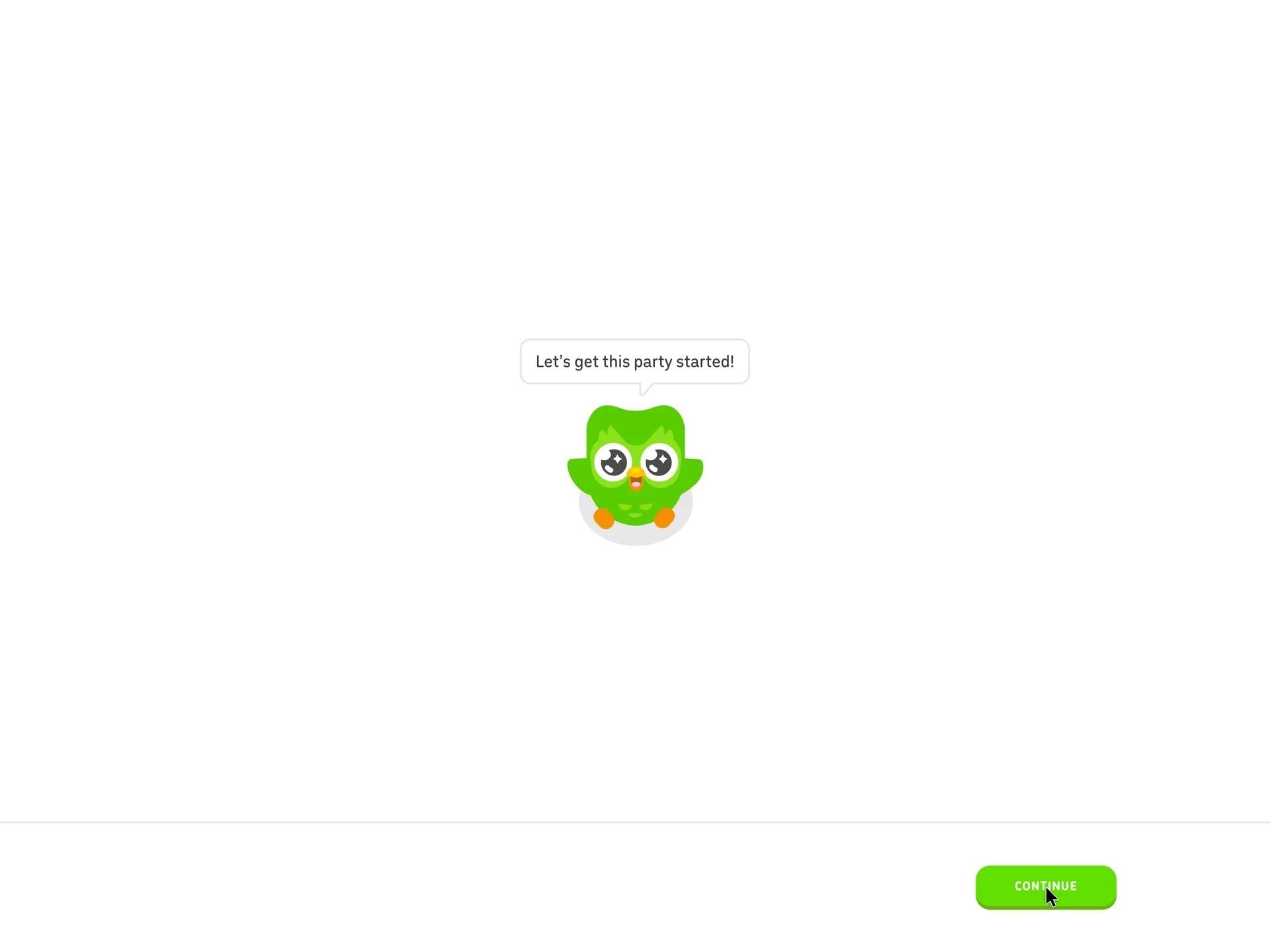
A second mascot screen before the first question
Clicked Continue
Why it works
It keeps the conversational tone and the single big button, so the setup feels light.
What gets in the way
A second click before any question. The two greetings could be one screen.
What’s on this screen
The same layout as the screen before, with a new line in the speech bubble: 'Let's get this party started!'. Continue again at the bottom right; the progress bar at the top is still empty.
Step 5 of 27:Setup question
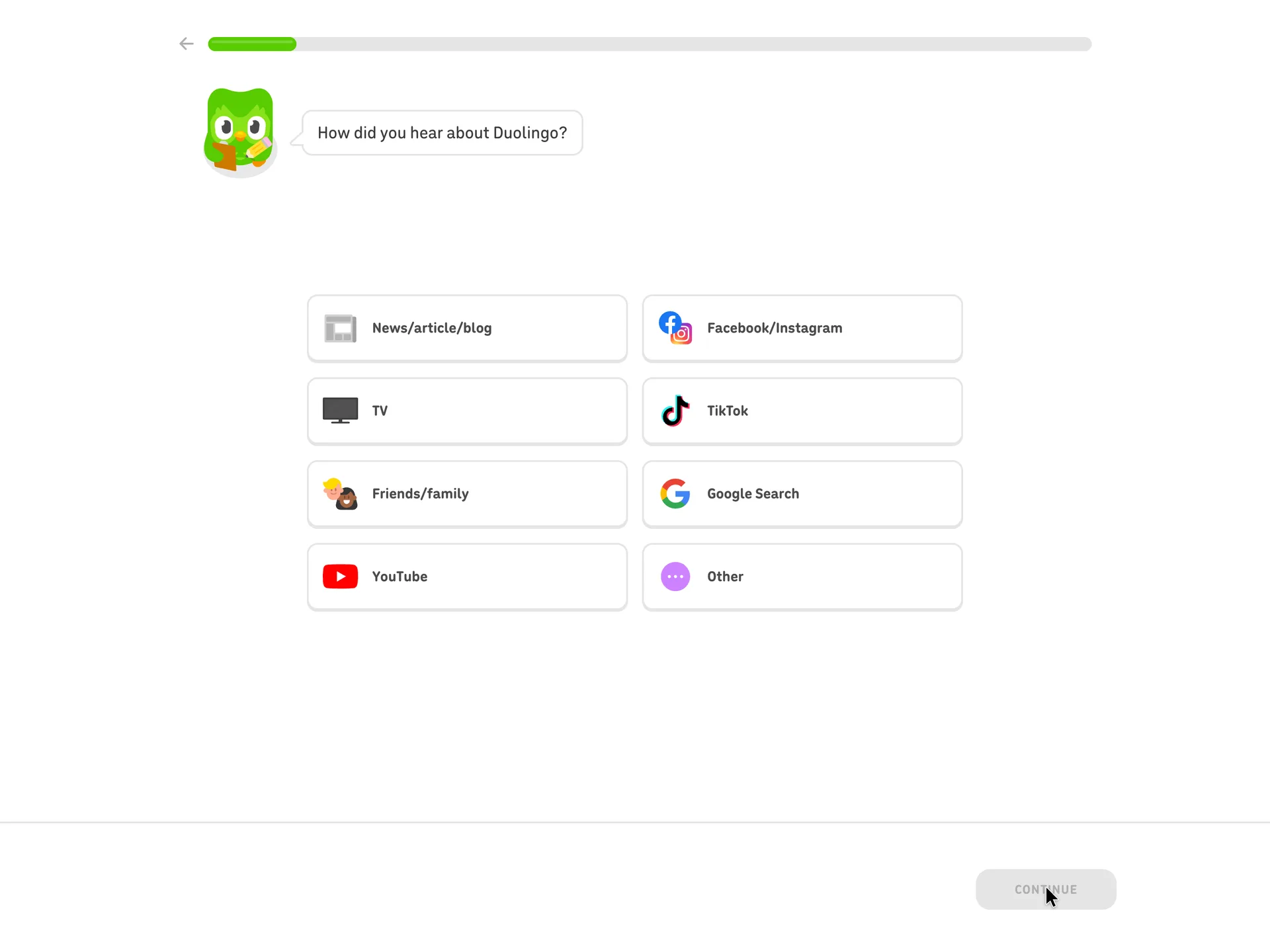
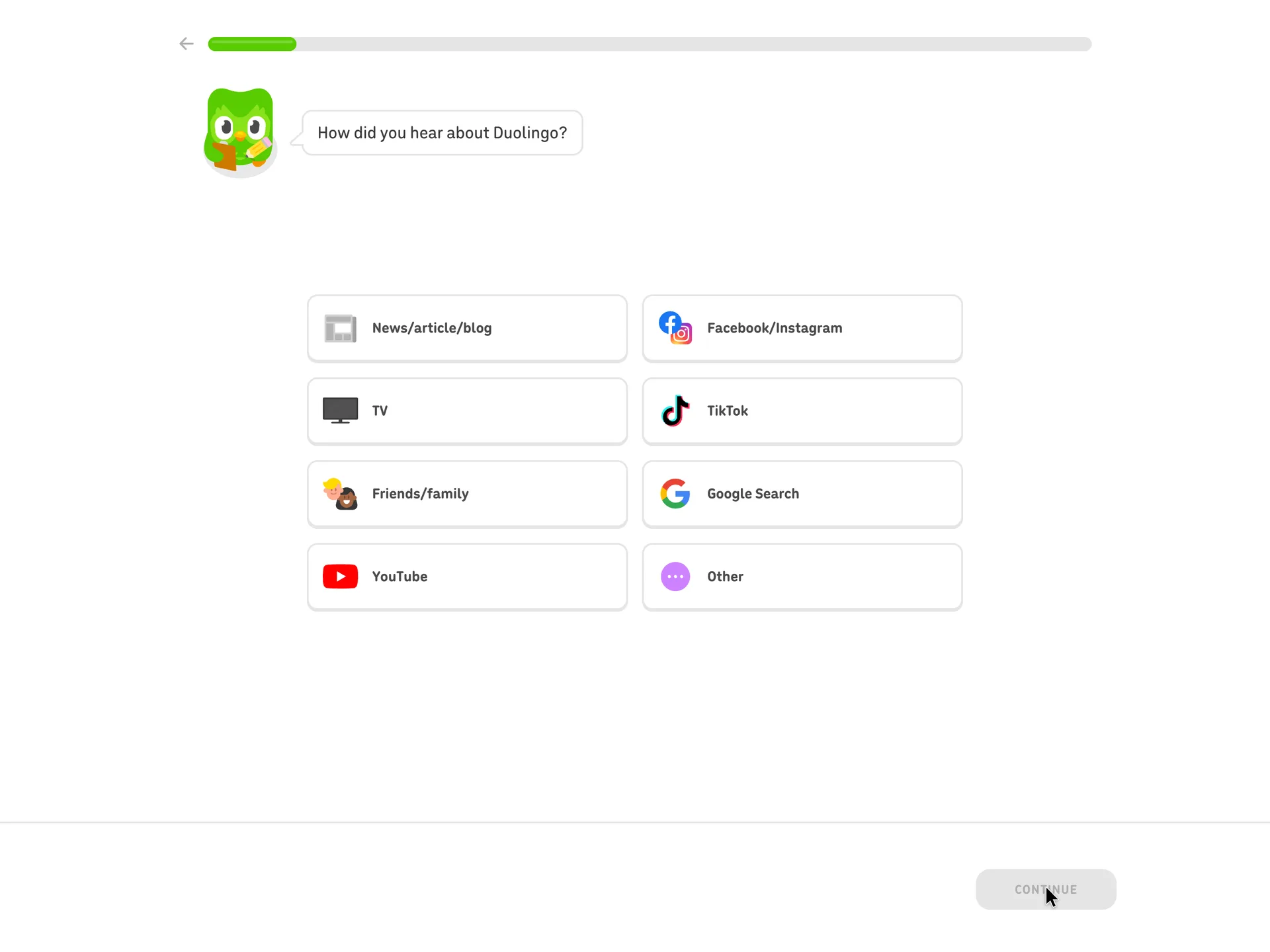
How did you hear about Duolingo?
Chose Google Search, then Continue
Why it works
One tap with recognisable logos, and the progress bar now starts to fill, so the setup has a visible end.
What gets in the way
The first real question serves Duolingo's marketing, not the learner, and it comes before anything about the course.
What’s on this screen
Duo, now holding a clipboard, asks 'How did you hear about Duolingo?'. Eight answers with logos sit in two columns: News/article/blog, Facebook/Instagram, TV, TikTok, Friends/family, Google Search, YouTube, Other. Continue stays grey until one is picked. The progress bar shows its first segment filled.
Step 6 of 27:Setup question
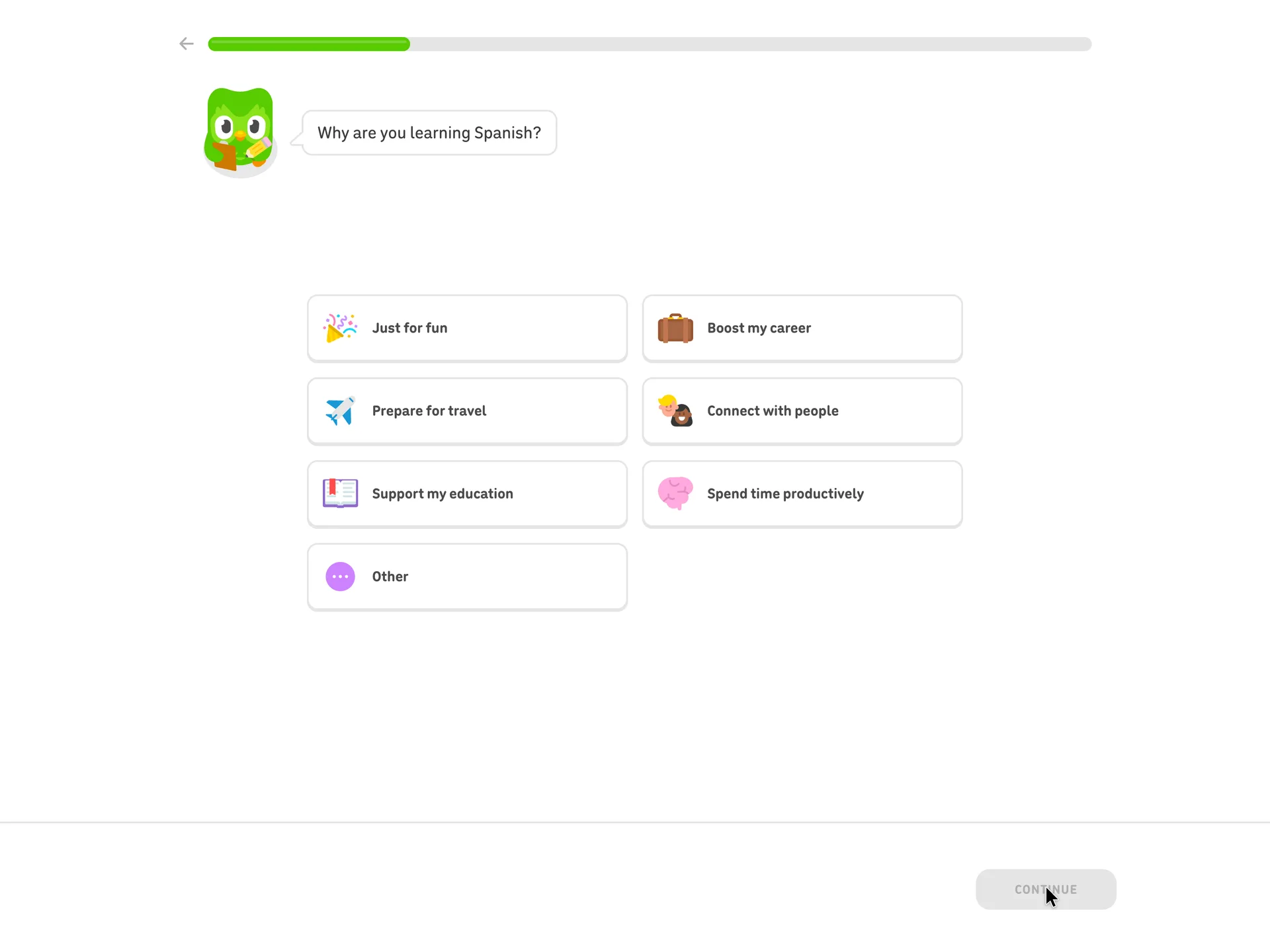
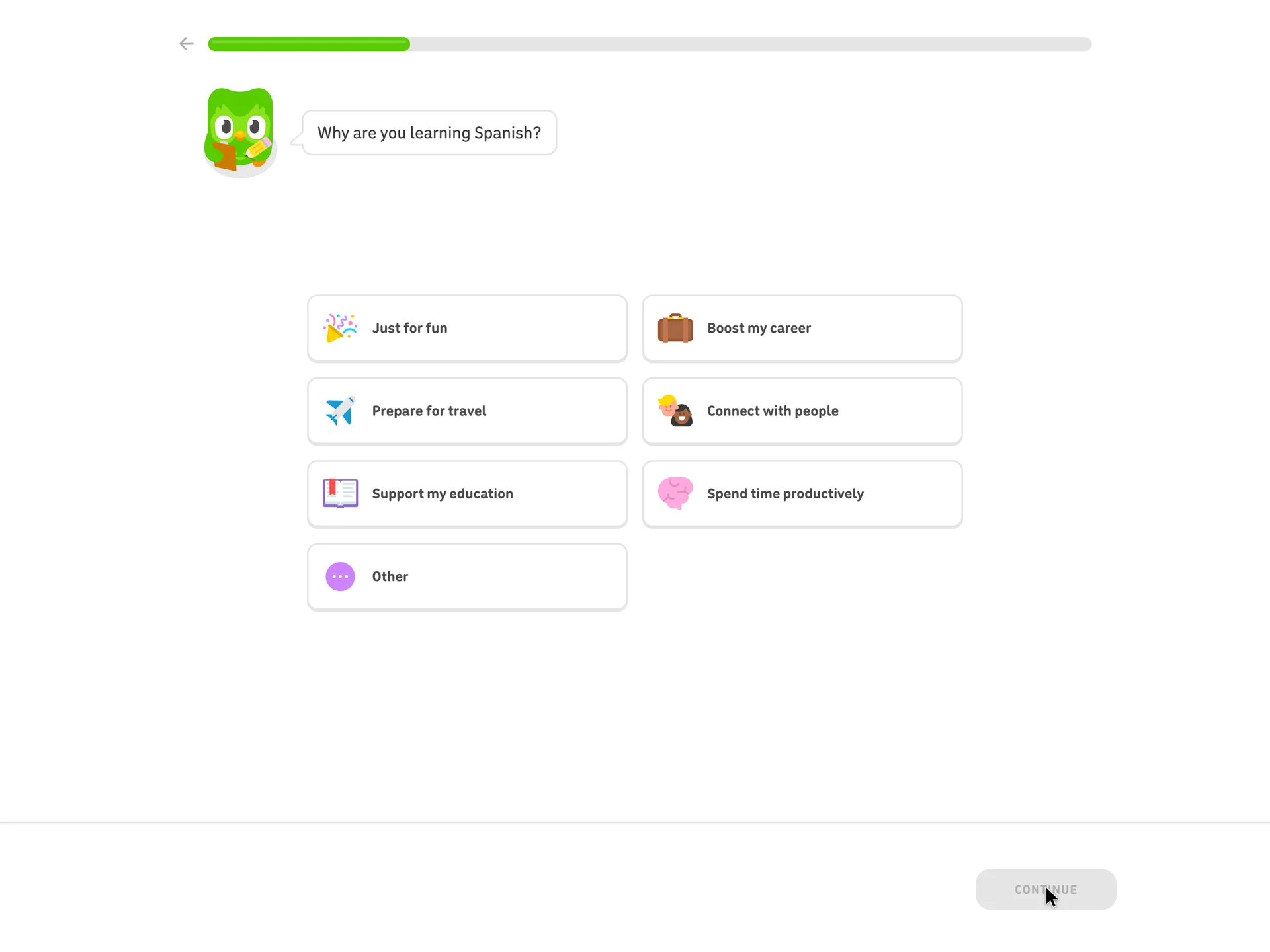
Why are you learning Spanish?
Chose Prepare for travel, then Continue
Why it works
The question uses the learner's own choice (Spanish), so it reads as a follow-up rather than a generic survey.
What’s on this screen
'Why are you learning Spanish?' with seven answers in two columns: Just for fun, Boost my career, Prepare for travel, Connect with people, Support my education, Spend time productively, Other. The question names the course picked two screens earlier. Continue is grey until a choice is made.
Step 7 of 27:Setup question
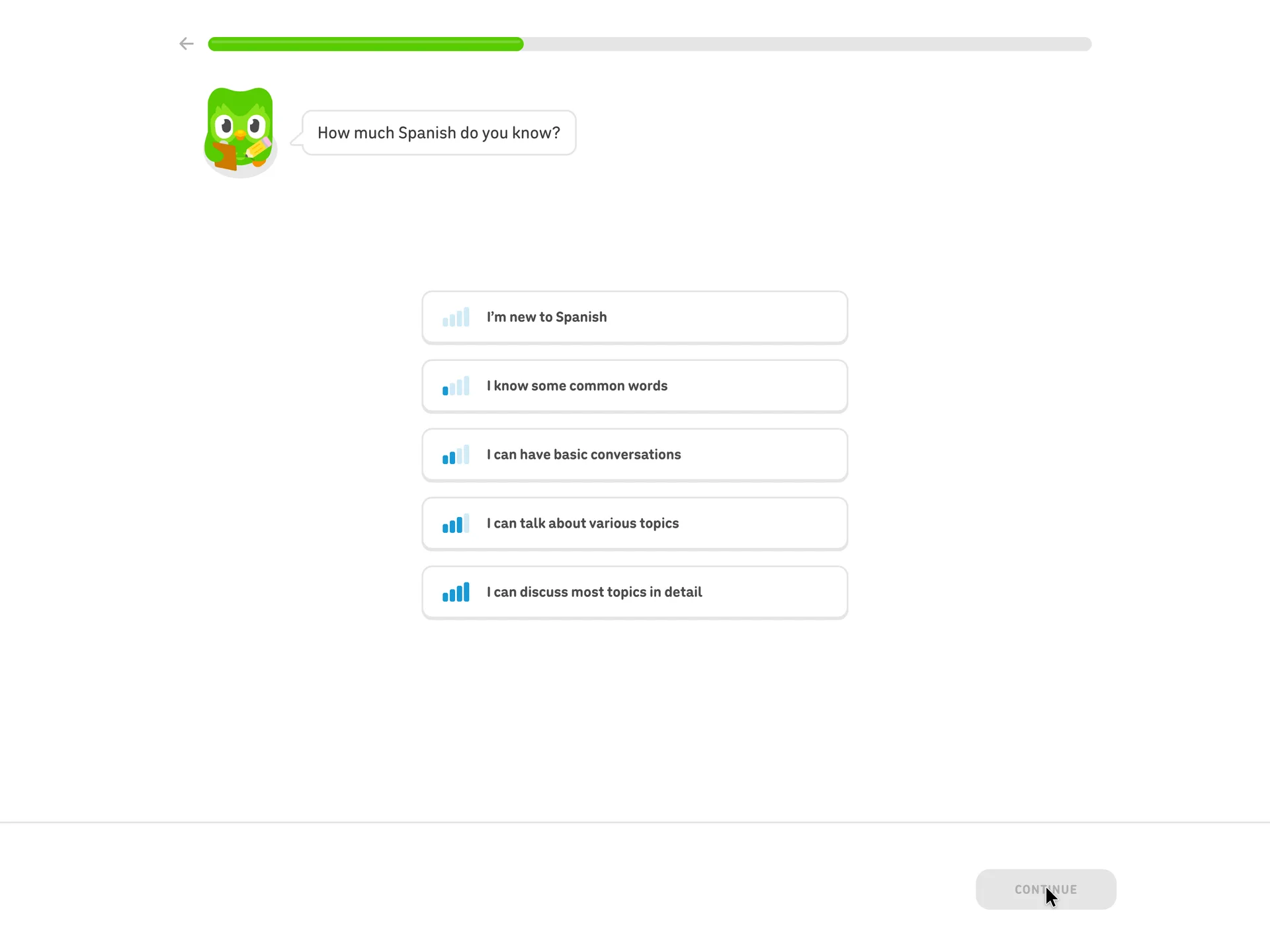
How much Spanish do you know?
Chose I'm new to Spanish, then Continue
Why it works
The levels are described as things a person can do, not as A1 to C2, so a beginner can answer without knowing the scale.
What’s on this screen
'How much Spanish do you know?' with five levels stacked from 'I'm new to Spanish' through 'I know some common words', 'I can have basic conversations' and 'I can talk about various topics' to 'I can discuss most topics in detail', each with a signal-strength icon.
Step 8 of 27:Other
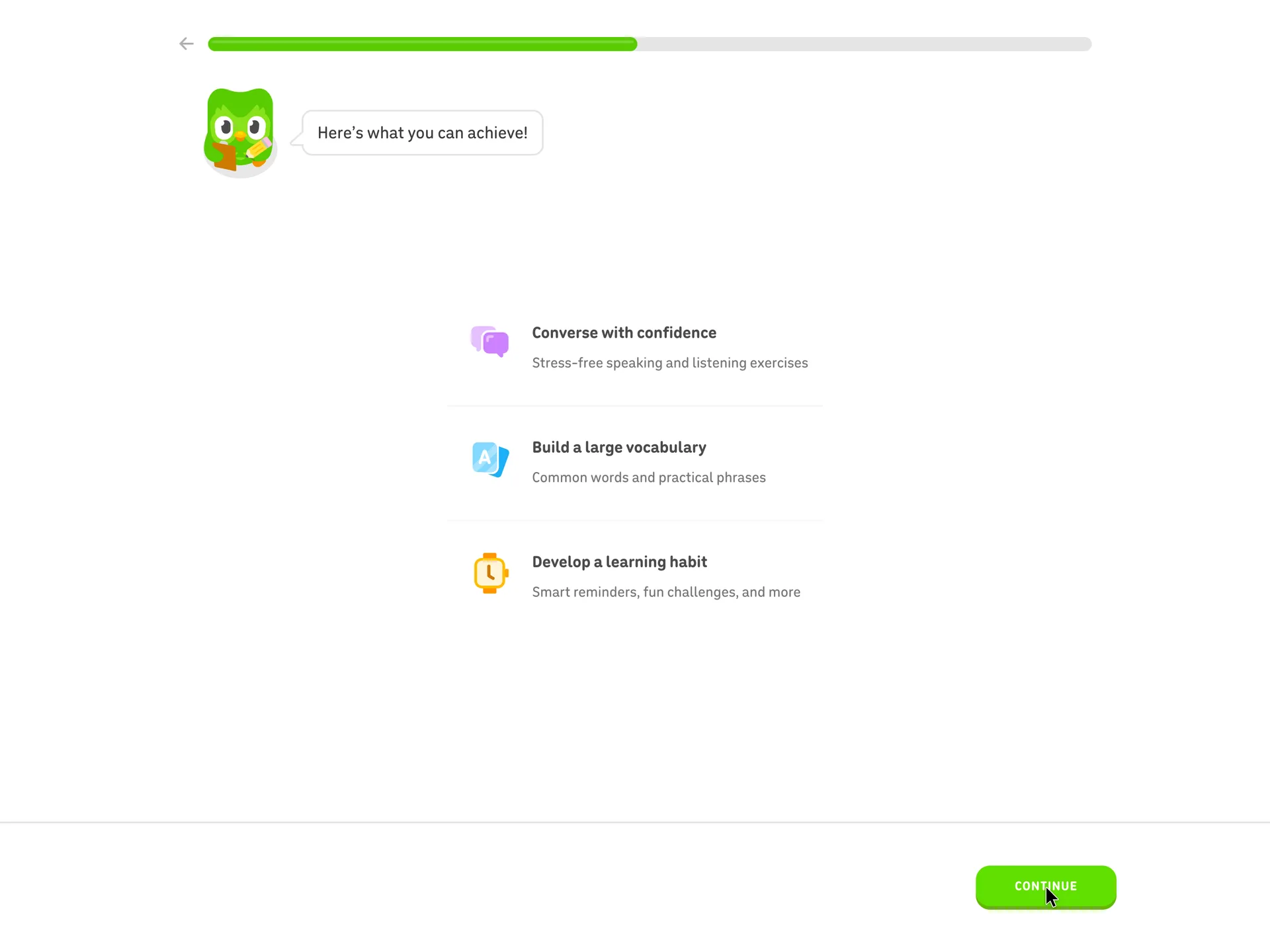
Here's what you can achieve, in three promises
Clicked Continue
Why it works
After three questions, it pays the learner back with what the course will do for them, in plain words and before any commitment.
What’s on this screen
Duo says 'Here's what you can achieve!' above three short promises with icons: Converse with confidence (stress-free speaking and listening exercises), Build a large vocabulary (common words and practical phrases), Develop a learning habit (smart reminders, fun challenges, and more). Only Continue to go on.
Step 9 of 27:Setup question
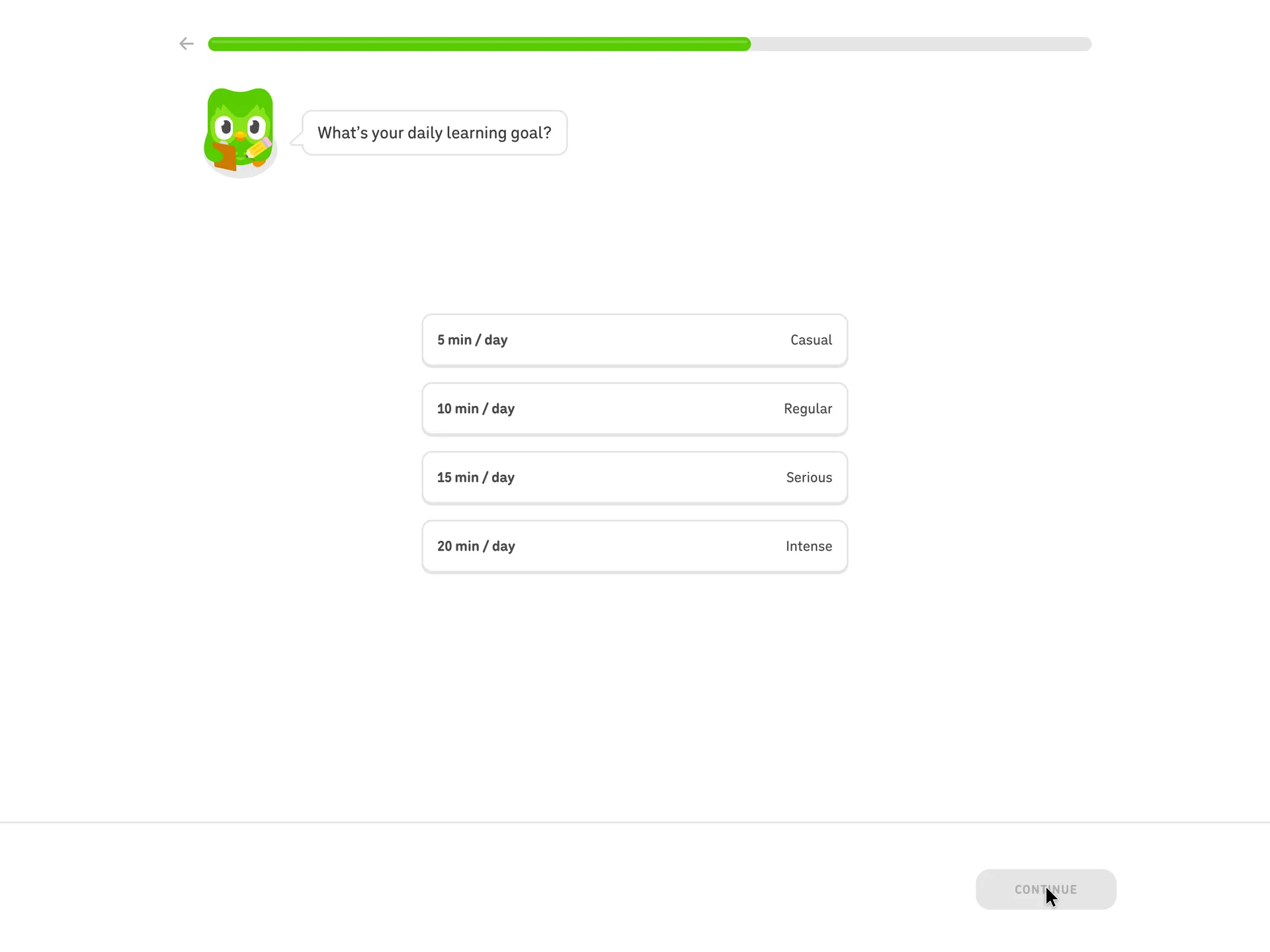
What's your daily learning goal?
Chose 10 min / day (Regular), then Continue
Why it works
The goal is set in minutes a day, a unit anyone can judge, and the labels make the smallest option feel acceptable rather than lazy.
What’s on this screen
'What's your daily learning goal?' with four options, each a time and a label: 5 min / day Casual, 10 min / day Regular, 15 min / day Serious, 20 min / day Intense. Nothing is preselected.
Step 10 of 27:Other
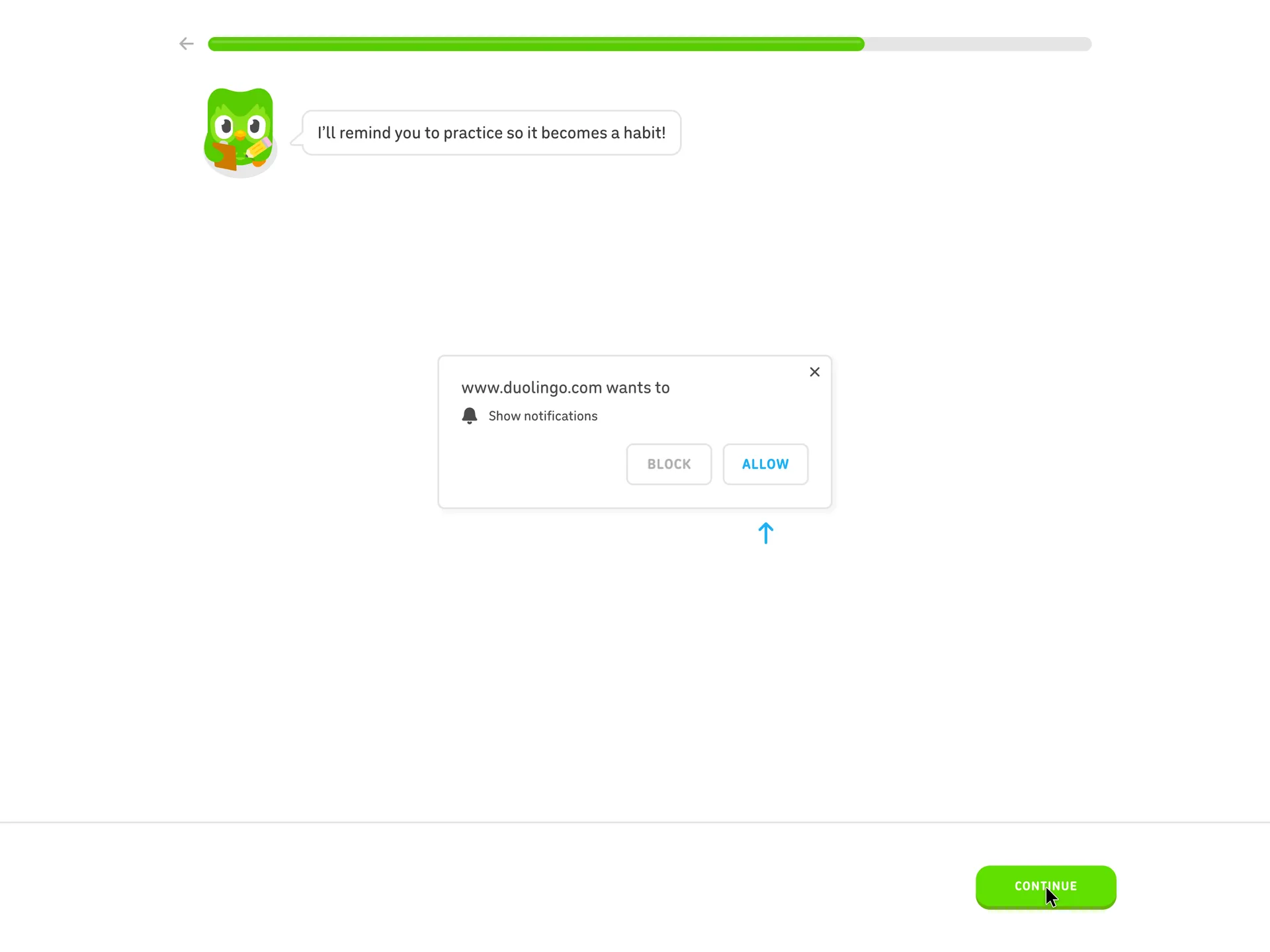
A notification primer drawn inside the page
Clicked Continue; notifications were not allowed
Why it works
The primer explains why the browser is about to ask before it asks, and ties the request to the daily goal just chosen.
What gets in the way
The drawn box looks like the real browser prompt, buttons and all, which can make the learner try to click a picture.
What’s on this screen
Duo says 'I'll remind you to practice so it becomes a habit!'. Below, the page draws its own picture of a browser permission box ('www.duolingo.com wants to Show notifications', Block and Allow), with a blue arrow pointing at Allow. The only real control is Continue. The progress bar is about three quarters full.
Step 11 of 27:Setup question
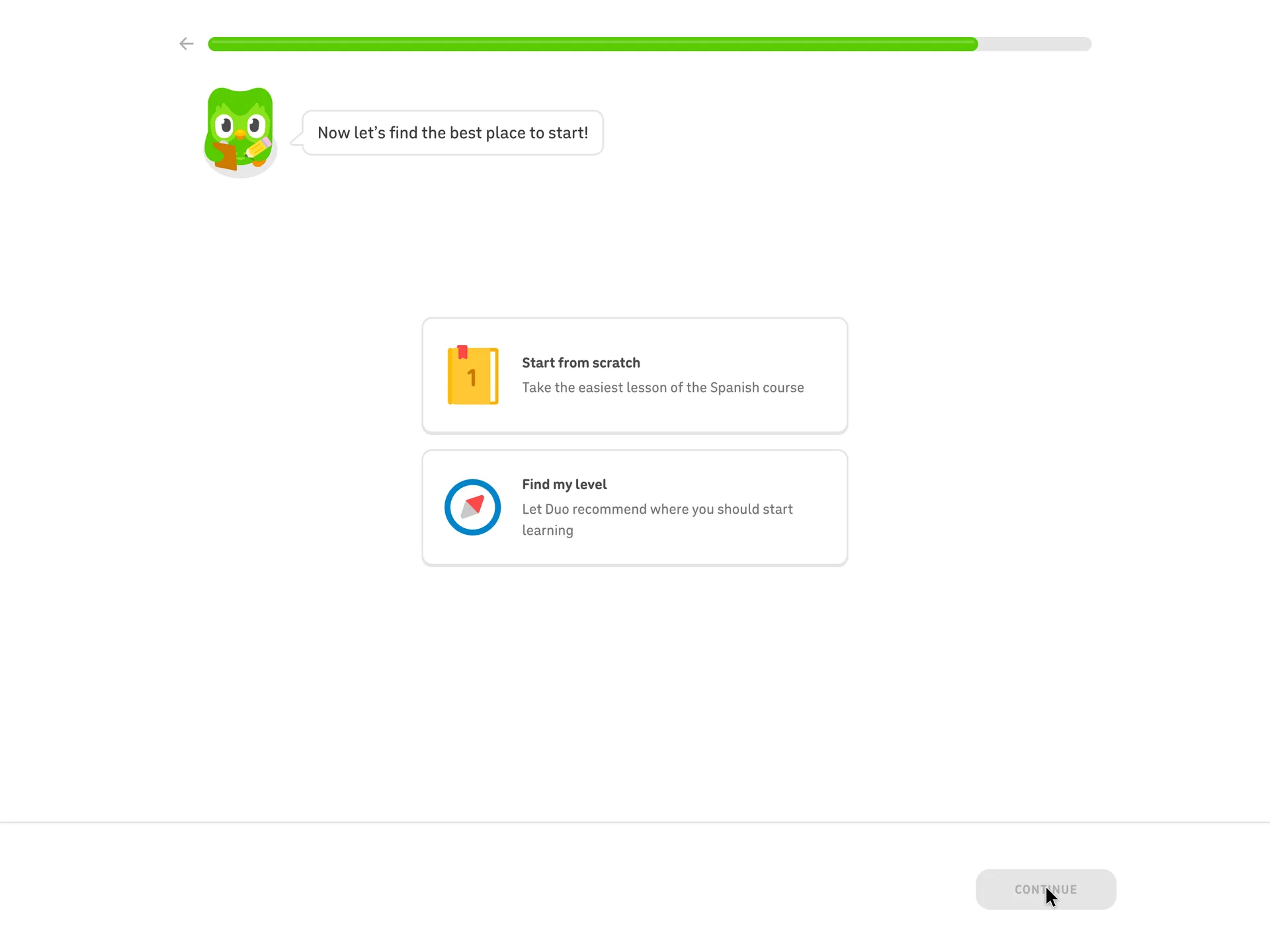
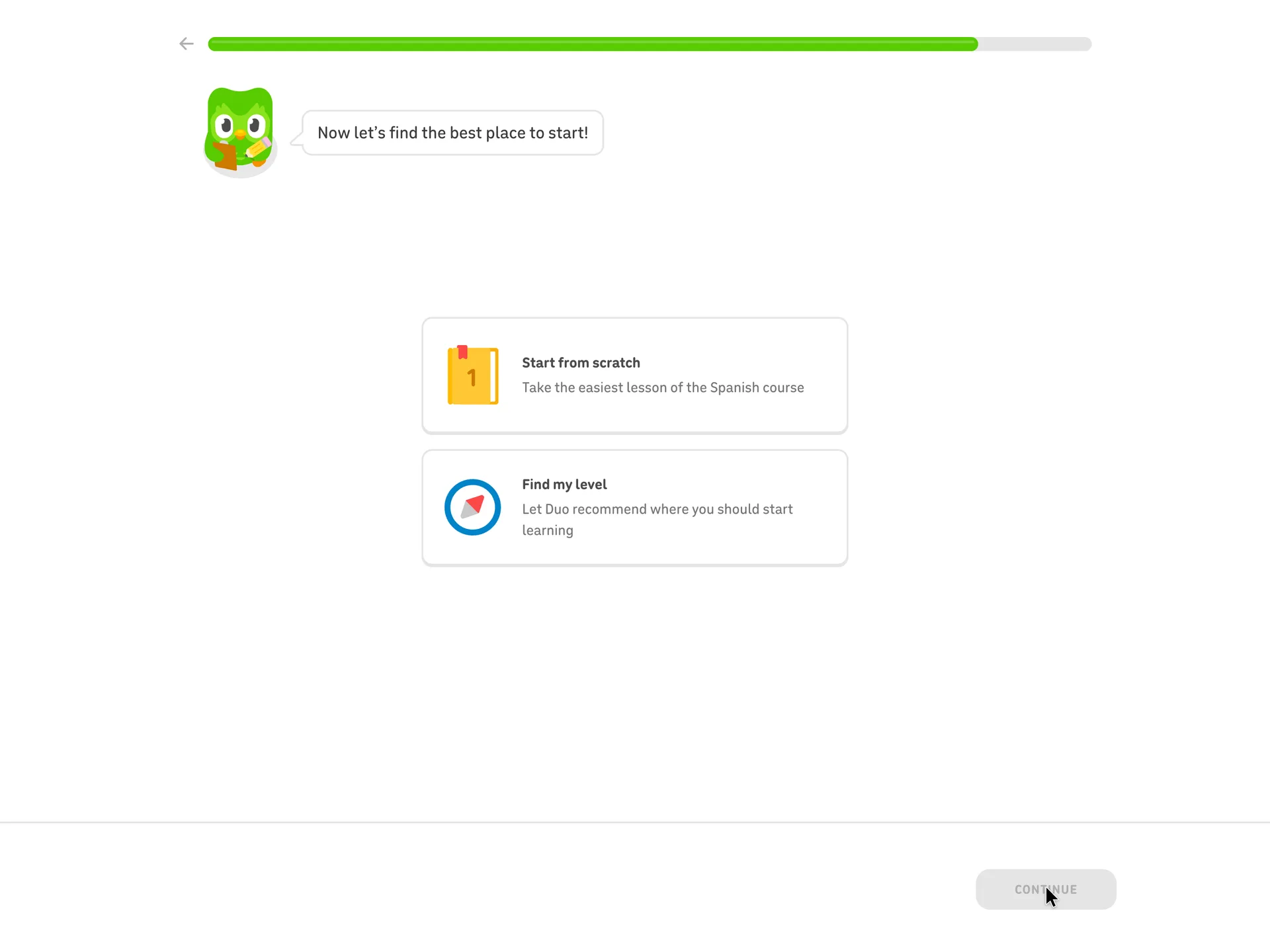
Start from scratch or find my level
Chose Start from scratch, then Continue
Why it works
A learner who said they are new still gets the choice, and both options say exactly what happens next.
What’s on this screen
'Now let's find the best place to start!' with two large cards: Start from scratch ('Take the easiest lesson of the Spanish course') and Find my level ('Let Duo recommend where you should start learning'). No browser notification prompt appeared after the previous screen: the capture browser is a private window, where Chrome does not support web push.
Step 12 of 27:Other
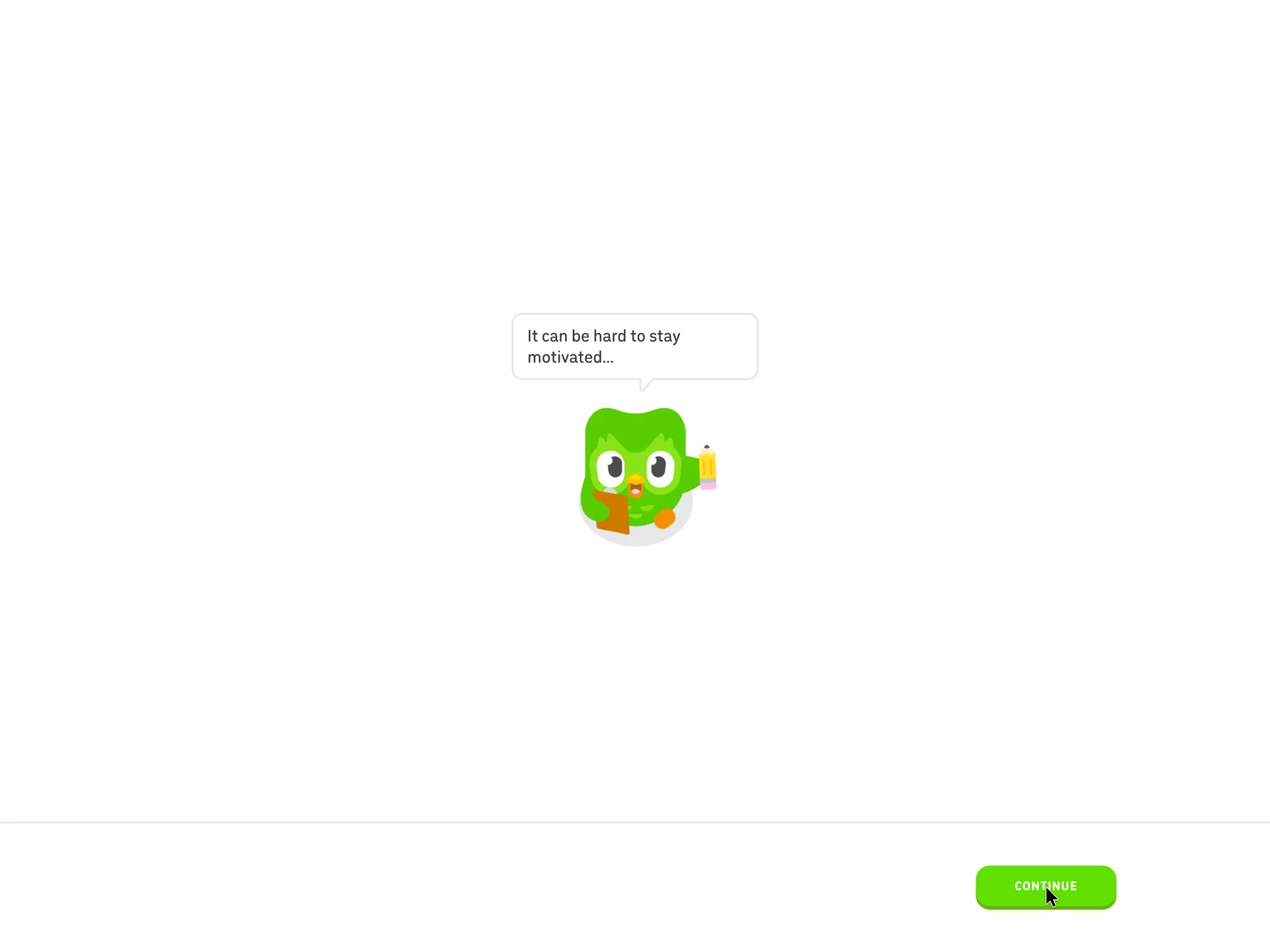
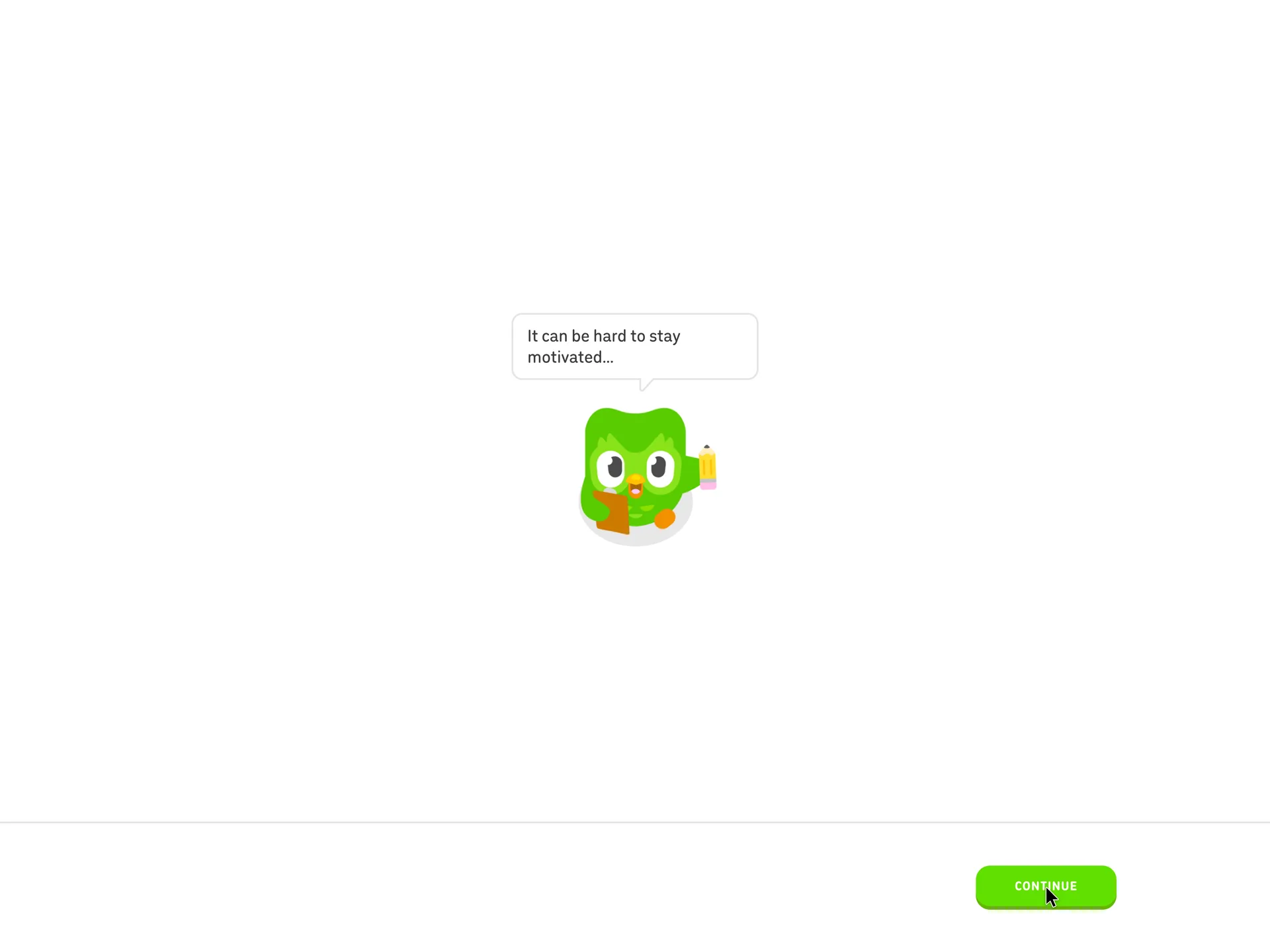
Duo warns that motivation is hard
Clicked Continue
Why it works
It names the reason most learners stop before the lesson starts, which sets up the habit features as help rather than nagging.
What gets in the way
The sentence ends in an ellipsis and the next screen has to finish it, so this is a click that carries half a thought.
What’s on this screen
The progress bar is gone and Duo stands alone in the middle of the page again, now holding a clipboard and a pencil, saying 'It can be hard to stay motivated…'. Continue at the bottom right.
Step 13 of 27:Other
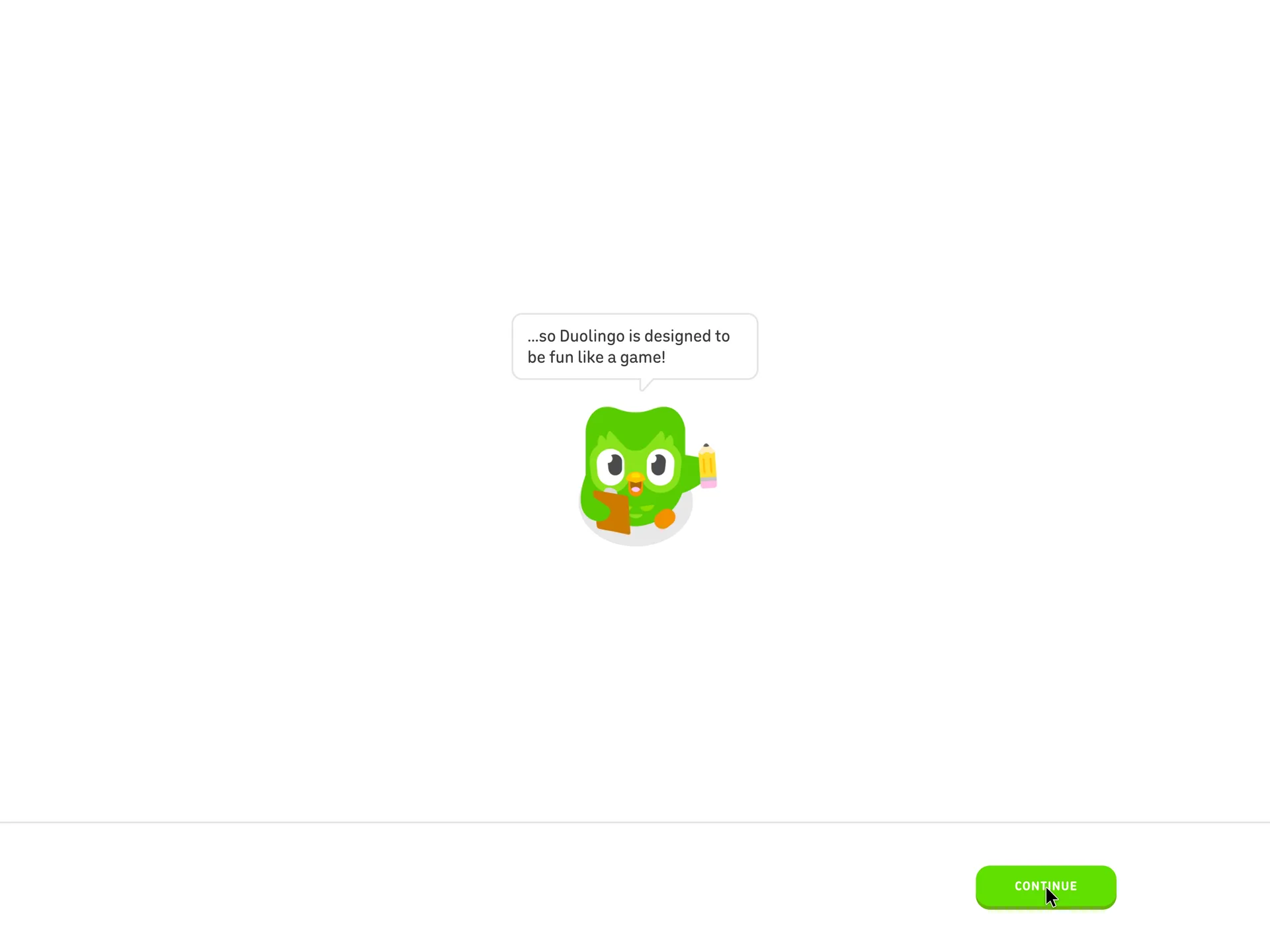
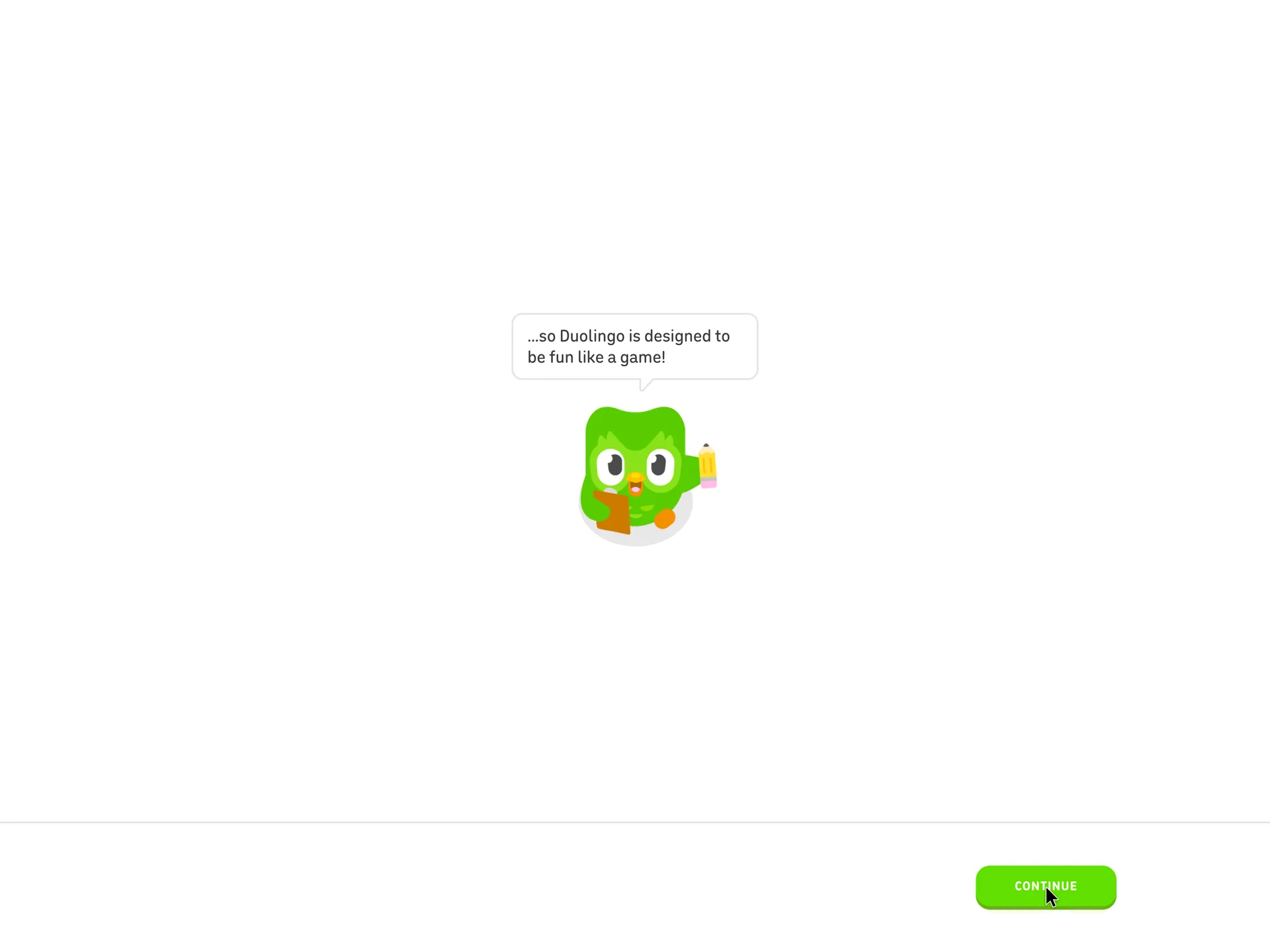
Duo finishes the thought: fun like a game
Clicked Continue
Why it works
It frames the lesson that follows as a game before it starts, which lowers the stakes of getting answers wrong.
What gets in the way
With the previous screen, two clicks deliver one sentence just before the lesson.
What’s on this screen
Same layout, with the second half of the thought: '…so Duolingo is designed to be fun like a game!'. Continue at the bottom right; no progress bar.
Step 14 of 27:Other
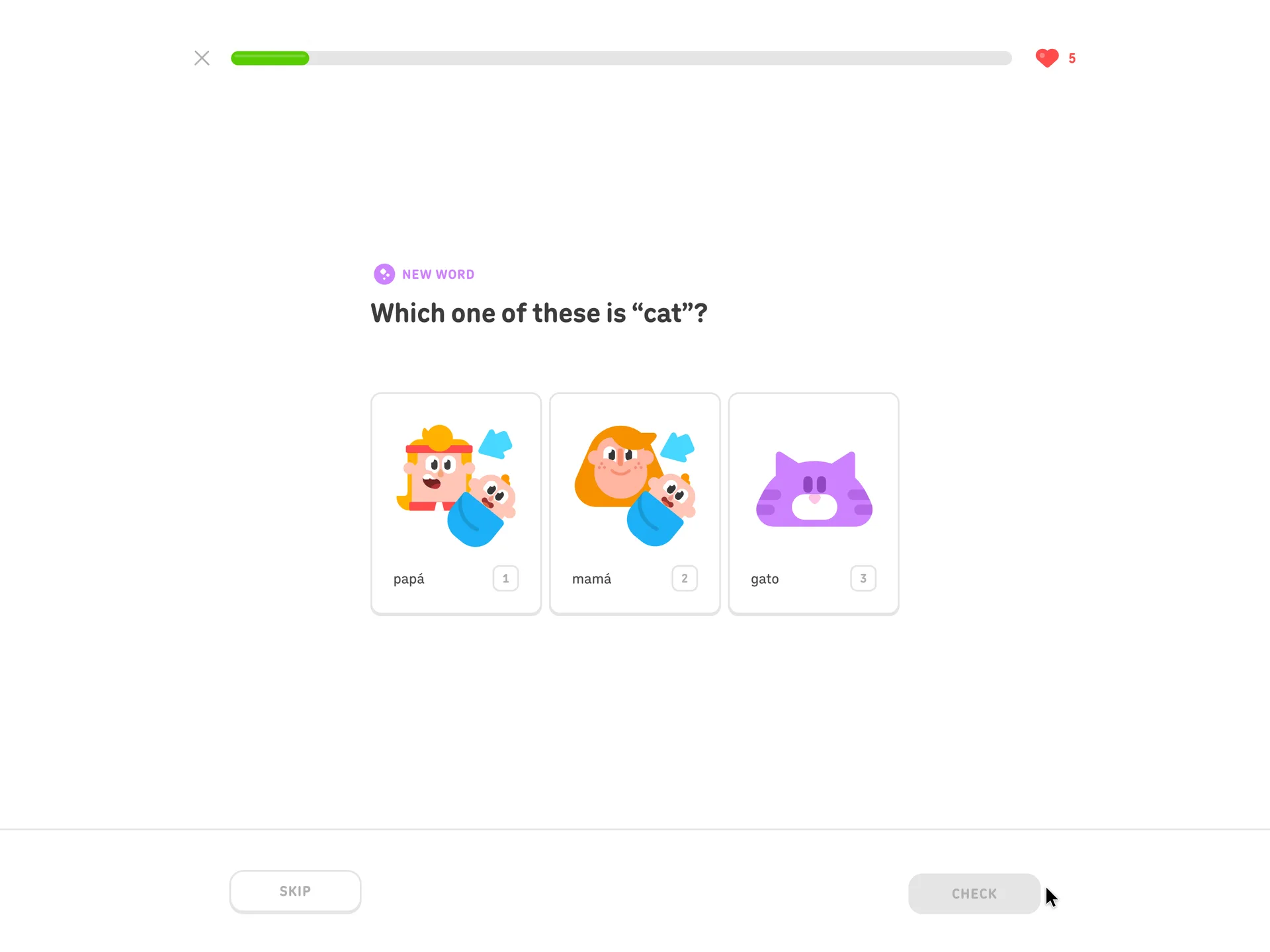
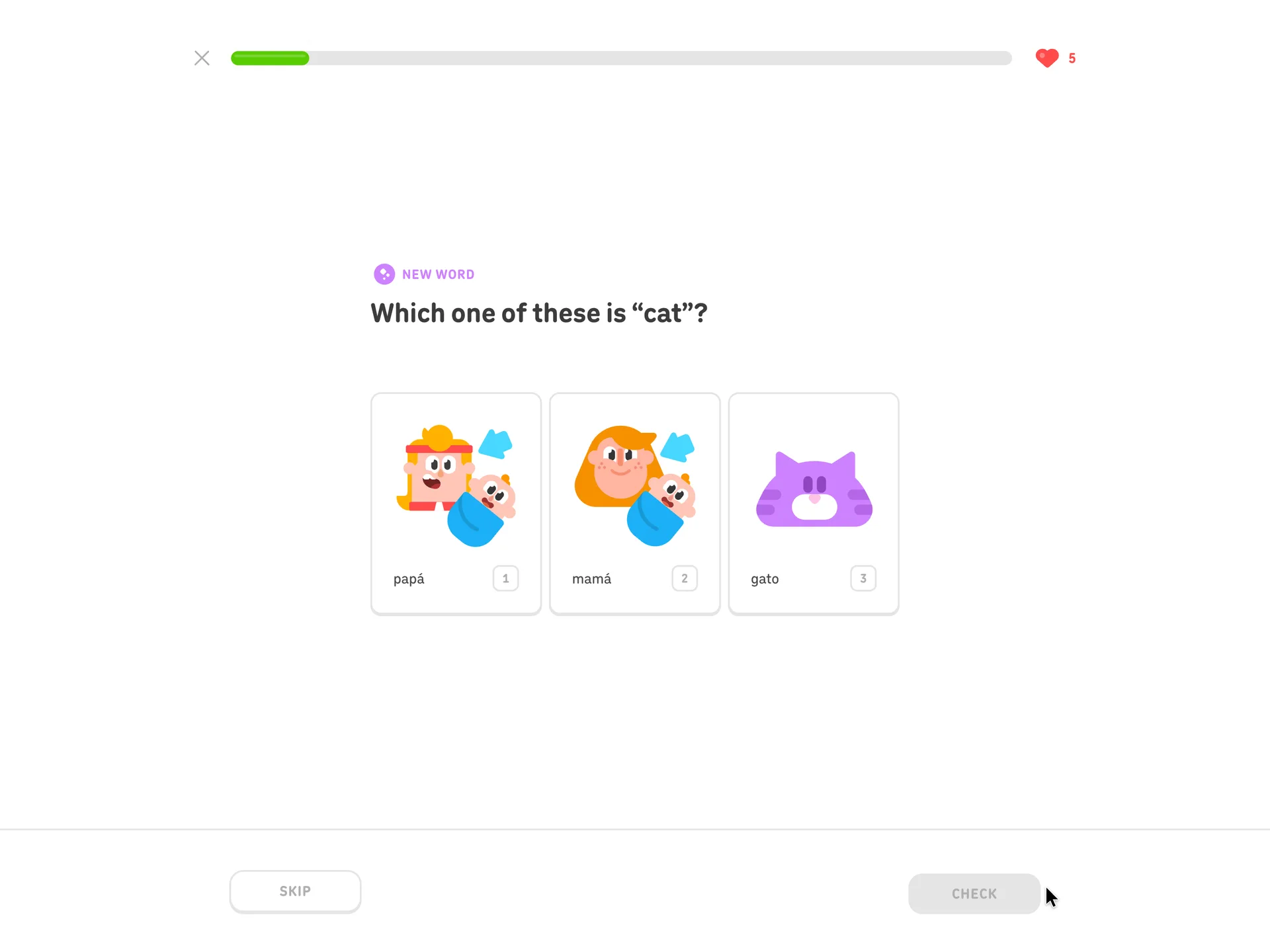
The first exercise: pick the picture for a new word
Picked gato, then Check
Why it works
The very first exercise can be answered with no Spanish at all: the picture gives the meaning, so the learner's first answer in the lesson is a right one.
What gets in the way
The red heart with 5 has no label here, so a new learner isn't told what it counts or what happens when it runs out.
What’s on this screen
The lesson opens straight on an exercise, still with no account. A purple 'New word' label sits over 'Which one of these is "cat"?' and three illustrated cards: papá, mamá and gato, numbered 1 to 3 for the keyboard. A lesson progress bar runs across the top beside a red heart with 5, a close button sits on the left, and Skip and Check (grey until a card is picked) sit at the bottom.
Step 15 of 27:Other
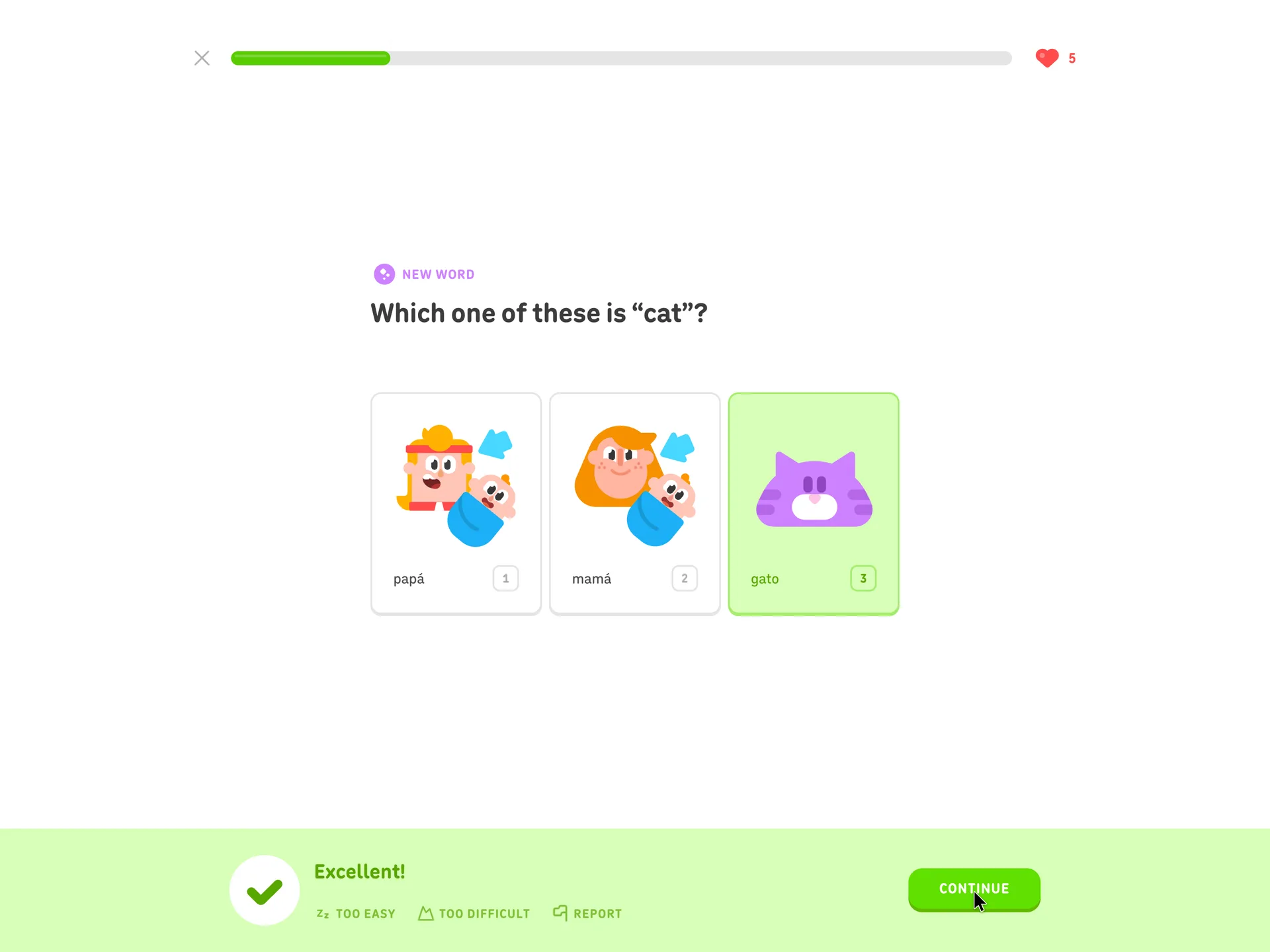
Instant feedback on the first answer
Clicked Continue
Why it works
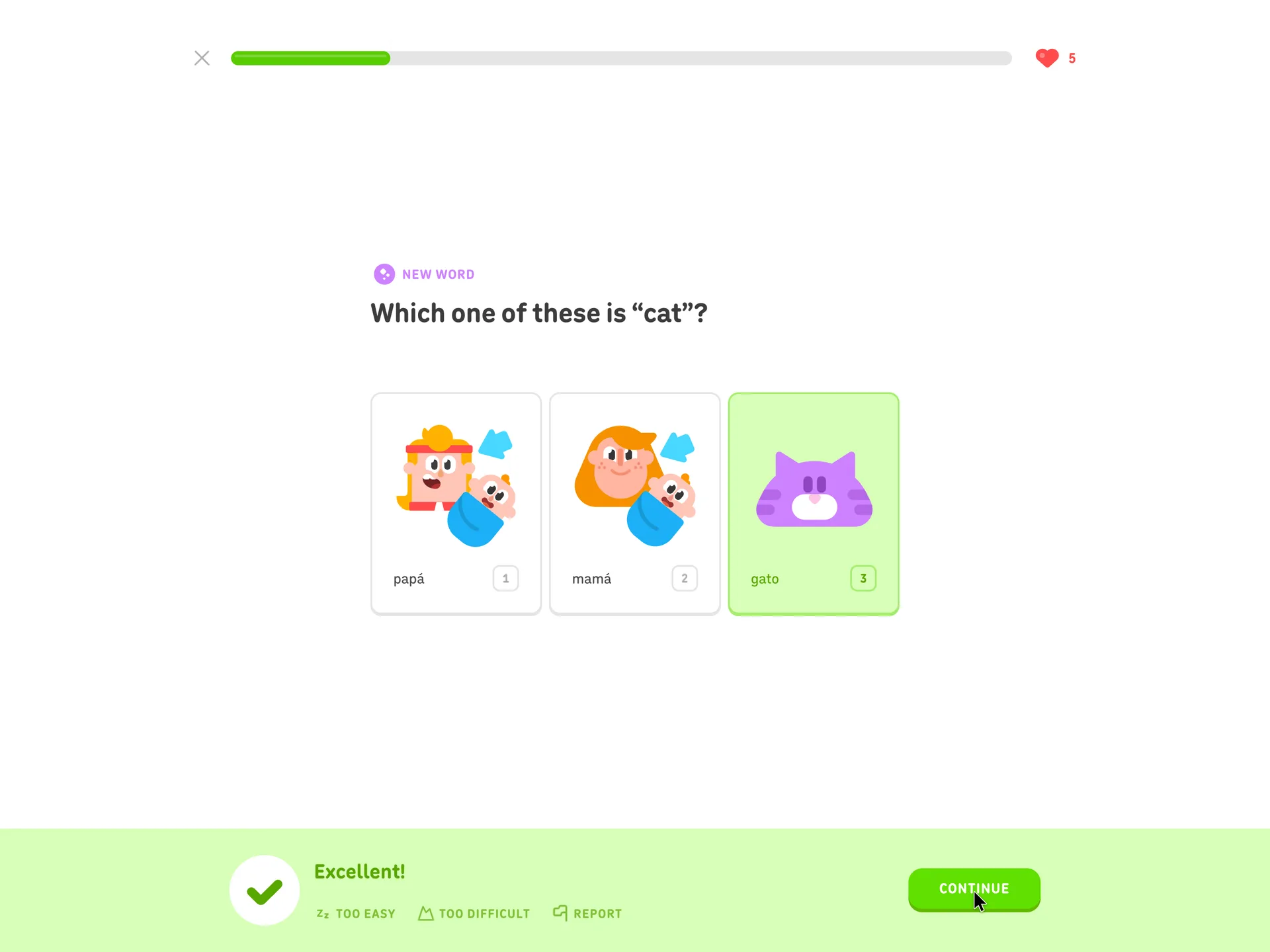
The reward lands the moment the answer is checked, and Too easy and Too difficult let the learner tune the course without leaving the lesson.
What’s on this screen
A green band slides up from the bottom: 'Excellent!', with three small links under it (Too easy, Too difficult, Report) and a Continue button. The chosen card stays highlighted and the others are disabled.
Step 16 of 27:Other
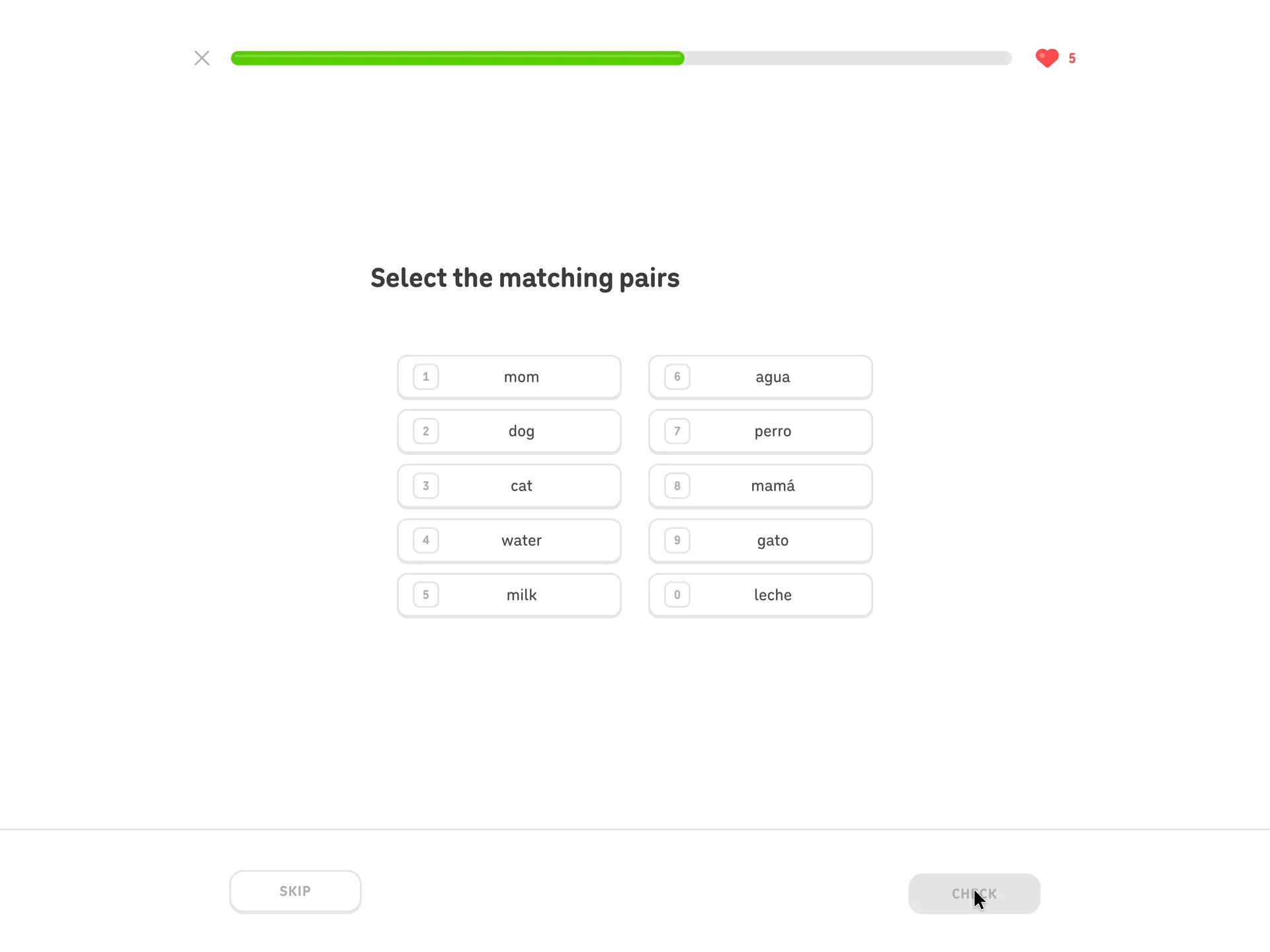
Match the five new words to their meanings
Answered three more picture exercises (dog, water, milk) before this screen, then matched the five pairs
Why it works
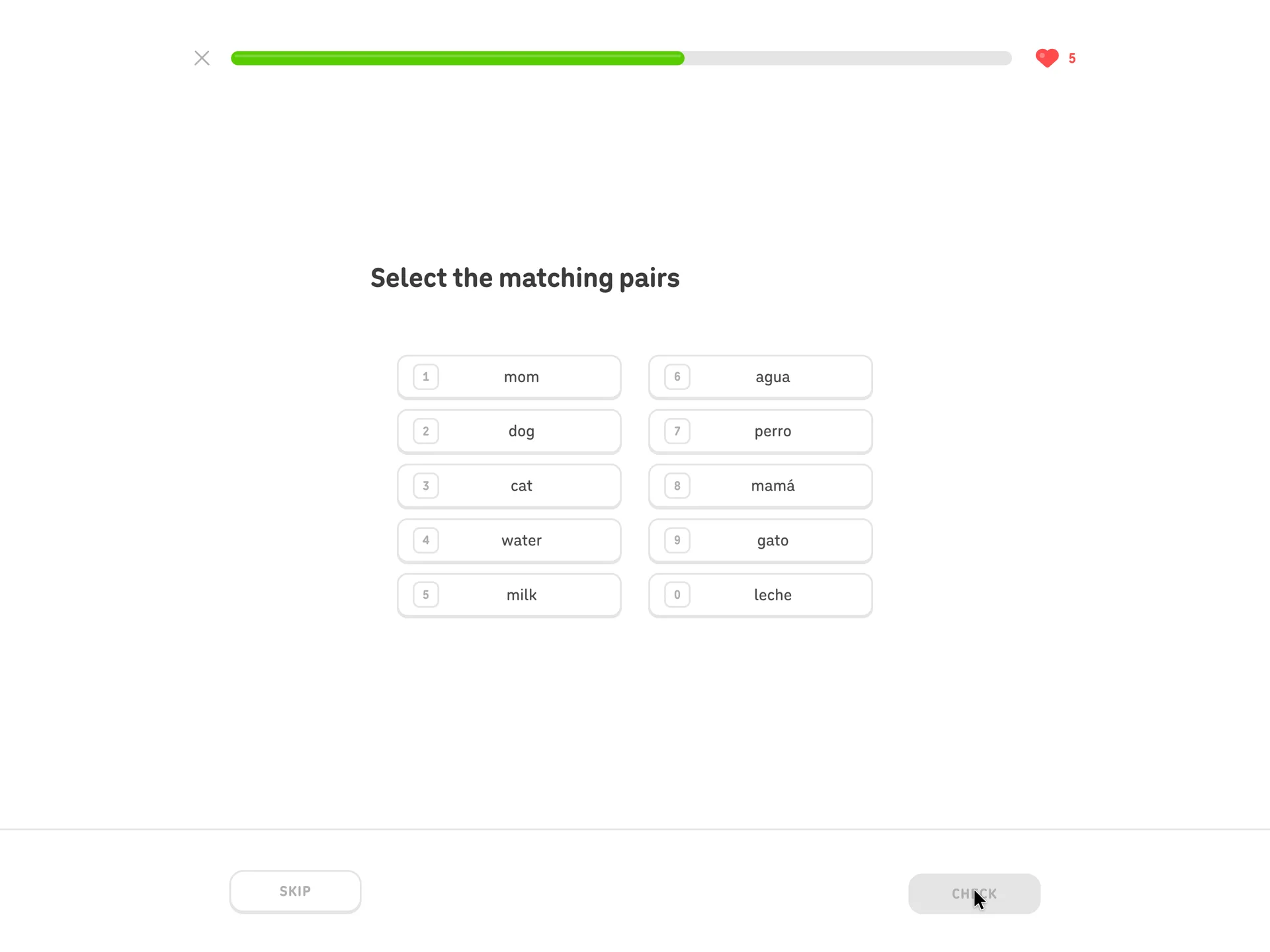
Every word in the pairs was taught in the last few minutes, so the first review is one the learner can finish, and it proves the words stuck.
What’s on this screen
After three more 'New word' picture exercises (perro, agua, leche), the fifth exercise asks 'Select the matching pairs'. Two columns of numbered tiles: mom, dog, cat, water, milk in English, and agua, perro, mamá, gato, leche in Spanish, keys 1 to 0. The heart still shows 5.
Step 17 of 27:Celebration
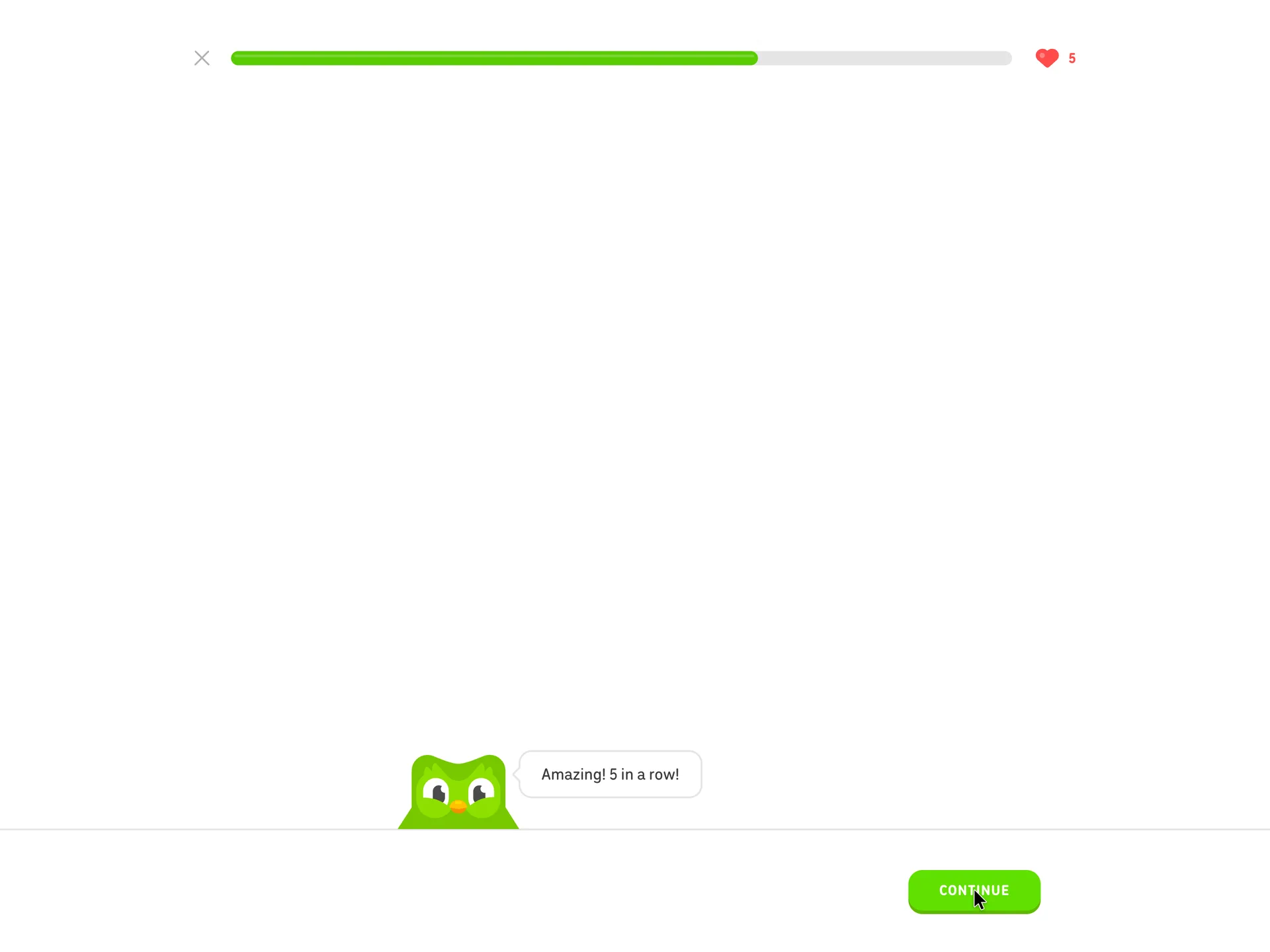
A mid-lesson cheer for five in a row
Clicked Continue
Why it works
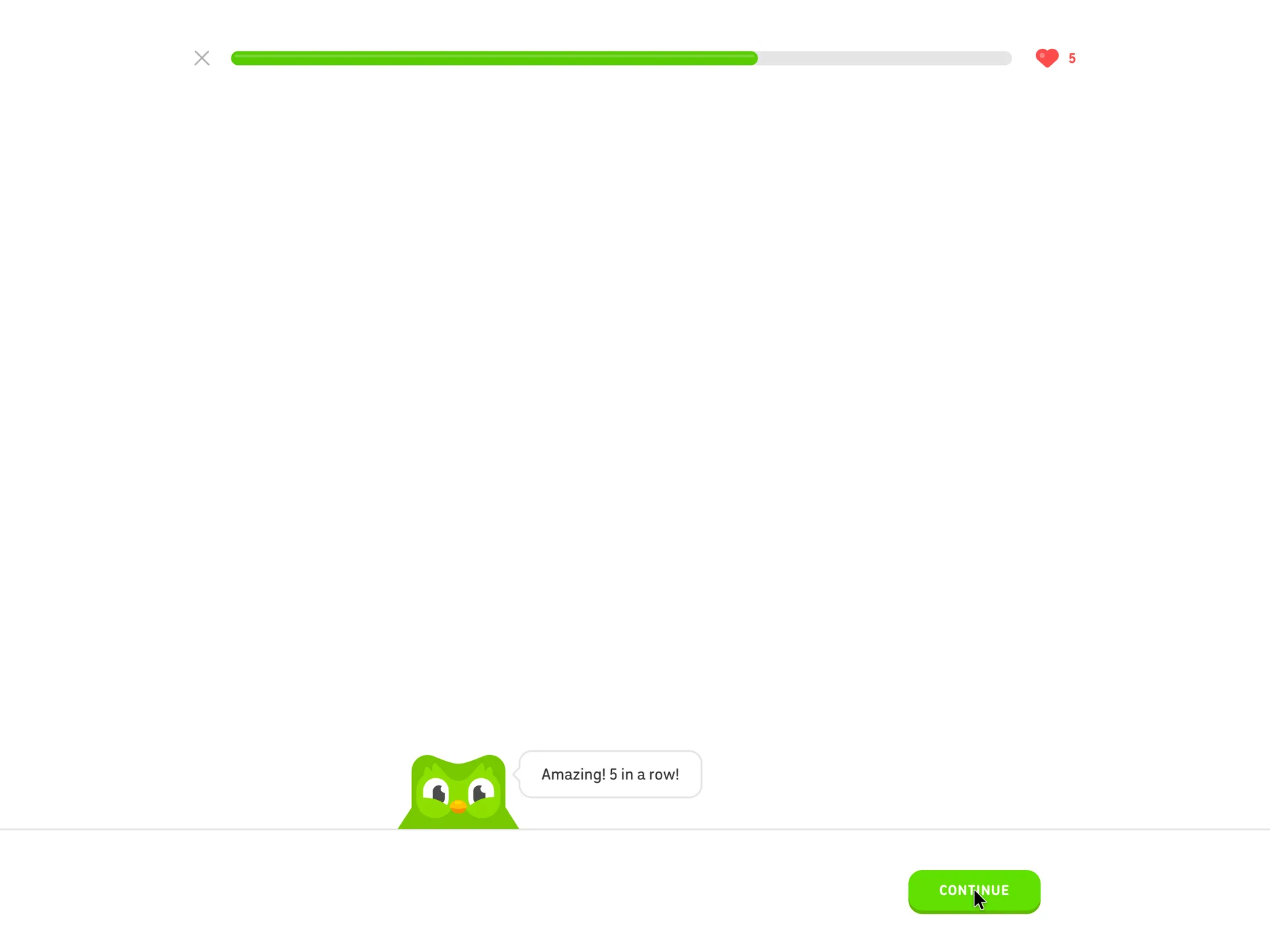
The cheer counts something the learner just did, five correct answers, so the praise is earned rather than generic, and it lands before the lesson's harder part.
What’s on this screen
After the pairs are matched ('Nicely done!', with '5 in a row' written along the progress bar), the exercise clears and Duo peeks up from the bottom edge saying 'Amazing! 5 in a row!'. The lesson progress bar is about two thirds full; the heart still shows 5.
Step 18 of 27:First value
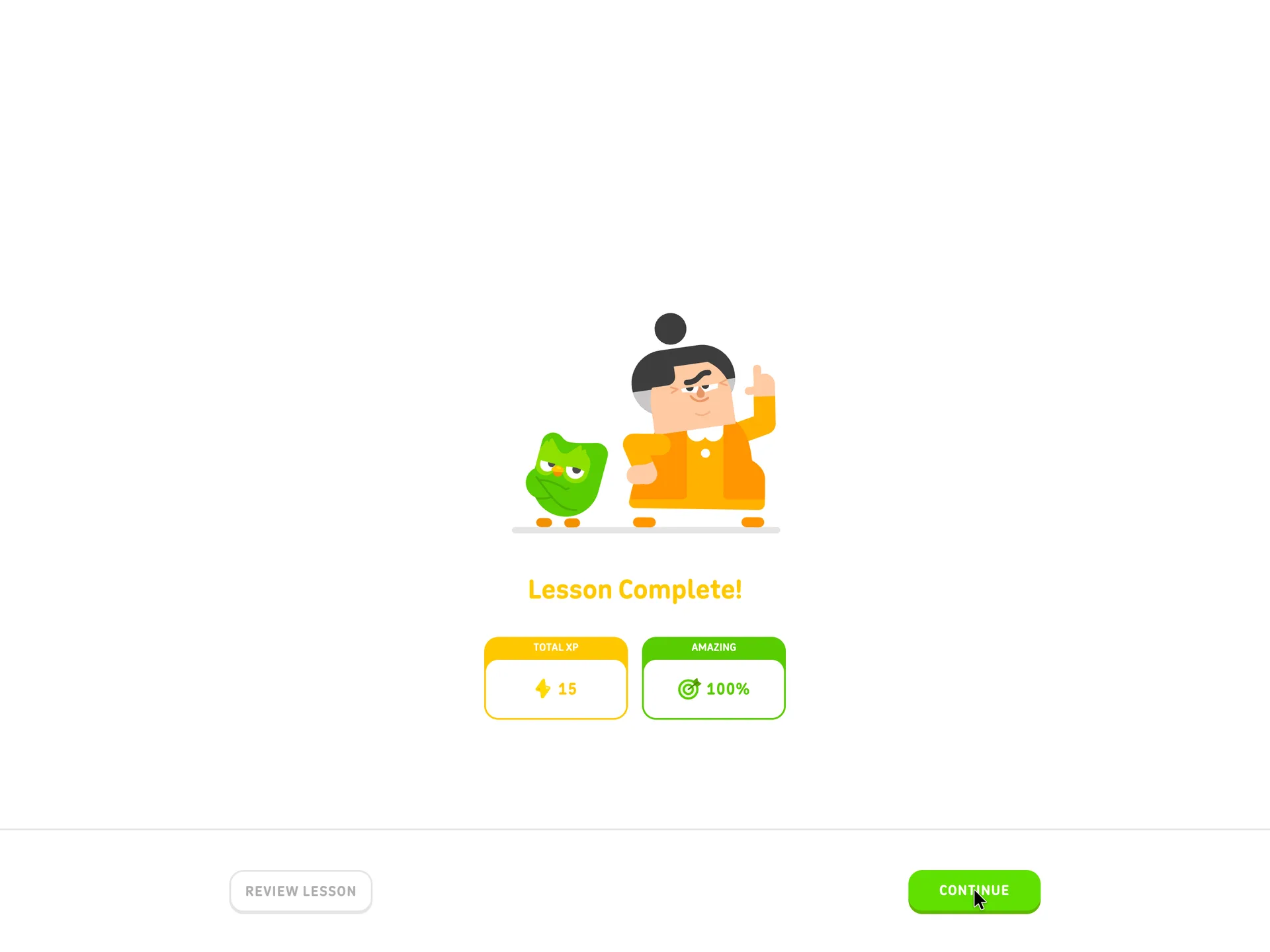
Lesson complete, before any account exists
Finished the lesson (12 exercises, none wrong), then clicked Continue
Why it works
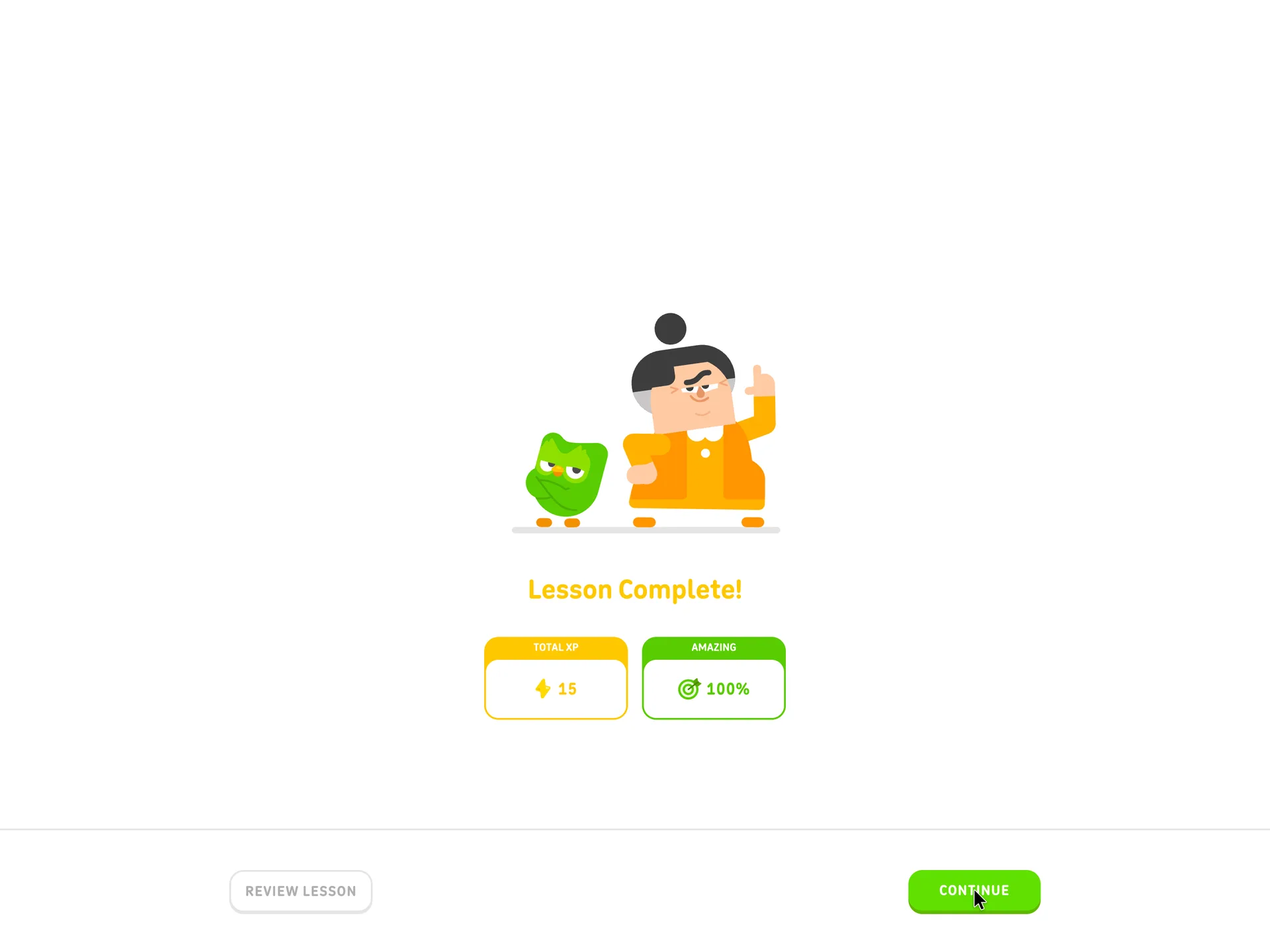
The learner has answered 12 exercises on six Spanish words and seen a score before Duolingo asks for anything personal, so signing up later is about keeping something, not unlocking it.
What gets in the way
The two numbers (15 XP, 100%) aren't explained here, so XP means nothing yet to someone on their first lesson.
What’s on this screen
After 12 exercises (six words taught with pictures, 'Select the correct meaning' checks, two matching-pairs reviews, and a second cheer from Duo, 'Good effort!'), the lesson ends on 'Lesson Complete!' with Duo and another cartoon character, and two cards: Total XP 15 and Amazing 100%. Review lesson and Continue sit at the bottom. The red heart stayed at 5 throughout because no answer was wrong. No account, email or password has been asked for yet.
Step 19 of 27:Celebration
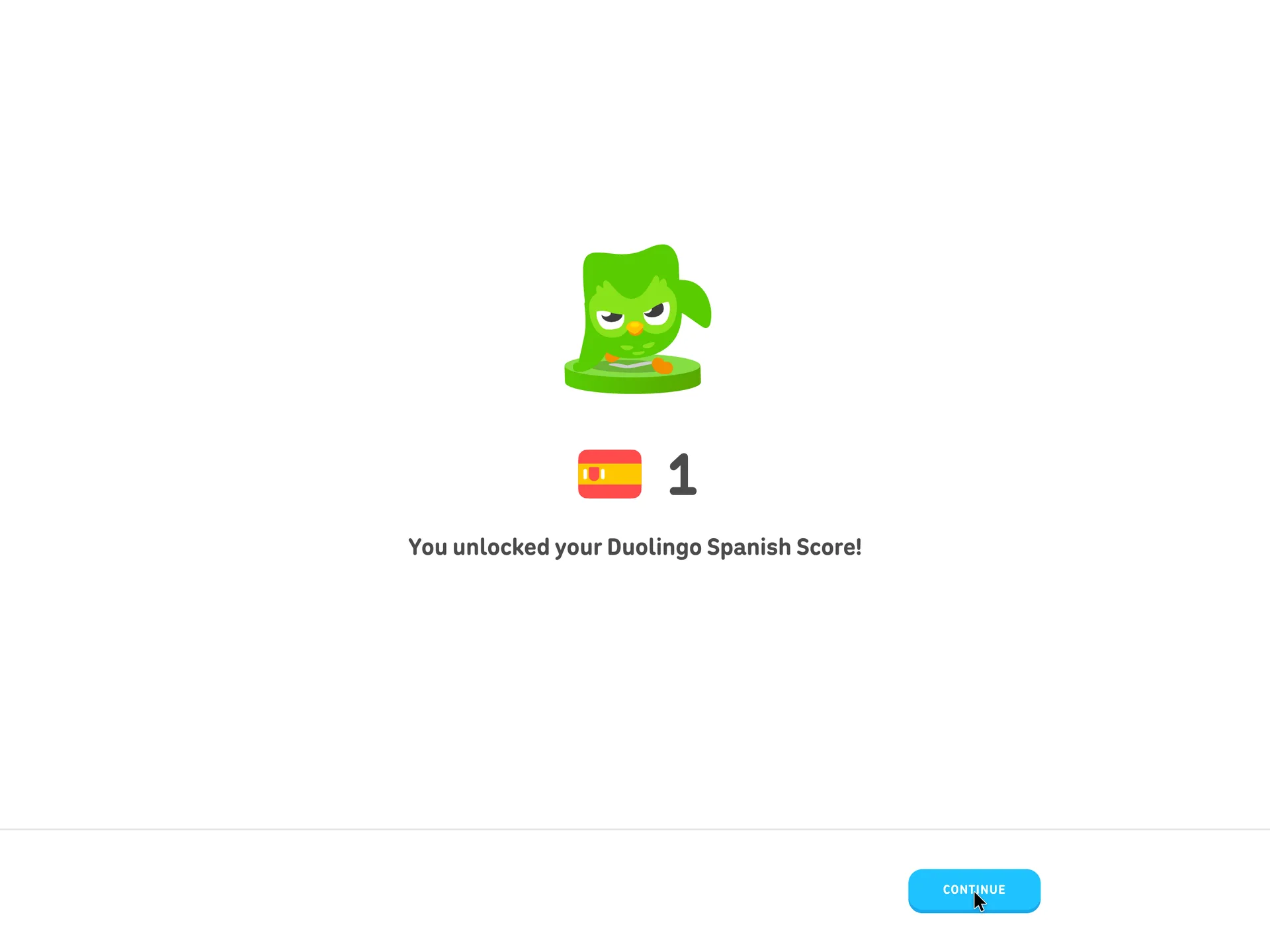
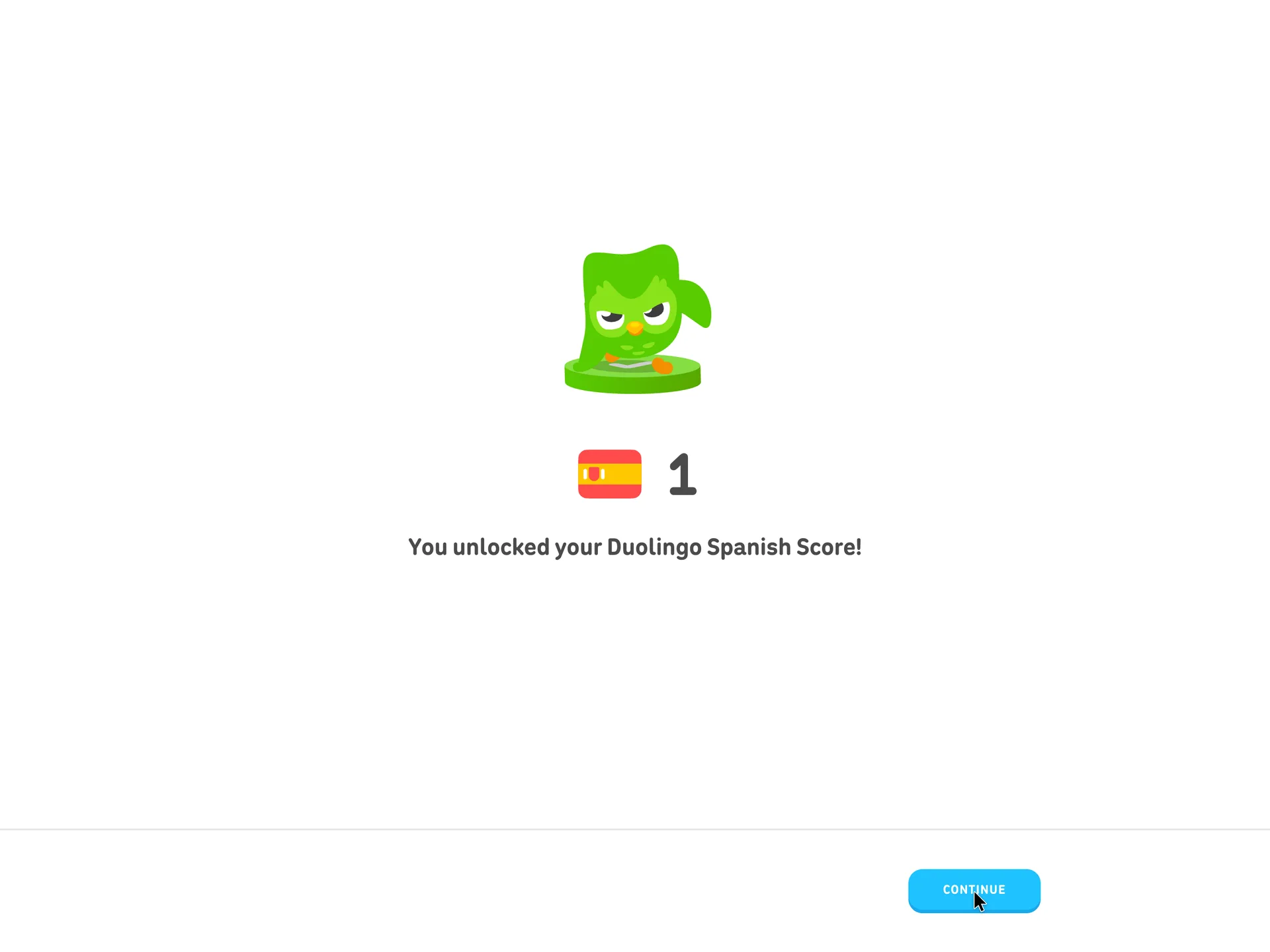
A Duolingo Spanish Score of 1 is unlocked
Clicked Continue twice: the second click adds a bar from 1 to 2 and an explanation before moving on
Why it works
It gives the first lesson a lasting number to come back and raise, a second reward on top of the XP.
What gets in the way
The first view shows a bare 1 with no scale; what the score means arrives only after another Continue.
What’s on this screen
Duo stands on a green pedestal above a Spanish flag and a large 1, with the line 'You unlocked your Duolingo Spanish Score!' and a blue Continue button. After Continue, the same screen adds a bar from 1 to 2 and the line 'Your Score connects course progress to real-life skills'.
Step 20 of 27:Celebration
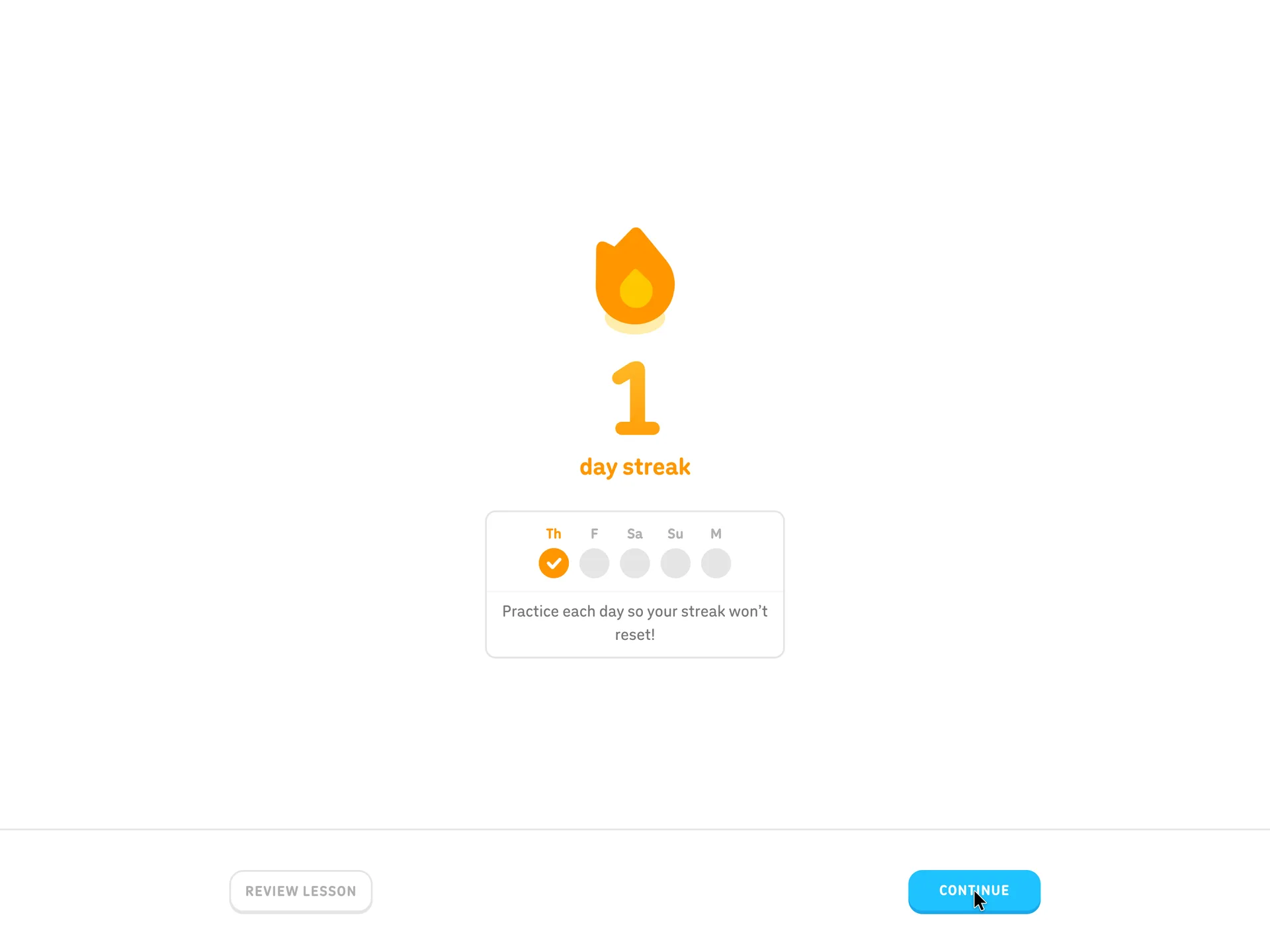
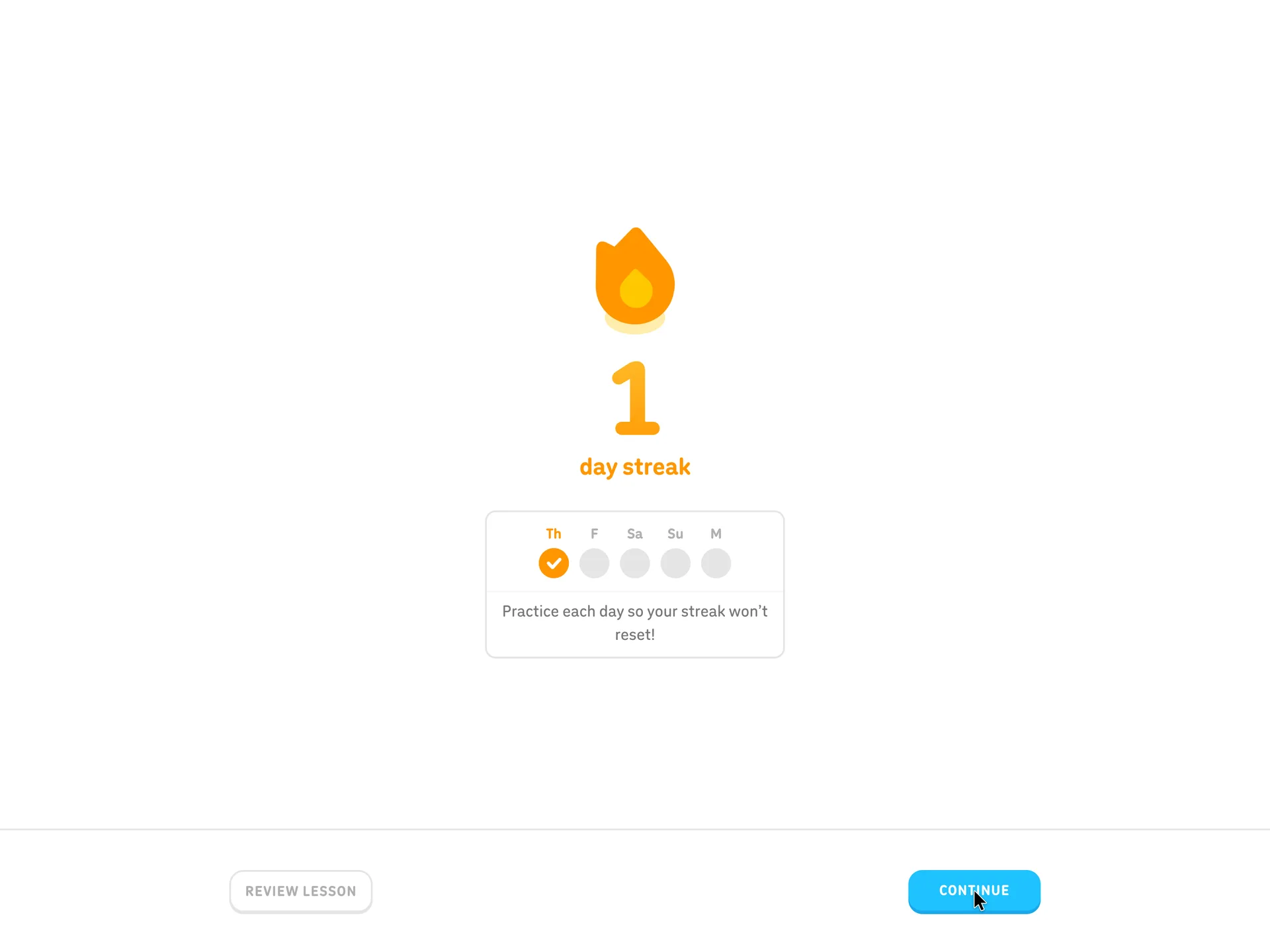
A 1 day streak starts on the first day
Clicked Continue
Why it works
The streak turns the daily goal chosen earlier into something the learner can lose, and the empty circles for the coming days show exactly what keeping it takes.
What’s on this screen
An orange flame over a large 1 and 'day streak'. Below, a card shows the next five days (Th ticked, then F, Sa, Su, M empty) and the line 'Practice each day so your streak won't reset!'. Review lesson and Continue at the bottom. Still no account.
Step 21 of 27:Setup question
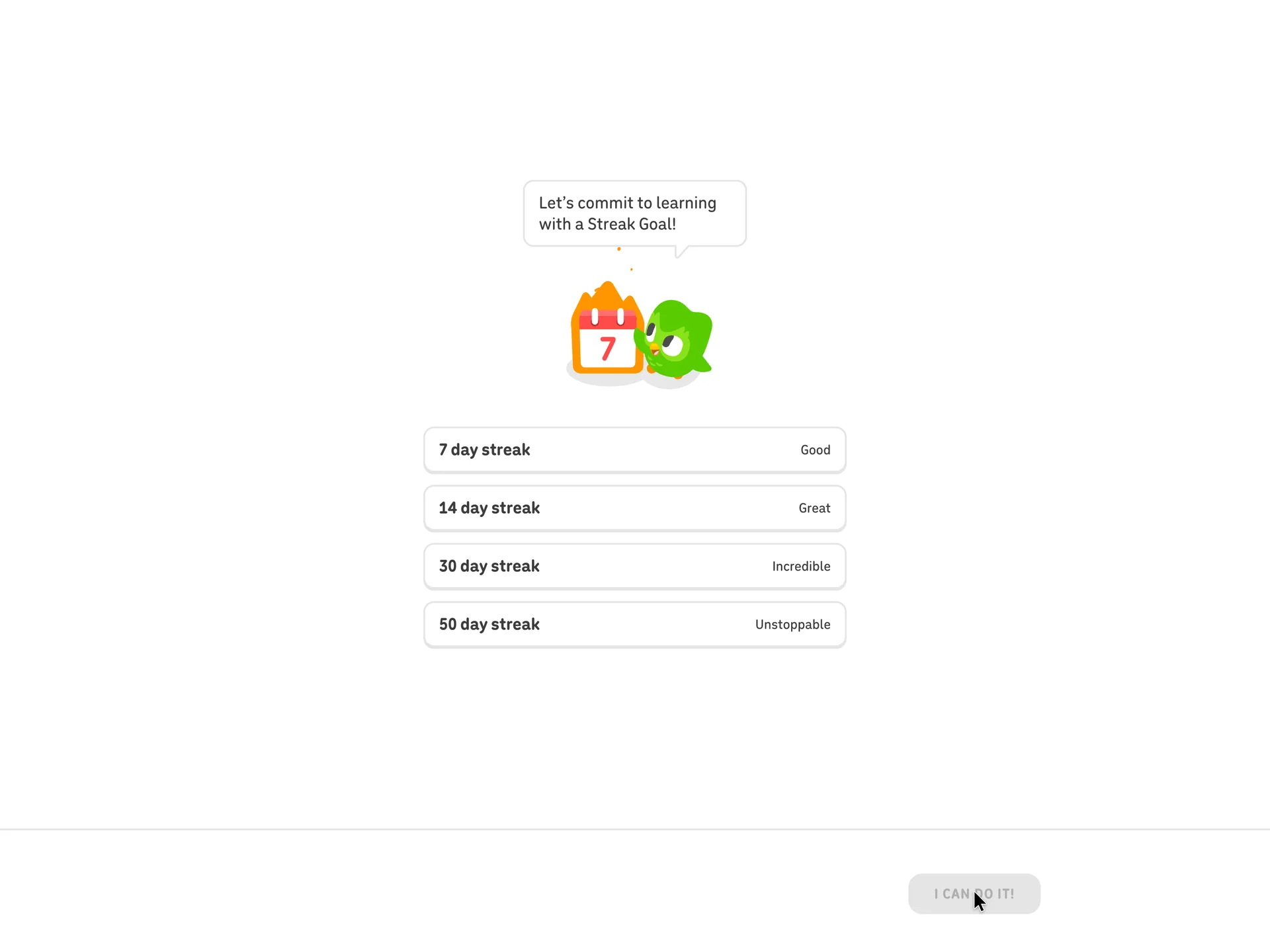
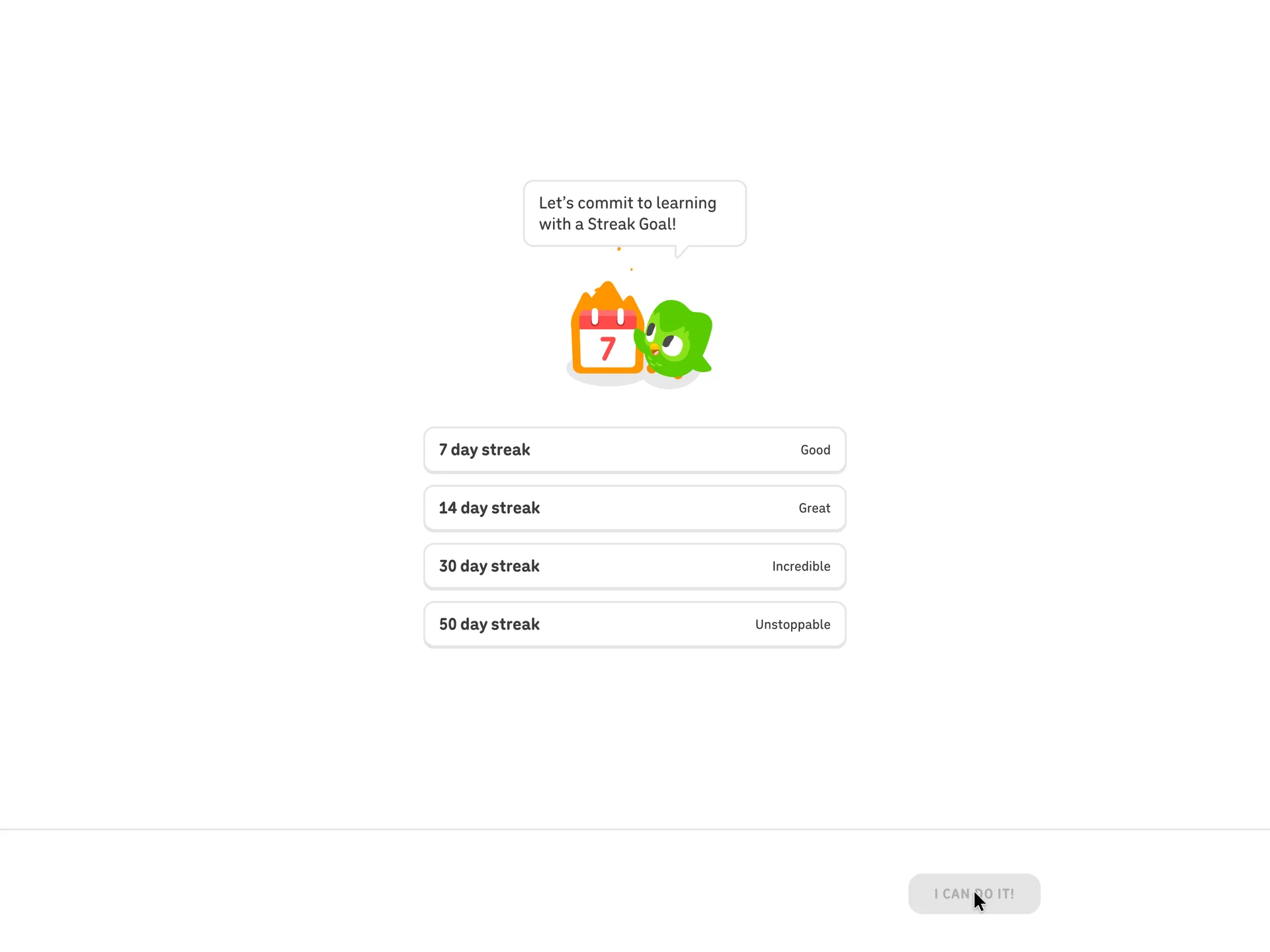
Commit to a Streak Goal
Chose 7 day streak (Good), then I can do it!
Why it works
The button text makes the choice a promise in the learner's own voice, and even the smallest goal is labelled Good.
What gets in the way
A second goal question after the daily-minutes one at the start, now about days in a row, before the account exists.
What’s on this screen
Duo asks 'Let's commit to learning with a Streak Goal!' above a calendar badge. Four options, each with a label: 7 day streak Good, 14 day streak Great, 30 day streak Incredible, 50 day streak Unstoppable. The button reads 'I can do it!' and stays disabled until one is picked.
Step 22 of 27:Celebration
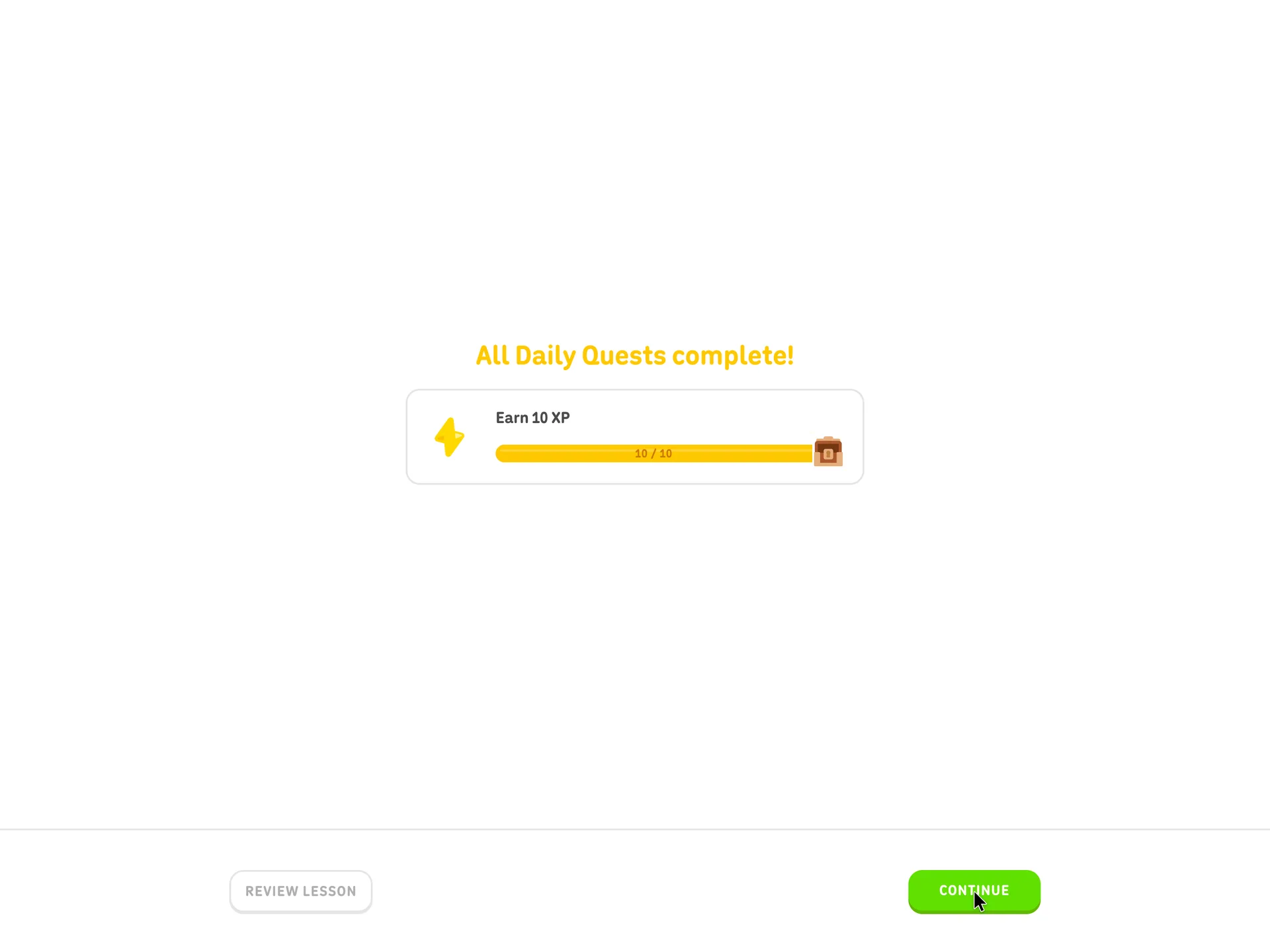
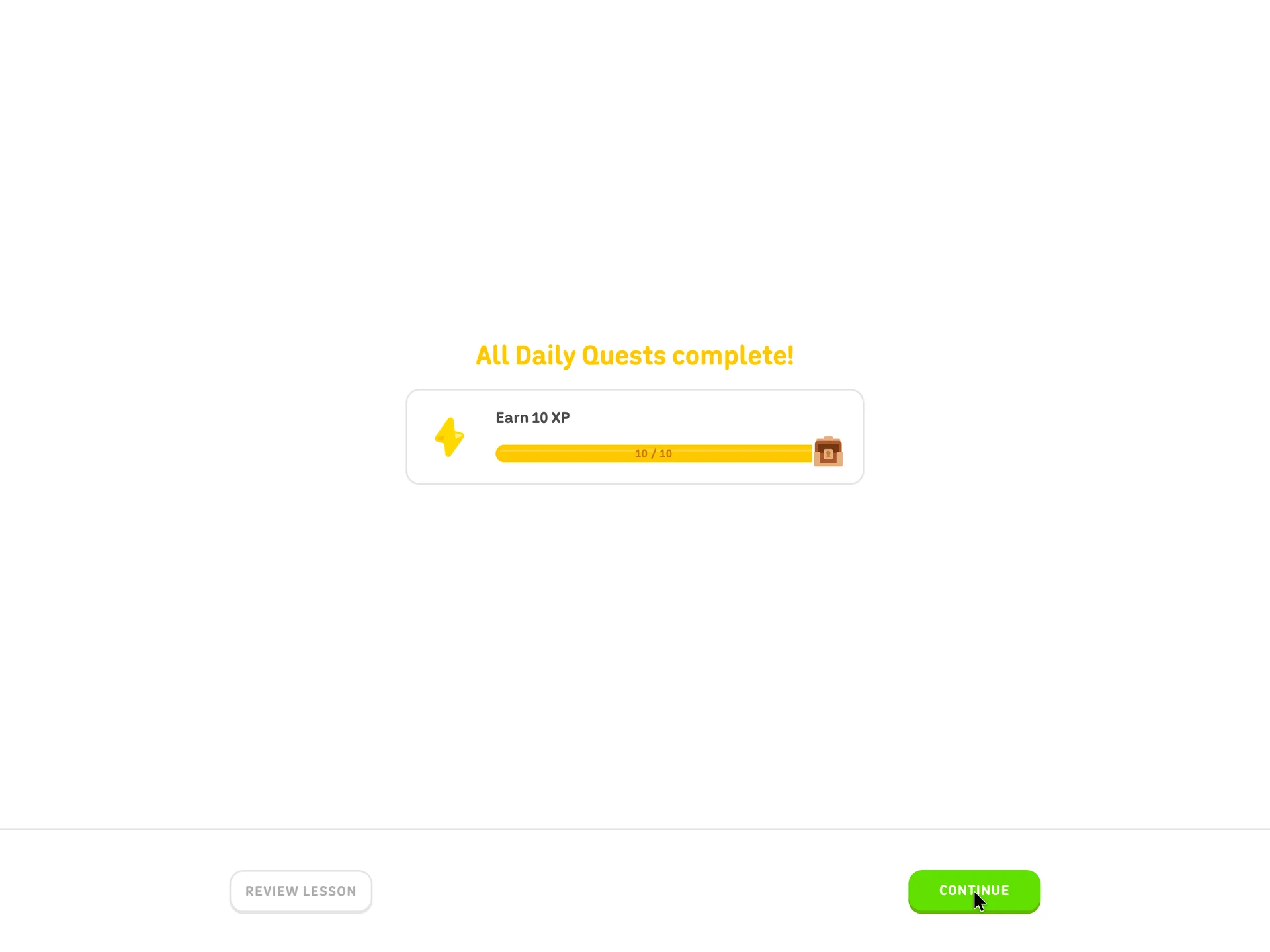
All Daily Quests complete after one lesson
Clicked Continue
Why it works
It introduces daily quests as already done, so the learner meets the feature as a win rather than a task.
What gets in the way
Four reward screens and a commitment question in a row, each needing Continue, stand between the lesson and the next step.
What’s on this screen
'All Daily Quests complete!' with a single quest, 'Earn 10 XP', and its bar full at 10 / 10. Review lesson and Continue at the bottom. This is the fourth reward screen since the lesson ended (XP, Spanish Score, streak, quests), with the Streak Goal question among them.
Step 23 of 27:Signup form
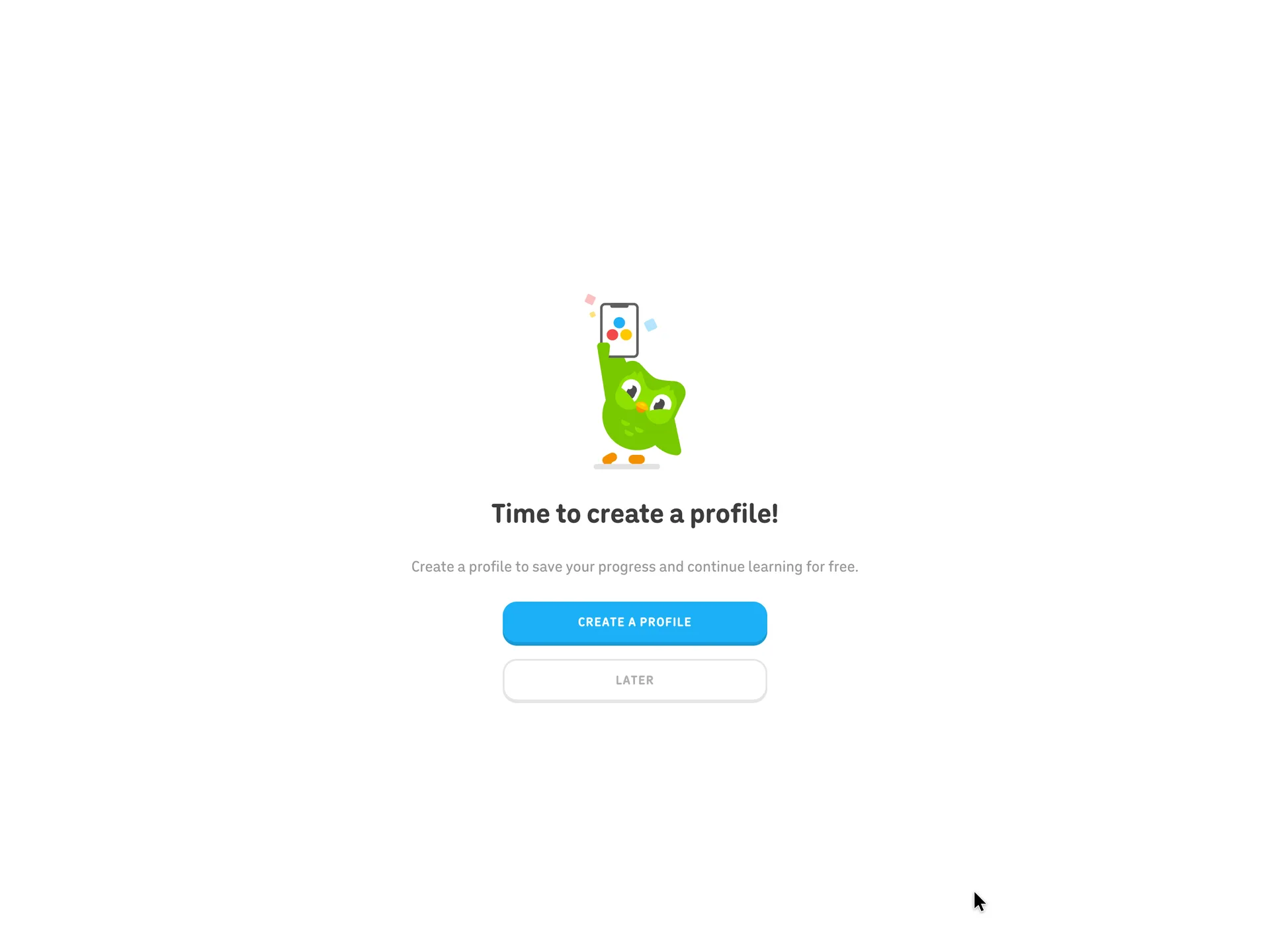
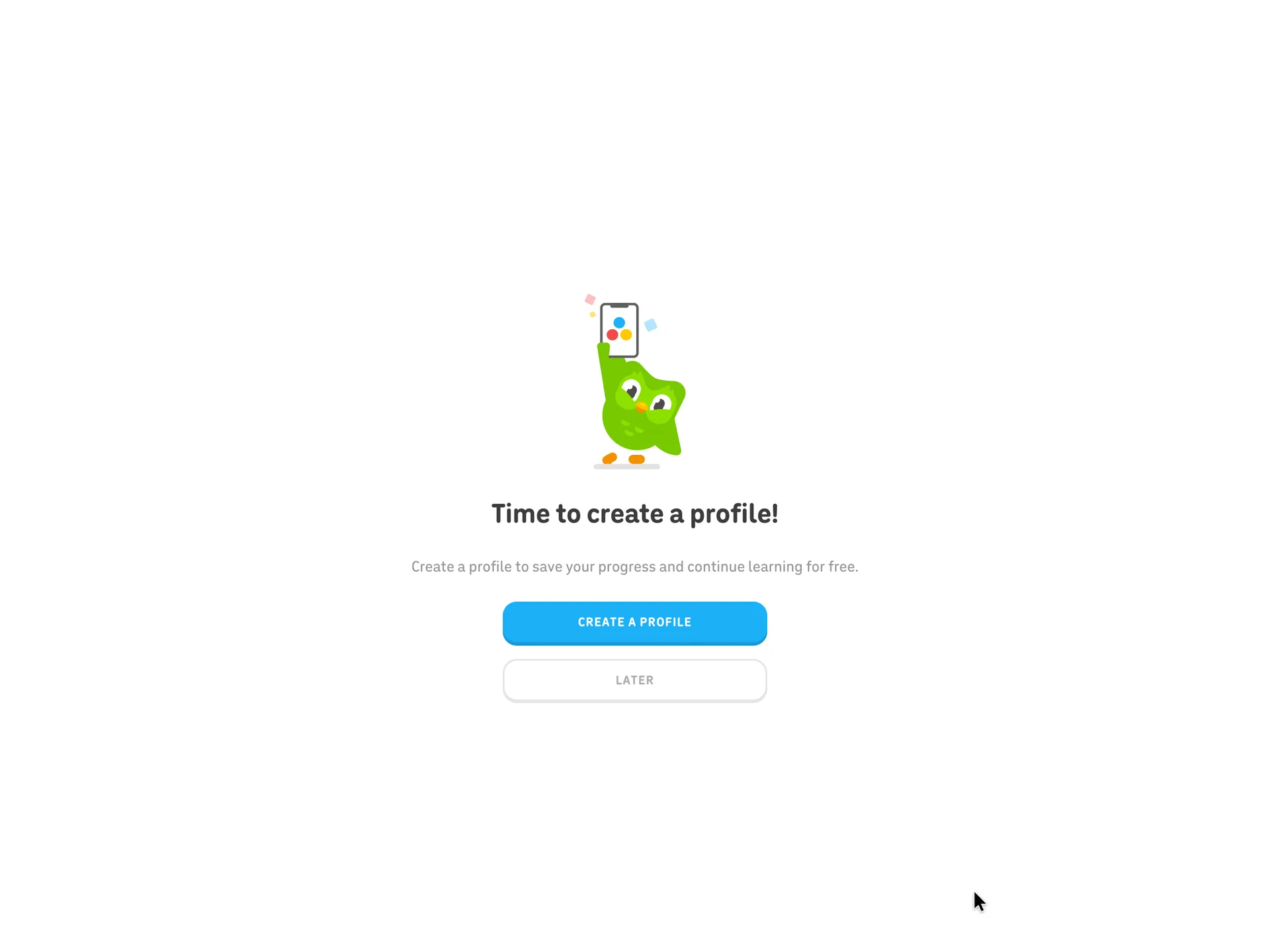
Time to create a profile, with Later as an option
Clicked Create a profile
Why it works
The ask comes only after the learner has XP, a score, a streak and gems to lose, and the reason given is to save them. Later is a full-size button, so nobody is forced in.
What’s on this screen
After a fifth reward screen ('You earned 5 gems! Nice job reaching your daily goal!'), Duo holds up a phone over 'Time to create a profile!' and the line 'Create a profile to save your progress and continue learning for free.' Two buttons: Create a profile (blue) and Later.
Step 24 of 27:Signup form
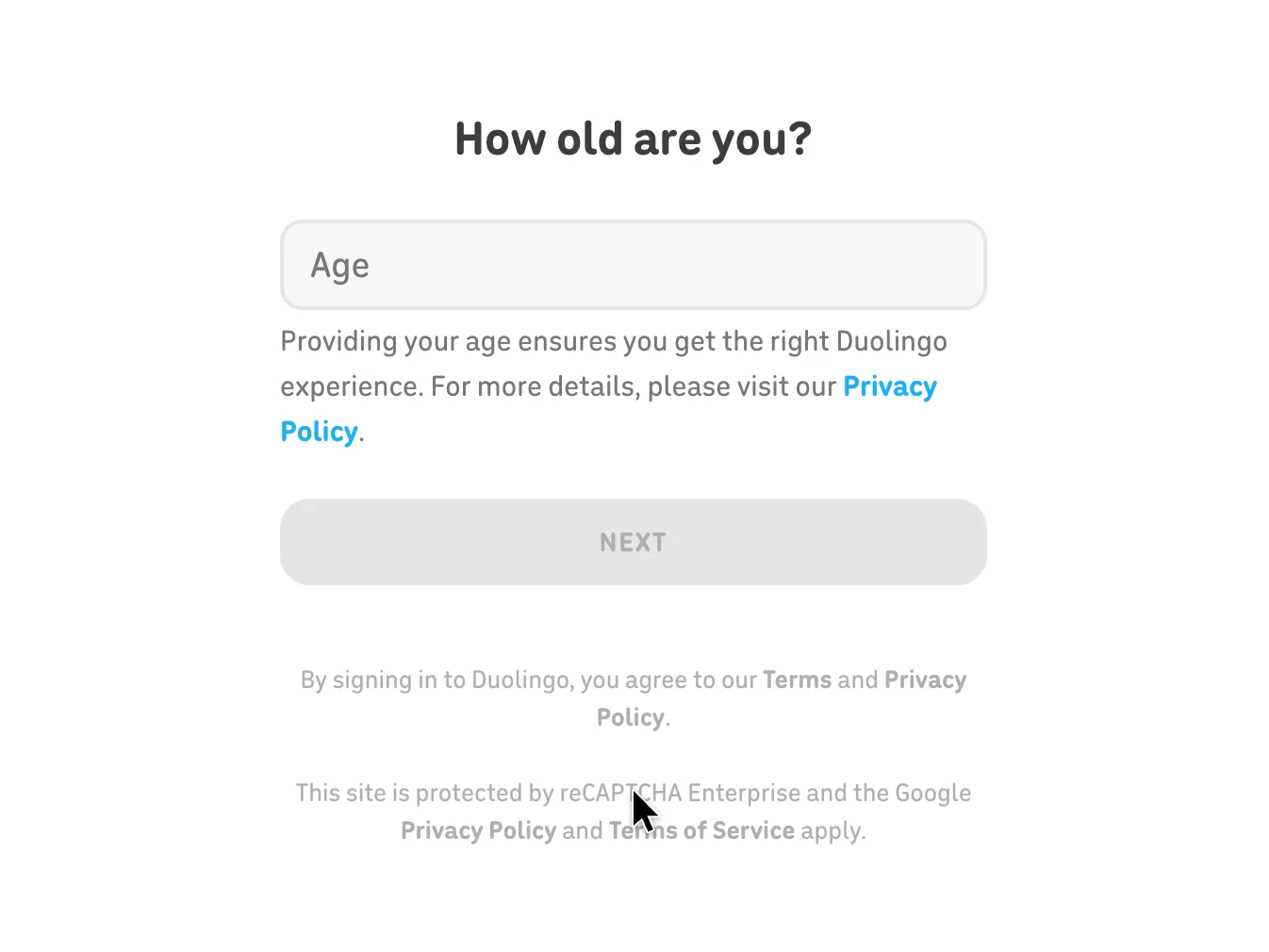
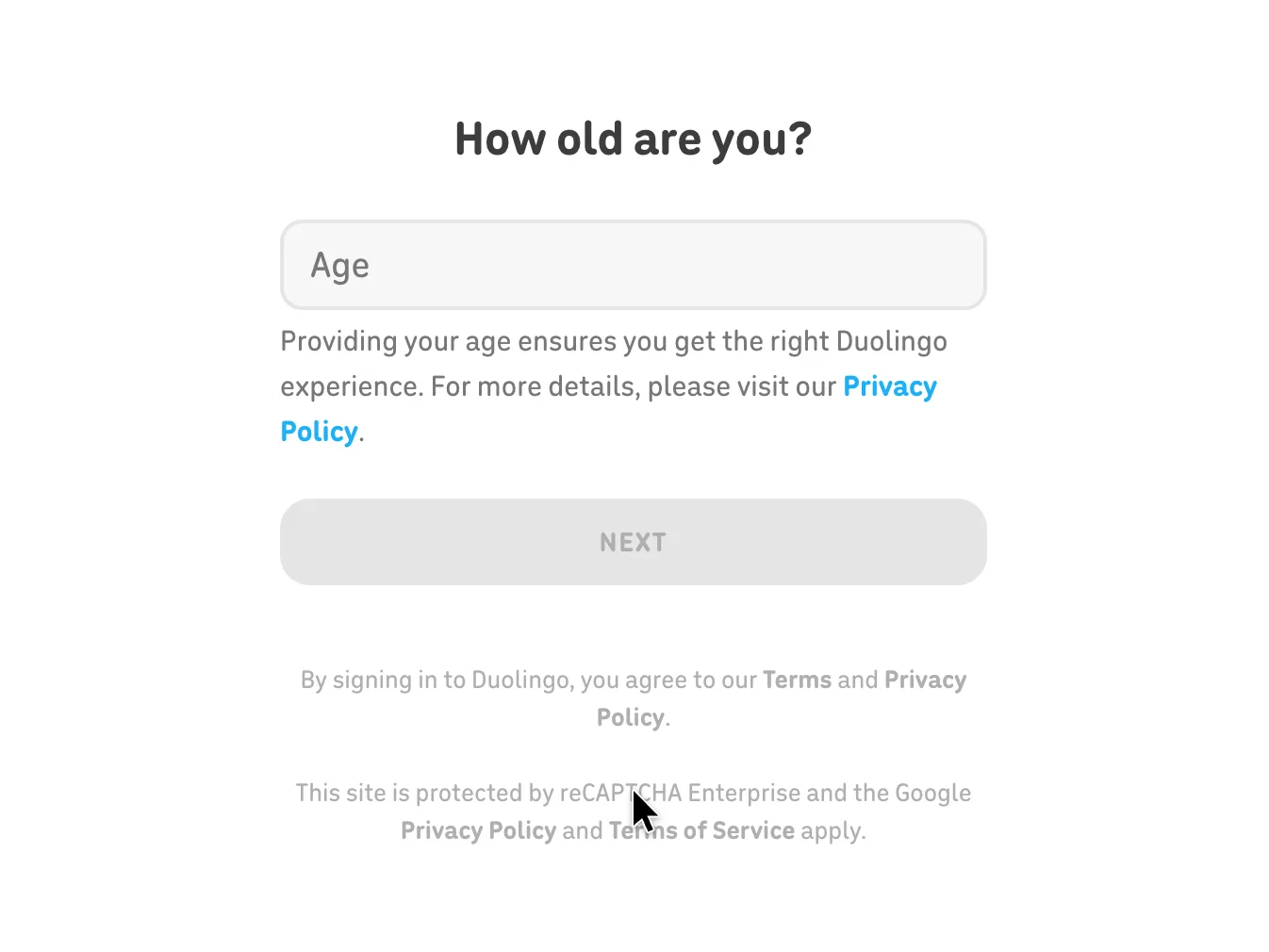
Age first, on a screen of its own
Typed the age (34), then Next
Why it works
One field per screen keeps the form short to look at, and the reason for asking the age is given right under the field.
What gets in the way
The terms line sits on the age screen, before the learner has seen what the account will hold.
What’s on this screen
A full-screen form with one field: 'How old are you?' (Age), with the note 'Providing your age ensures you get the right Duolingo experience' and a link to the Privacy Policy. Next is disabled until it is filled. Below: 'By signing in to Duolingo, you agree to our Terms and Privacy Policy' and a reCAPTCHA Enterprise notice. A Login button sits top right and a close icon top left.
Step 25 of 27:Signup form
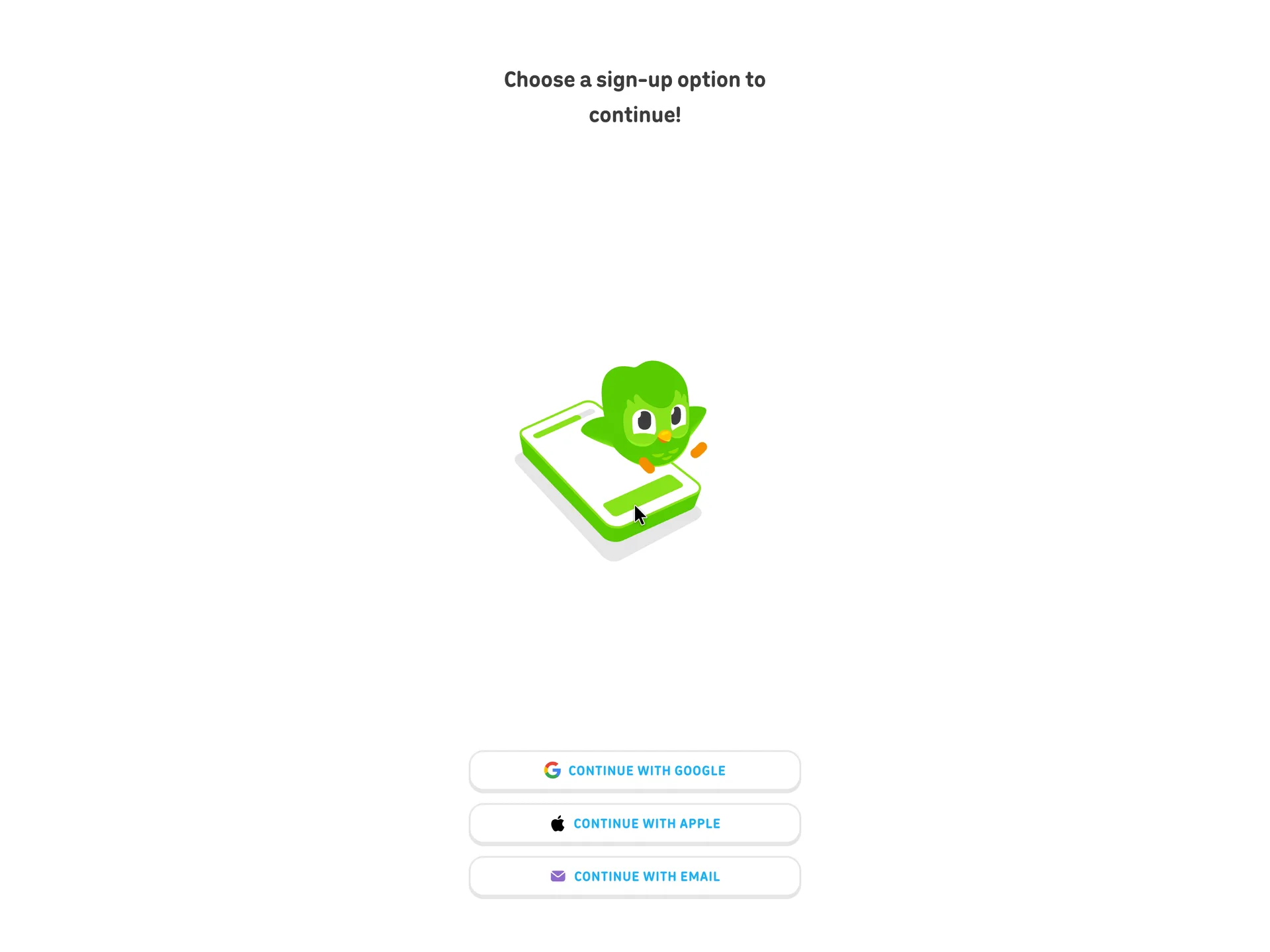
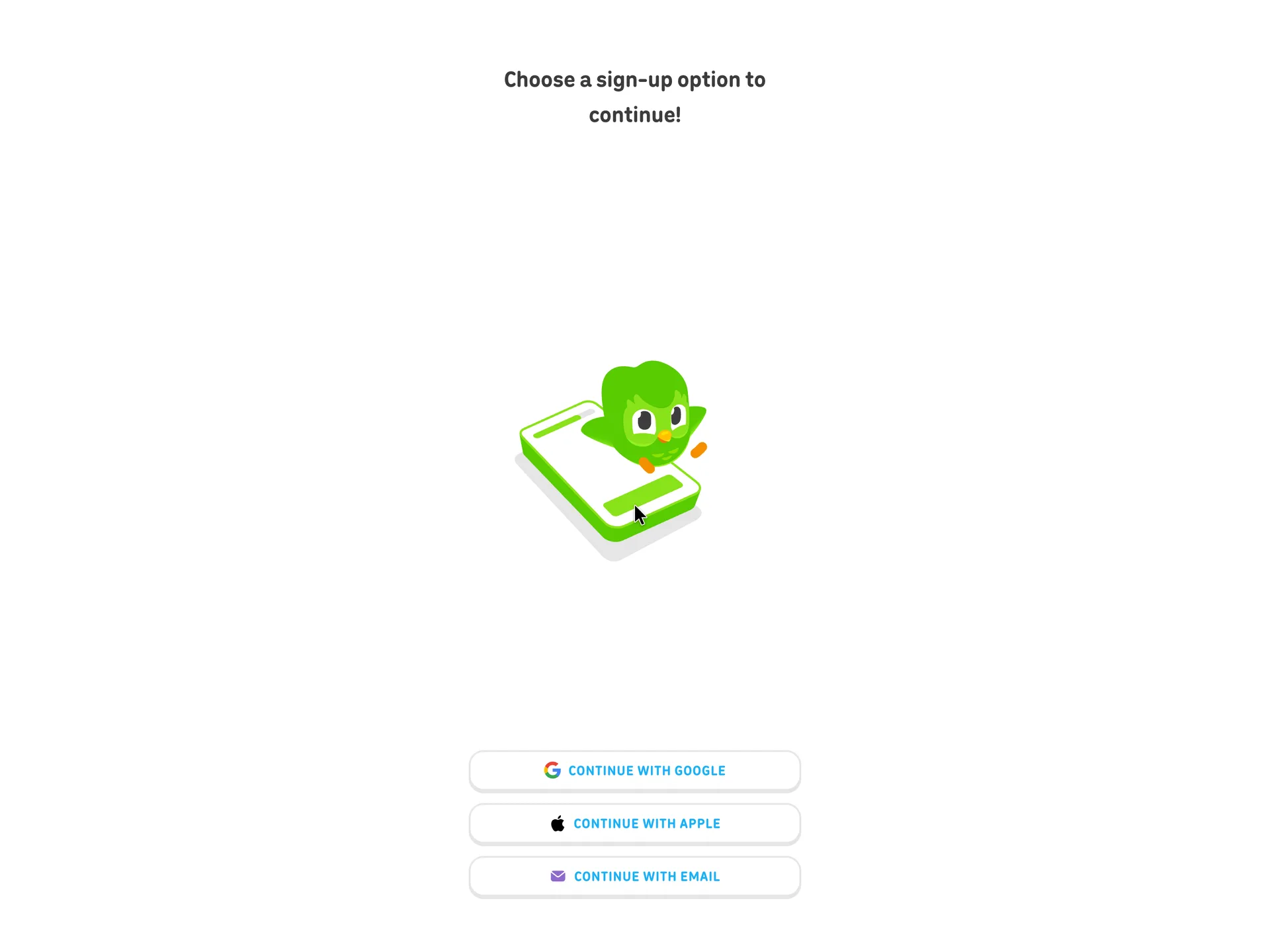
Choose a sign-up option: Google, Apple or email
Clicked Continue with email
Why it works
Two of the three options need no password at all, and email is offered on equal terms for anyone who doesn't want to link an account.
What’s on this screen
'Choose a sign-up option to continue!' over an illustration of Duo on a phone. Three buttons at the bottom of the screen: Continue with Google, Continue with Apple, Continue with email. A back arrow sits top left.
Step 26 of 27:Signup formDone by a person
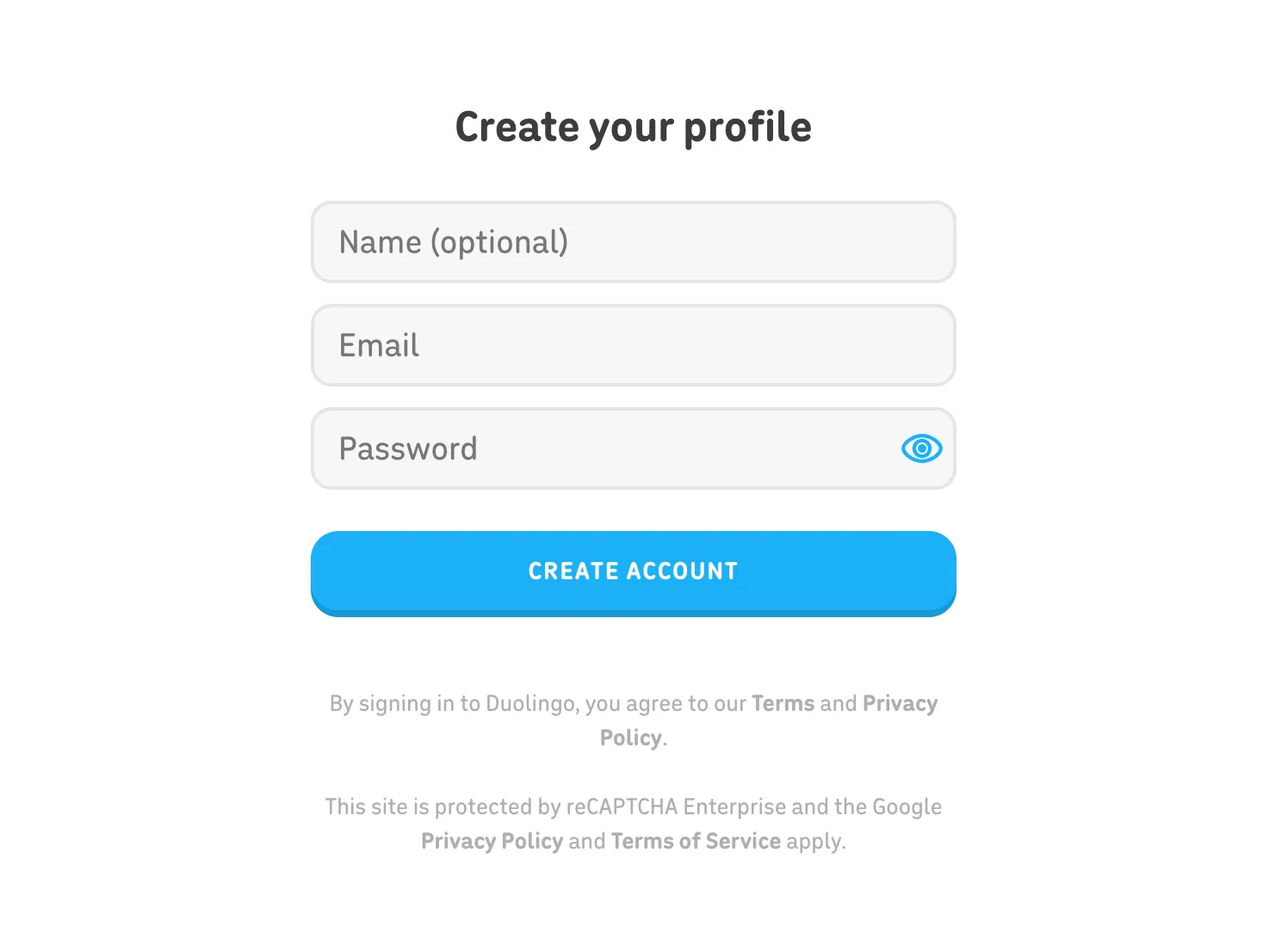
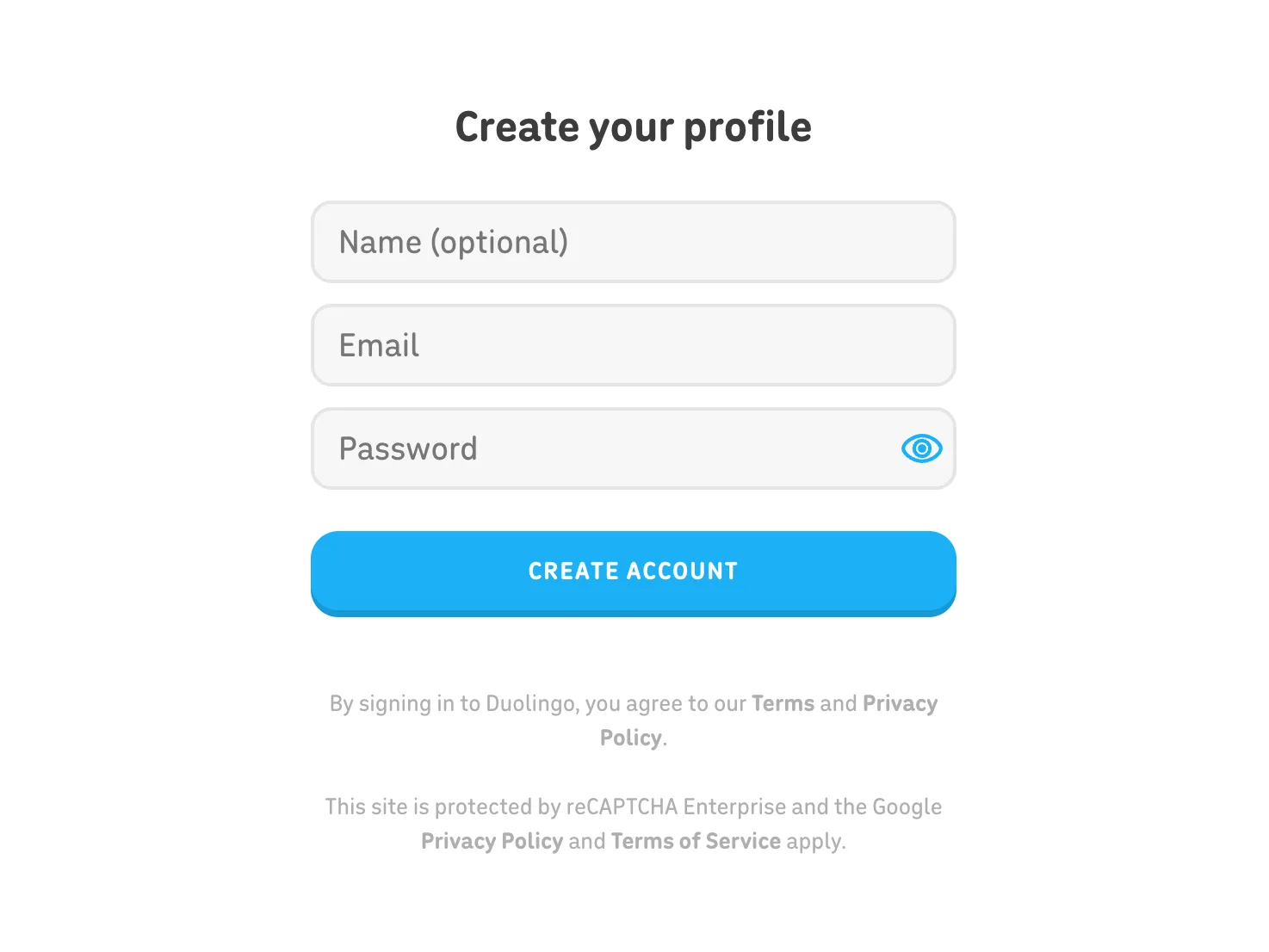
Create your profile: name, email and password
The agent typed the name, email and password; a person clicked Create account, which accepts the terms
Why it works
Three fields, one of them optional, on a single screen, and the age was already taken on its own screen, so this form stays short.
What’s on this screen
'Create your profile' with three fields: Name (optional), Email, and Password with a show-password eye. One button, Create account, then the line 'By signing in to Duolingo, you agree to our Terms and Privacy Policy' and the reCAPTCHA Enterprise notice. Login sits top right.
Step 27 of 27:Other
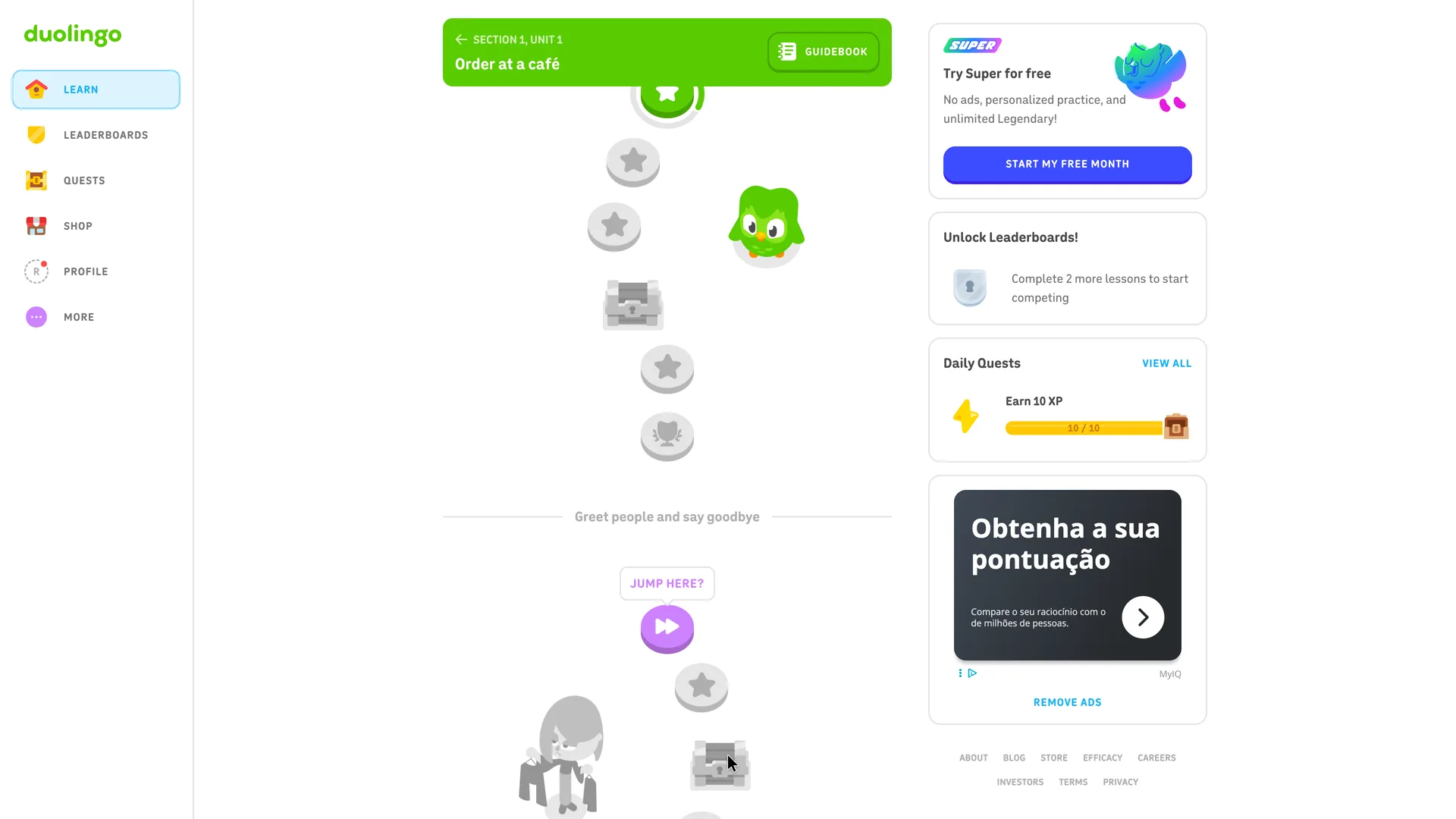
The learning path, with the first lesson already done
Why it works
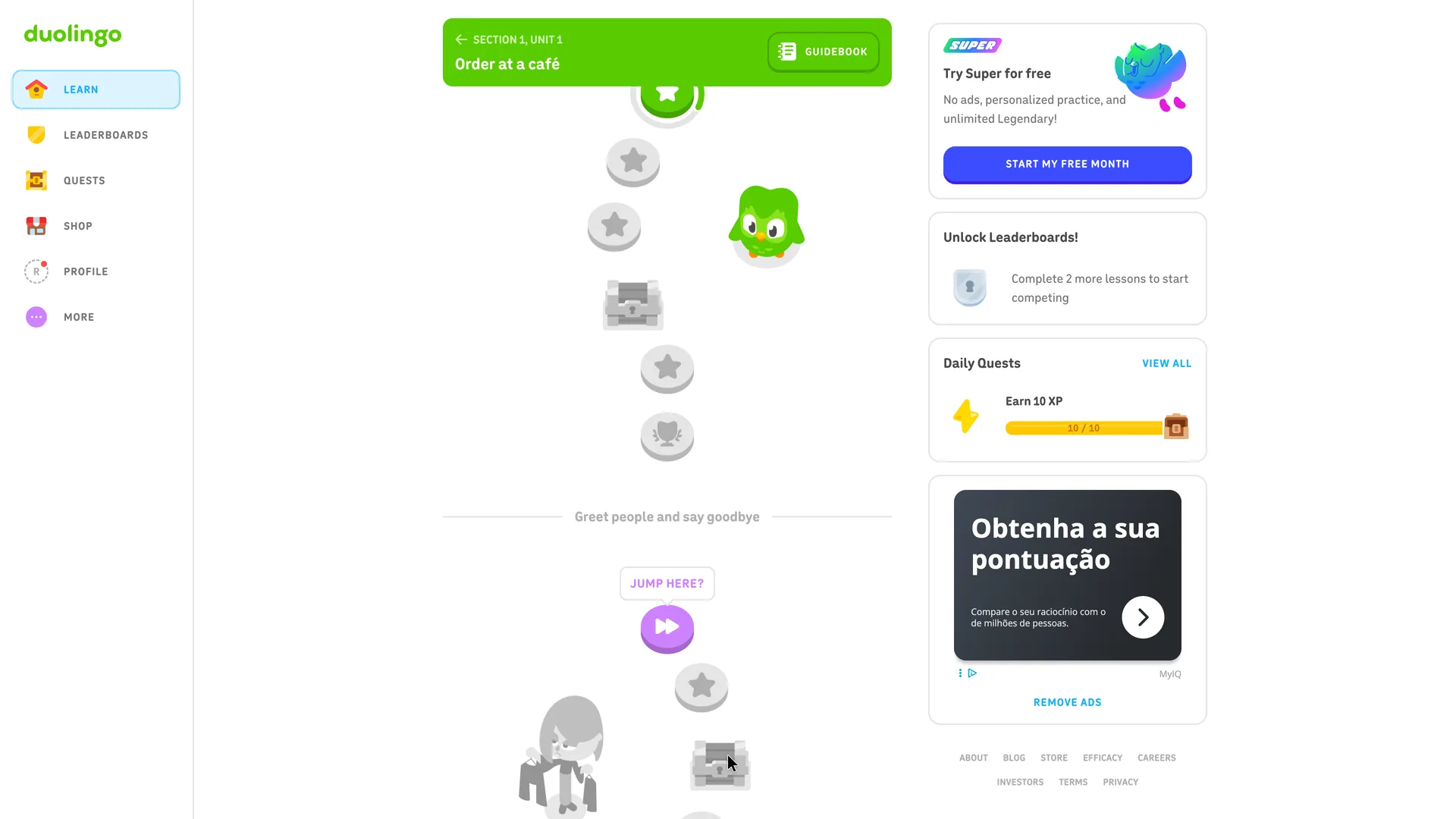
The account opens on the path itself with the first lesson already counted, so the next lesson is the obvious thing to do, and the side cards set the next goals (two lessons to unlock Leaderboards).
What gets in the way
A free-trial card and a display ad take up the right column on the learner's first view of the home screen, and the ad appeared in Portuguese on an English page.
What’s on this screen
Create account leads straight to /learn, with no verification step and no plan screen in between. A green header reads 'Section 1, Unit 1: Order at a café' with a Guidebook button, above a winding path of lesson nodes: the first is filled in, the next ones are grey, then a chest and a trophy, and a second unit ('Greet people and say goodbye') with a 'Jump here?' shortcut. The left menu has Learn, Leaderboards, Quests, Shop, Profile (with an R avatar and a red dot) and More. The right column shows a Super card ('Try Super for free', Start my free month), 'Unlock Leaderboards! Complete 2 more lessons to start competing', Daily Quests with Earn 10 XP at 10 / 10, and a display ad in Portuguese with a Remove ads link. About three minutes after Create account, Duolingo sent a 'Verify your email' message and a welcome email; nothing in the flow asked for the email to be verified.
Verdict
What Duolingo gets right
- A whole lesson comes before any account: no email, password or age until the learner has 15 XP, a streak and six Spanish words to keep.
- Every setup question is one tap, and the answers are things a person can judge: levels described as what you can do, goals in minutes a day.
- The first exercise needs no Spanish at all. Three pictures and one English word make the first answer a right one.
- Every answer gets feedback on the spot, with Too easy and Too difficult links right under it.
- When the account ask comes, it says what it's for (saving progress) and offers Later as a full-size button. Signup is the age, then Google, Apple or email, then three fields, one of them optional.
What we’d change
- Cut the screens that only carry the mascot's lines. Two greetings and one sentence split across two screens add four clicks before the questions that shape the course.
- Ask 'How did you hear about Duolingo?' after the first lesson, or not at all. It comes straight after the course choice and serves Duolingo's marketing, not the learner.
- Fold the rewards after the lesson into one screen. XP, the Spanish Score, the streak, the quests and the gems each take a Continue, with a second goal question among them, before the prompt to save.
- Say what the numbers count where they first appear. The hearts and the 15 XP get no explanation, and the Spanish Score is explained only after another click.
- Keep the first home screen about the next lesson. A free-trial card and a display ad fill the right column on the learner's first view of it.
How we recorded it
- Recorded
- 5 Nov 2026
- Agent
- Claude Opus 5.5 in Claude Code
- Browser
- Chromium driven through Playwright MCP 0.0.84, a 1920 × 1080 window at 2× pixel density
- Signed up as
- Robin Hale, product manager at Quillmark (a made-up B2B SaaS company); a team of 26 to 50 people; wants conversational Spanish for travel, in ten minutes a day
- Stopped at
- Finished a first Spanish lesson (12 exercises, six words) before creating an account
- Done by a person
- step 26, create your profile: name, email and password. An agent never accepts a product’s terms or gets past a verification on its own.
The agent answered every setup question as that person and skipped anything that would connect real data or invite real people. Screenshots are cropped to the part of the screen each step is about, and personal data in them is blurred. The figures at the top count the screens up to first value; form fields count every field shown, filled in or not.
Onboarding flows change, and this one is as Duolingo showed it on 5 Nov 2026. Seen a different flow, or want this page corrected or removed? Write to hello@useronboarding.academy.