Onboarding teardown · Asana
Asana onboarding, screen by screen: from signup to a first task
We had an AI agent sign up for Asana as a fictional product manager and go through onboarding until it had added a first task of its own. A person stepped in twice: to submit the email address, which accepts Asana's terms, and to enter the code Asana emailed. These are the screens it saw, in order, with what each one does well and what gets in the way.
By the UserOnboarding Academy teamRecorded 5 Nov 2026How we recorded it
UserOnboarding Academy isn't owned by Asana or any onboarding tool, and Asana didn't sponsor or review this page. The account was created for this recording only.
In short
Asana asks for an email and a six-digit code from the inbox, then runs a five-step setup with a progress bar: name and password, job title, industry, a first project and an invite. The project question is the strong part. After "Product manager" and "Software/SaaS" it offers a feature launch, a product roadmap or feature requests, and the project arrives filled in, with three phases, seven dated tasks, the function that owns each one and a risk level. The cost is that none of it is the user's. The project can't be named during setup, every task is Asana's, and an AI announcement, a view picker and an eight-item checklist come before the user's own first task, which then sits among the samples with no owner, date or risk level. A 14-day Advanced trial starts on the way, without a choice and without a card.
- Screens to first value
- 12
- Setup questions
- 3
- Form fields shown
- 15
- Steps a person did
- 2
The flow at a glance
marks a step a person did
 01The asana.com homepage, with a cookie banner
 02Create account: Google, Microsoft or a work email
 03We emailed you a code
 04Welcome to Asana: name and password
 05What's your job title?
 06What industry do you work in as a product manager?
 07Let's create your first project
 08Invite a teammate to try Asana together
 09The project opens behind a Quarterly Release announcement
 10Select a default view
 11Explore your project: a checklist and an Add a task tip
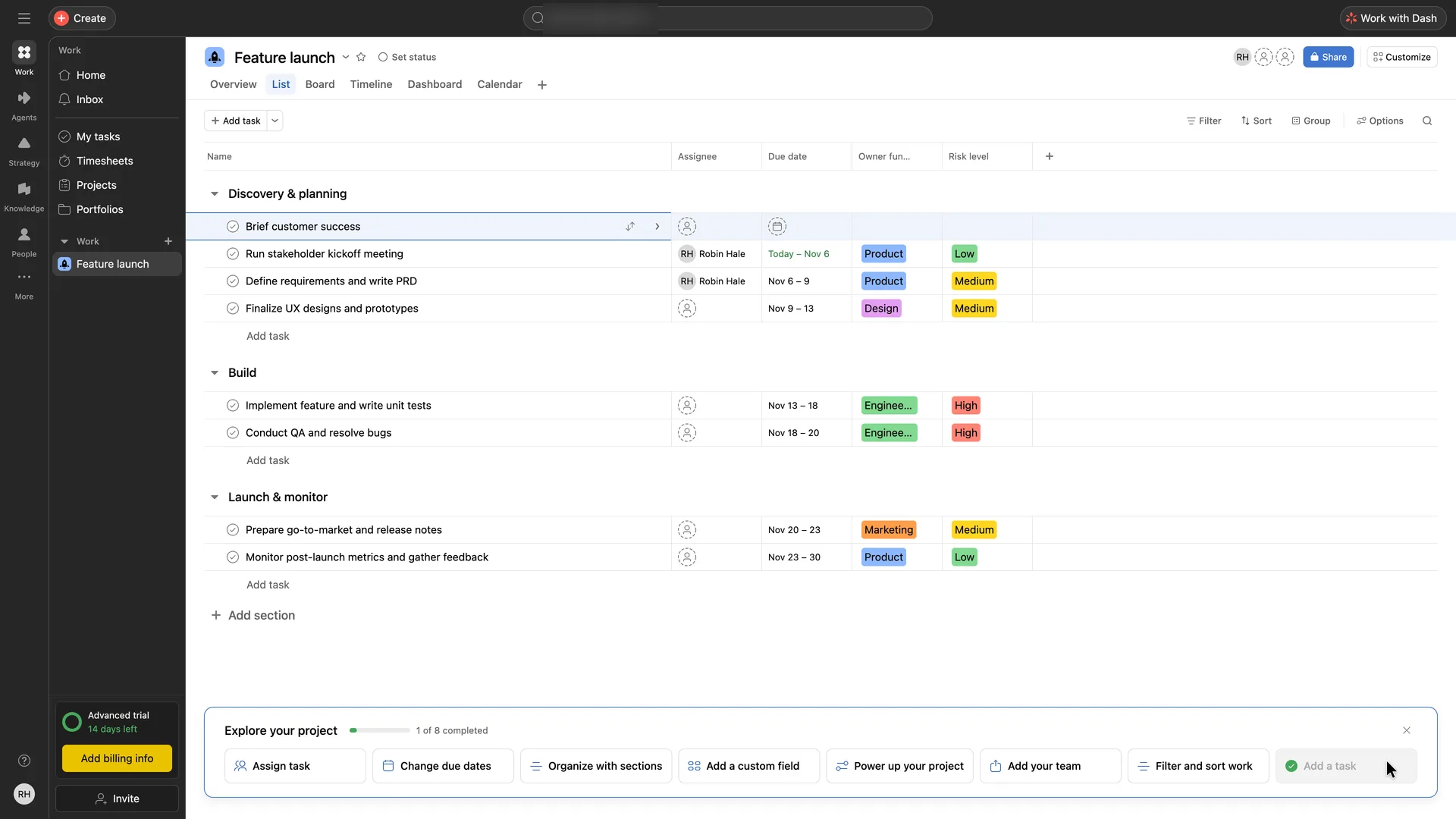 12 · first valueRobin's first task in the Feature launch project
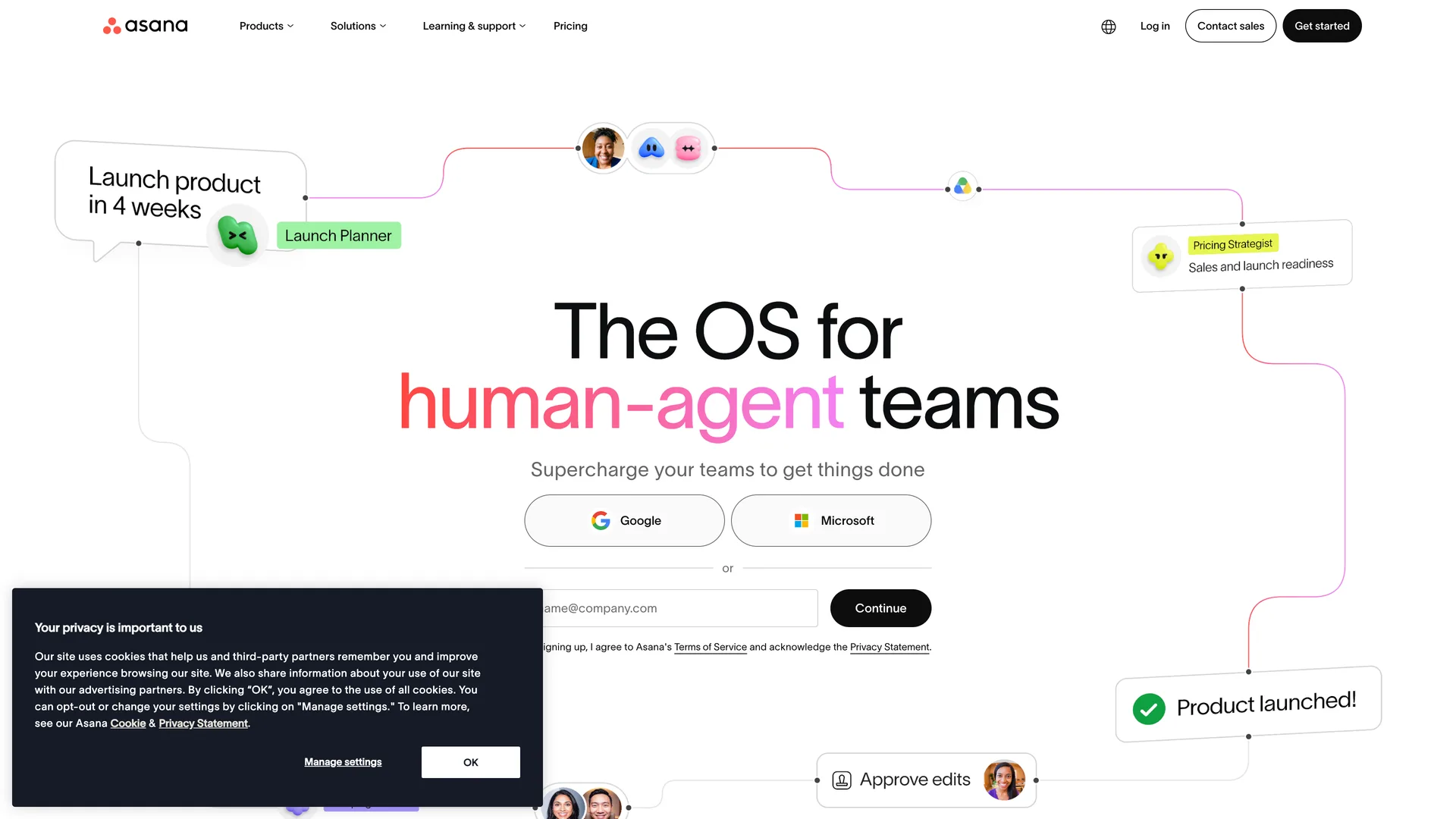
Step 1 of 12:Signup form
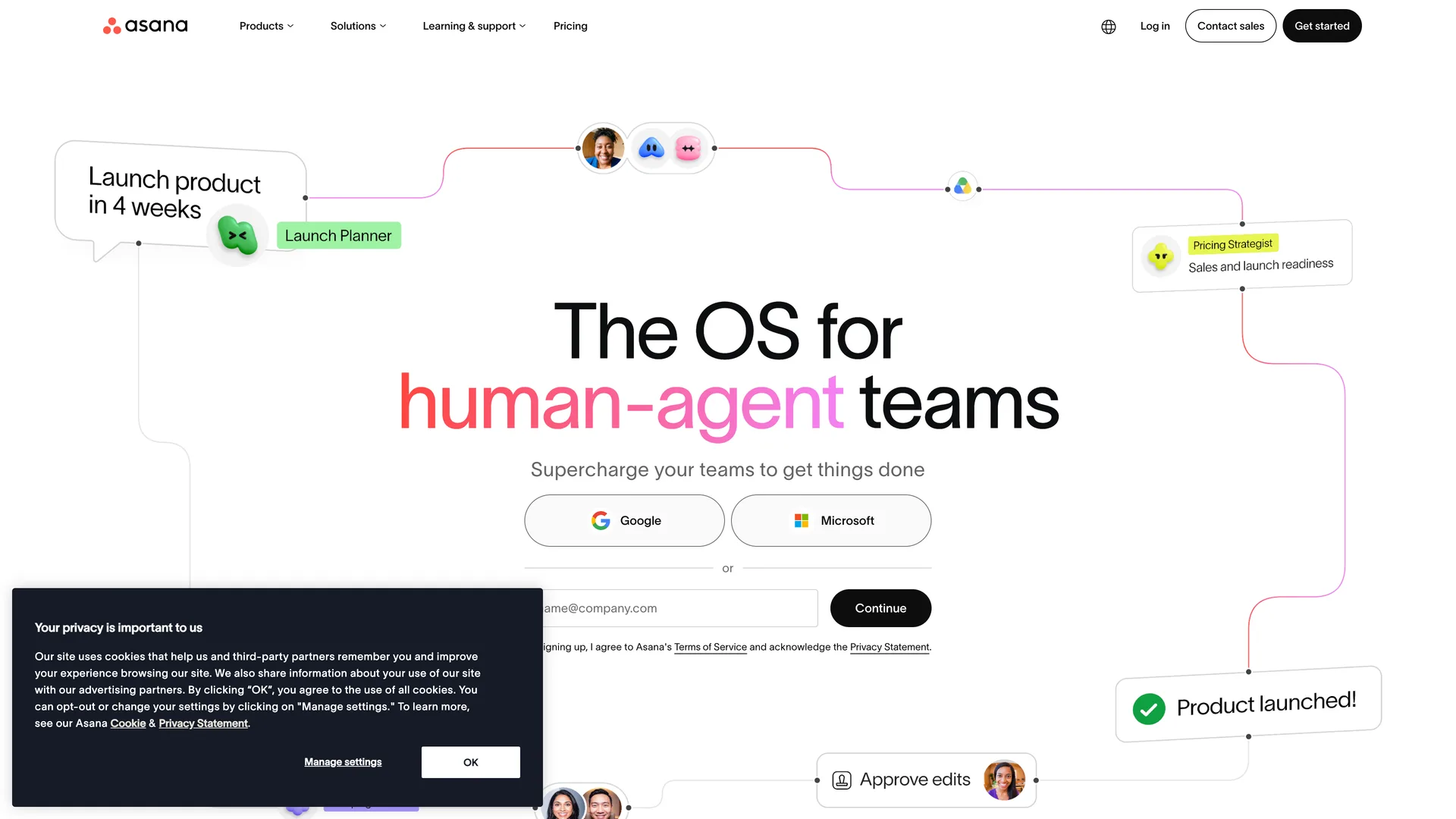
The asana.com homepage, with a cookie banner
Opened Manage settings in the cookie banner and chose Reject All, then clicked Get started in the header
Why it works
The signup form is the hero, so a visitor from search can start without a second page.
What gets in the way
Refusing optional cookies takes two clicks in two dialogs; accepting all takes one.
What’s on this screen
The hero reads "The OS for human-agent teams" over "Supercharge your teams to get things done". Under it sit Google and Microsoft buttons and an email field with Continue, plus the terms notice, so a visitor can sign up from the homepage itself. The header holds Products, Solutions, Learning & support, Pricing, a language picker, Log in, Contact sales and Get started. A cookie banner at the bottom left offers OK (all cookies) or Manage settings; rejecting optional cookies takes Manage settings, then Reject All in a second dialog.
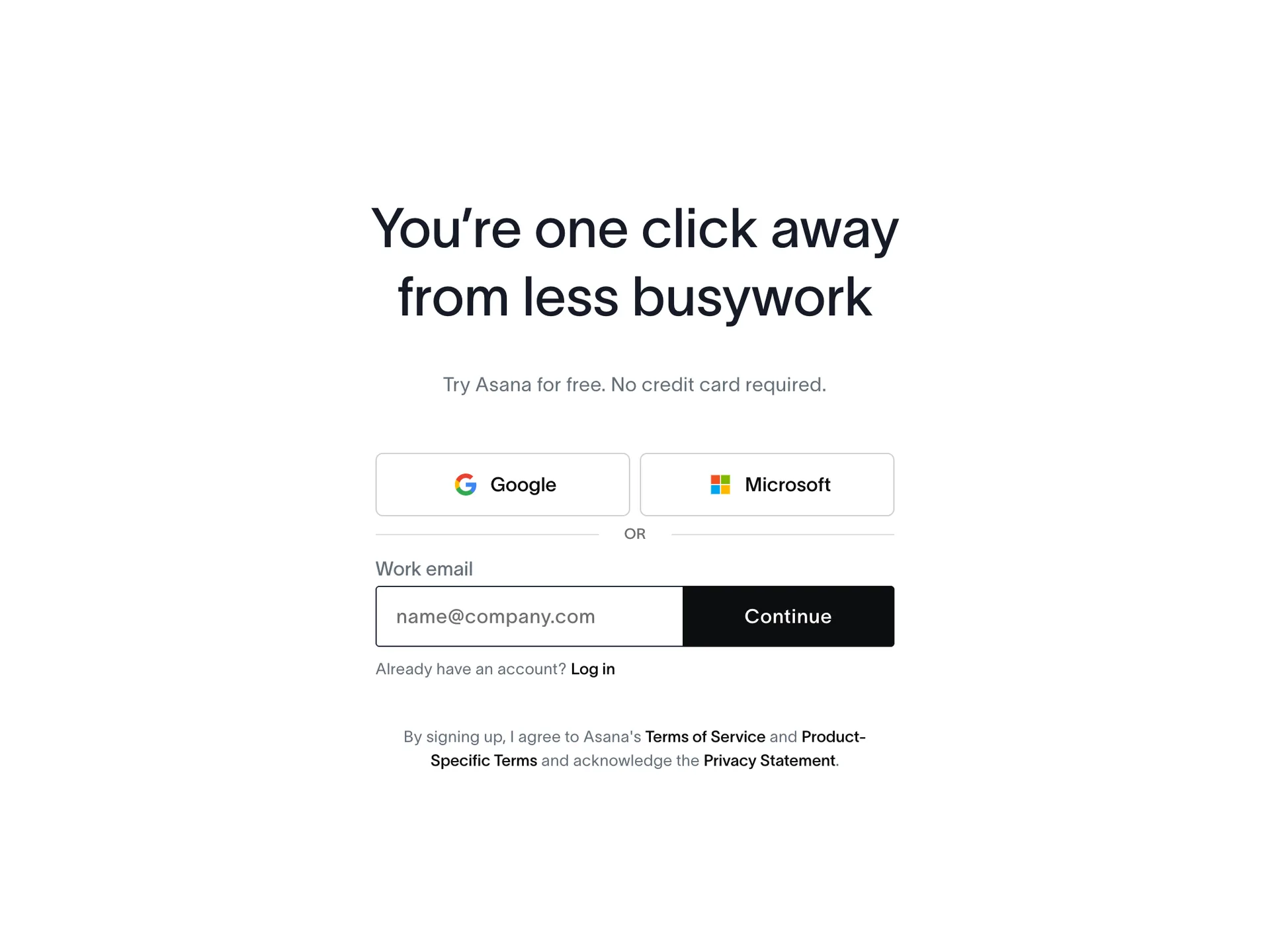
Step 2 of 12:Signup formDone by a person
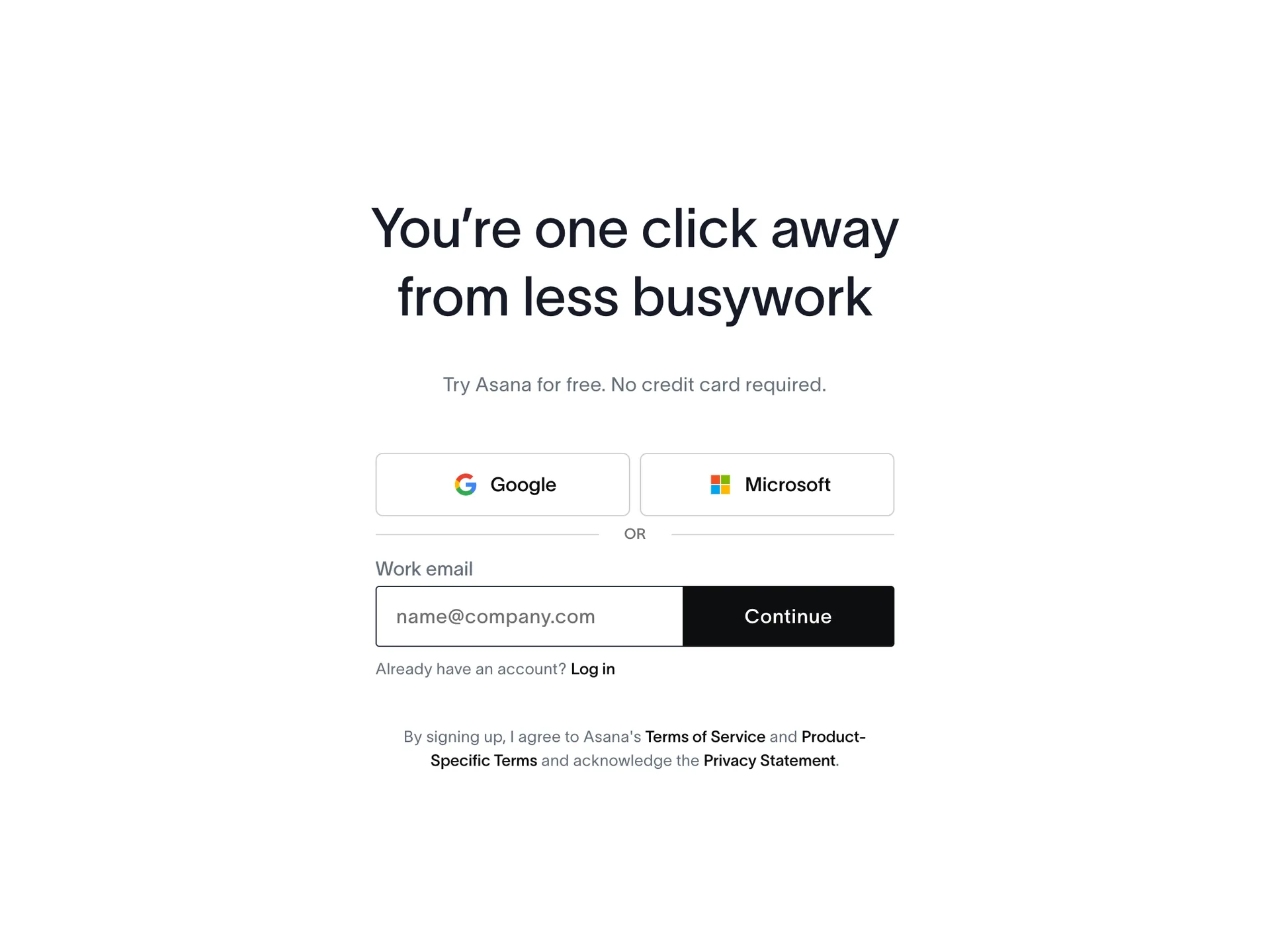
Create account: Google, Microsoft or a work email
The agent typed the email address; a person pressed Continue, the click that accepts Asana's terms (the notice sits under the button)
Why it works
One field, and the page says up front that no credit card is needed.
What gets in the way
The field asks for a work email, which may make someone with a personal address hesitate, although nothing on screen says other addresses are refused.
What’s on this screen
"You're one click away from less busywork" over "Try Asana for free. No credit card required." Google and Microsoft buttons, then one field labelled Work email (placeholder name@company.com) with Continue. Below: Log in for existing users, and "By signing up, I agree to Asana's Terms of Service and Product-Specific Terms and acknowledge the Privacy Statement."
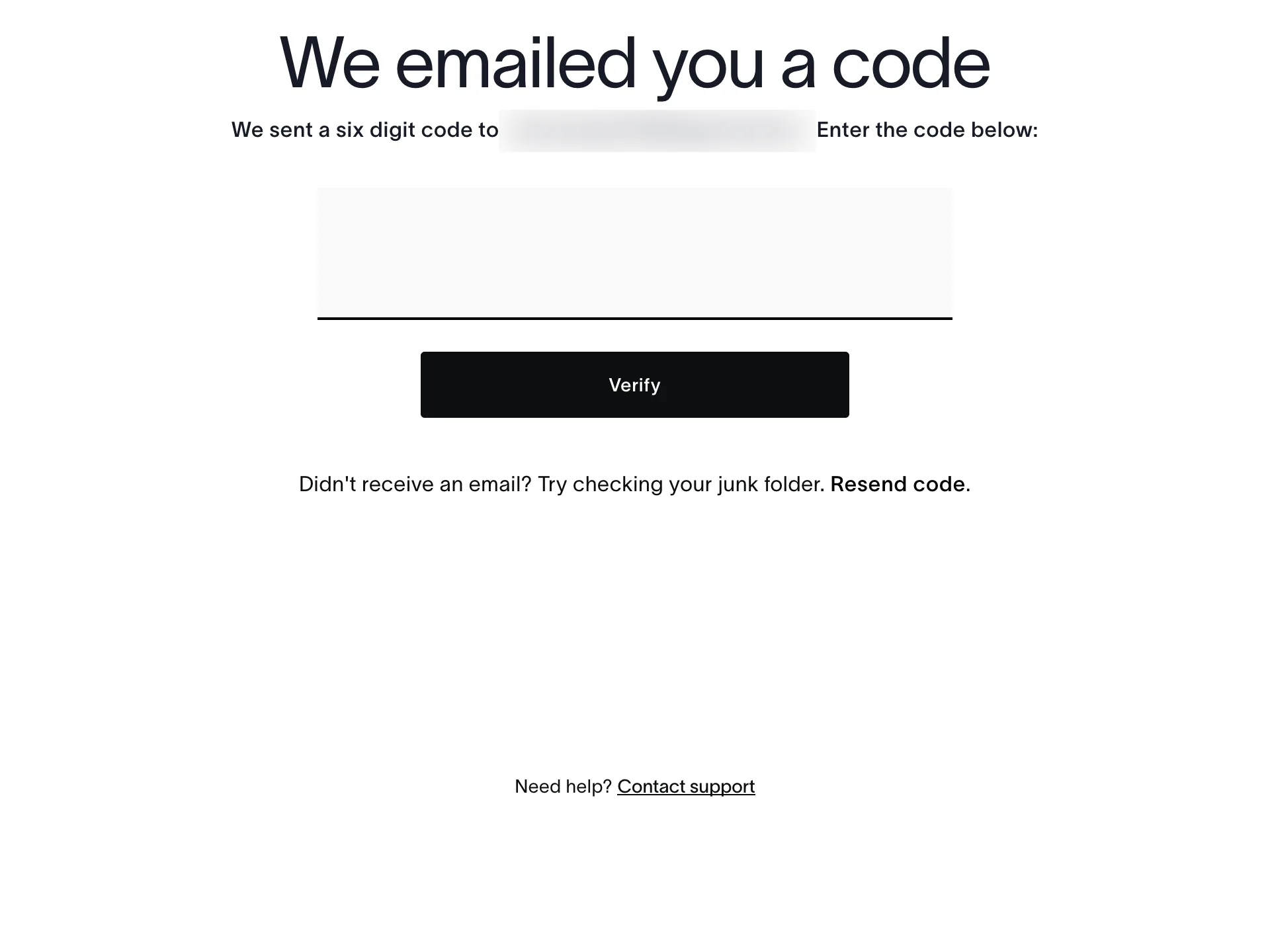
Step 3 of 12:Email verificationDone by a person
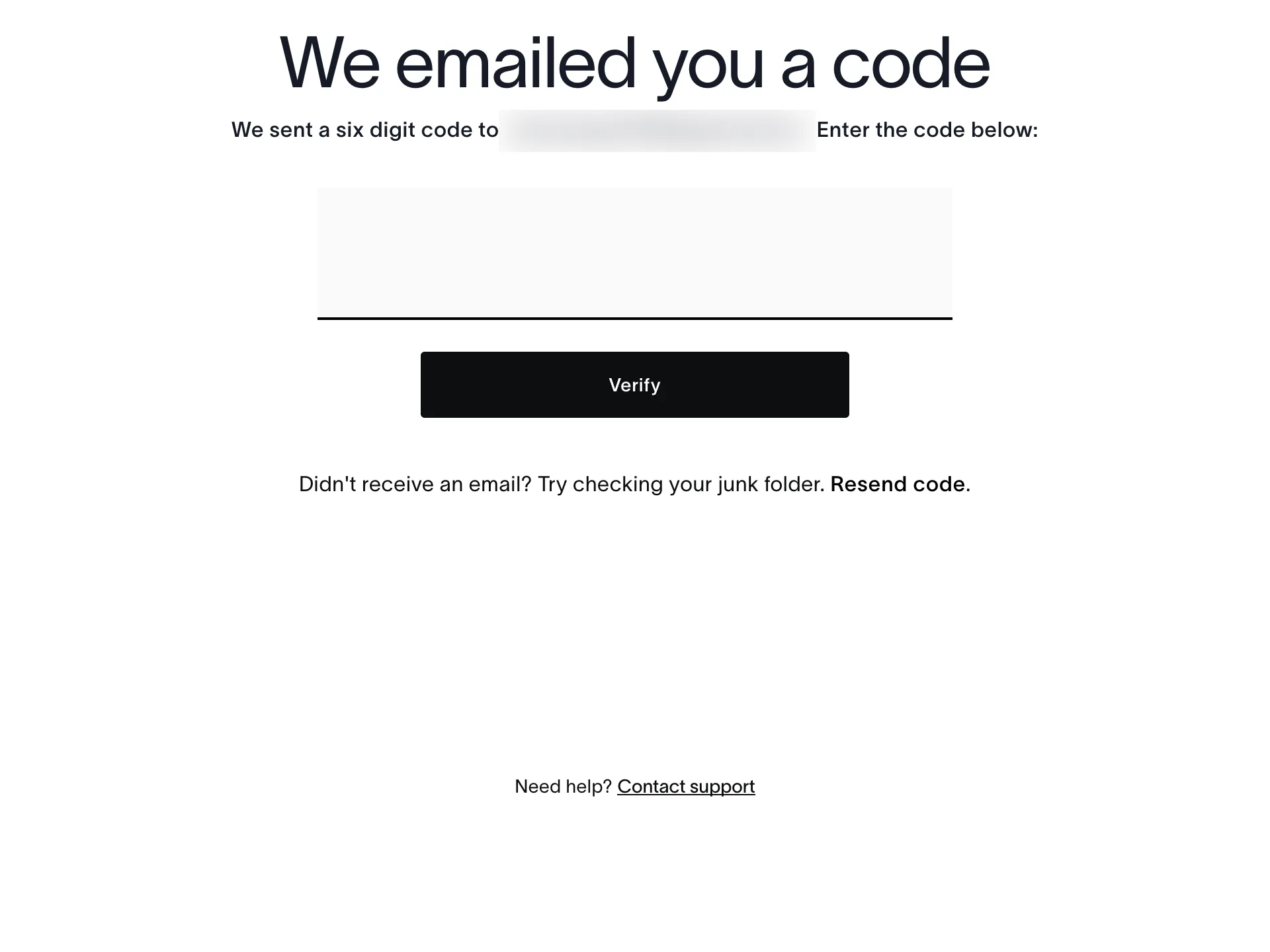
We emailed you a code
A person typed the six-digit code from Asana's email and pressed Verify
Why it works
A code keeps the flow in the same tab, and the email offers a button for people who would rather click.
What’s on this screen
"We emailed you a code" and "We sent a six digit code to <the address>. Enter the code below:", one large code box, Verify, and Resend code. The email (subject "Action Required: Reserve your Asana account") held the code and a Verify email button.
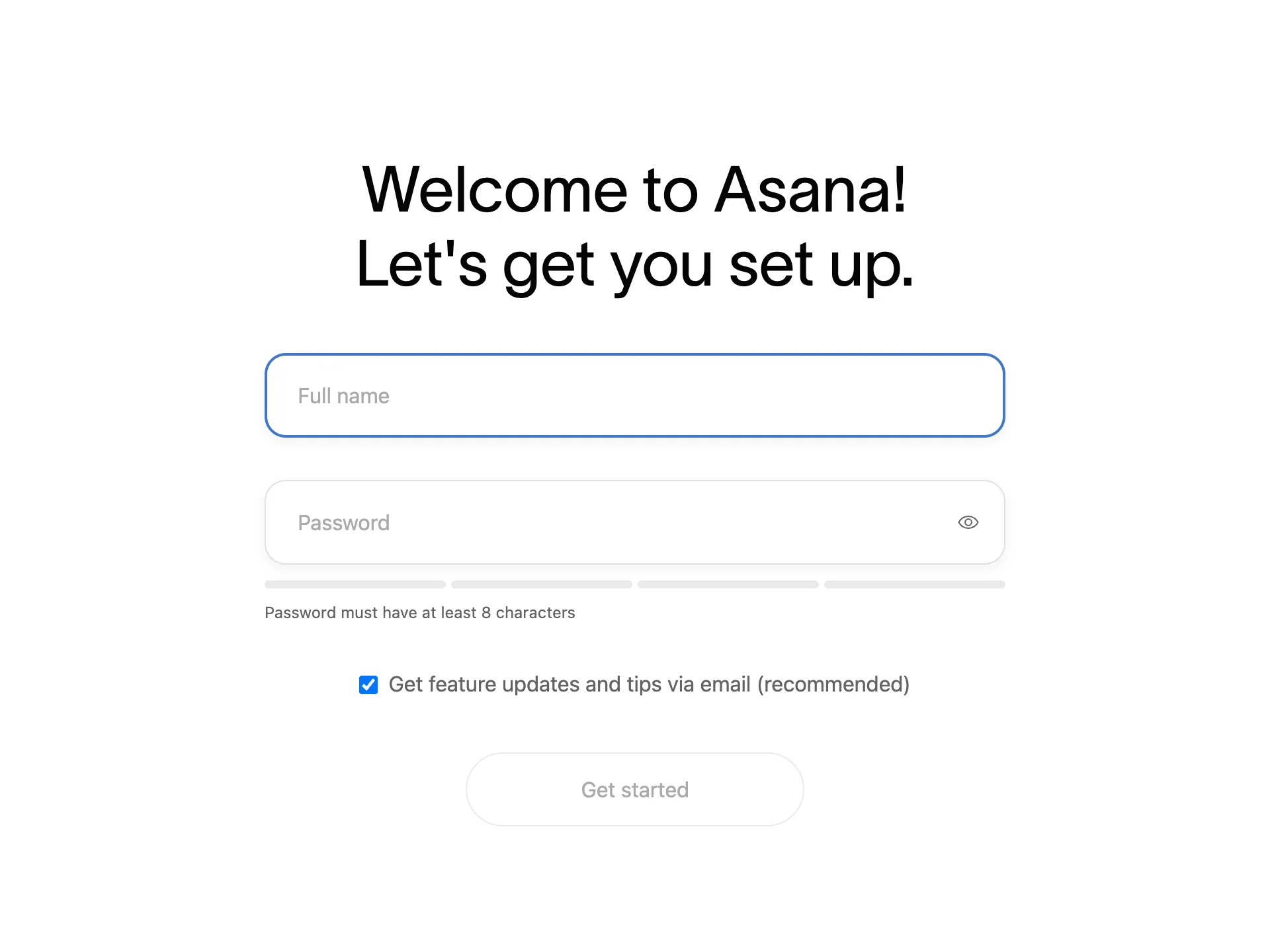
Step 4 of 12:Signup form
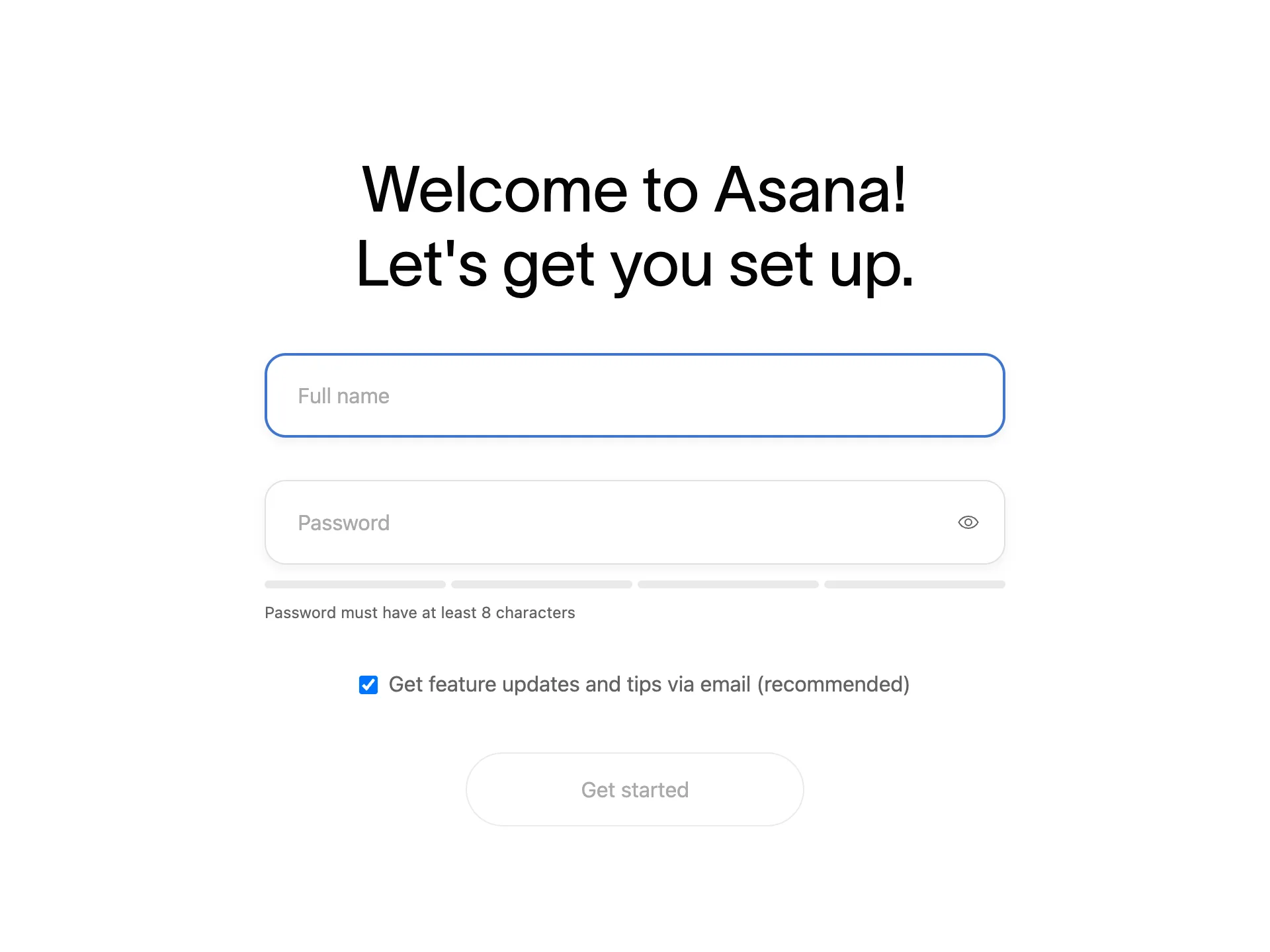
Welcome to Asana: name and password
Typed the full name and a password, unticked the feature-updates email box and clicked Get started
Why it works
The progress bar shows from the first screen how long setup is, and the strength label answers the password rule as you type.
What gets in the way
The marketing email box is ticked by default.
What’s on this screen
A five-part progress bar at the top (Step 1 of 5). "Welcome to Asana! Let's get you set up." Full name and Password (at least 8 characters, with a strength label that read Very strong), a box "Get feature updates and tips via email (recommended)" ticked by default, and Get started, disabled until both fields are filled. The footer, below the part of the screen shown here, says which address you're signing up as, with a link to use a different one.
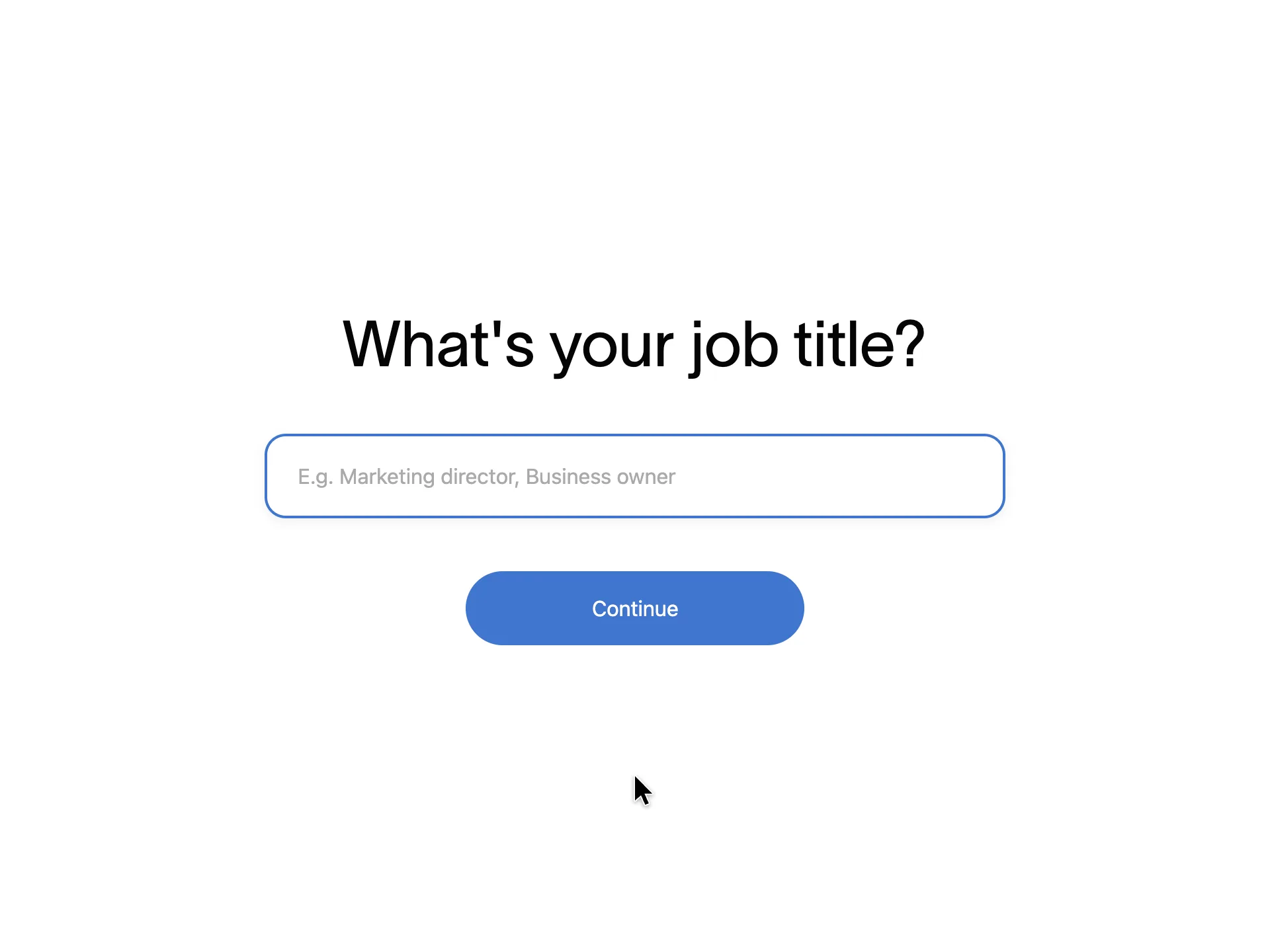
Step 5 of 12:Setup question
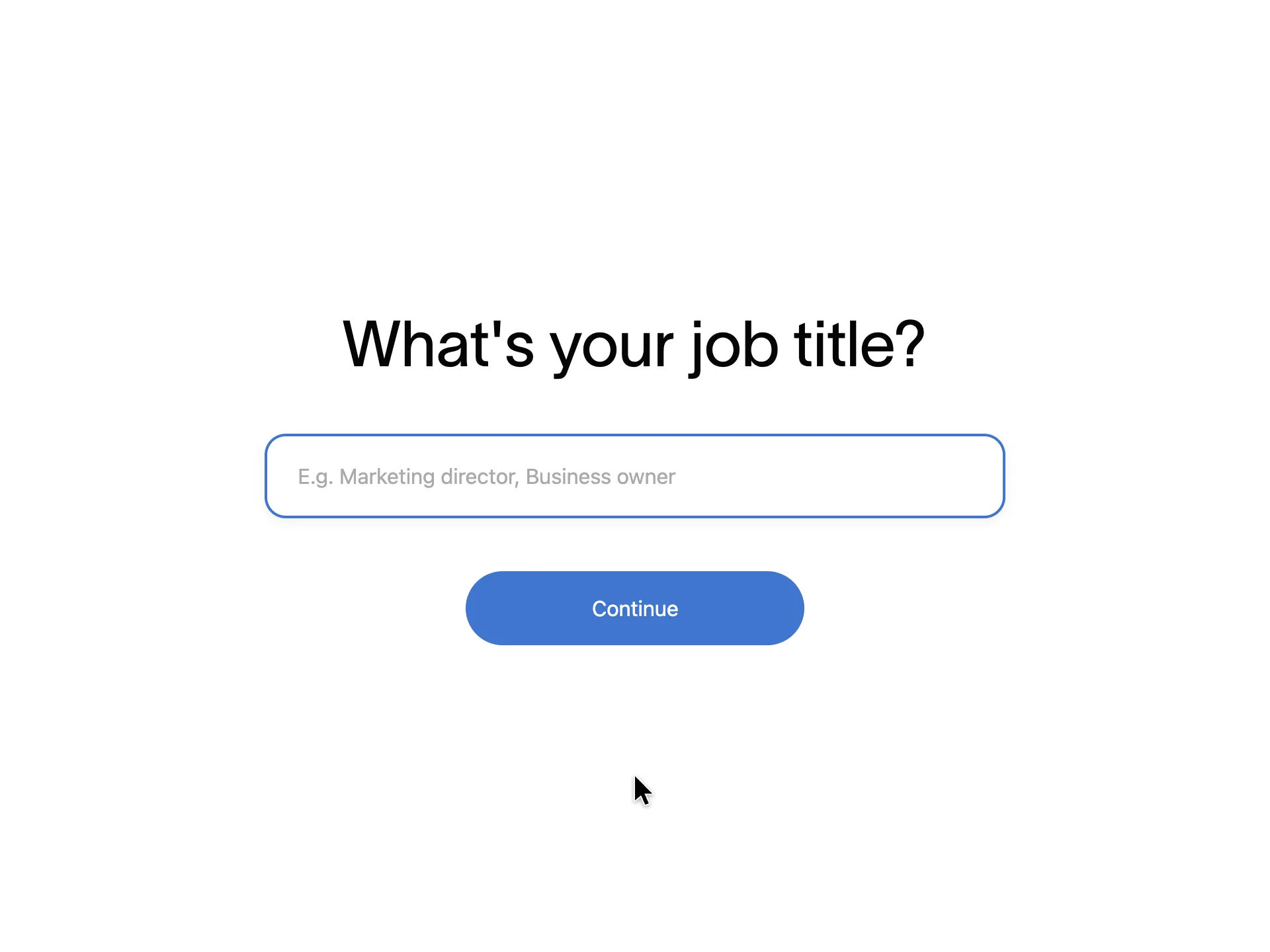
What's your job title?
Typed Product manager and clicked Continue
Why it works
A footnote at the bottom of the screen, below the part shown here, says why Asana asks: to personalise the experience, and to contact you about its products.
What’s on this screen
Step 2 of 5. One free-text field, placeholder "E.g. Marketing director, Business owner", and Continue. A footnote at the bottom of the screen, below the part shown here, says: "We collect this information to personalize your experience and contact you about relevant Asana products."
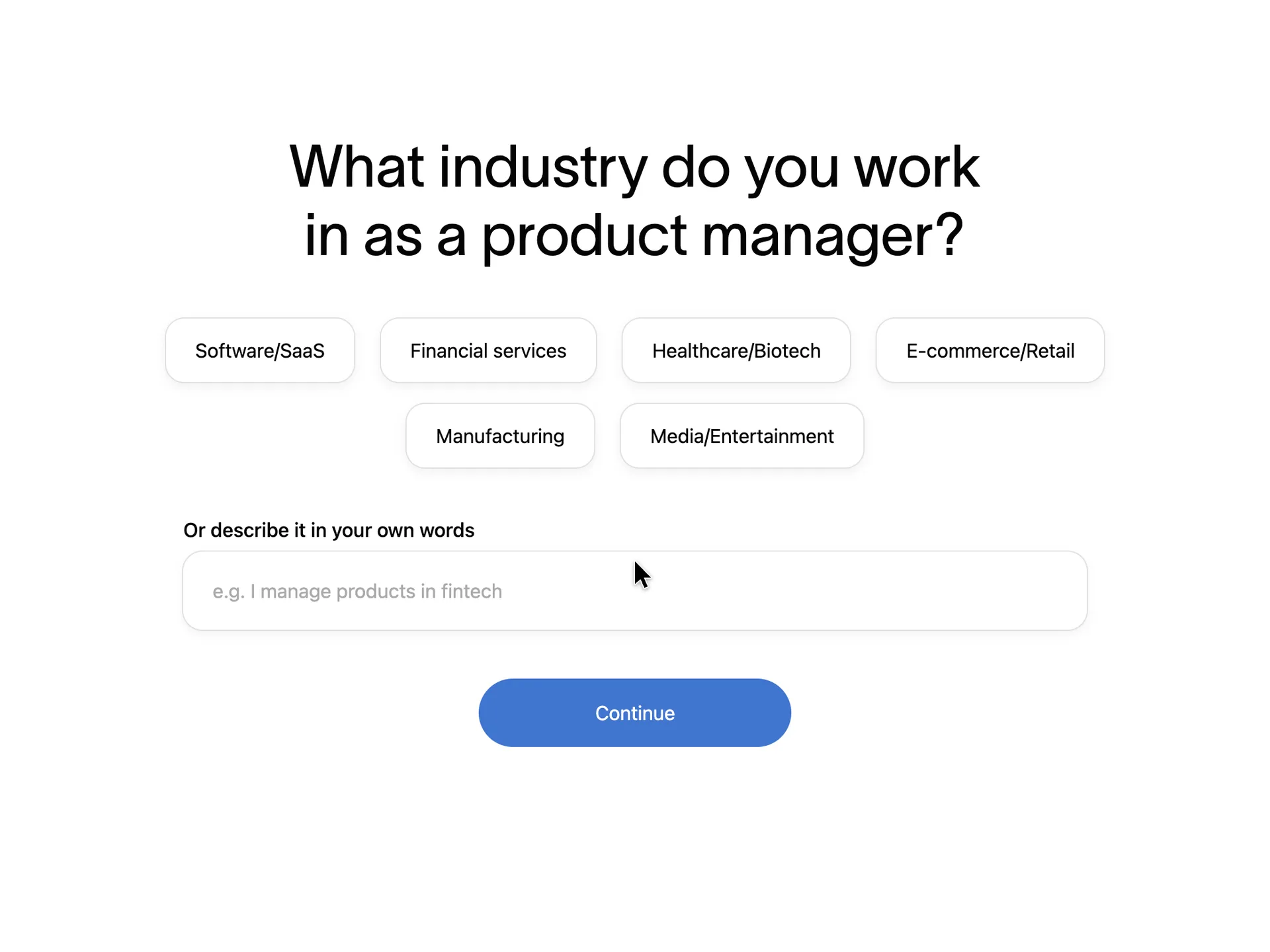
Step 6 of 12:Setup question
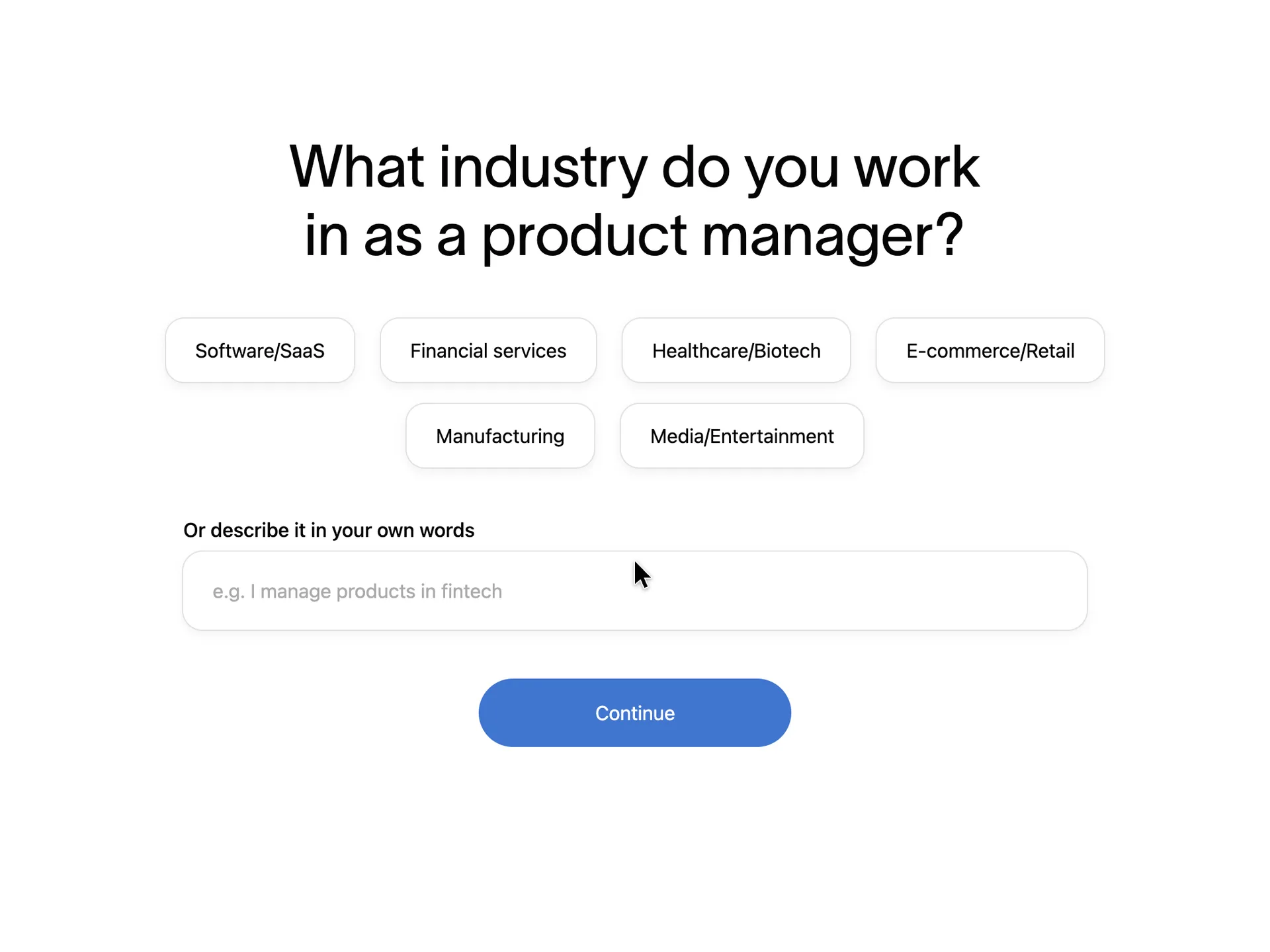
What industry do you work in as a product manager?
Chose Software/SaaS and clicked Continue
Why it works
Echoing "as a product manager" shows the previous answer was used, and the chips make the common answers one click.
What’s on this screen
Step 3 of 5. The question repeats the job title just typed. Six answer chips (Software/SaaS, Financial services, Healthcare/Biotech, E-commerce/Retail, Manufacturing, Media/Entertainment) and a field "Or describe it in your own words" with the placeholder "e.g. I manage products in fintech". Continue. Below the part shown here, Back sits at the bottom left, beside the same footnote about personalising and contacting you.
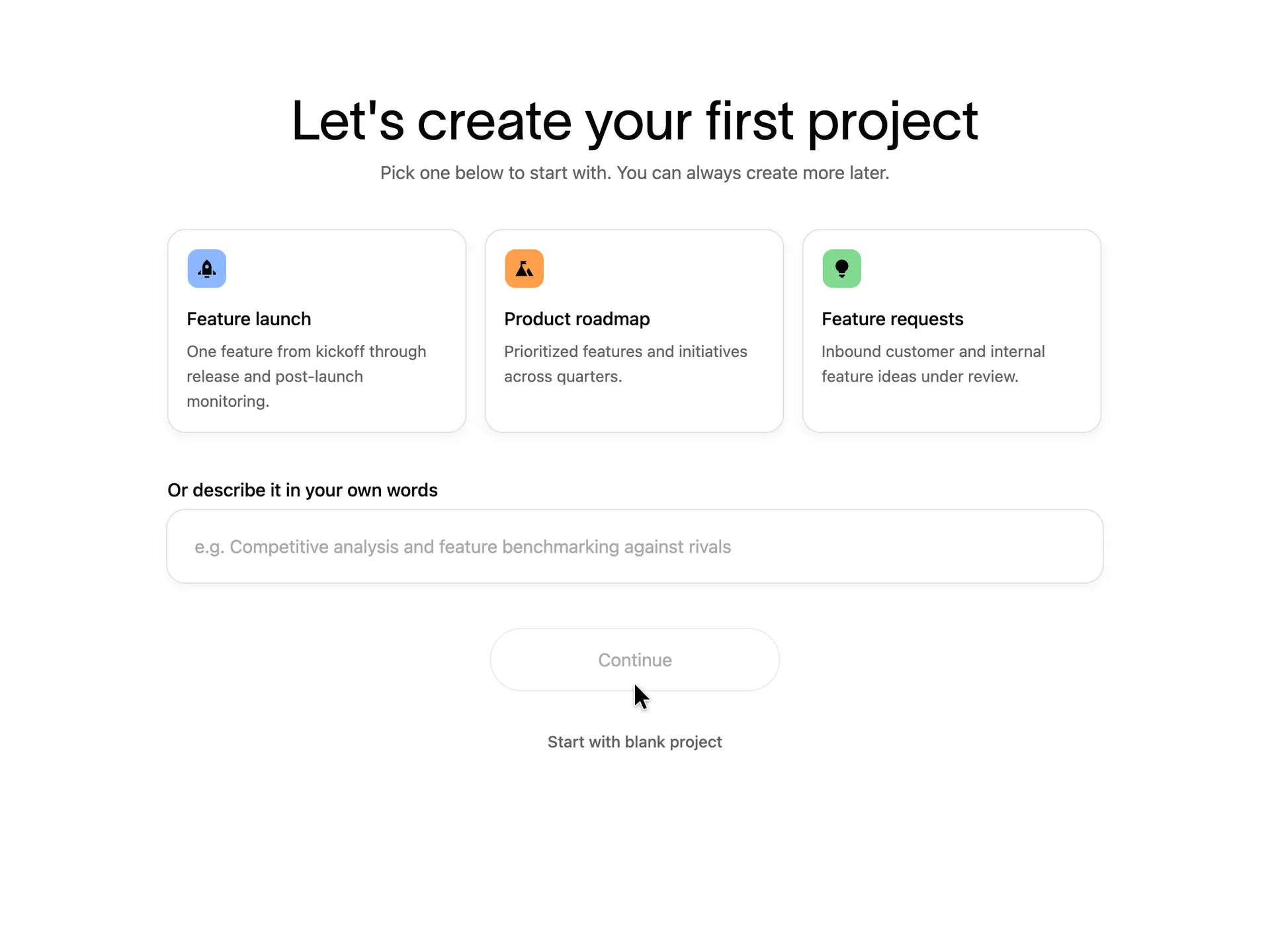
Step 7 of 12:Template picker
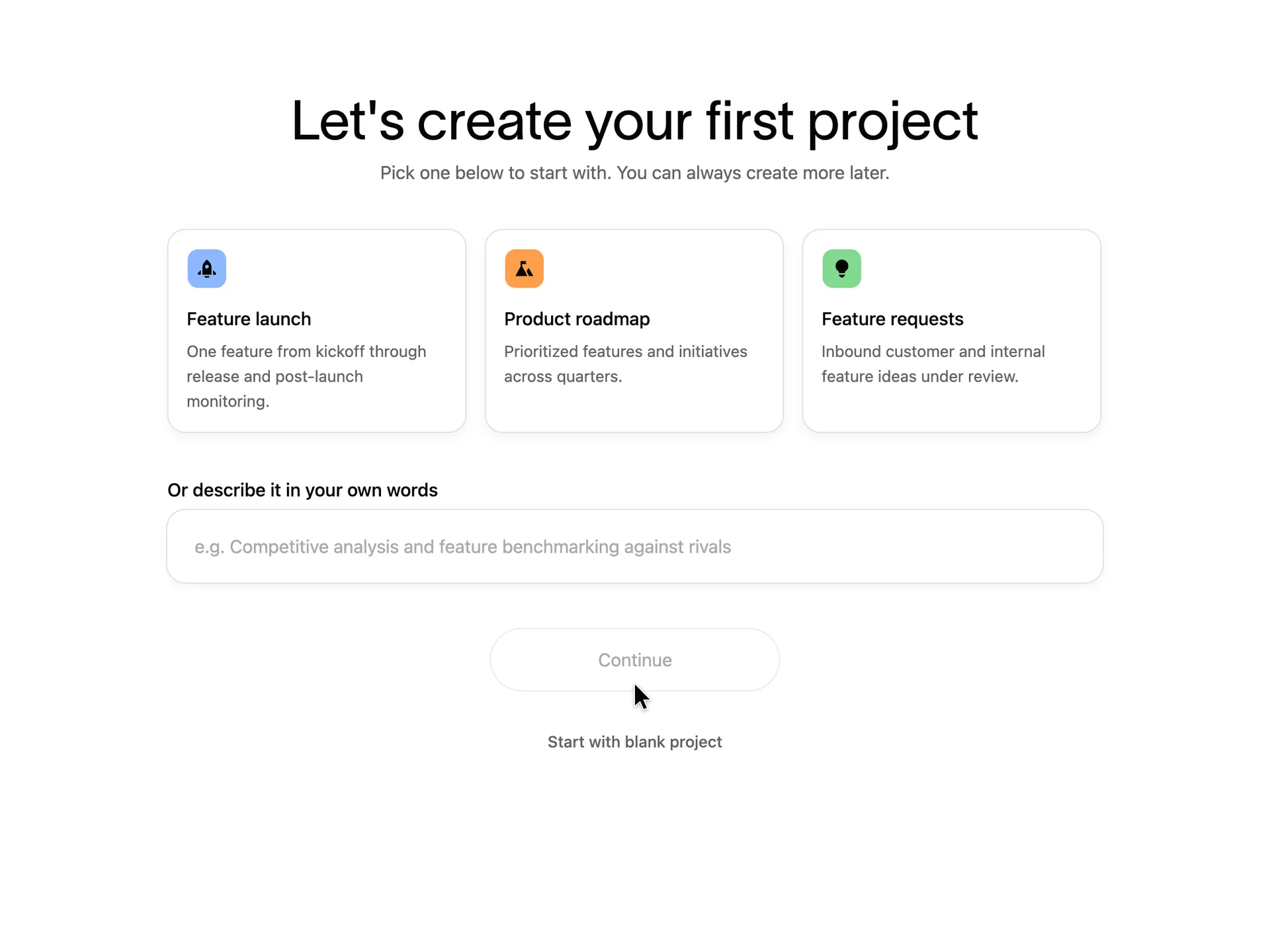
Let's create your first project
Chose the Feature launch card and clicked Continue
Why it works
The three cards follow from the two answers before, so a product manager in software sees product work, not generic templates.
What gets in the way
The project can't be named here; it is created with the card's name, Feature launch.
What’s on this screen
Step 4 of 5. "Pick one below to start with. You can always create more later." Three cards for a product manager: Feature launch ("One feature from kickoff through release and post-launch monitoring."), Product roadmap ("Prioritized features and initiatives across quarters.") and Feature requests ("Inbound customer and internal feature ideas under review."). Below them a free-text field with the placeholder "e.g. Competitive analysis and feature benchmarking against rivals". Continue stays disabled until a card is picked; Start with blank project is the other way out. There is no field for the project's name.
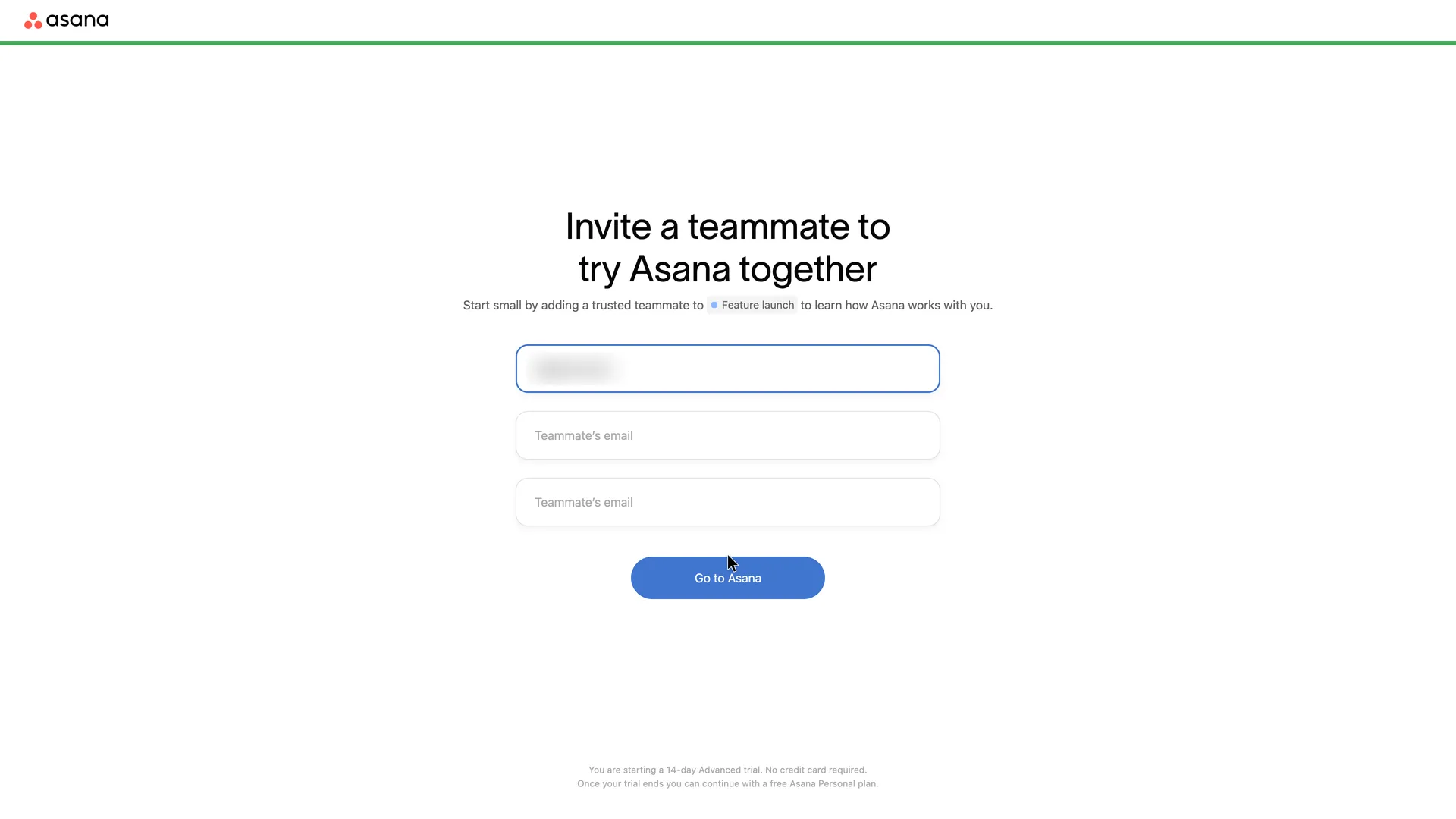
Step 8 of 12:Invite teammates
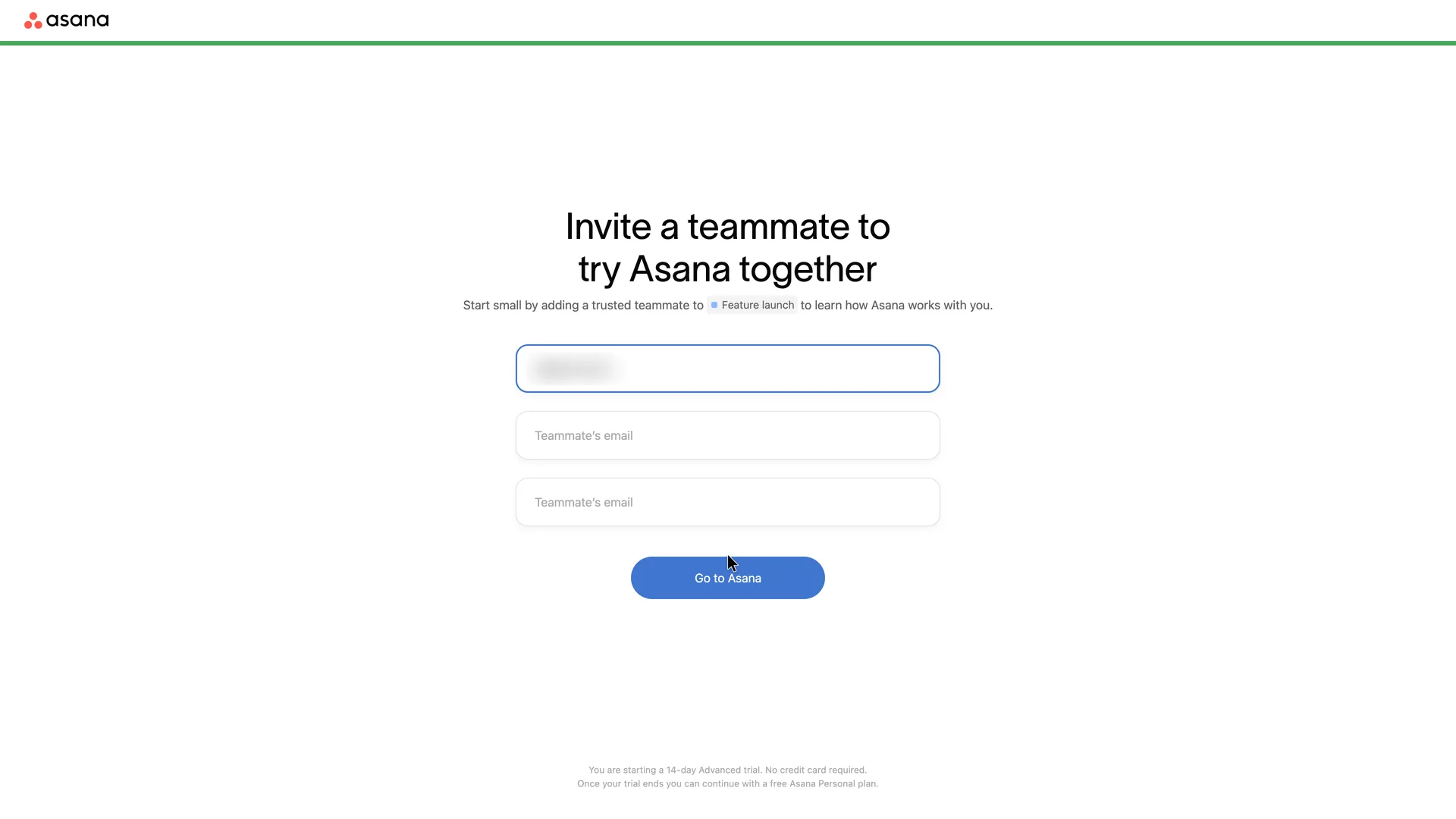
Invite a teammate to try Asana together
Cleared the prefilled domain from the first field so all three were empty, invited no one, and clicked Go to Asana
Why it works
Asking for one trusted teammate, on the project just chosen, is a smaller request than inviting a whole team, and the domain is typed for you.
What gets in the way
There is no Skip: going on without inviting means pressing Go to Asana with the fields empty. The 14-day Advanced trial starts here without a choice, and the only notice is grey footer text.
What’s on this screen
Step 5 of 5. "Start small by adding a trusted teammate to Feature launch to learn how Asana works with you." Three Teammate's email fields; the first is focused and prefilled with "@" and the signup email's domain. The only button is Go to Asana; there is no Skip. Grey text at the bottom: "You are starting a 14-day Advanced trial. No credit card required. Once your trial ends you can continue with a free Asana Personal plan."
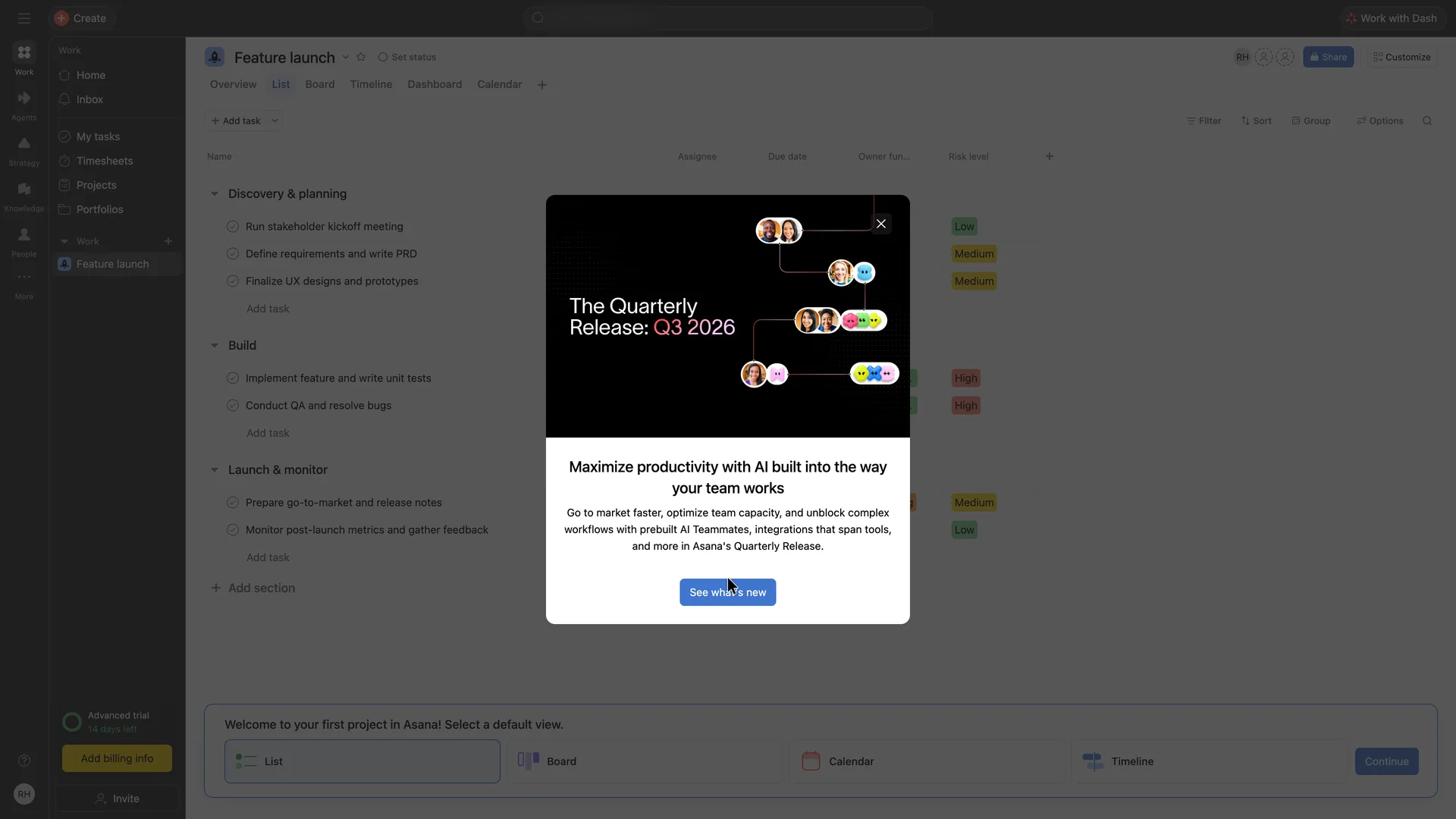
Step 9 of 12:Welcome modal
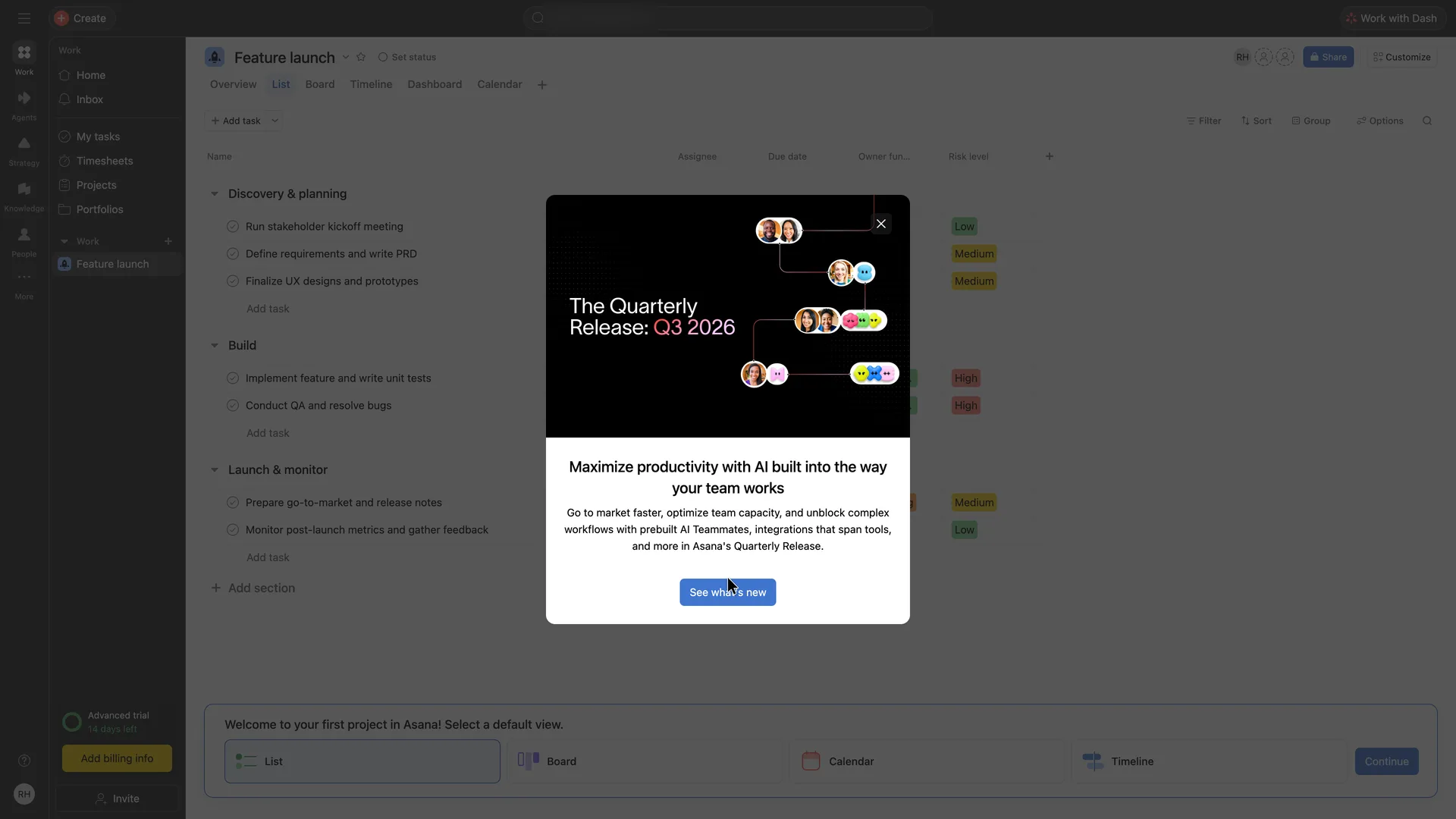
The project opens behind a Quarterly Release announcement
Closed the dialog with its X
Why it works
The first project is a worked example of the use case picked two screens earlier: phases, owners by function, dates and risk.
What gets in the way
The first thing on top of the new project is an announcement about AI features, not the project. None of the seven tasks was written by the user.
What’s on this screen
The Feature launch project opens in List view under a dialog headed "The Quarterly Release: Q3 2026": "Maximize productivity with AI built into the way your team works", about prebuilt AI Teammates and integrations, with See what's new and a close button. Behind it the project is already filled in: three sections (Discovery & planning, Build, Launch & monitor), seven tasks with due dates from today to 30 November, the first two assigned to Robin, and two custom fields, Owner function (Product, Design, Engineering, Marketing) and Risk level (Low, Medium, High). Tabs: Overview, List, Board, Timeline, Dashboard, Calendar. The sidebar shows "Advanced trial, 14 days left" over a yellow Add billing info button. The search box at the top carries the organisation's name, blurred here. A bar at the bottom asks to select a default view.
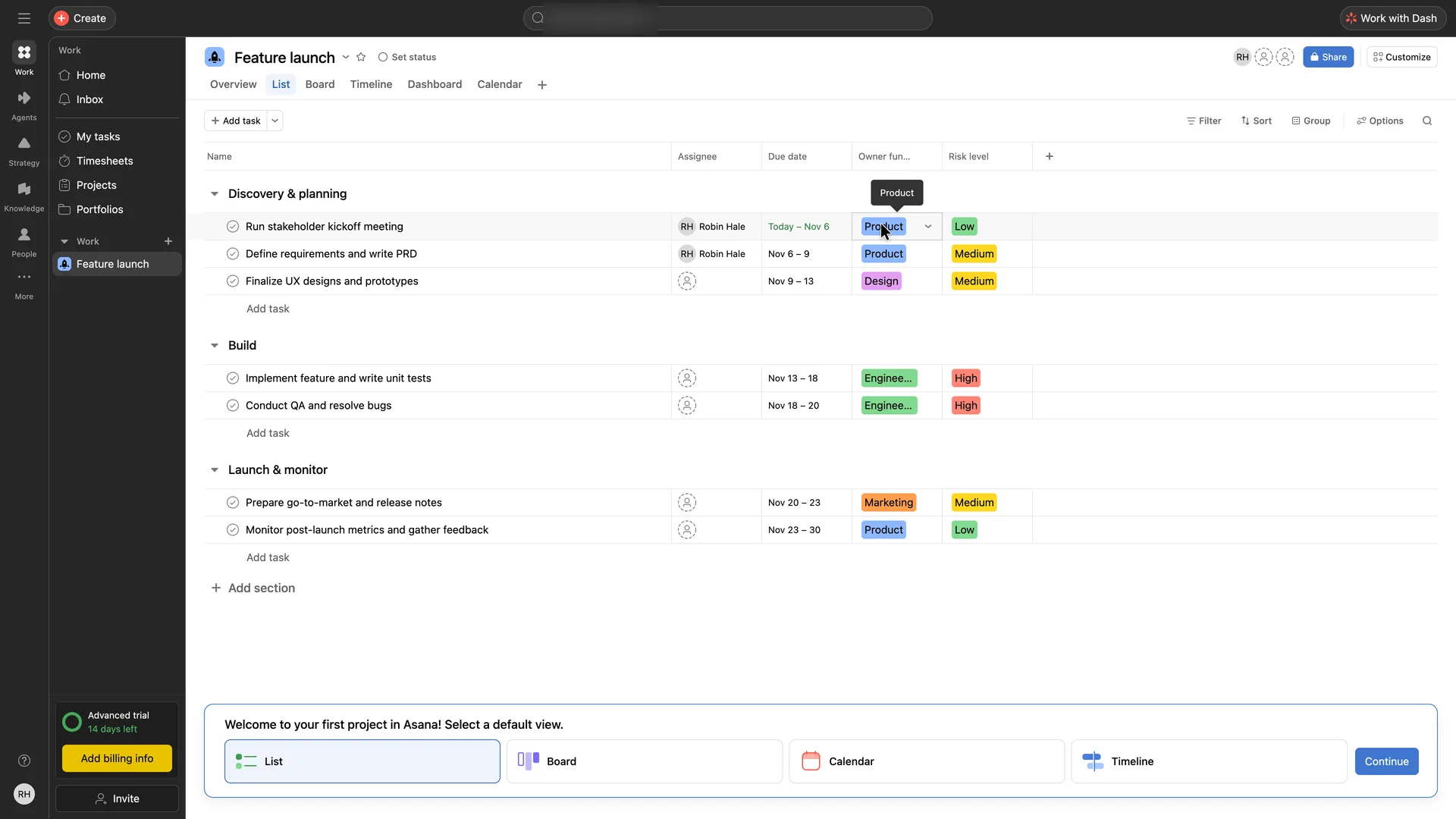
Step 10 of 12:Setup question
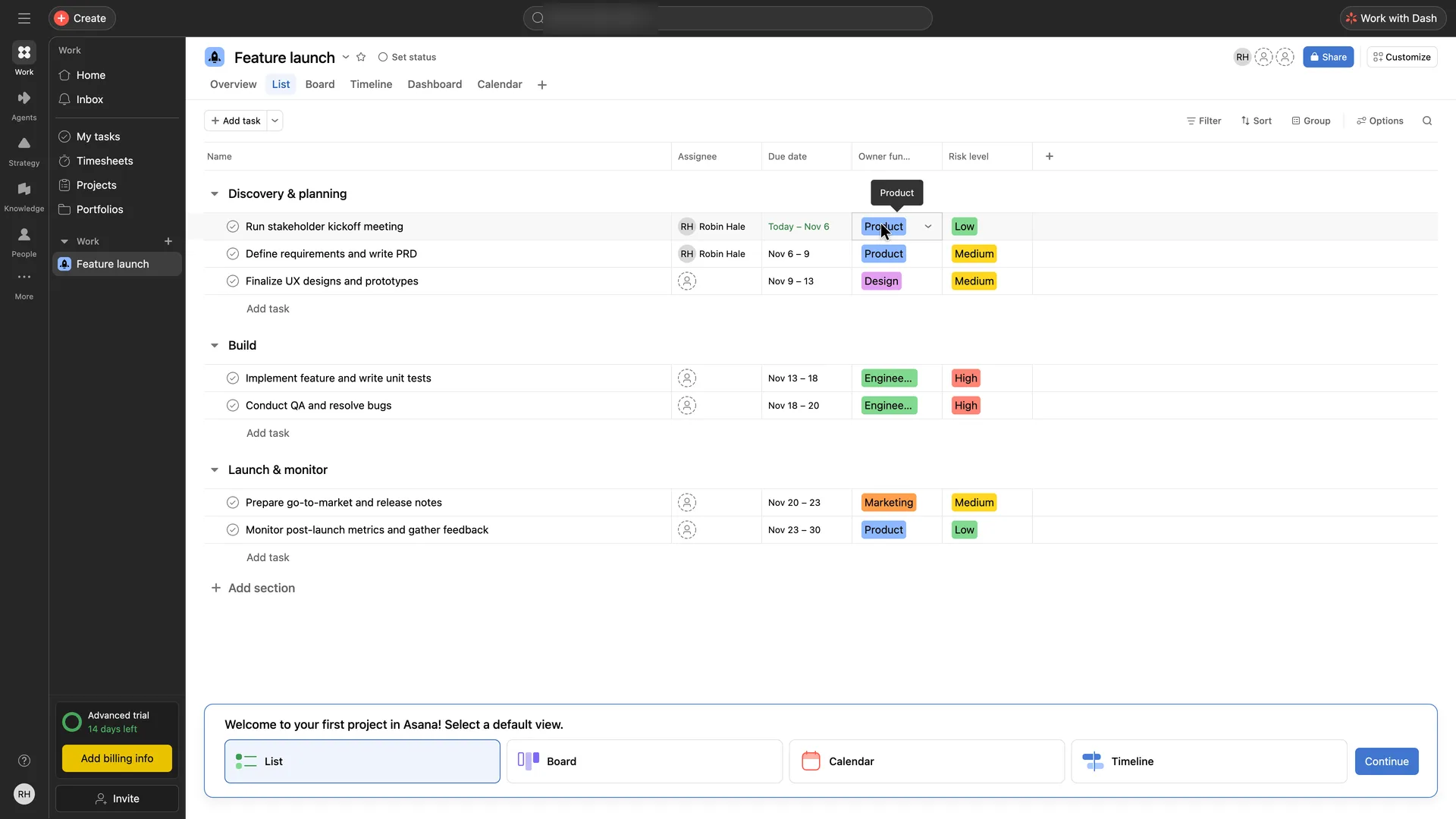
Select a default view
Kept List, which was preselected, and clicked Continue. The Product label over the first row is a hover tip from the pointer, which had stopped there after closing the dialog
Why it works
The view is chosen with the project in sight, so the choice isn't abstract.
What’s on this screen
With the dialog closed, the template project fills the screen. A bar at the bottom reads "Welcome to your first project in Asana! Select a default view." with List (preselected), Board, Calendar and Timeline, and Continue.
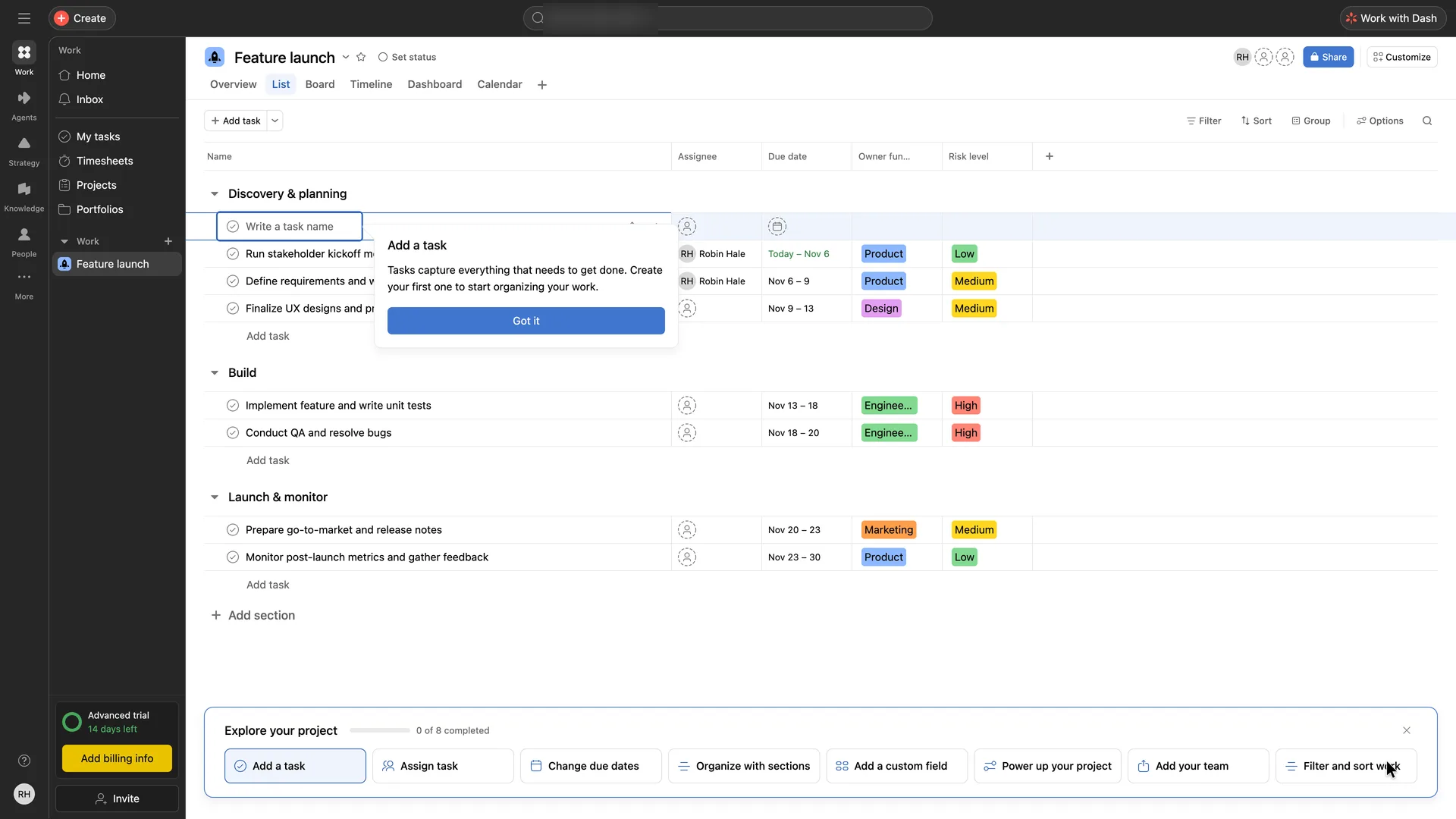
Step 11 of 12:Checklist
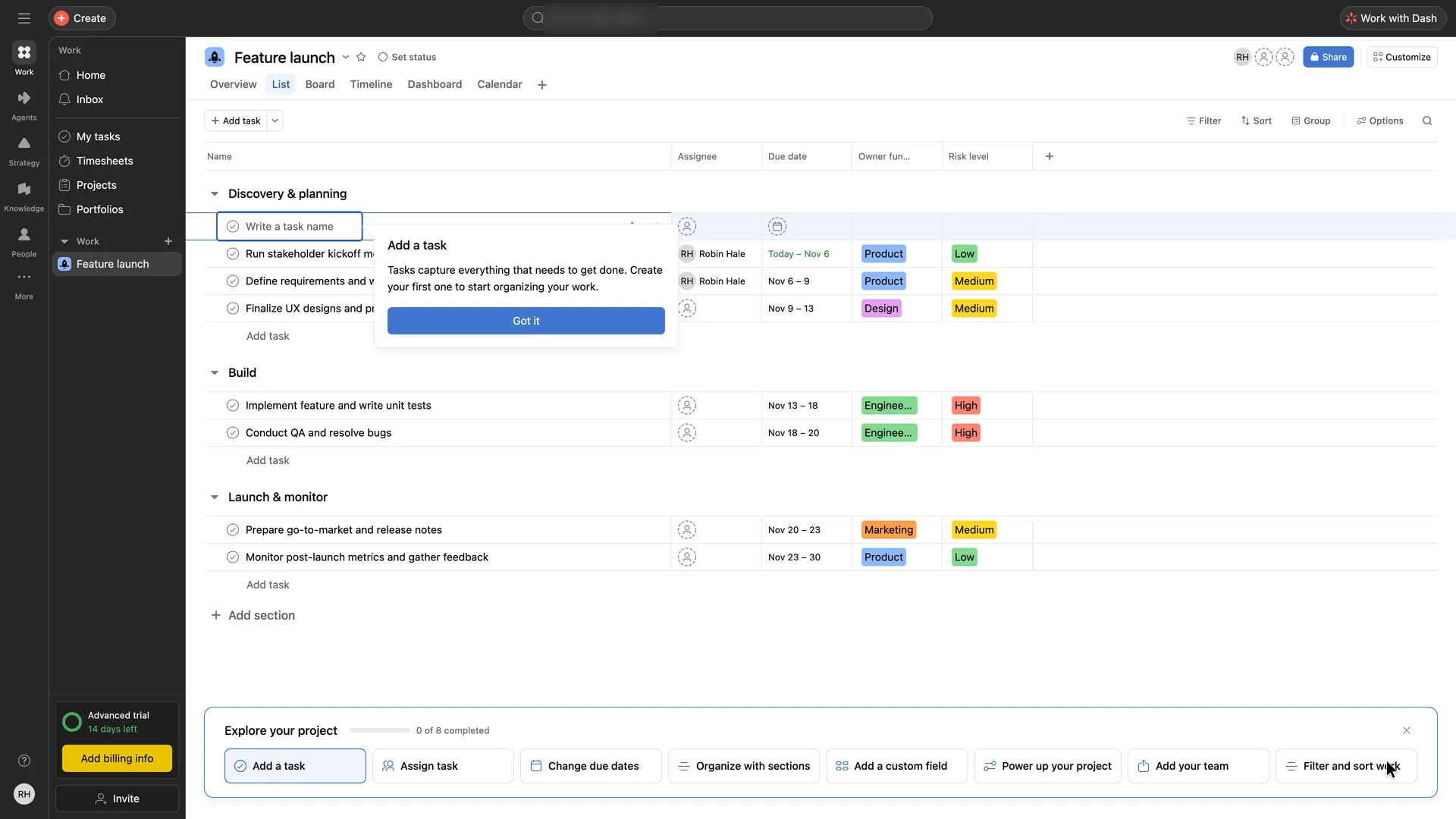
Explore your project: a checklist and an Add a task tip
Typed Brief customer success into the empty task row and pressed Escape
Why it works
Two kinds of guidance work together: the checklist names the first thing to do, and a tooltip beside the task row explains what a task is and asks for the first one. The row is already open with the cursor in it, so the user only types.
What gets in the way
Eight items is a long list next to a project that already has seven tasks.
What’s on this screen
The bottom bar becomes "Explore your project, 0 of 8 completed": Add a task, Assign task, Change due dates, Organize with sections, Add a custom field, Power up your project, Add your team, Filter and sort work, with a close button. Asana has already opened an empty row, "Write a task name", at the top of Discovery & planning with the cursor in it. A tip beside it: "Add a task. Tasks capture everything that needs to get done. Create your first one to start organizing your work." with Got it.
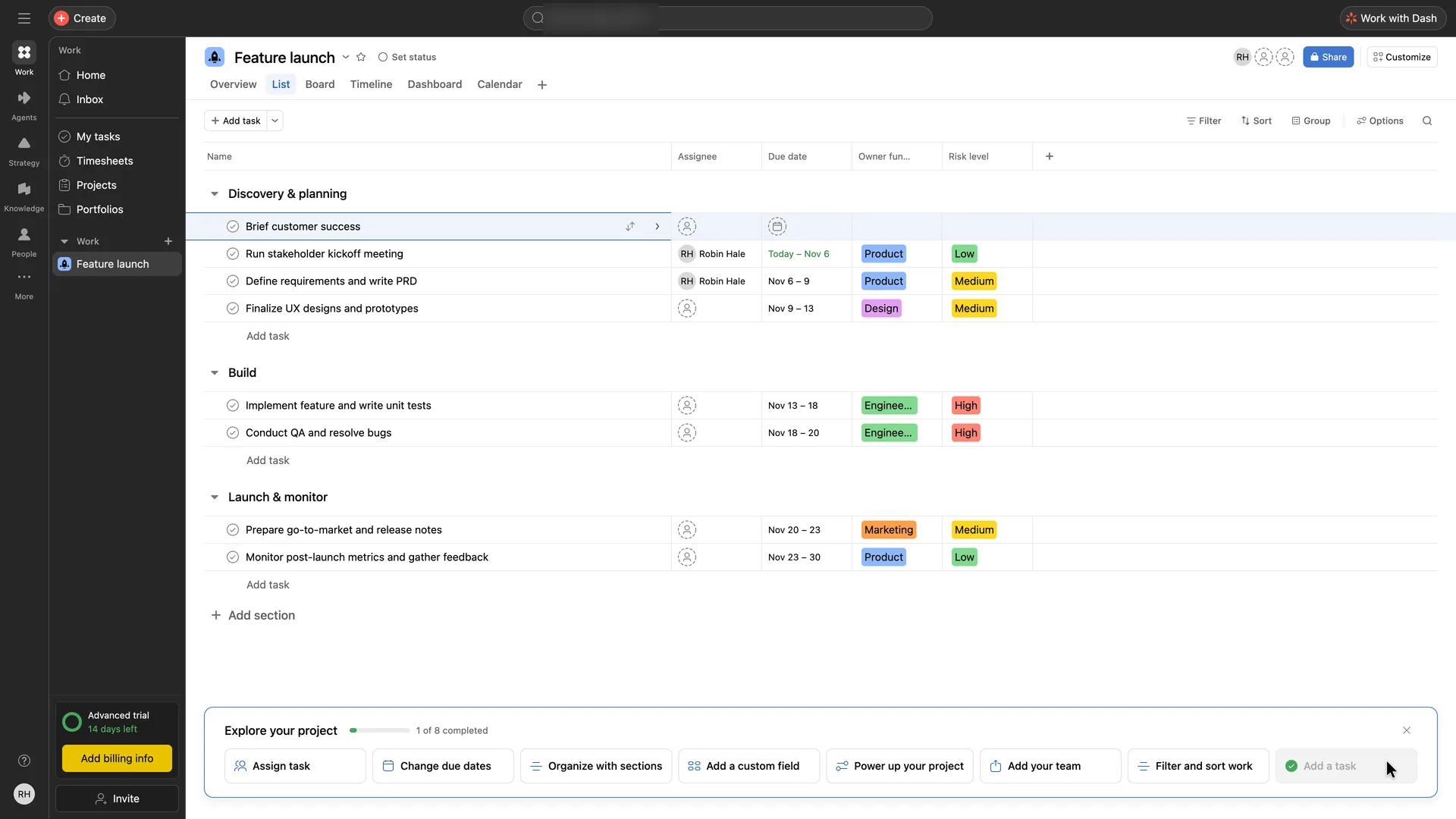
Step 12 of 12:First value
Robin's first task in the Feature launch project
Stopped the recording: first value reached
Why it works
Saving the task ticks the checklist at once, and the next item, Assign task, is the obvious thing to do to the task just made.
What gets in the way
The user's own task is the only one in the project without an owner, a date or a risk level, so the first thing of theirs looks less complete than the sample work around it.
What’s on this screen
"Brief customer success" sits at the top of Discovery & planning, with no assignee, due date, Owner function or Risk level, above the template's tasks that have all four. The checklist reads "1 of 8 completed"; Add a task has moved to the end with a green tick, and Assign task is now first. No confirmation message.
Verdict
What Asana gets right
- The signup form is on the homepage itself, and the create-account page says "No credit card required" before it asks for anything.
- A progress bar shows from the first setup screen that there are five steps, and each takes a few words or one click.
- Each question uses the answer before it: the industry question says "as a product manager", and the three first-project cards are all product work for a software company.
- The first project is a worked example of a launch: Discovery & planning, Build, and Launch & monitor, with dates, an owning function and a risk level on every task.
- In-app guidance sits where the work is: an "Explore your project" checklist of eight things to try, and a tooltip on the empty task row that explains what a task is and asks for the first one.
- Adding the first task takes typing only. The row is already open with the cursor in it, and saving it ticks the checklist at once.
What we’d change
- Let the user name the first project during setup, or ask what it's for. It is created as "Feature launch" with seven tasks, and none of them is the user's.
- Show the new project before anything else. An AI release announcement, a view picker and an eight-item checklist arrive on top of it one after another.
- Give the user's first task the fields the sample tasks have, or ask for them as it's saved. It is the only task in the project with no assignee, due date, owning function or risk level.
- Say on a screen of its own that a 14-day Advanced trial has started. In setup the only notice is grey text under the invite form; after it, the sidebar counts the days beside an Add billing info button.
How we recorded it
- Recorded
- 5 Nov 2026
- Agent
- Claude Opus 5.5 in Claude Code
- Browser
- Chromium driven through Playwright MCP 0.0.84, a 1920 × 1080 window at 2× pixel density
- Signed up as
- Robin Hale, product manager at Quillmark (a made-up B2B SaaS company); a team of 26 to 50 people; wants a launch plan for the next product release, with tasks, owners and due dates shared across product, design, engineering and marketing
- Stopped at
- Added a first task of Robin's own, Brief customer success, to the Feature launch project
- Done by a person
- step 2, create account: Google, Microsoft or a work email and step 3, we emailed you a code. An agent never accepts a product’s terms or gets past a verification on its own.
The agent answered every setup question as that person and skipped anything that would connect real data or invite real people. Screenshots are cropped to the part of the screen each step is about, and personal data in them is blurred. The figures at the top count the screens up to first value; form fields count every field shown, filled in or not.
Onboarding flows change, and this one is as Asana showed it on 5 Nov 2026. Seen a different flow, or want this page corrected or removed? Write to hello@useronboarding.academy.