
Onboarding teardown · Zapier
Zapier onboarding, screen by screen: from signup to a first Zap
We had an AI agent sign up for Zapier as a fictional product manager and go through onboarding until a first Zap of its own was published and switched on. It kept to the apps built into Zapier, so no outside account had to be connected. A person stepped in twice, to press the two Get started for free buttons; the second one creates the account under Zapier's terms. These are the screens it saw, in order, with what each one does well and what gets in the way.
By the UserOnboarding Academy teamRecorded 5 Nov 2026How we recorded it
UserOnboarding Academy isn't owned by Zapier or any onboarding tool, and Zapier didn't sponsor or review this page. The account was created for this recording only.
In short
Zapier asks for a name, an email and a password, opens the app without an email code and asks three one-tap questions: role, company size and the apps you use. Home then asks "What would you like to automate?" above a Copilot box and recommends templates built on the apps just picked, and that is the strong part. From one sentence Copilot picked the Schedule trigger, Monday at 9:00 and the Zapier Tables action, titled the Zap and tested the trigger. The cost is the table. Copilot built a step for a table a new account doesn't have yet, then asked the user whether it existed. It can't create tables itself, so its way forward was a trip to the Tables builder and back to the Zap. The step's Create Table button made a table without leaving the Zap, named after the Zap and with columns called Text Field and Number Field rather than the name and columns asked for. The 14-day trial of premium features that the sign-up page promises starts with the account, and no card is asked for.
- Screens to first value
- 16
- Setup questions
- 3
- Form fields shown
- 8
- Steps a person did
- 2
The flow at a glance
marks a step a person did
 01Zapier homepage with two signup buttons
 02Sign-up form: work email, first and last name
 03The filled-in form and the first Get started for free
 04A password step on the same page, and a second Get started for free
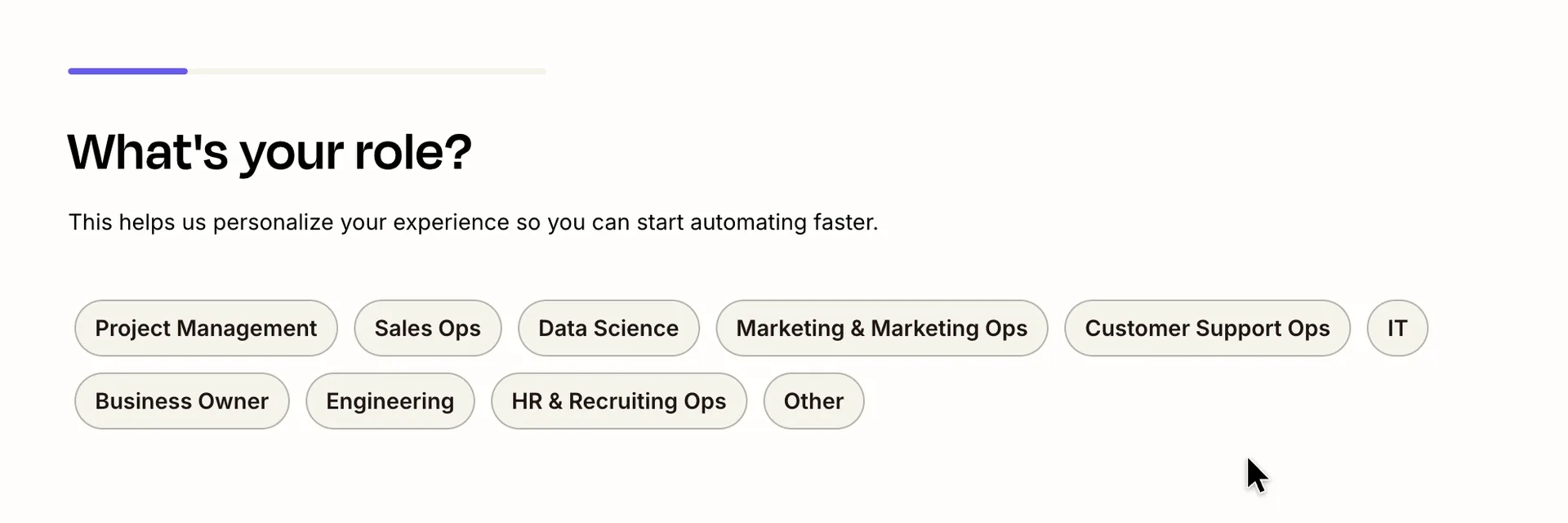 05Setup question one: What's your role?
 06Setup question two: What's your company size?
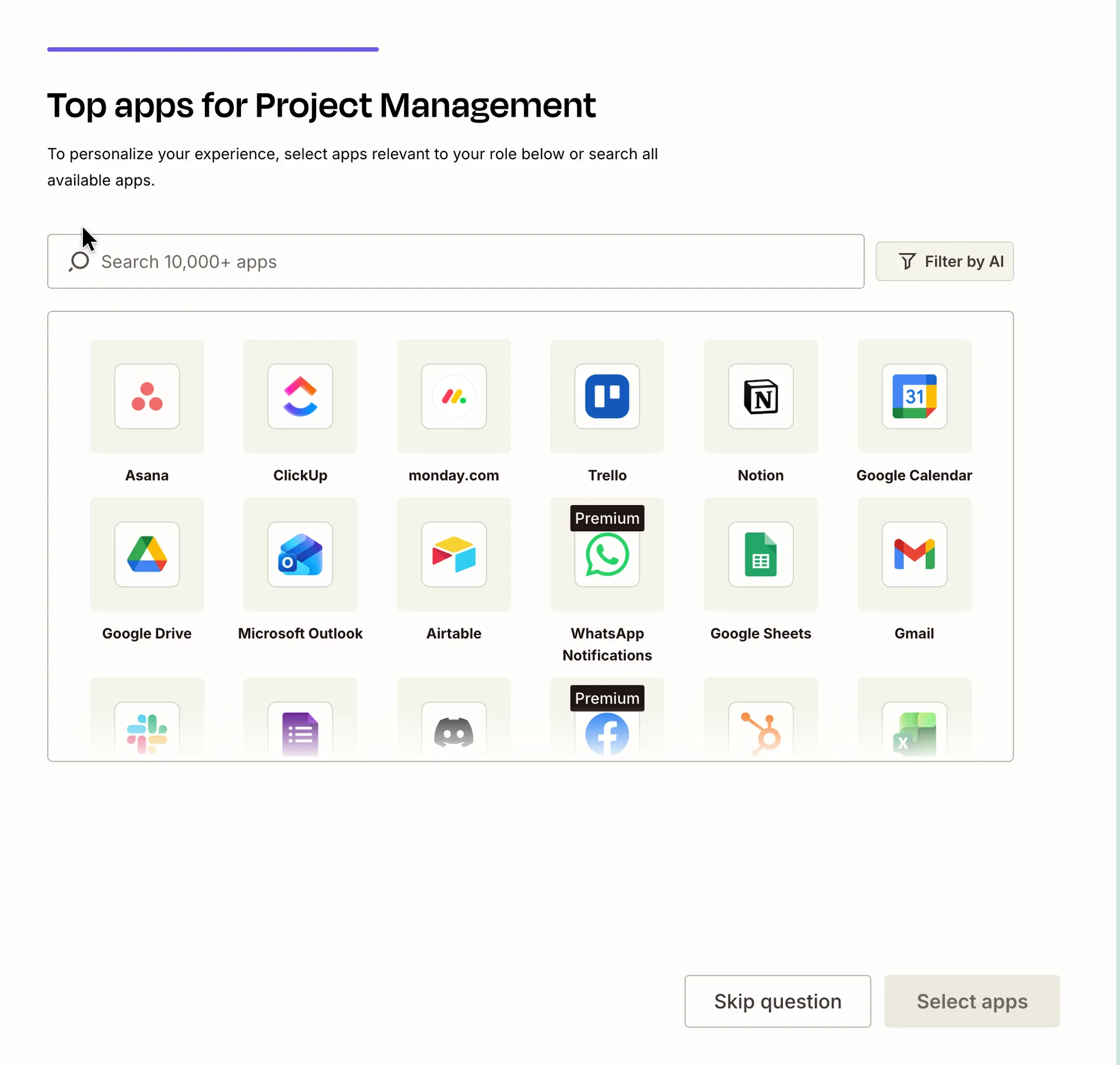 07Setup question three: pick the apps you use
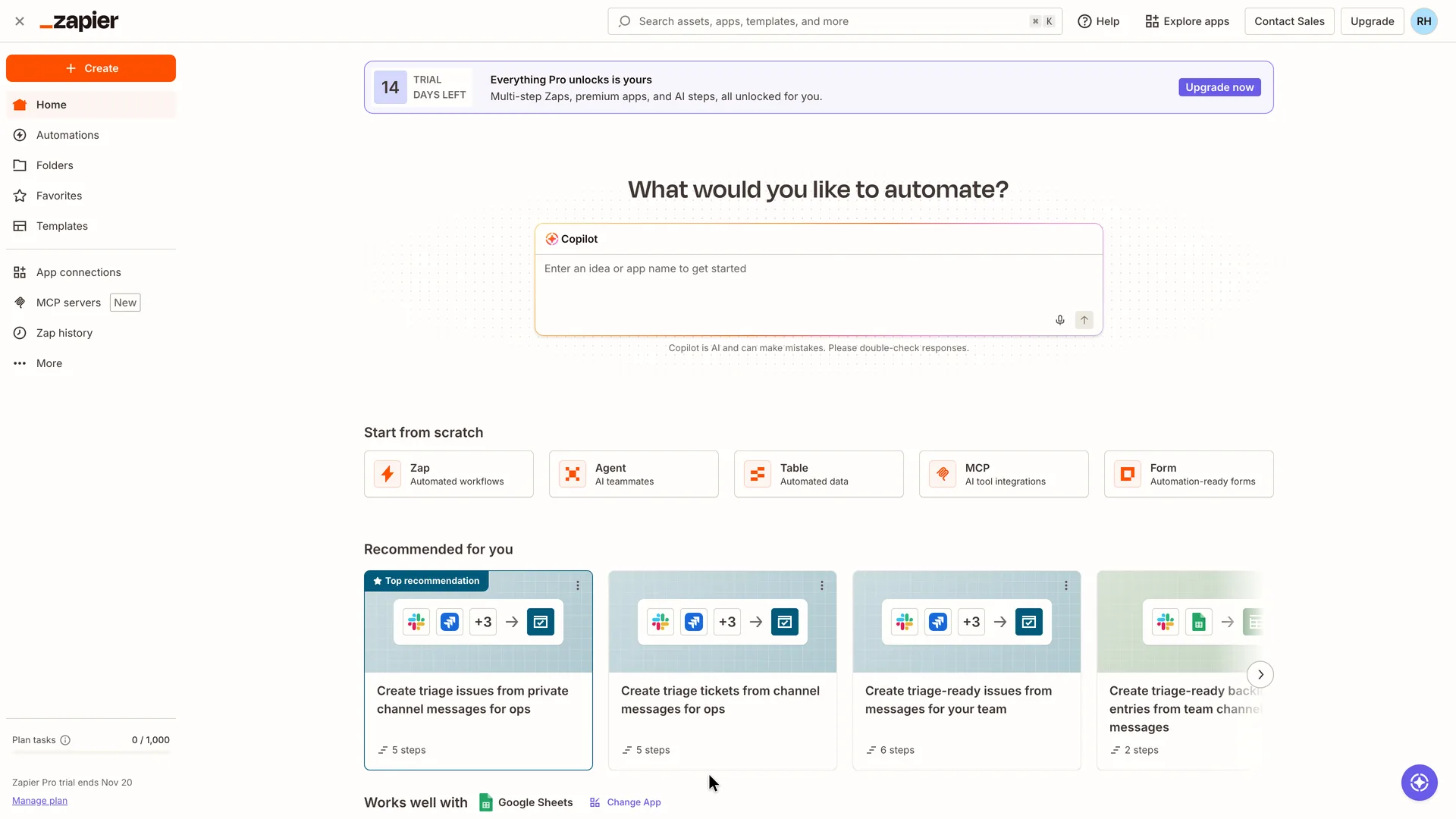 08Home: a Pro trial banner, a Copilot prompt and recommended templates
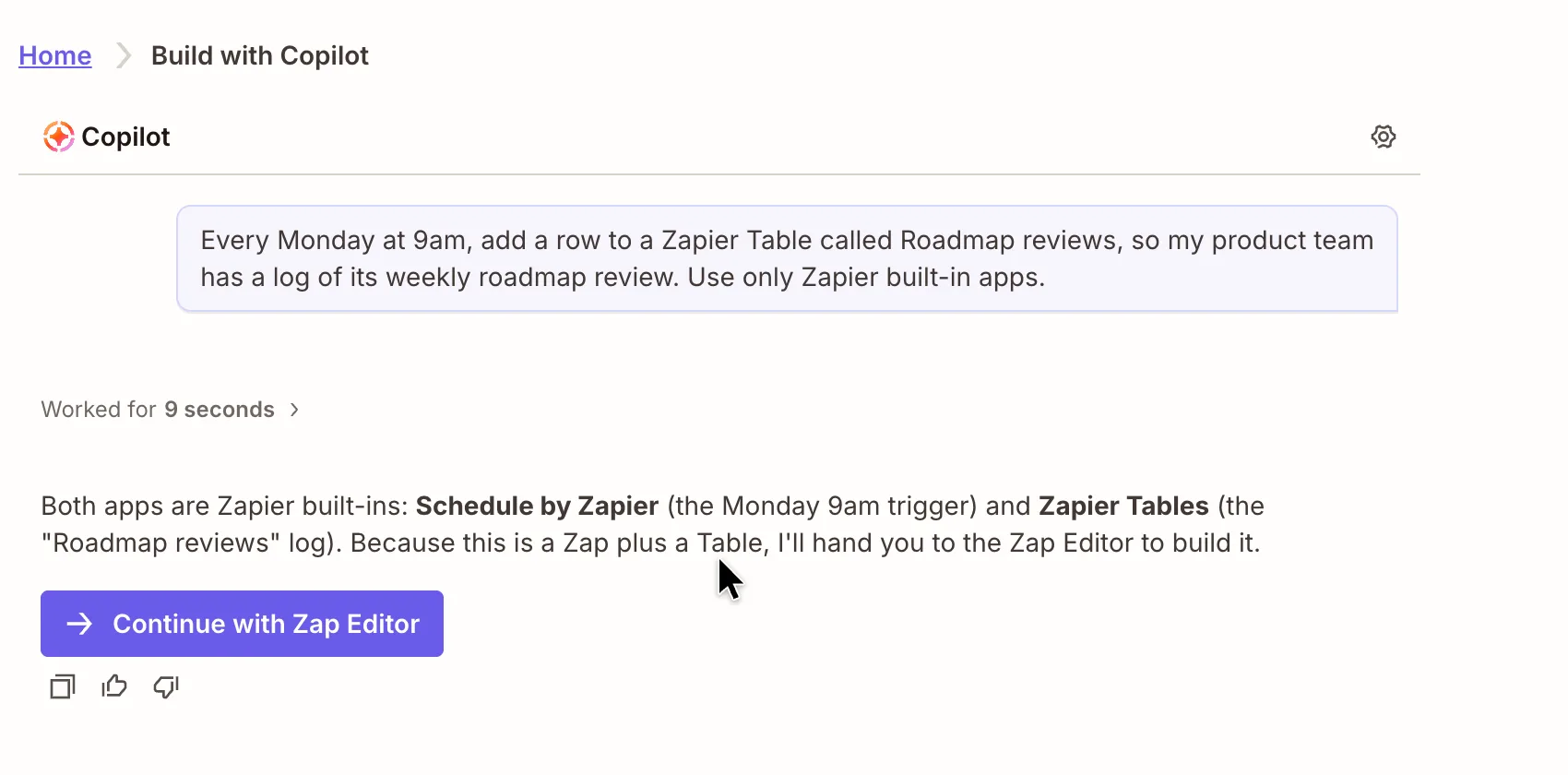 09Copilot answers: two built-in apps, then a hand-off to the Zap editor
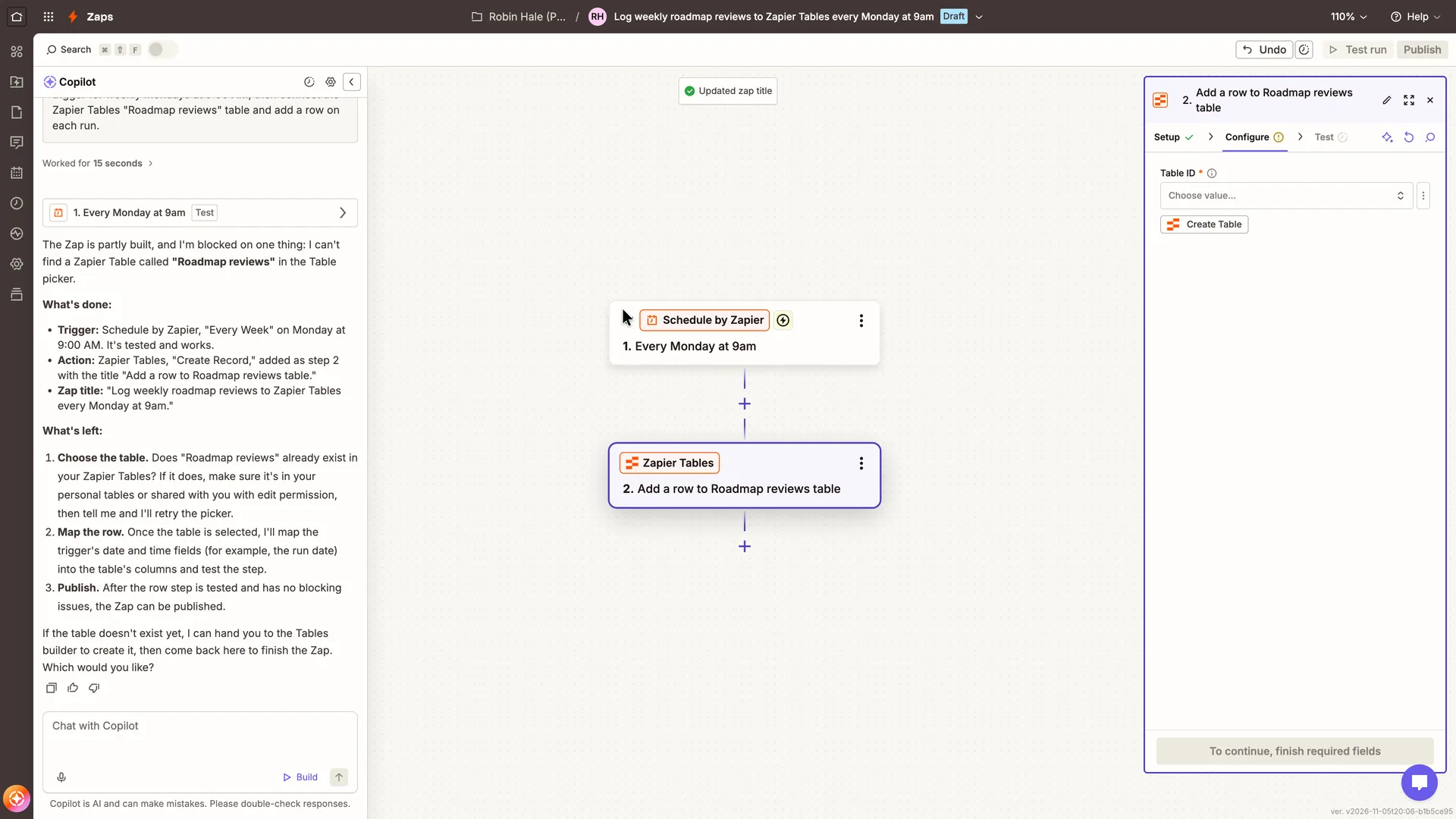 10Zap editor: Copilot builds two steps, then stops at a table that doesn't exist
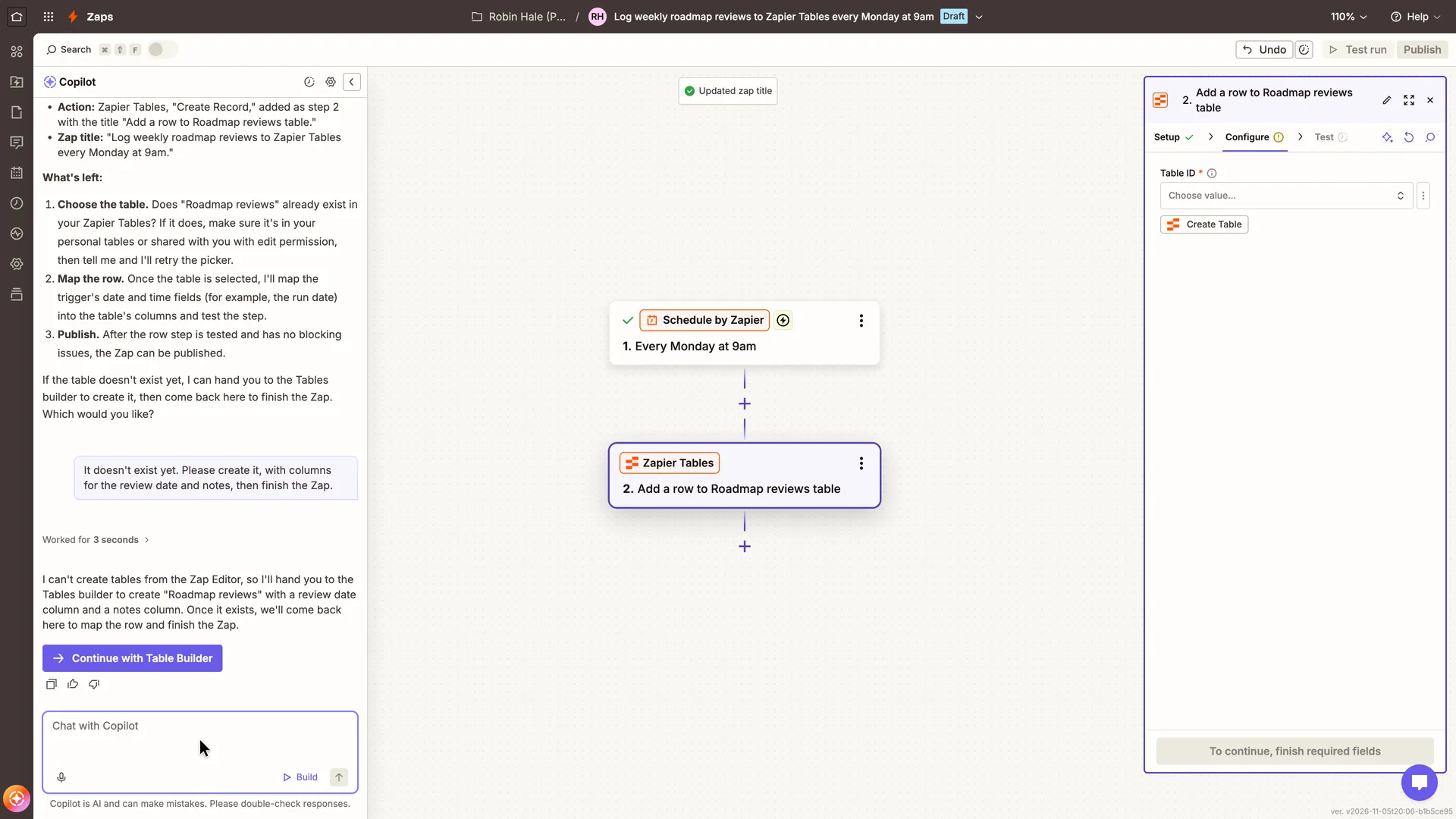 11Copilot can't create the table and offers the Table Builder
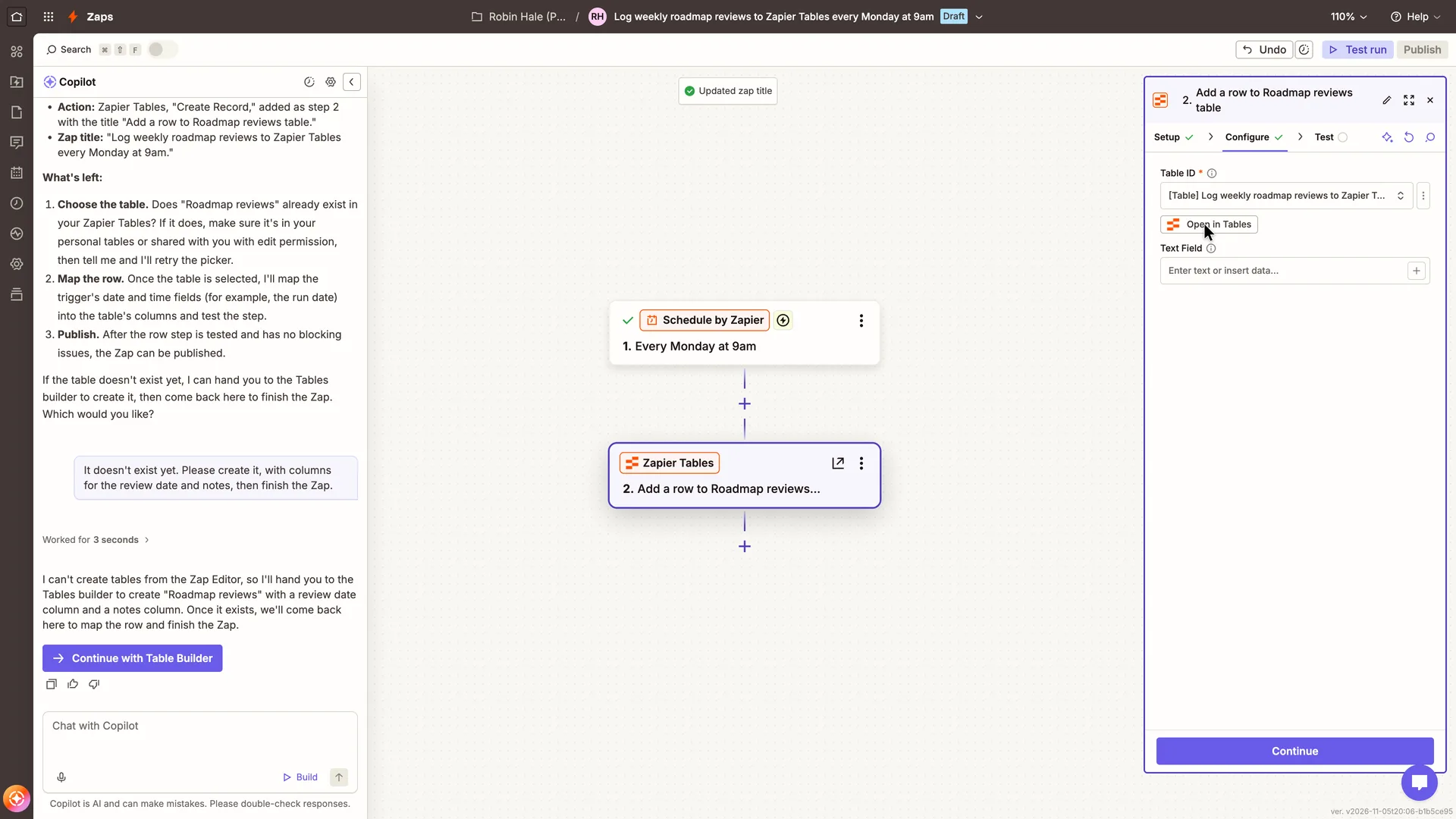 12Create Table makes a table at once, named after the Zap
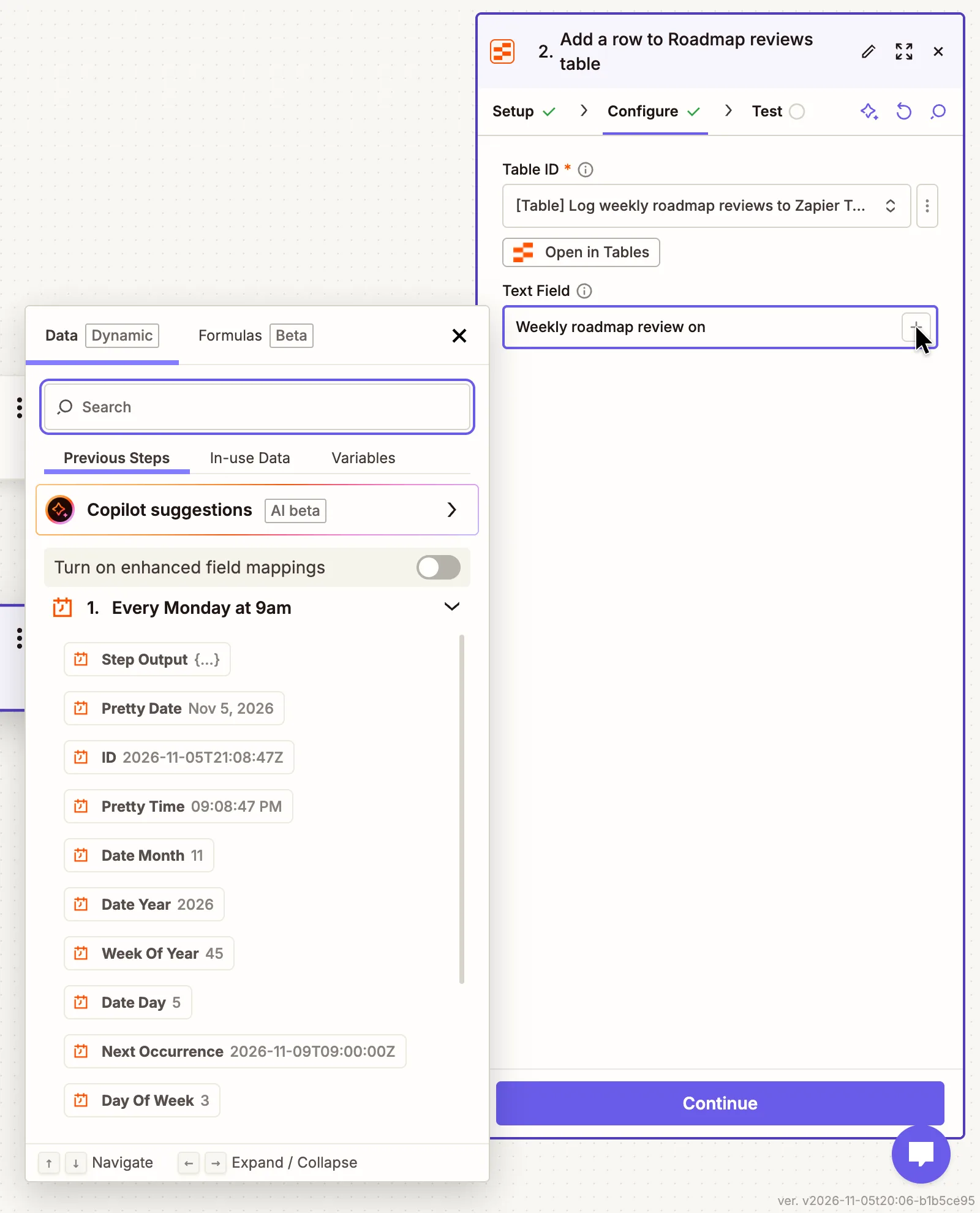 13The data picker: values from the trigger's test, ready to insert
 14Test tab: what the test will write before it writes it
 15Test passed: a record in the table, and 'Your Zap is ready!'
 16 · first valueFirst value: 'Success! Your Zap is live!'
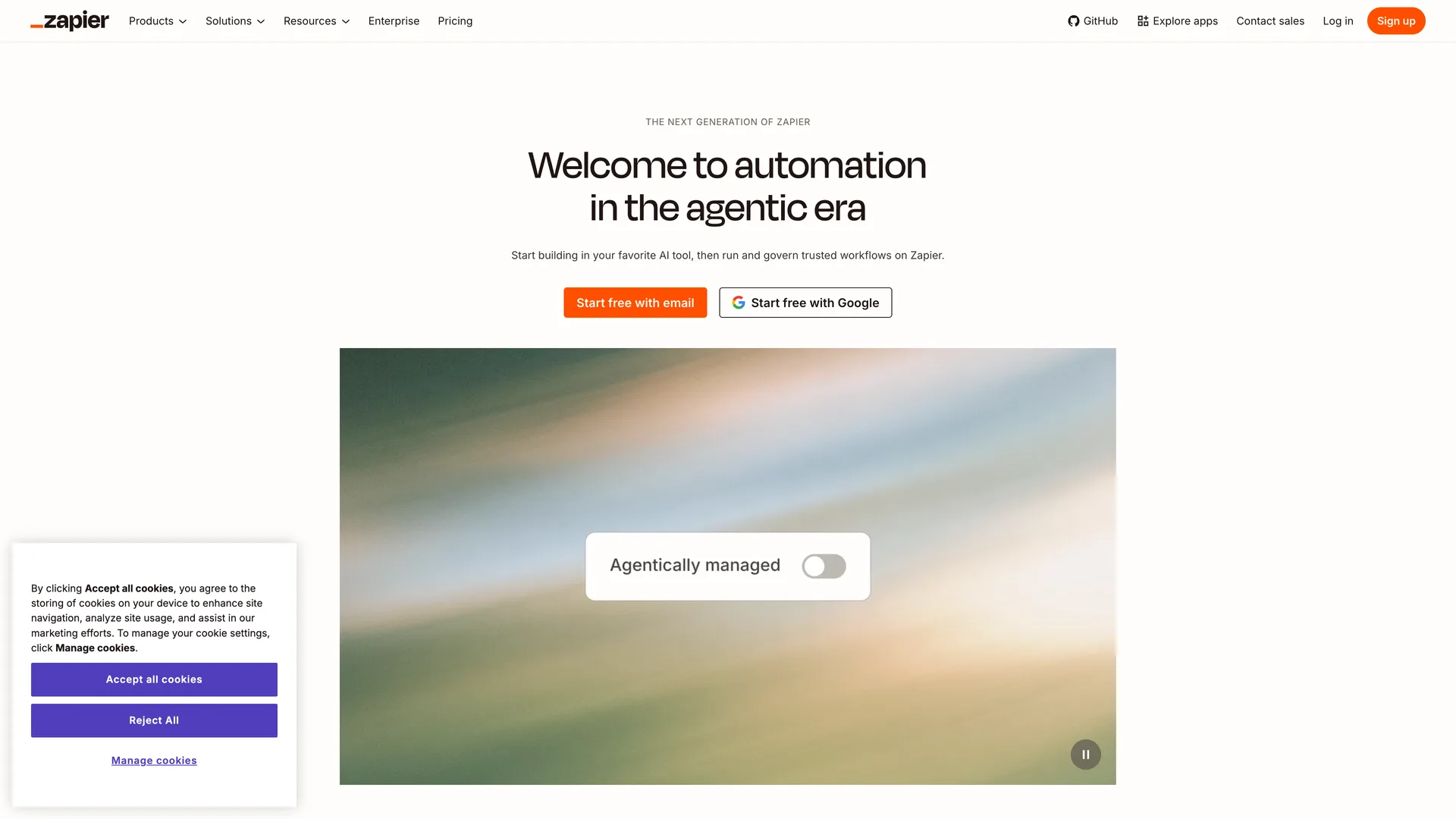
Step 1 of 16:Other
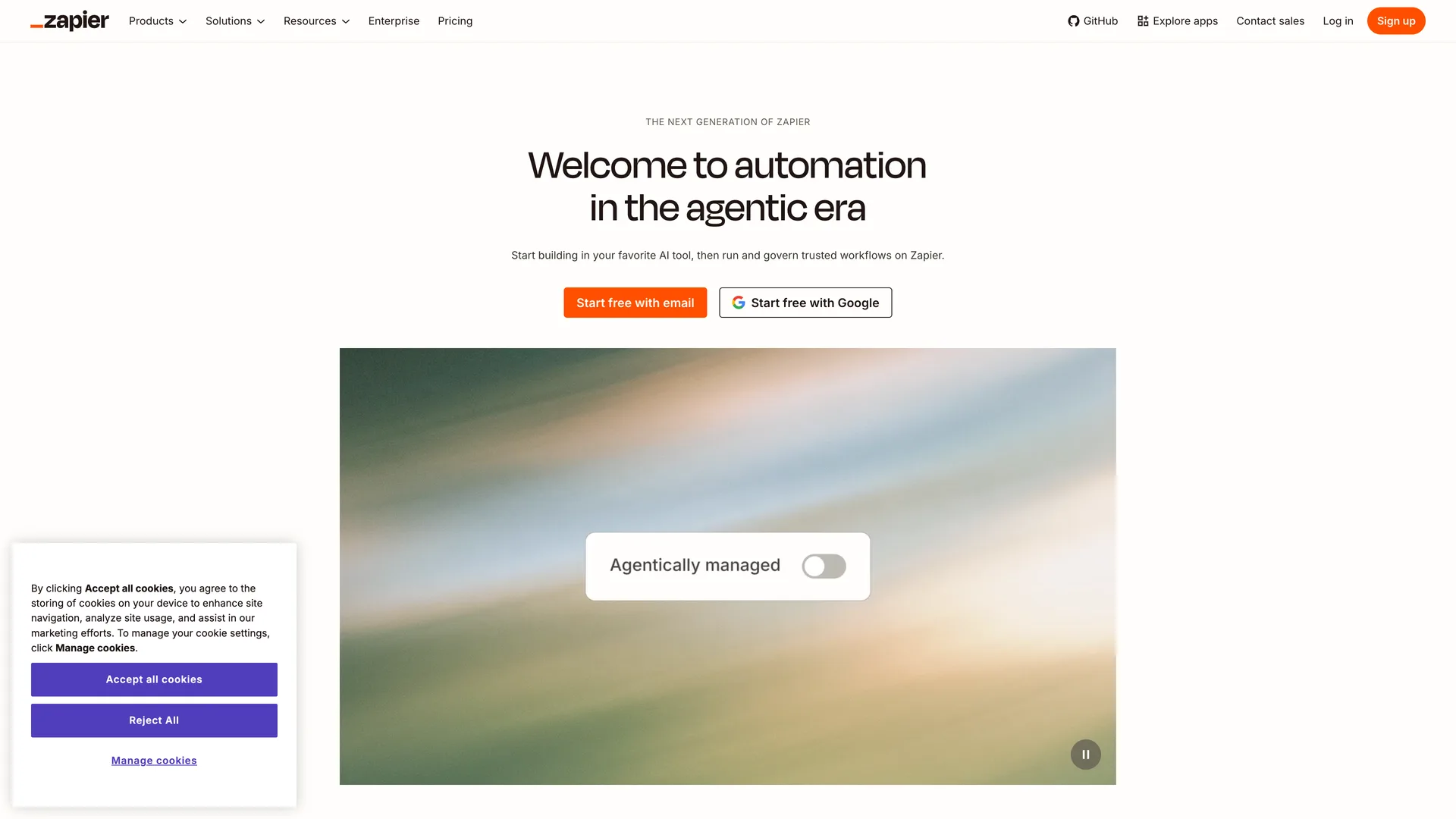
Zapier homepage with two signup buttons
Rejected cookies with Reject All, then clicked Start free with email in the hero
Why it works
The hero's only actions are the two ways to sign up, and the word 'free' sits on both. Reject All is as large as Accept, so refusing cookies costs one click.
What’s on this screen
Hero 'Welcome to automation in the agentic era' over 'Start building in your favorite AI tool, then run and govern trusted workflows on Zapier.' Two buttons: Start free with email (orange) and Start free with Google. Header: Log in and an orange Sign up. Below the hero, an animated walkthrough of building a Zap. A cookie banner at the bottom left offers Accept all cookies, Reject All (same size and colour) and Manage cookies. Every signup link on the page (header Sign up, hero, footer Start free) goes to the same /sign-up.
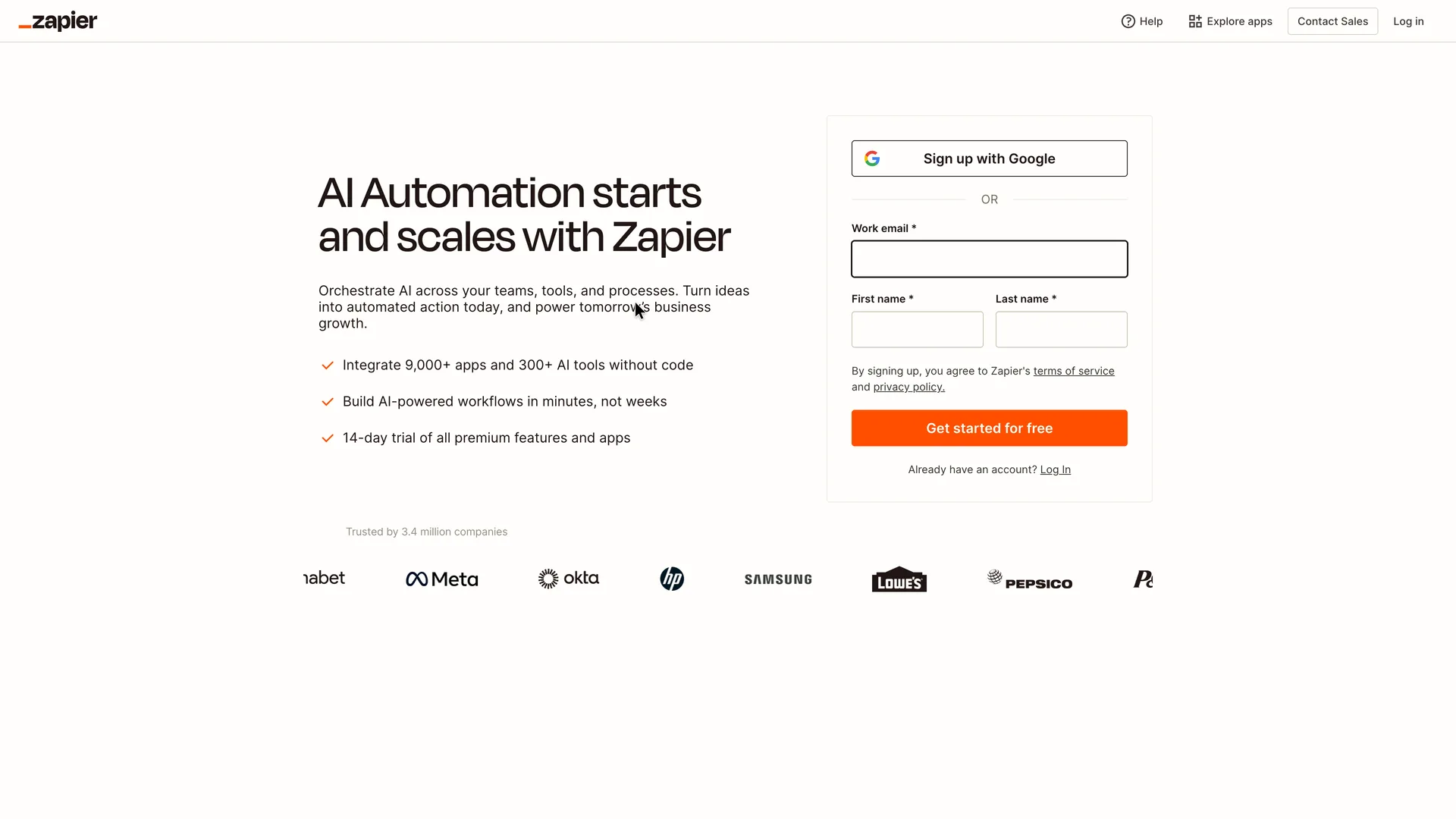
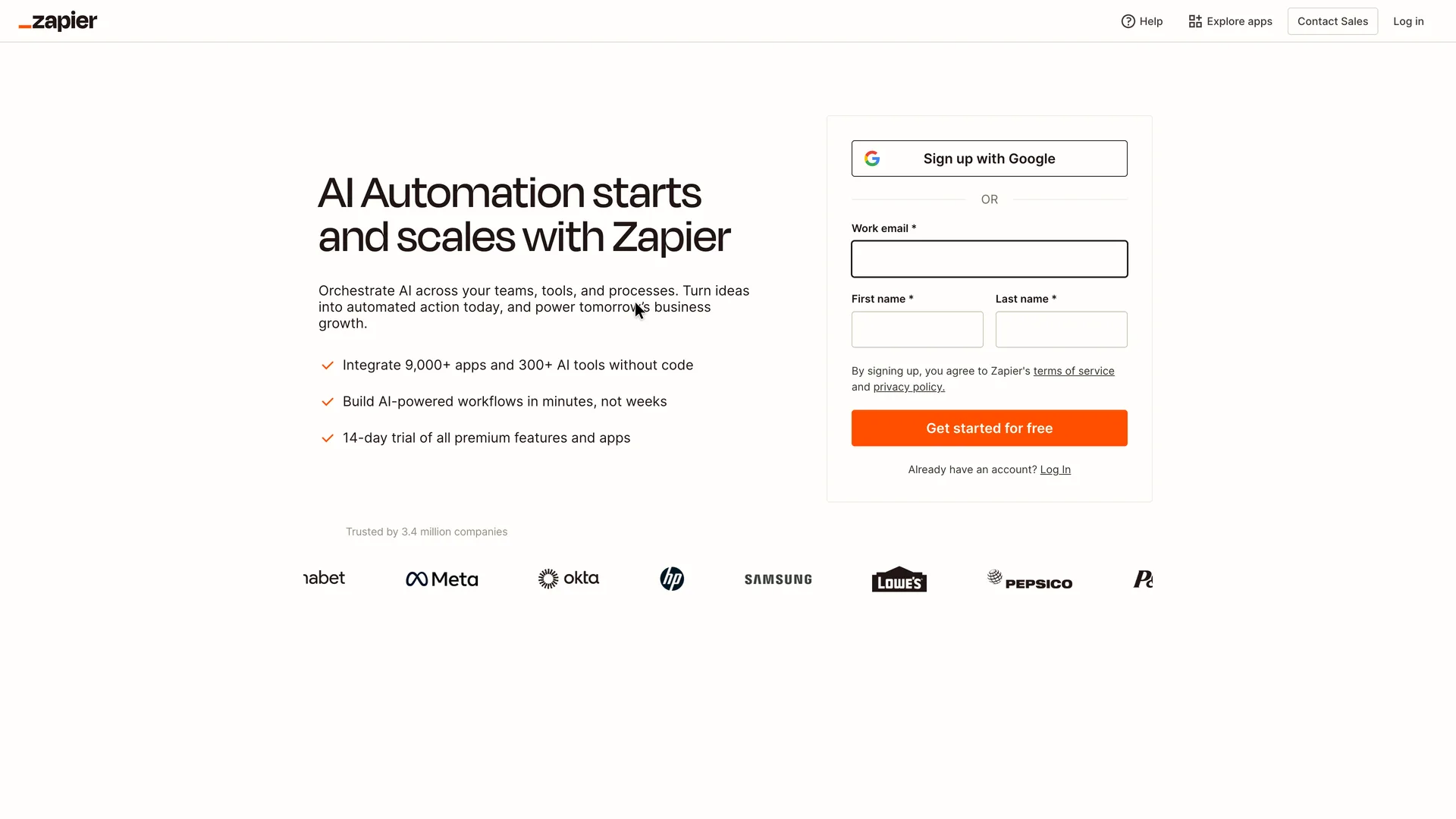
Step 2 of 16:Signup form
Sign-up form: work email, first and last name
Typed the email address, the first name Robin and the last name Hale
Why it works
Three short fields and one button, with the email field already focused. Beside the form, a short list of three ticked lines says what the account brings: 9,000+ apps and 300+ AI tools to connect without code, AI-powered workflows built in minutes rather than weeks, and a 14-day trial of every premium feature and app. The terms line sits directly above the button that accepts it.
What’s on this screen
Left: 'AI Automation starts and scales with Zapier', a line about orchestrating AI across teams, tools and processes, and three ticked lines: 'Integrate 9,000+ apps and 300+ AI tools without code', 'Build AI-powered workflows in minutes, not weeks' and '14-day trial of all premium features and apps'. Right: Sign up with Google, then Work email, First name and Last name (all required), 'By signing up, you agree to Zapier's terms of service and privacy policy.' above an orange Get started for free, and a Log In link. No password field shows yet. 'Trusted by 3.4 million companies' with a logo strip below.
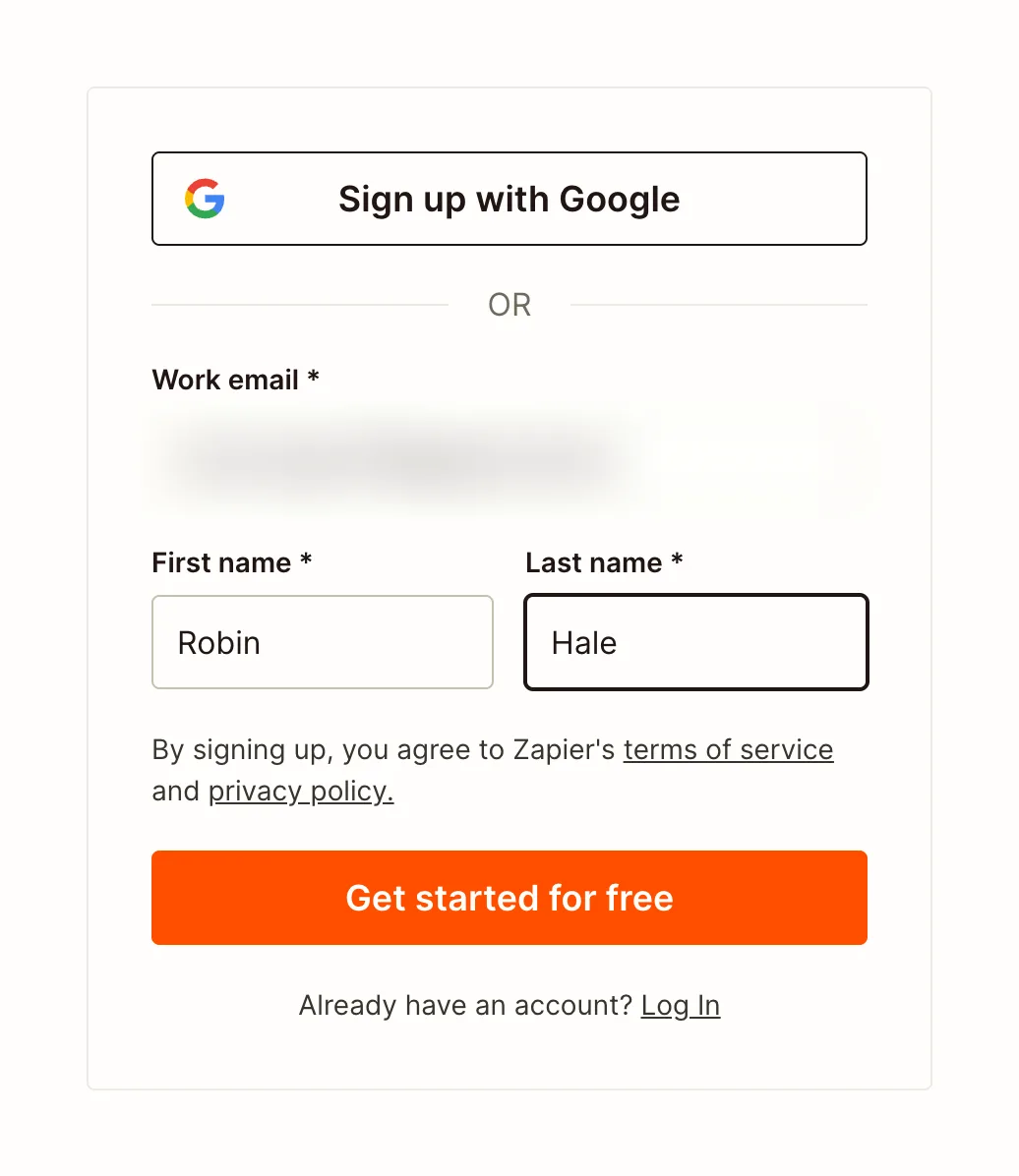
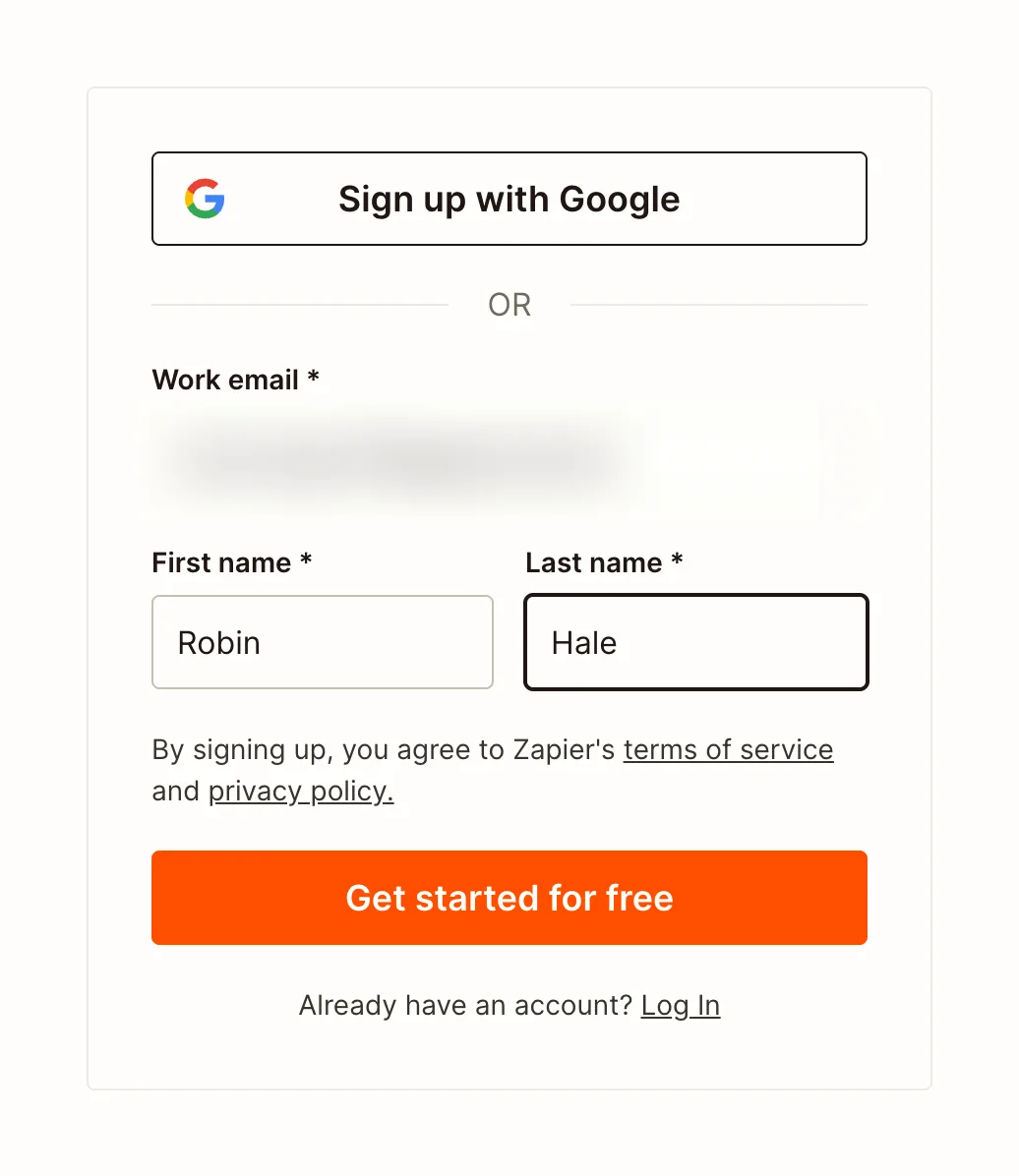
Step 3 of 16:Signup formDone by a person
The filled-in form and the first Get started for free
A person pressed Get started for free, under the terms line
Why it works
Nothing on the form is optional or extra: three fields, one button.
What gets in the way
The button reads as the last step, but a password screen follows on the same URL, so the user meets Get started for free twice.
What’s on this screen
The same three fields as step 2, filled in: the email address, Robin and Hale. The terms line still sits directly above Get started for free. Pressing it didn't create the account: the same page asked for a password next (step 4).
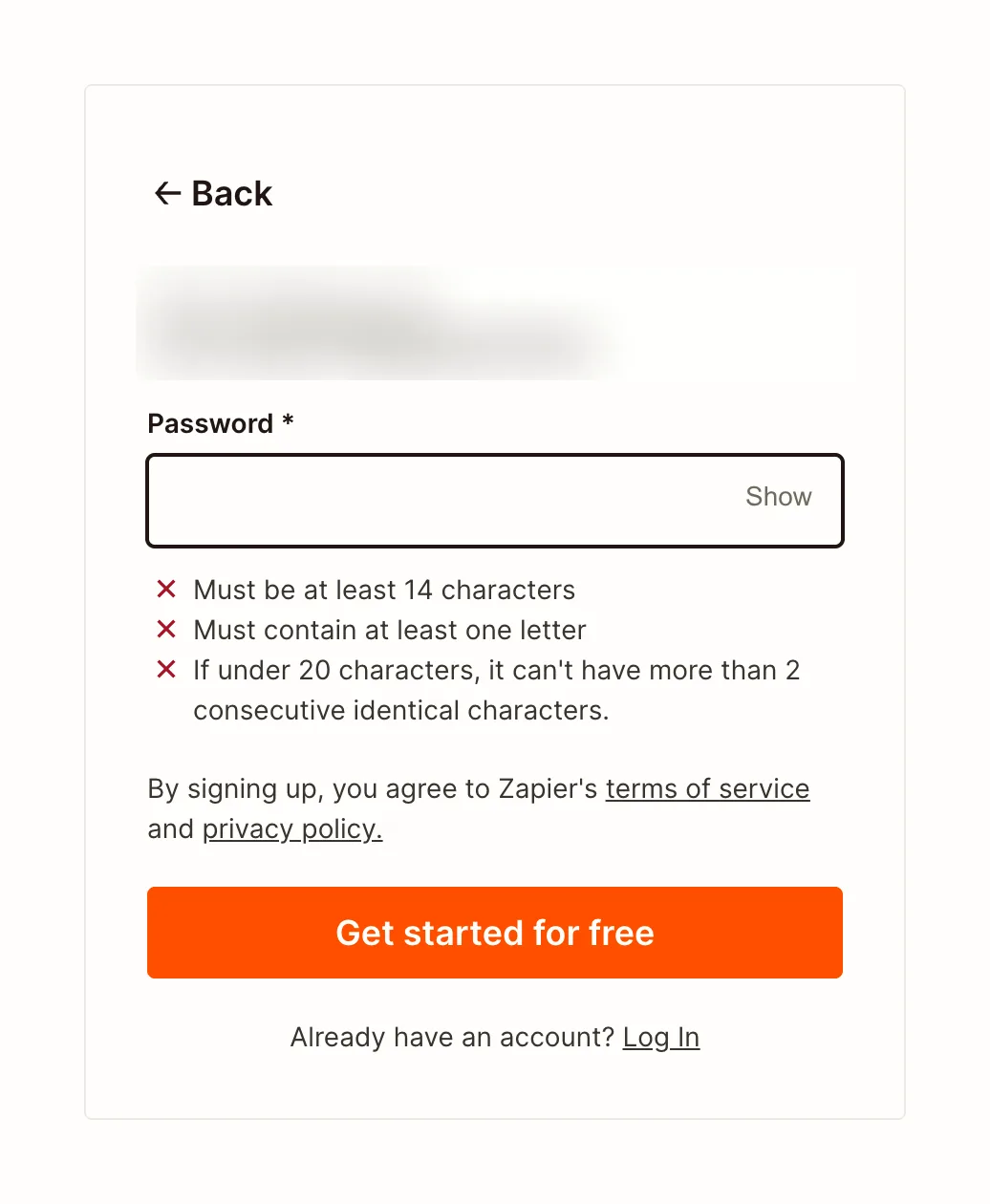
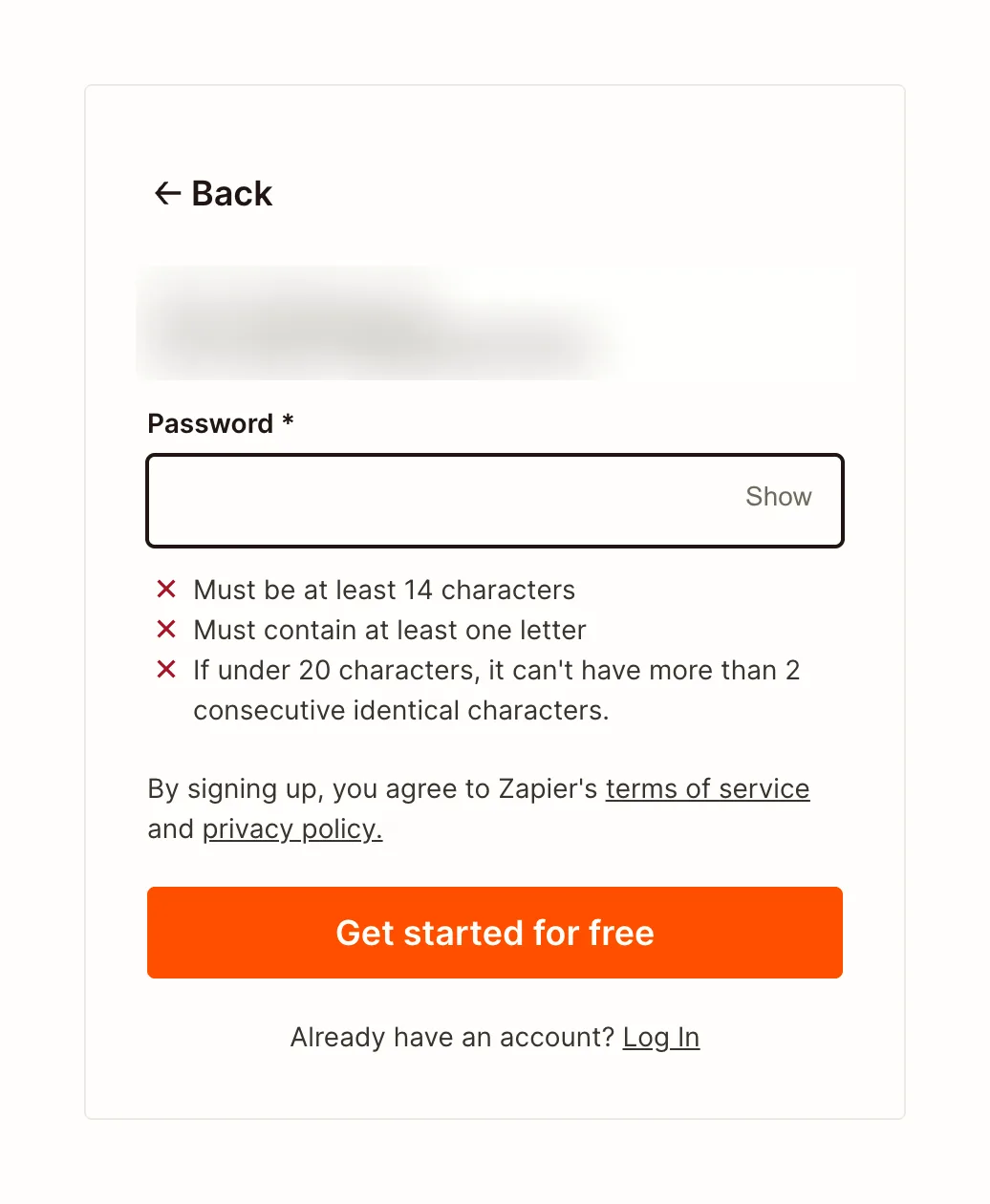
Step 4 of 16:Signup formDone by a person
A password step on the same page, and a second Get started for free
The agent typed a password (all three rules turned to Met); a person pressed Get started for free again, the click that created the account
Why it works
The rules are listed before typing and each one flips to Met as it is satisfied, so the user doesn't learn them from an error. The address is echoed back with a way to go back and fix it.
What gets in the way
A 14-character minimum is long for a password typed by hand, and the second Get started for free on the same page looks like the first.
What’s on this screen
Same URL. The card now shows a Back button, 'You're signing up as' followed by the address, one Password field with Show, three rules listed as Not met until typed (at least 14 characters, at least one letter, no more than 2 identical characters in a row if under 20), the terms line again and Get started for free again. No email code was asked for before the app opened.
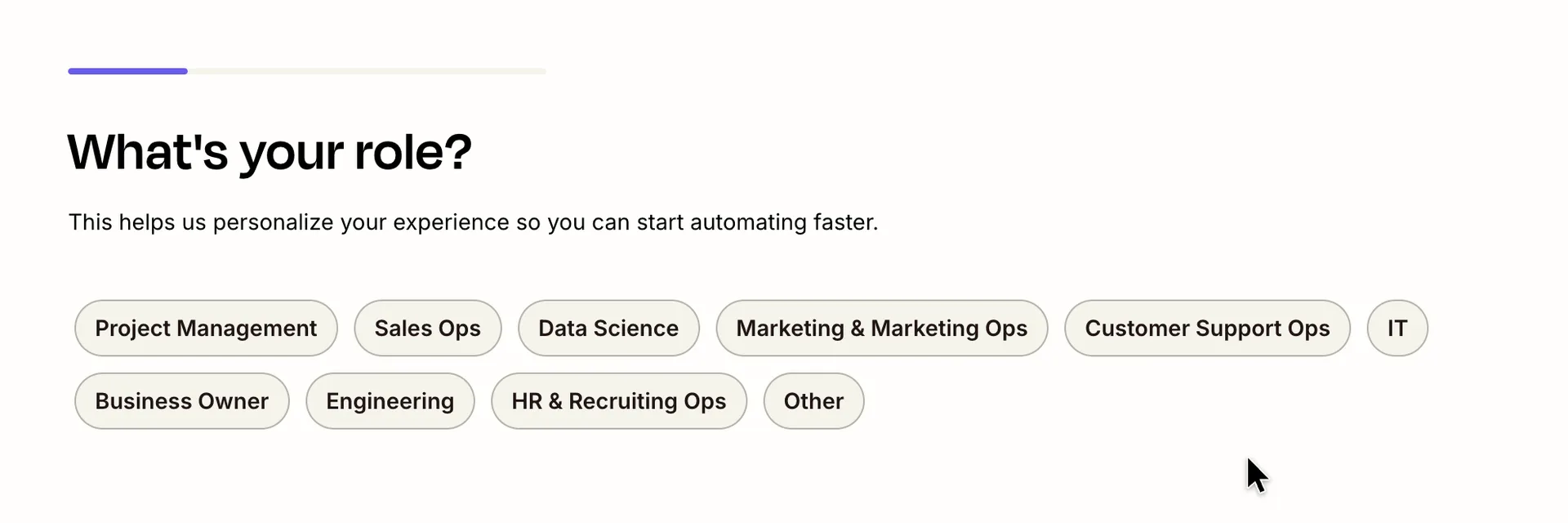
Step 5 of 16:Setup question
Setup question one: What's your role?
Chose Project Management: there is no Product option
Why it works
One question, one tap, a progress bar, and a line saying what the answer is for.
What gets in the way
Product management isn't in the list, so a product manager picks the nearest chip or Other. There is no Skip or Back.
What’s on this screen
The app opened straight onto onboarding: no email code, no welcome. A thin progress bar at the top, 'What's your role?' and 'This helps us personalize your experience so you can start automating faster.' Ten chips: Project Management, Sales Ops, Data Science, Marketing & Marketing Ops, Customer Support Ops, IT, Business Owner, Engineering, HR & Recruiting Ops, Other. No Continue button: a chip moves on at once. Right half: an illustration of an ID card.

Step 6 of 16:Setup question
Setup question two: What's your company size?
Chose 1-49 (Quillmark has 26 to 50 people)
Why it works
Same layout and the same one-tap answer as the role question, so the second question costs less than the first.
What gets in the way
The first bucket runs from 1 to 49, so a five-person startup and a company of 49 give the same answer.
What’s on this screen
Progress bar about half full. 'What's your company size?' and 'This helps us recommend the right features, templates, and services for your needs.' Five chips: 1-49, 50-249, 250-999, 1,000-4,999, 5,000+. Again no Continue: a chip moves on. Right half: avatars in an org-chart pyramid. In the screenshot 50-249 shows purple only because the pointer was resting on it after the previous click; the answer given was 1-49.
Step 7 of 16:Setup question
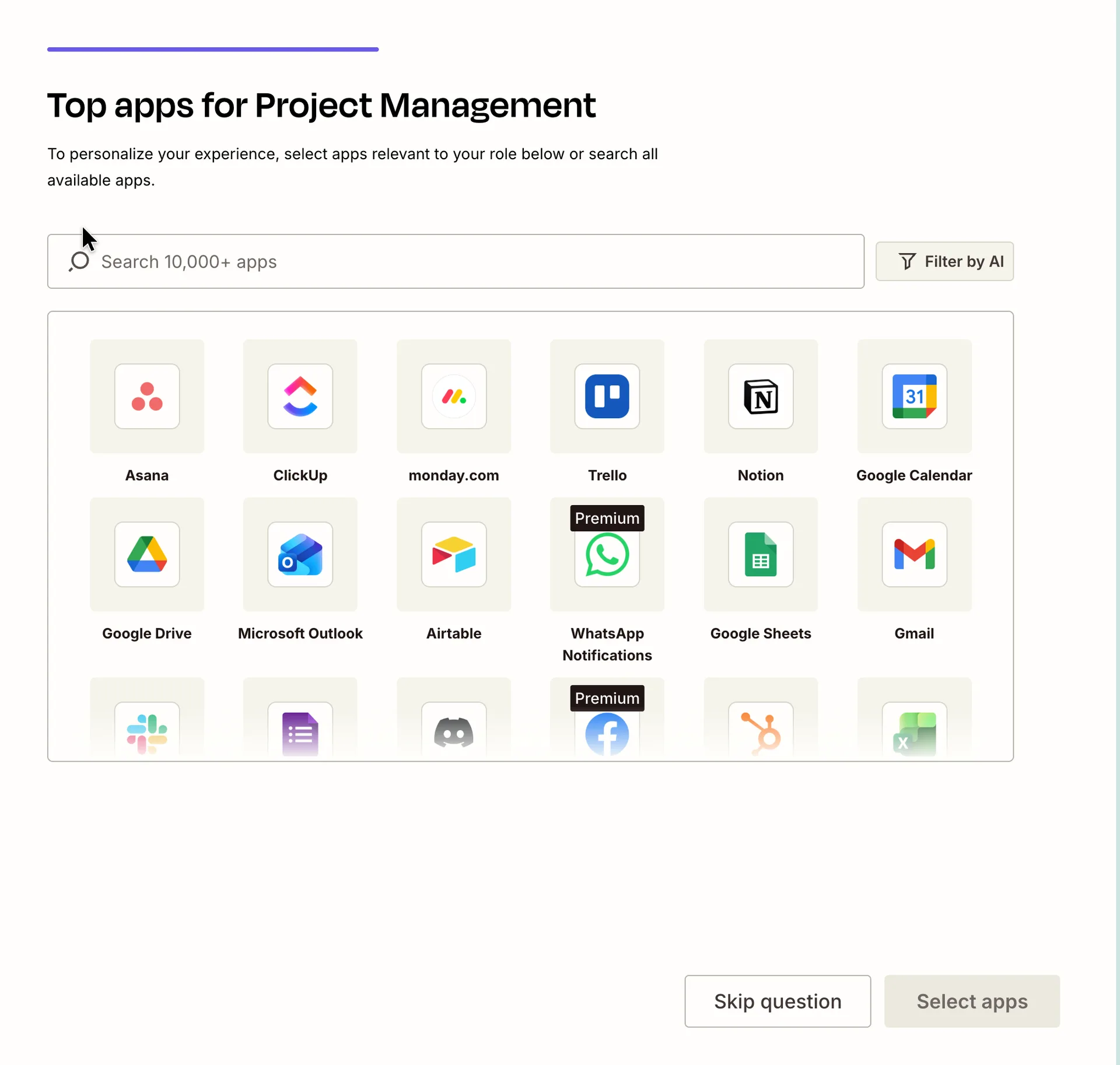
Setup question three: pick the apps you use
Ticked Slack, Google Sheets and Jira Software Cloud, then pressed Continue. Picking an app connects nothing
Why it works
The list is filtered by the role just given, and the question can be skipped. Premium apps are labelled before anyone builds with them. The apps picked here come back on Home, where every recommended template is built on them.
What’s on this screen
Progress bar full. 'Top apps for Project Management' (the role answer carried over) and 'To personalize your experience, select apps relevant to your role below or search all available apps.' A 'Search 10,000+ apps' box with a Filter by AI button, then a scrolling grid of app tiles: Asana, ClickUp, monday.com, Trello, Notion, Google Calendar, Google Drive, Microsoft Outlook, Airtable, Google Sheets, Gmail and more; WhatsApp Notifications, Facebook Lead Ads, Shopify and Salesforce carry a Premium label. Skip question and a disabled Select apps at the bottom; once apps are ticked, the chosen ones show as chips above the grid, Skip question greys out and the button reads Continue.
Step 8 of 16:Empty state
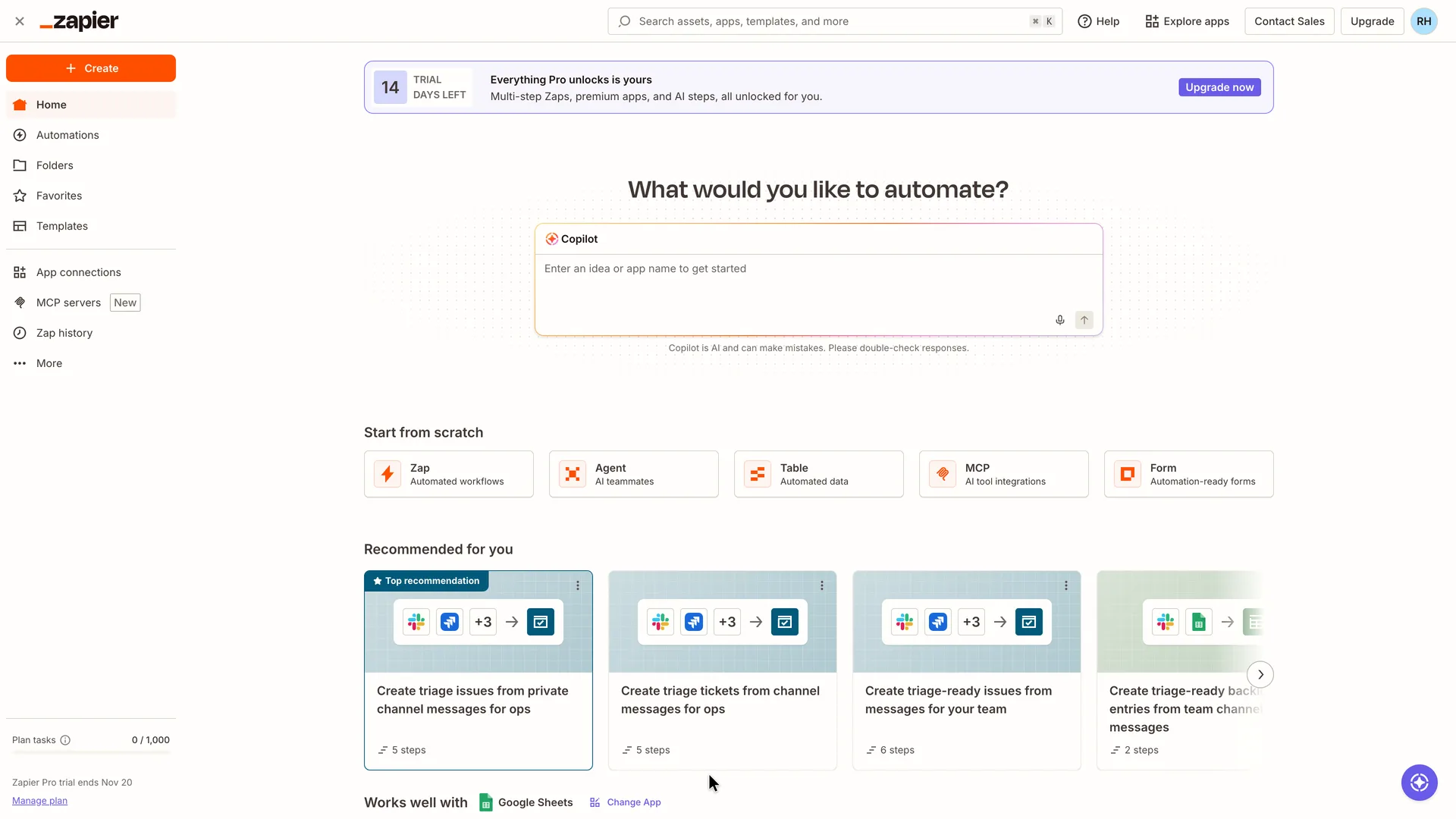
Home: a Pro trial banner, a Copilot prompt and recommended templates
Typed the use case into the Copilot box and sent it
Why it works
The first screen asks one open question and gives the answer box the most space. Every recommended template is built on Slack, Jira and Google Sheets, the three apps picked in the setup survey a moment earlier, so the first suggestions start from the user's own tools rather than a generic list: personalisation that shortens the way to a first useful Zap. The five Start from scratch tiles show what else Zapier makes.
What’s on this screen
No email code was asked for; the third answer led straight to Home. Top: a banner '14 TRIAL DAYS LEFT, Everything Pro unlocks is yours: Multi-step Zaps, premium apps, and AI steps, all unlocked for you.' with Upgrade now; the sidebar shows Plan tasks 0 / 1,000 and the date the Pro trial ends. Centre: 'What would you like to automate?' over a Copilot box ('Enter an idea or app name to get started'; 'Copilot is AI and can make mistakes'). Start from scratch: Zap, Agent, Table, MCP, Form. Recommended for you: a carousel led by 'Top recommendation: Create triage issues from private channel messages for ops' (5 steps), then more triage templates, all built on Slack, Jira and Google Sheets, the three apps picked in setup. Below: 'Works well with Google Sheets'. The header has Upgrade and an avatar with the initials RH.
Step 9 of 16:Other
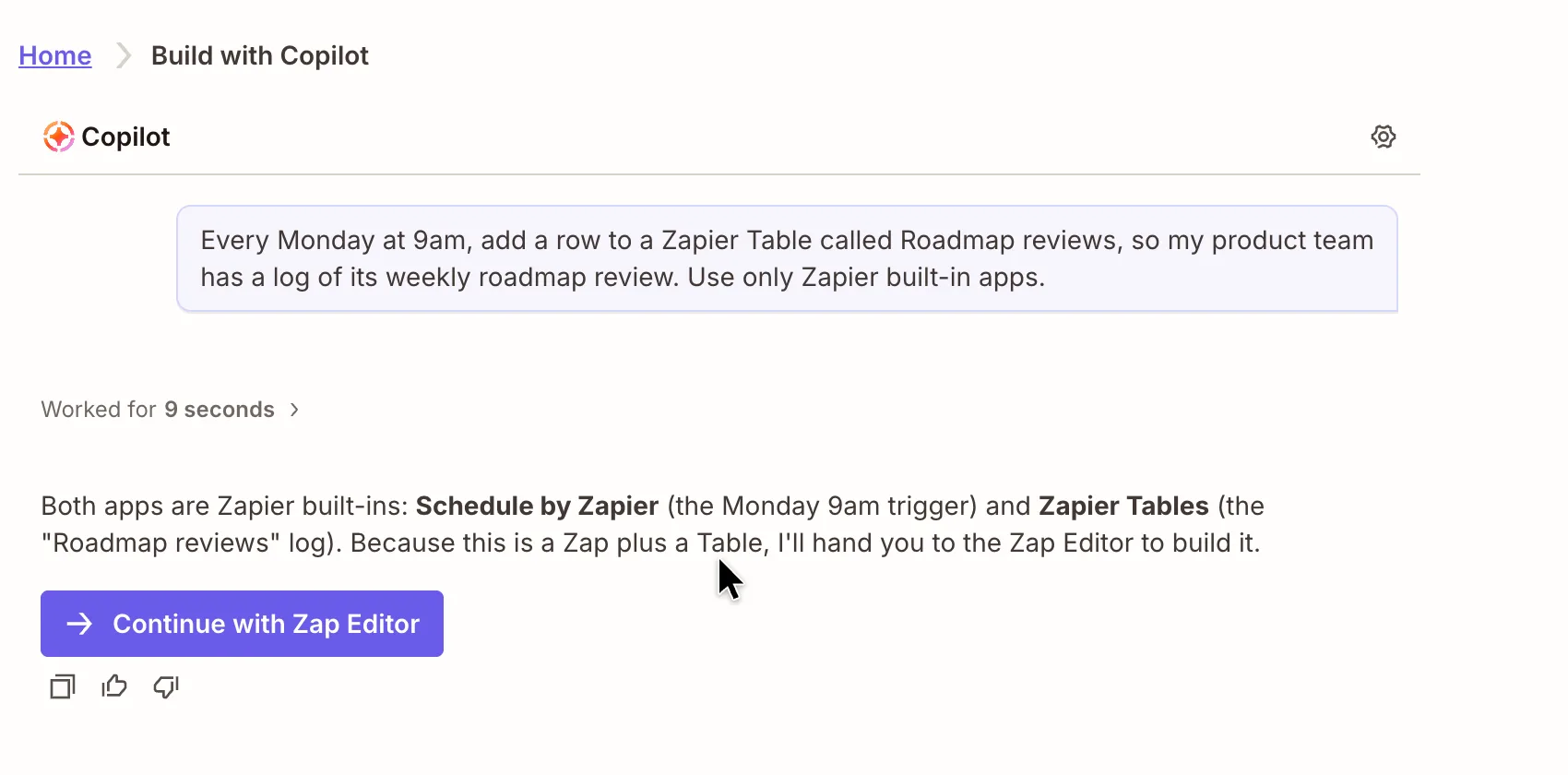
Copilot answers: two built-in apps, then a hand-off to the Zap editor
Pressed Continue with Zap Editor
Why it works
The answer names the two apps and what each one does in the user's own terms (the Monday trigger, the log), and offers a single next step.
What gets in the way
After the user describes the whole job, Copilot only names the apps and hands over to the Zap editor; it doesn't say whether the table exists or who will create it.
What’s on this screen
The Home page turned into 'Home > Build with Copilot', a chat. Robin's request sits at the top. 'Worked for 9 seconds' (collapsed), then: 'Both apps are Zapier built-ins: Schedule by Zapier (the Monday 9am trigger) and Zapier Tables (the "Roadmap reviews" log). Because this is a Zap plus a Table, I'll hand you to the Zap Editor to build it.' One purple button, Continue with Zap Editor, with copy and thumbs up/down. A 'Chat with Copilot' box at the bottom. Copilot built nothing on this screen.
Step 10 of 16:Other
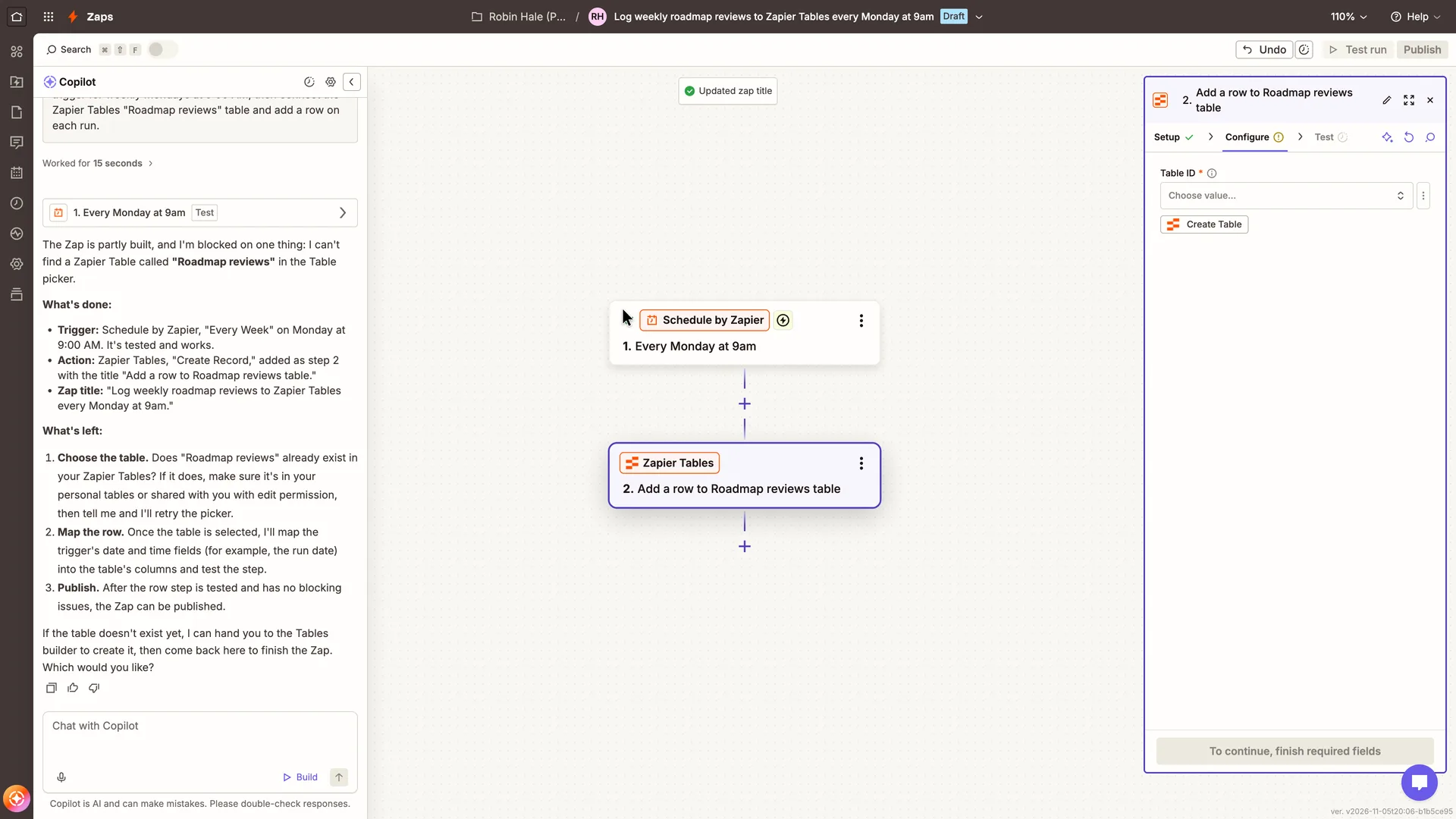
Zap editor: Copilot builds two steps, then stops at a table that doesn't exist
Replied to Copilot that the table doesn't exist yet and asked it to create the table and finish the Zap
Why it works
Copilot did the setup a new user would find hardest (picking the Every Week trigger, Monday, 9:00, the Create Record action, a title) and lists what is done and what is left in plain words.
What gets in the way
Copilot was told the table should be called Roadmap reviews and built a step for it without checking that it existed; a brand-new account has no tables. It then asks the user whether the table exists, and its answer for the 'no' case is a trip to another builder. Its working notes ('Worked for 15 seconds') stay in the panel and push the summary down.
What’s on this screen
The editor opened with Copilot in a left panel and built the Zap while the user watched (a 'Suggest Zap Steps...' status, then 'Updated zap title'). Canvas: 1. Schedule by Zapier 'Every Monday at 9am', 2. Zapier Tables 'Add a row to Roadmap reviews table'. Title bar: 'Log weekly roadmap reviews to Zapier Tables every Monday at 9am', Draft. Copilot's message: 'The Zap is partly built, and I'm blocked on one thing: I can't find a Zapier Table called "Roadmap reviews" in the Table picker.' What's done: the trigger, 'It's tested and works'; the action; the title. What's left: choose the table, map the row, publish. It ends 'If the table doesn't exist yet, I can hand you to the Tables builder to create it, then come back here to finish the Zap. Which would you like?' The right panel shows step 2's Configure tab with an empty Table ID and a Create Table button; Continue reads 'To continue, finish required fields'. Test run and Publish are greyed out.
Step 11 of 16:Other
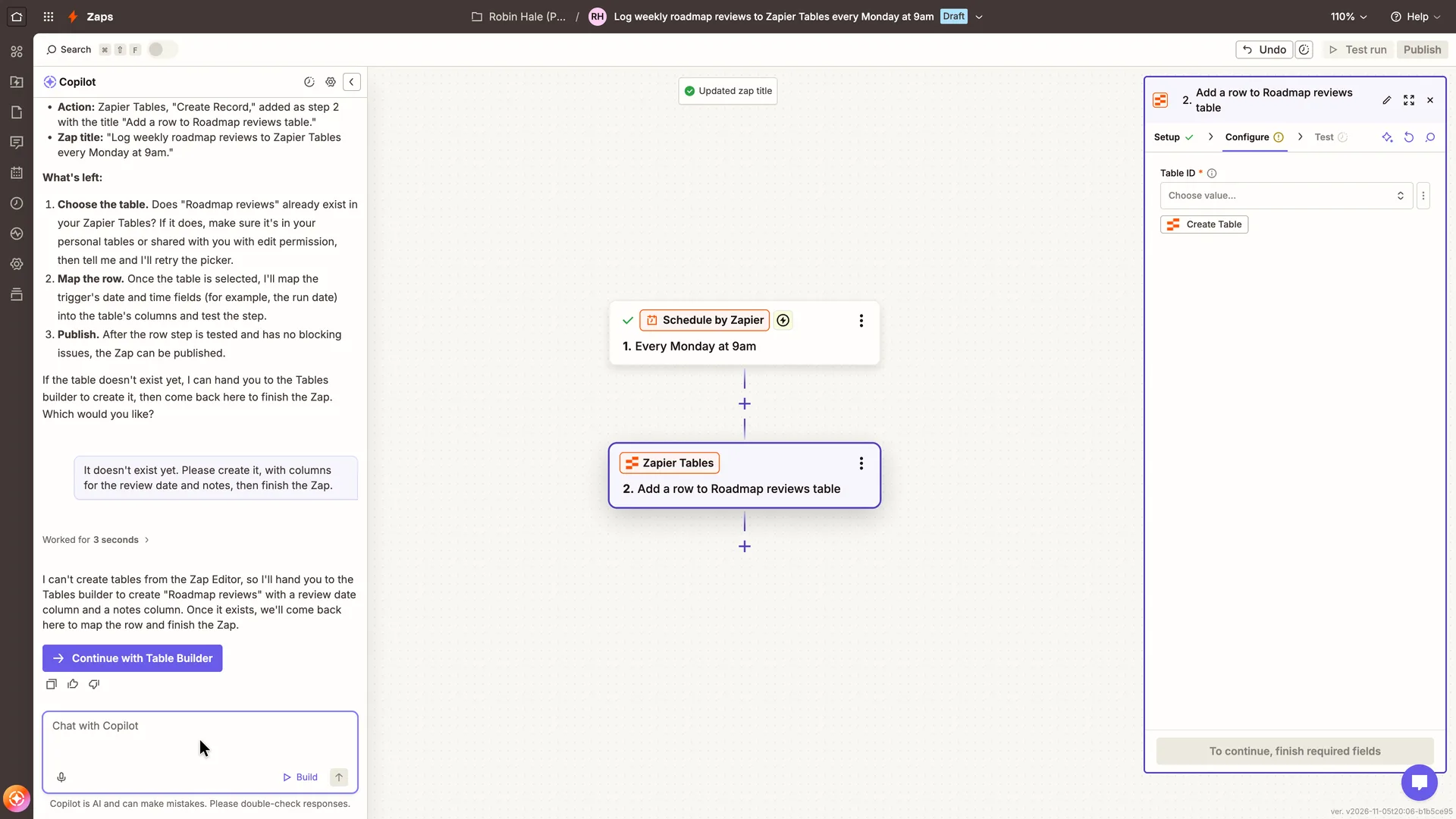
Copilot can't create the table and offers the Table Builder
Clicked Create Table under the empty Table ID field, instead of leaving for the Table Builder
Why it works
Copilot carries the request over (the table name and both columns) and says the user will come back to the same Zap.
What gets in the way
Copilot can't create the table itself, so finishing the Zap its way means leaving the Zap editor for the Tables builder and then coming back to the Zap. Going back and forth between two builders on a first Zap can cause friction along the way.
What’s on this screen
After 'Worked for 3 seconds', Copilot replies: 'I can't create tables from the Zap Editor, so I'll hand you to the Tables builder to create "Roadmap reviews" with a review date column and a notes column. Once it exists, we'll come back here to map the row and finish the Zap.' with a purple Continue with Table Builder button. On the right, the same editor's step 2 panel still shows a Create Table button directly under the empty Table ID field.
Step 12 of 16:Other
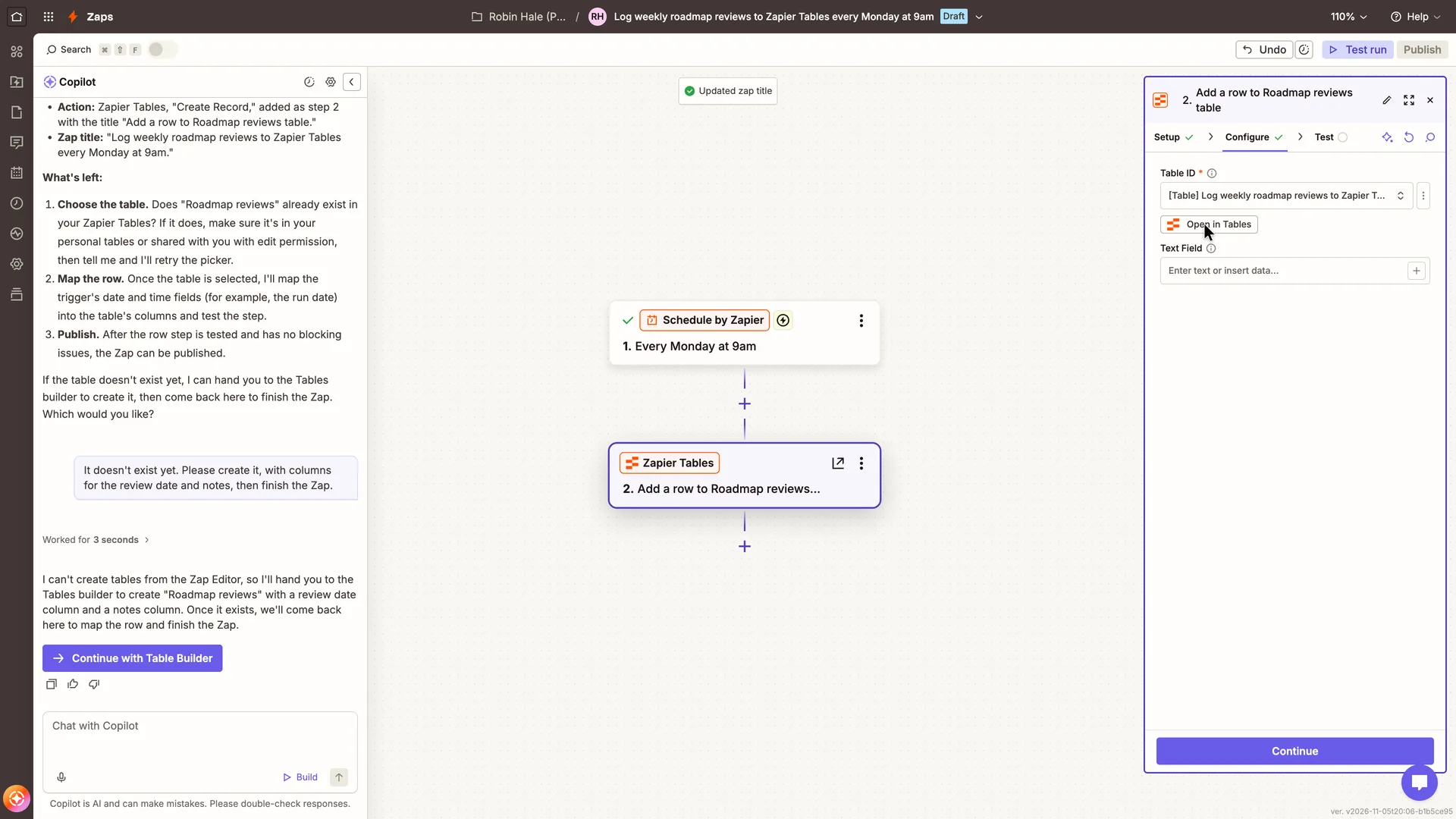
Create Table makes a table at once, named after the Zap
Typed 'Weekly roadmap review on ' into Text Field and pressed the + beside it to insert data
Why it works
Creating the table takes one click and keeps the user in the Zap, and the step becomes ready to test straight away.
What gets in the way
The new table is named after the Zap, and the step shows one Text Field, not the Roadmap reviews name and the date and notes columns from Robin's request, so those columns would still have to be added in Tables.
What’s on this screen
One click created a table without leaving the editor: a 'Table has been created' notice showed for about a second (gone by the screenshot). Table ID now reads '[Table] Log weekly roadmap reviews to Zapier T…' (the Zap's title plus 'Table', not the Roadmap reviews name Robin gave), an Open in Tables button replaced Create Table, and one field appeared, Text Field ('Enter text or insert data…'). Configure has a green tick, Continue is active and Test run in the top bar lit up. Step 1 on the canvas now shows a green tick. The Copilot panel still offers Continue with Table Builder.
Step 13 of 16:Other
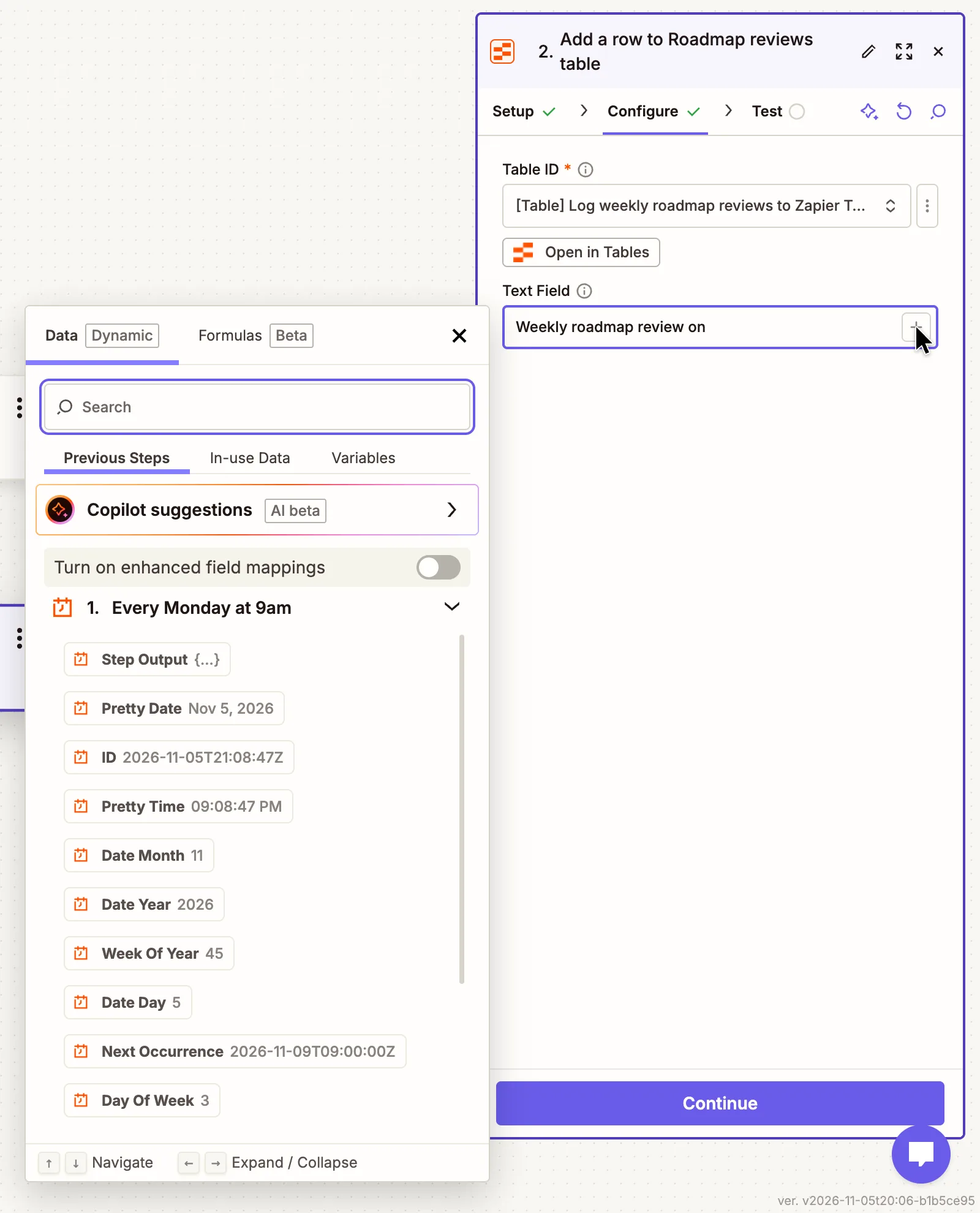
The data picker: values from the trigger's test, ready to insert
Picked Pretty Date, closed the picker and pressed Continue
Why it works
Every field shows its sample value, so the user can see what Pretty Date or Week Of Year will put in the row before choosing it.
What gets in the way
The popover is crowded for a first Zap that needs one value, the date. Two rows of tabs, a Copilot suggestions row, a toggle and ten fields with sample values share one panel, so a new user has to scan all of it to find Pretty Date, while advanced options such as Formulas and enhanced field mappings compete for the same attention.
What’s on this screen
A popover beside the field: tabs Data (Dynamic) and Formulas (Beta); a Search box; Previous Steps, In-use Data and Variables; a Copilot suggestions row (AI beta); a 'Turn on enhanced field mappings' toggle; then '1. Every Monday at 9am' with its fields and sample values from the test Copilot ran: Step Output, Pretty Date Nov 5, 2026, ID 2026-11-05T21:08:47Z, Pretty Time 09:08:47 PM, Date Month 11, Date Year 2026, Week Of Year 45, Date Day 5, Next Occurrence 2026-11-09T09:00:00Z, Day Of Week 3. Keyboard hints at the bottom.
Step 14 of 16:Other
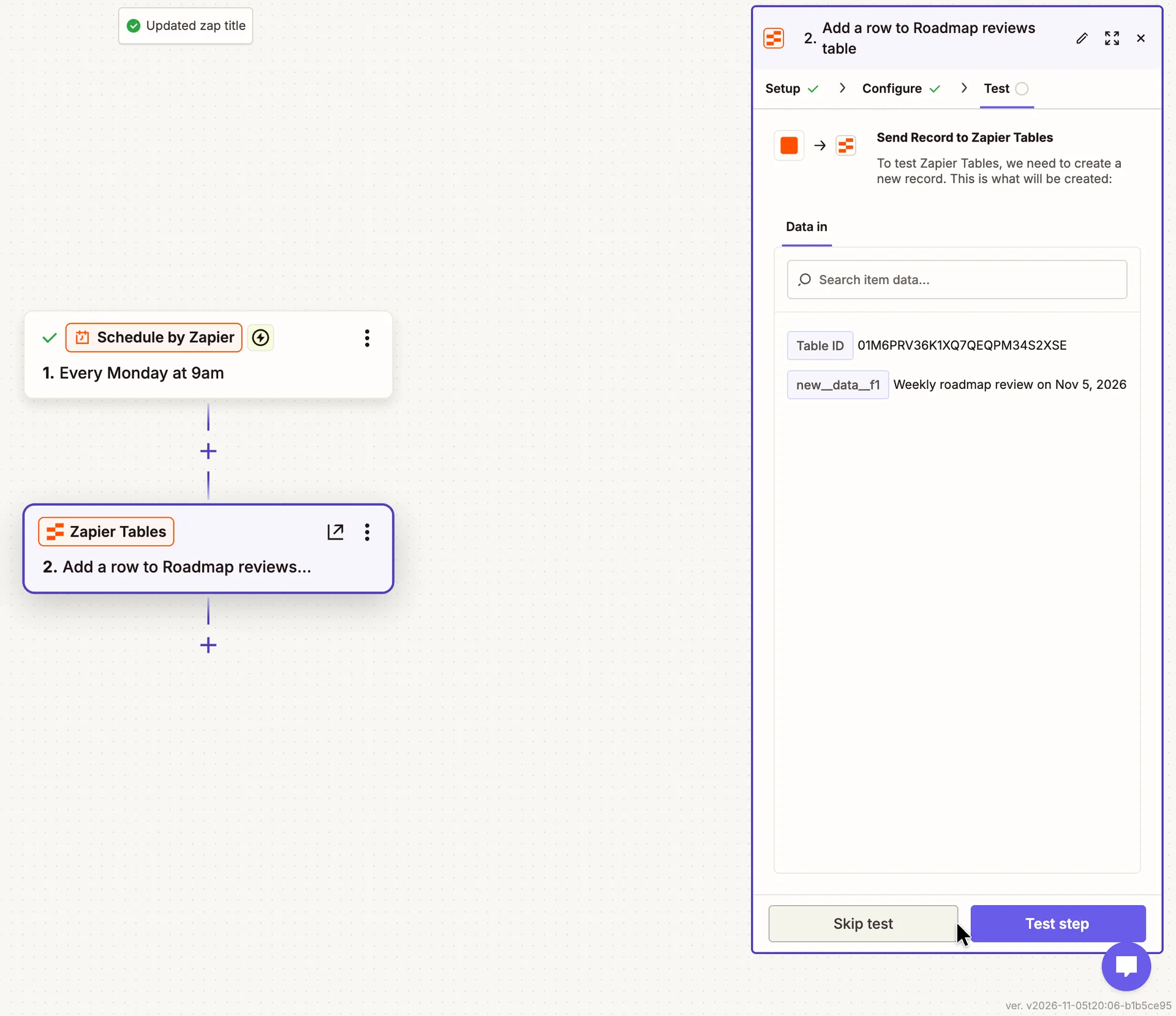
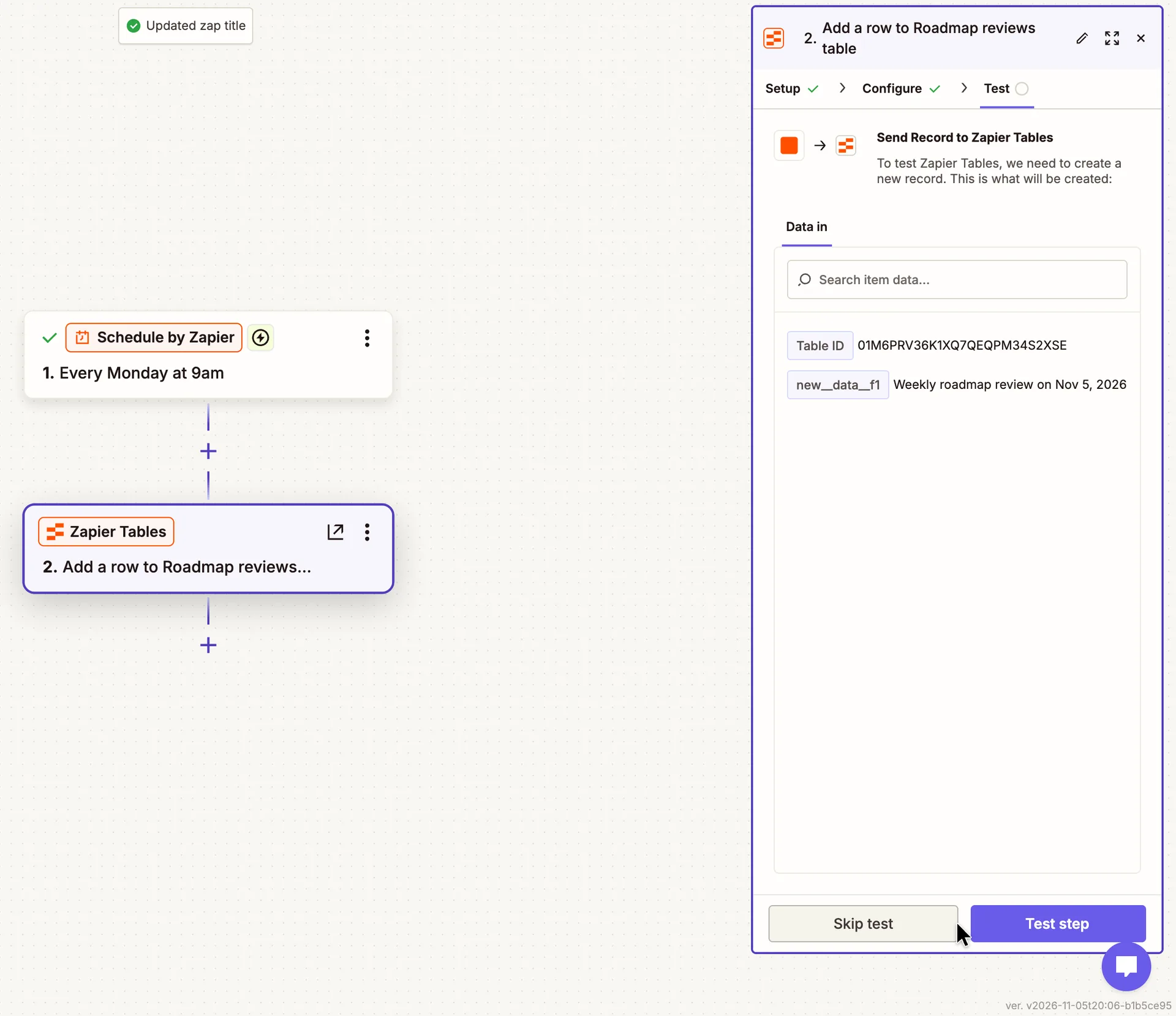
Test tab: what the test will write before it writes it
Pressed Test step
Why it works
The user sees exactly what the test will add before it adds it, and that a real record will be created.
What gets in the way
The preview labels the values with internal keys (a raw table ID and new__data__f1) rather than the table name and 'Text Field', the labels used one tab earlier.
What’s on this screen
Step 2 moved to its Test tab (Setup and Configure ticked). 'Send Record to Zapier Tables: To test Zapier Tables, we need to create a new record. This is what will be created:' A Data in list: Table ID 01M6PRV36K1XQ7QEQPM34S2XSE and new__data__f1 'Weekly roadmap review on Nov 5, 2026'. Skip test and Test step at the bottom. The Copilot panel on the left is unchanged.
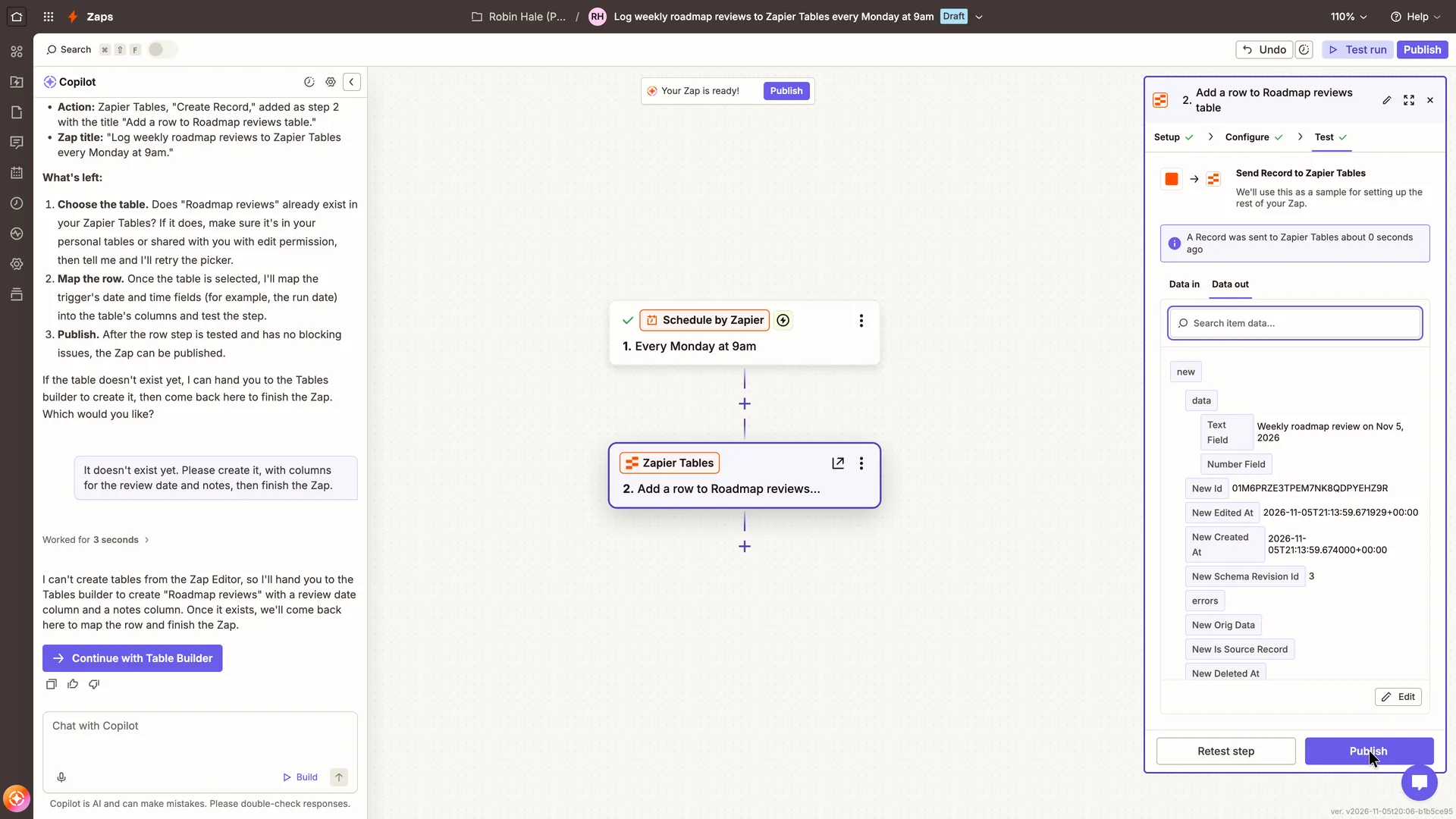
Step 15 of 16:Other
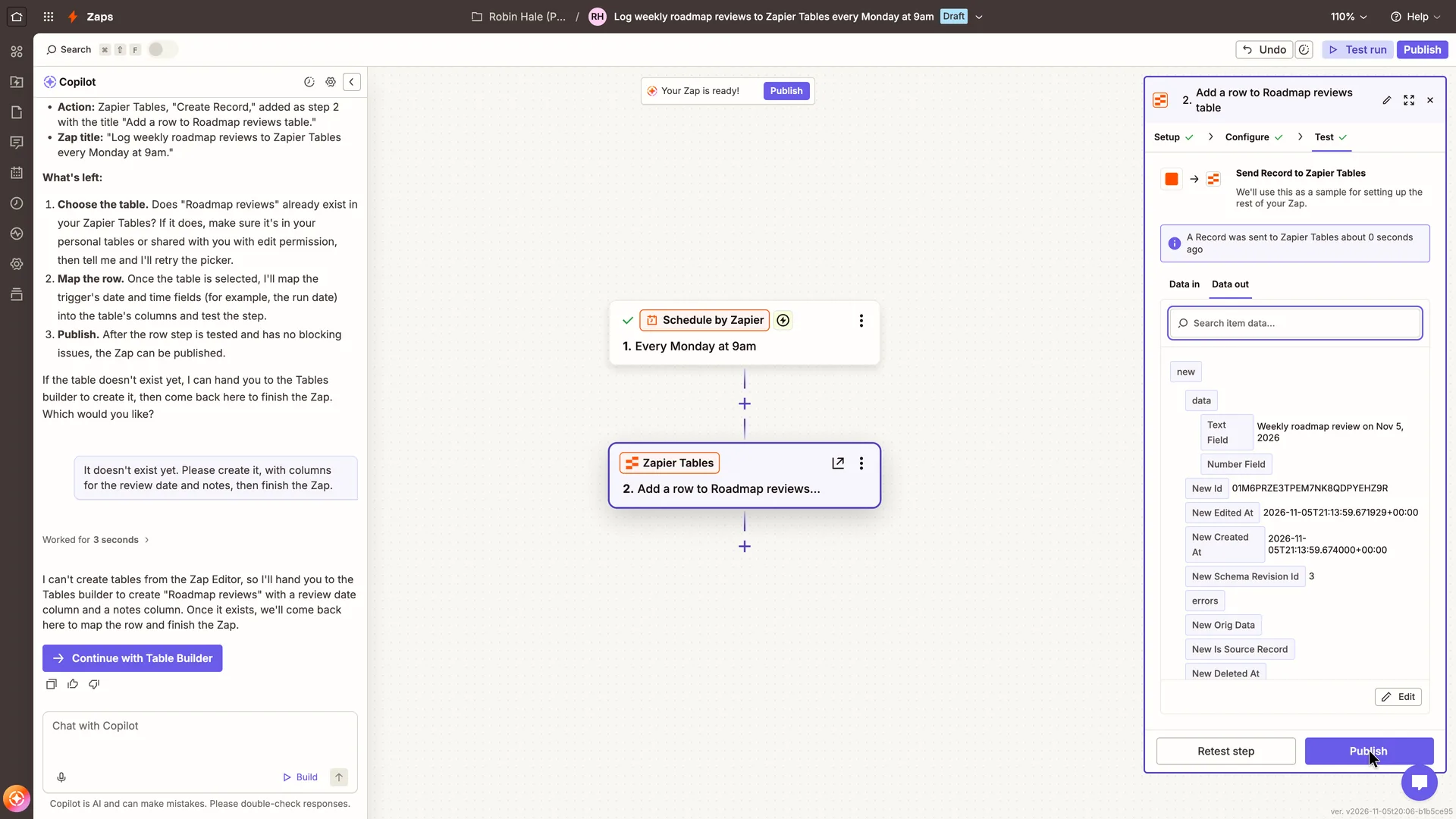
Test passed: a record in the table, and 'Your Zap is ready!'
Pressed Publish at the bottom of the step panel
Why it works
The test writes a real row and shows it, and the next action, Publish, appears in three places at once.
What gets in the way
Data out lists the new record as raw fields (IDs, timestamps, a schema revision, errors) rather than as the row looks in the table, so the one value the user set sits among system fields. The table also has a Number Field, even though the user didn't add one; the Zap doesn't fill it, so it will stay empty in every row.
What’s on this screen
Test now has a green tick. 'A Record was sent to Zapier Tables about 0 seconds ago' and 'We'll use this as a sample for setting up the rest of your Zap.' Data out lists the new record: Text Field 'Weekly roadmap review on Nov 5, 2026', an empty Number Field (a second column the generated table has), New Id, New Edited At, New Created At, New Schema Revision Id 3, errors and more. At the top of the canvas: 'Your Zap is ready!' with a Publish button; Publish in the top bar and at the bottom of the panel are now active too (beside Retest step). Still Draft in the title bar.
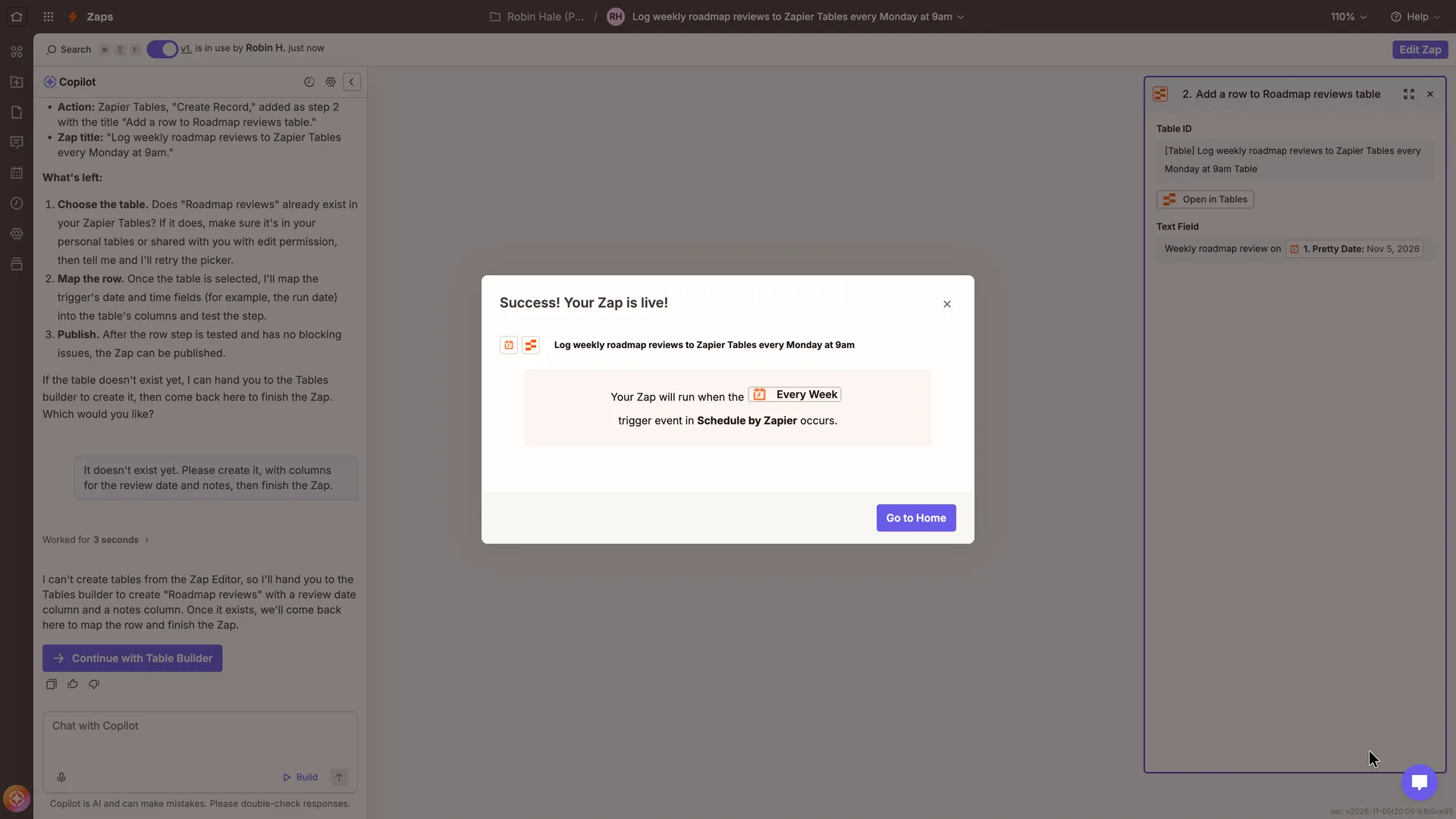
Step 16 of 16:First value
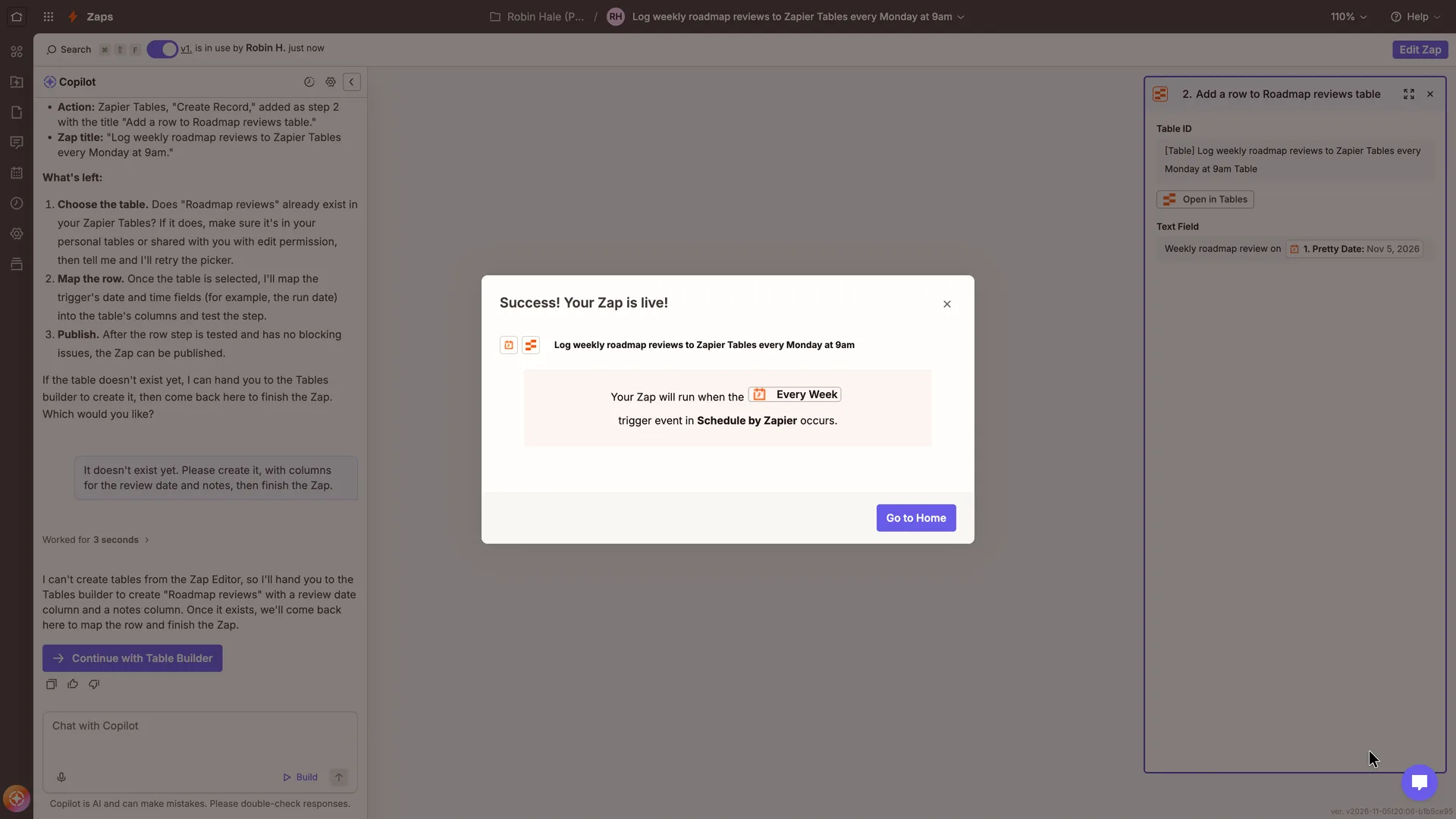
First value: 'Success! Your Zap is live!'
Why it works
The success message restates the Zap by name and by trigger, and the switch in the top bar shows the Zap is on.
What gets in the way
'When the Every Week trigger event occurs' doesn't say Monday at 9:00, the schedule Robin asked for. The only next step offered is Go to Home: nothing points to the table where the rows will appear.
What’s on this screen
A modal over the editor: 'Success! Your Zap is live!', the Zap's icons and title 'Log weekly roadmap reviews to Zapier Tables every Monday at 9am', and 'Your Zap will run when the Every Week trigger event in Schedule by Zapier occurs.' One button, Go to Home, and a close X. Behind it the editor is in its published view: the on/off switch in the top bar is on, 'v1. is in use by Robin H. just now', Edit Zap replaces Publish, and step 2's panel reads back the table and 'Weekly roadmap review on 1. Pretty Date'. A 'Zap published: Your Zap is on and using version "v1"' notice showed for 10 seconds behind the modal. No email from Zapier had arrived by this point, and none was required.
Verdict
What Zapier gets right
- Sign-up is three fields and a password, and the app opens straight away: no email code comes before the first Zap.
- The three setup questions take one tap each under a progress bar, the app list is filtered by the role just given and can be skipped, and Home then recommends templates built on the apps picked there.
- Home asks one open question, and Copilot turns a plain sentence into a working draft: the right trigger, day and time, the right action, a title, and a tested trigger.
- Create Table in the step makes a table in one click without leaving the Zap, and the step is ready to test at once.
- The test shows what it will write before it writes it, then writes a real row; the success message restates the Zap and the switch shows it is on.
What we’d change
- Have Copilot check that a table exists before building a step for it, or create it.
- Name the new table and its columns after the request. The request asked for "Roadmap reviews" with a date and notes; Create Table made a table named after the Zap, with a Text Field and a Number Field.
- Ask for the password on the first form, or label the first button Continue. Get started for free appears twice, and only the second press creates the account.
- Make the success message say when the Zap runs (Monday at 9:00, not "when the Every Week trigger event occurs") and link to the table where the rows will appear.
How we recorded it
- Recorded
- 5 Nov 2026
- Agent
- Claude Opus 5.5 in Claude Code
- Browser
- Chromium driven through Playwright MCP 0.0.84, a 1920 × 1080 window at 2× pixel density
- Signed up as
- Robin Hale, product manager at Quillmark (a made-up B2B SaaS company); a team of 26 to 50 people; wants a weekly roadmap-review log for the product team
- Stopped at
- Published and turned on a first Zap, 'Log weekly roadmap reviews to Zapier Tables every Monday at 9am' (Schedule by Zapier every Monday at 9:00 to a new Zapier Table), after a test that wrote one row
- Done by a person
- step 3, the filled-in form and the first Get started for free and step 4, a password step on the same page, and a second Get started for free. An agent never accepts a product’s terms or gets past a verification on its own.
The agent answered every setup question as that person and skipped anything that would connect real data or invite real people. Screenshots are cropped to the part of the screen each step is about, and personal data in them is blurred. The figures at the top count the screens up to first value; form fields count every field shown, filled in or not.
Onboarding flows change, and this one is as Zapier showed it on 5 Nov 2026. Seen a different flow, or want this page corrected or removed? Write to hello@useronboarding.academy.
