
Onboarding teardown · Airtable
Airtable onboarding, screen by screen: from signup to a first record
We had an AI agent sign up for Airtable as a fictional product manager and go through onboarding until it had saved a first record of its own. A person stepped in twice, to press Continue under the terms line and Sign up, which created the account. These are the screens it saw, in order, with what each one does well and what gets in the way.
By the UserOnboarding Academy teamRecorded 5 Nov 2026How we recorded it
UserOnboarding Academy isn't owned by Airtable or any onboarding tool, and Airtable didn't sponsor or review this page. The account was created for this recording only.
In short
Airtable takes a new user from the homepage to a working base with no verification step: an email, a name and a password, then three typed answers to its AI assistant, Omni. Omni turns the answers into a suggested app, and a one-sentence prompt became exactly the table asked for in 12 seconds, with no sample data to delete. The costs sit around that moment: a 14-day Team trial that starts by itself, announced in two dialogs with no Free option, a six-stop tour that explains rows in an empty table, and two panels to close before the first record.
- Screens to first value
- 18
- Setup questions
- 3
- Form fields shown
- 11
- Steps a person did
- 2
The flow at a glance
marks a step a person did
 01Airtable homepage with Get started for free
 02Welcome to Airtable: one work email field
 03Email entered, Continue under the terms line
 04Create your profile: full name and password
 05Profile filled in, Sign up creates the account
 06Omni introduces itself and asks where you work
 07Omni asks which industry the company is in
 08Omni asks which team you are on
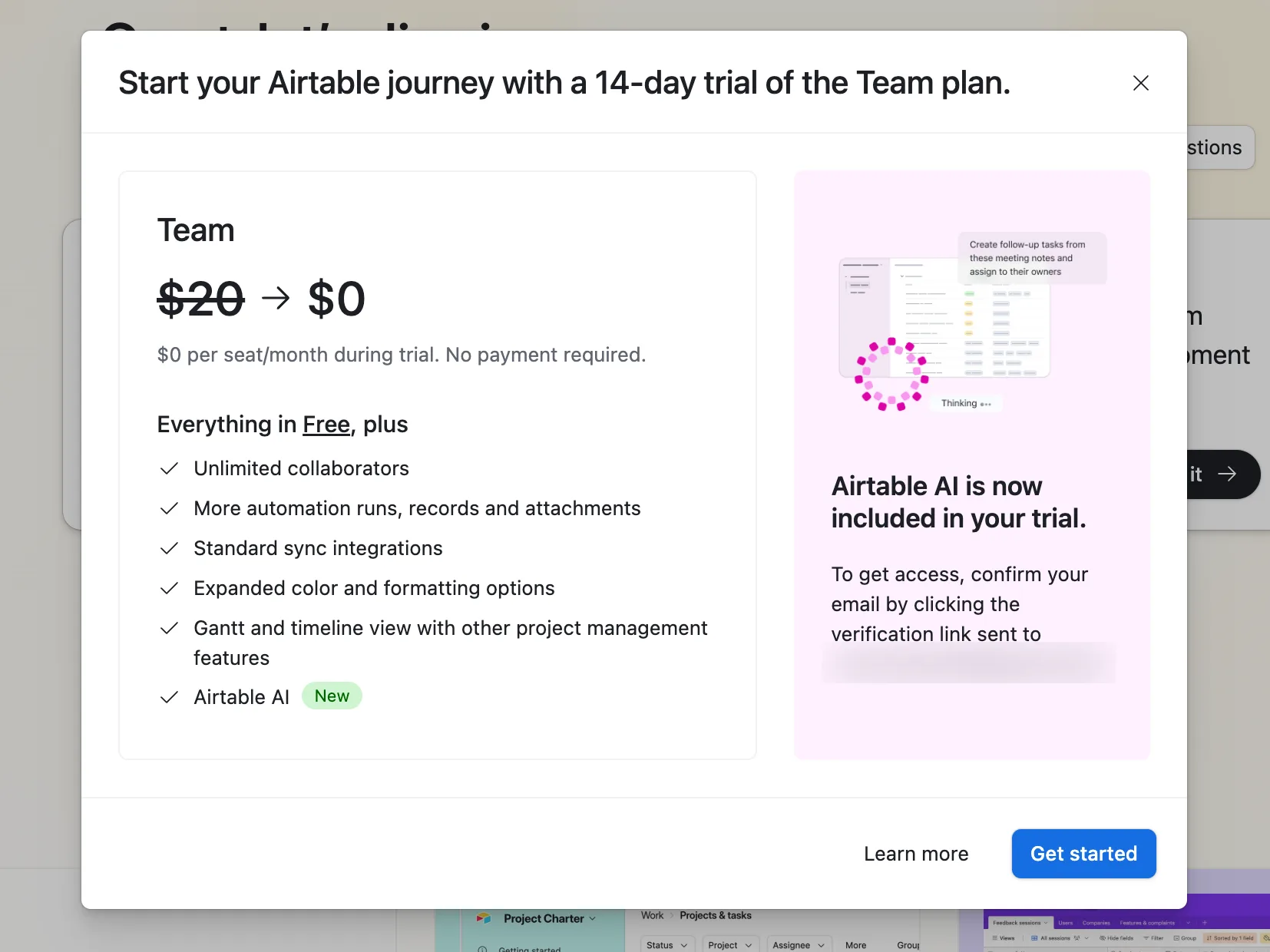 09A 14-day Team plan trial dialog opens after the last answer
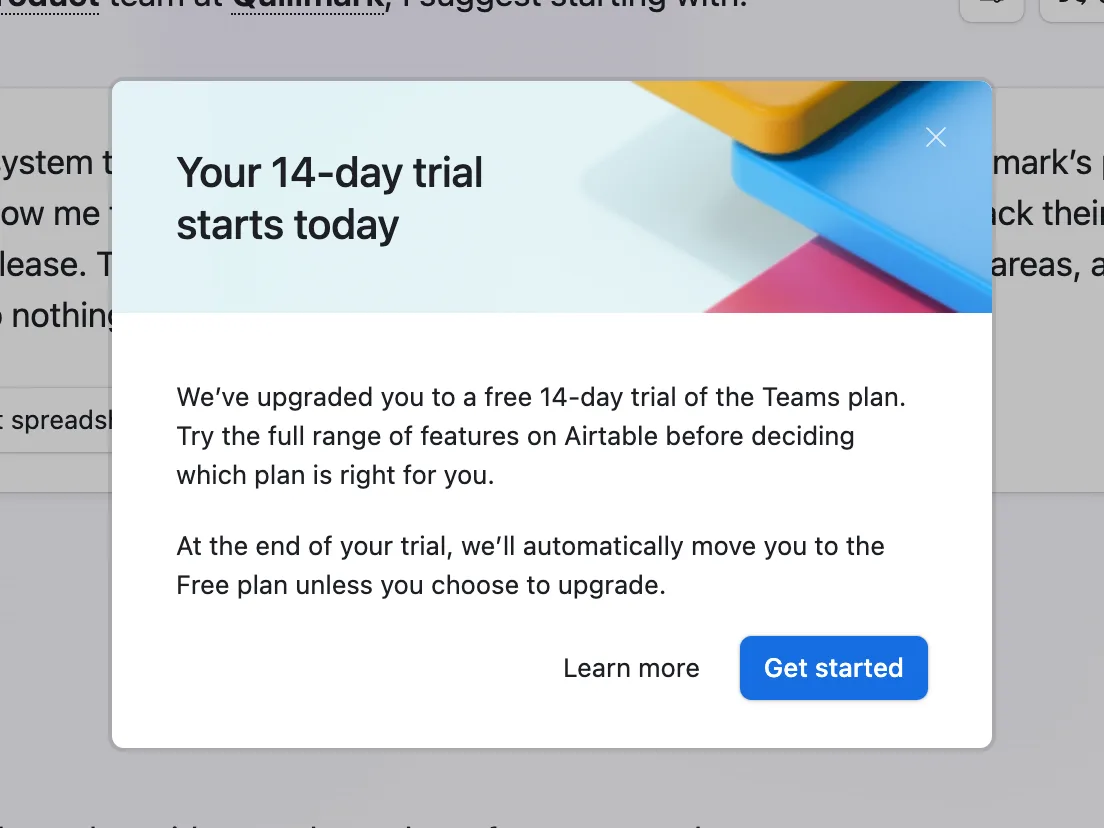 10A second dialog: the Team trial has already started
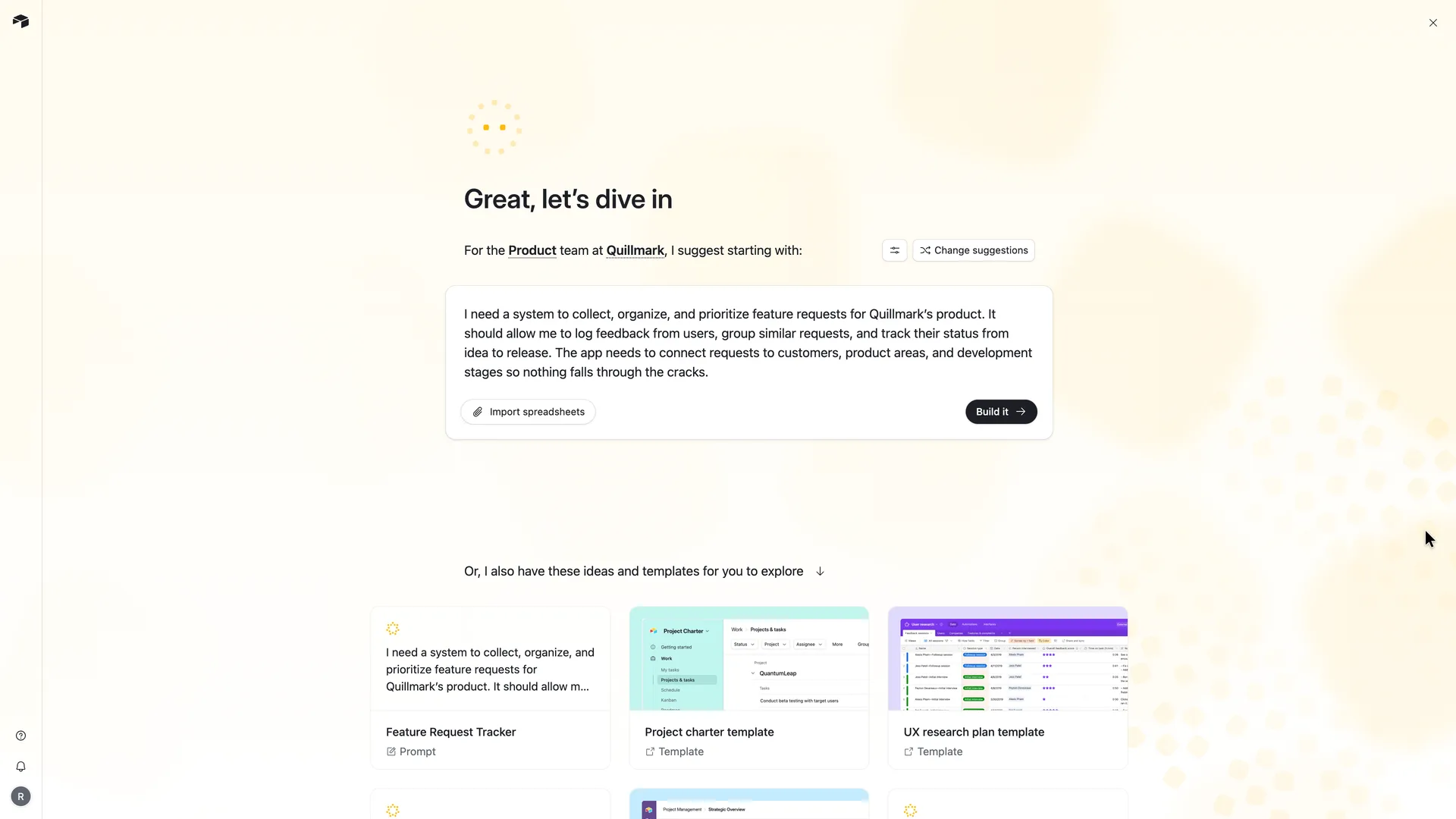 11Omni suggests a feature-request tracker for the Product team
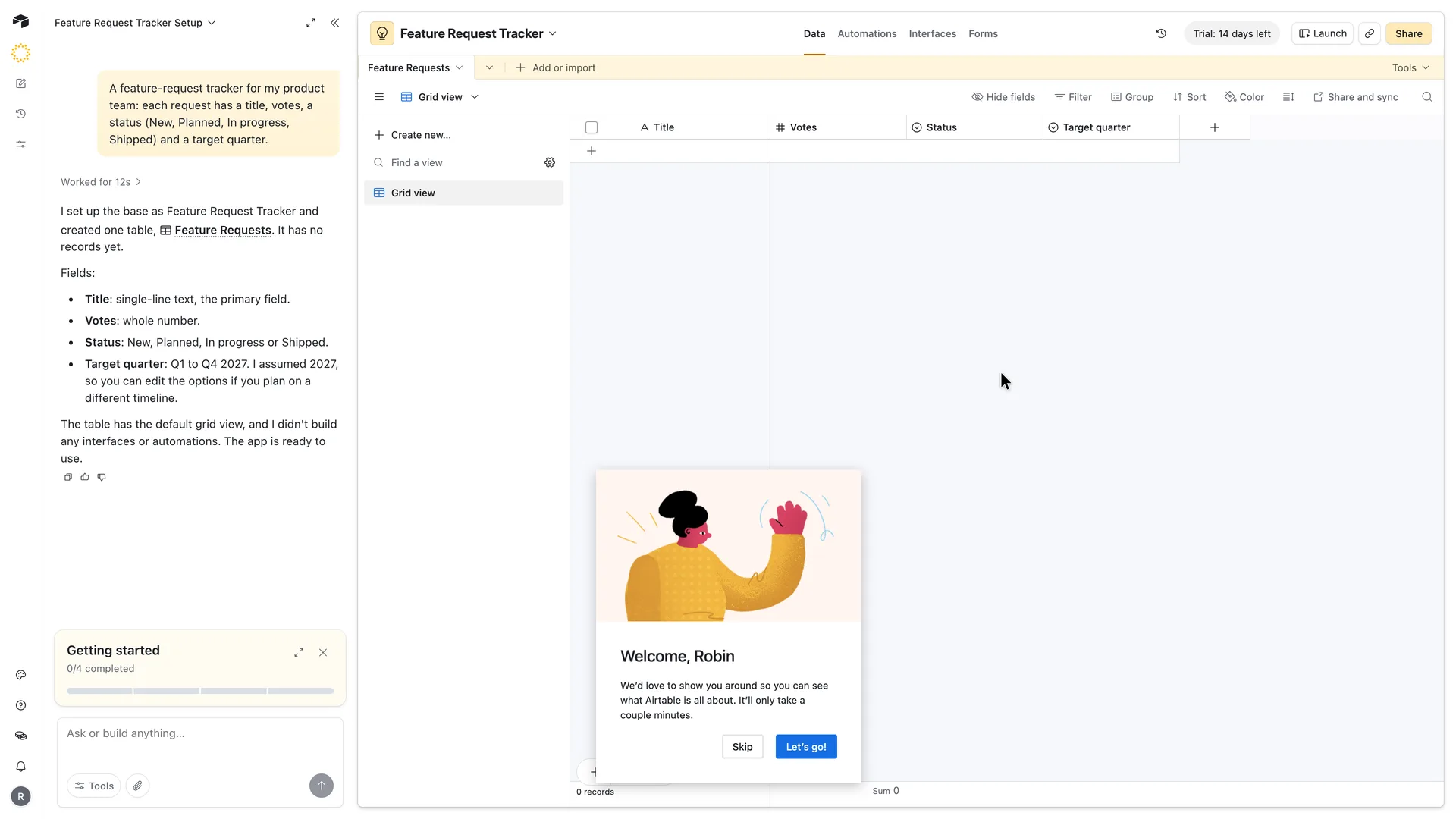 12Omni builds the base in 12 seconds, then a welcome tour
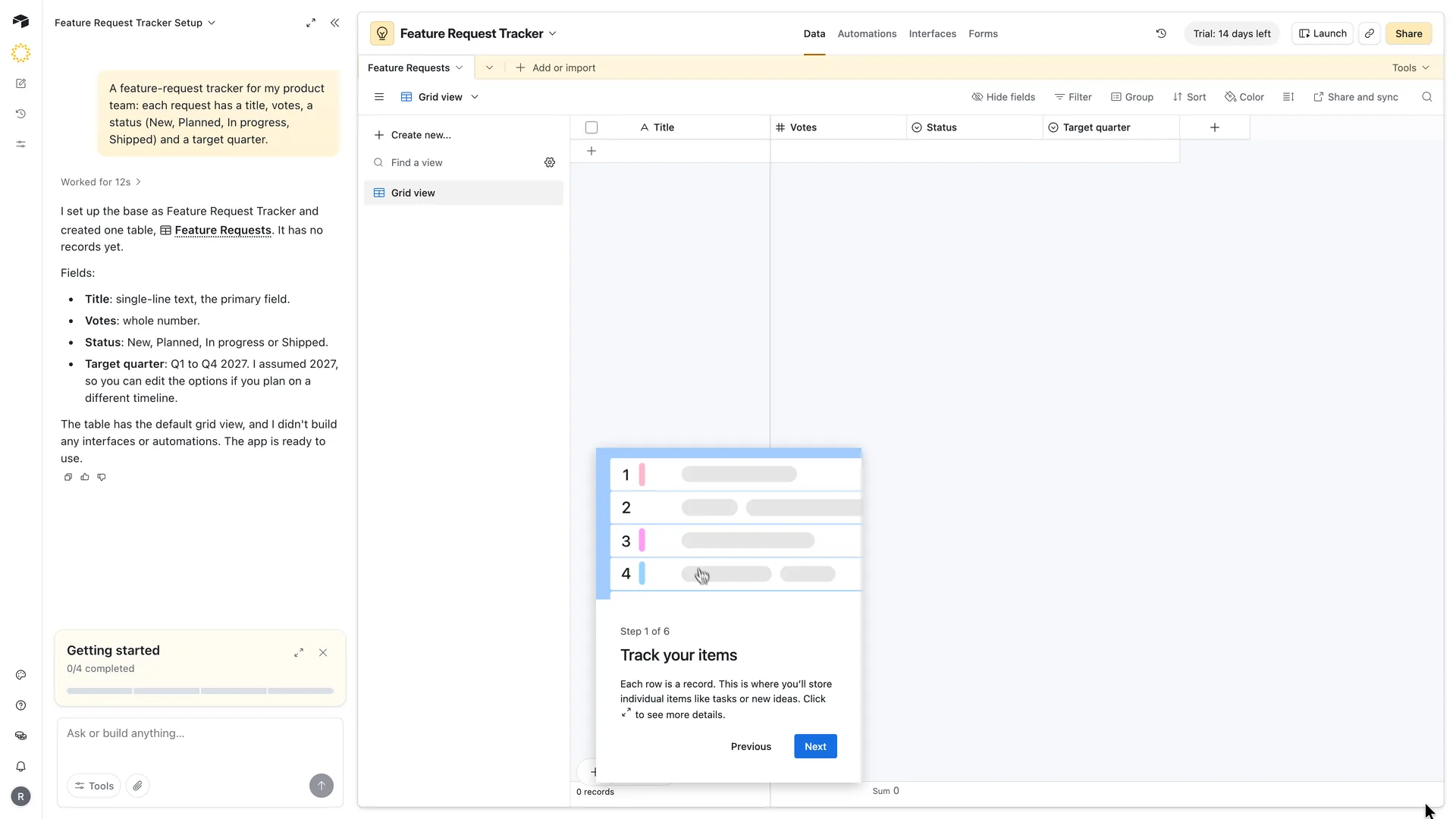 13Tour stop 1 of 6: Track your items, over an empty table
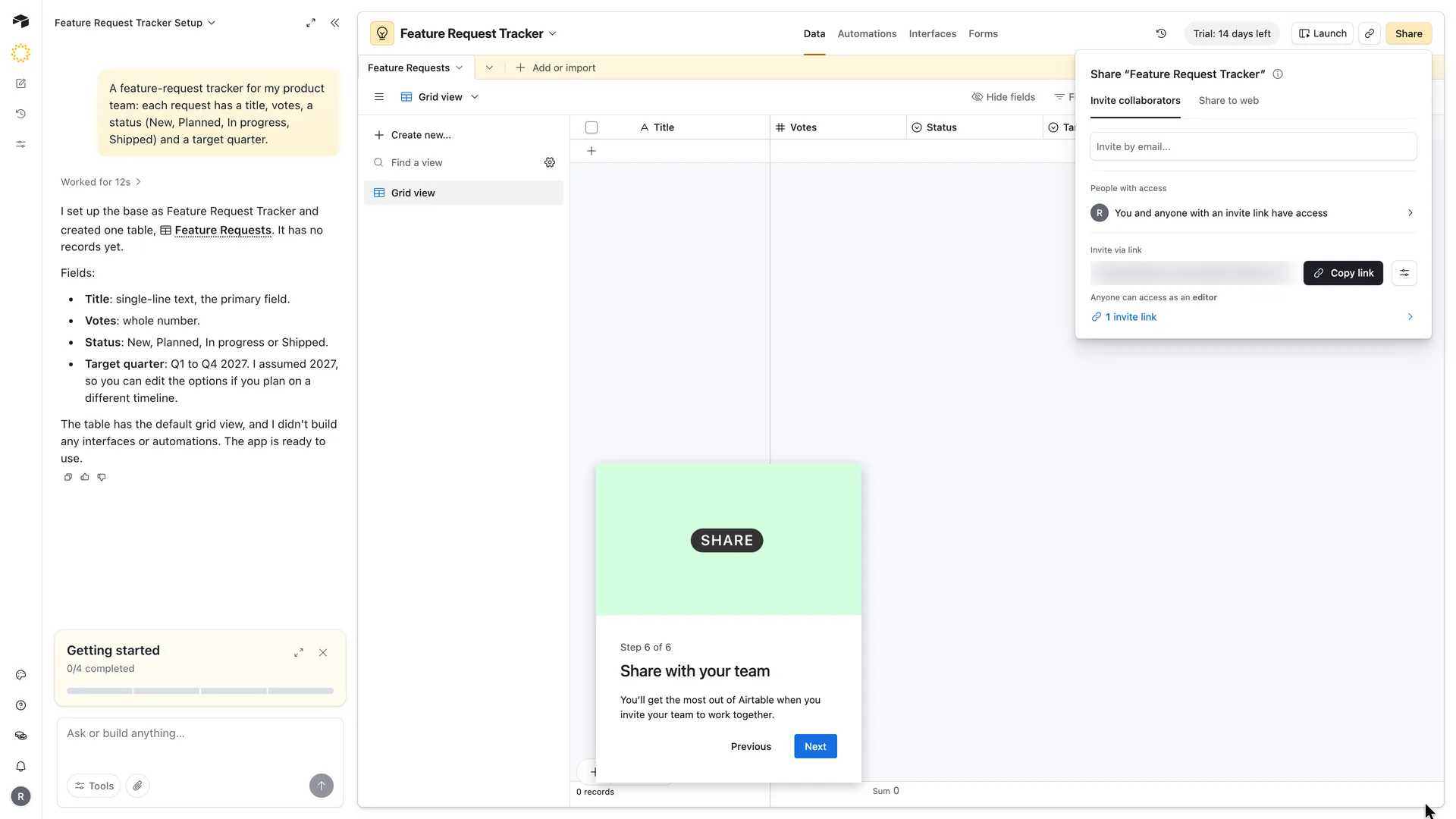 14Tour stop 6 of 6 opens the Share panel with a ready invite link
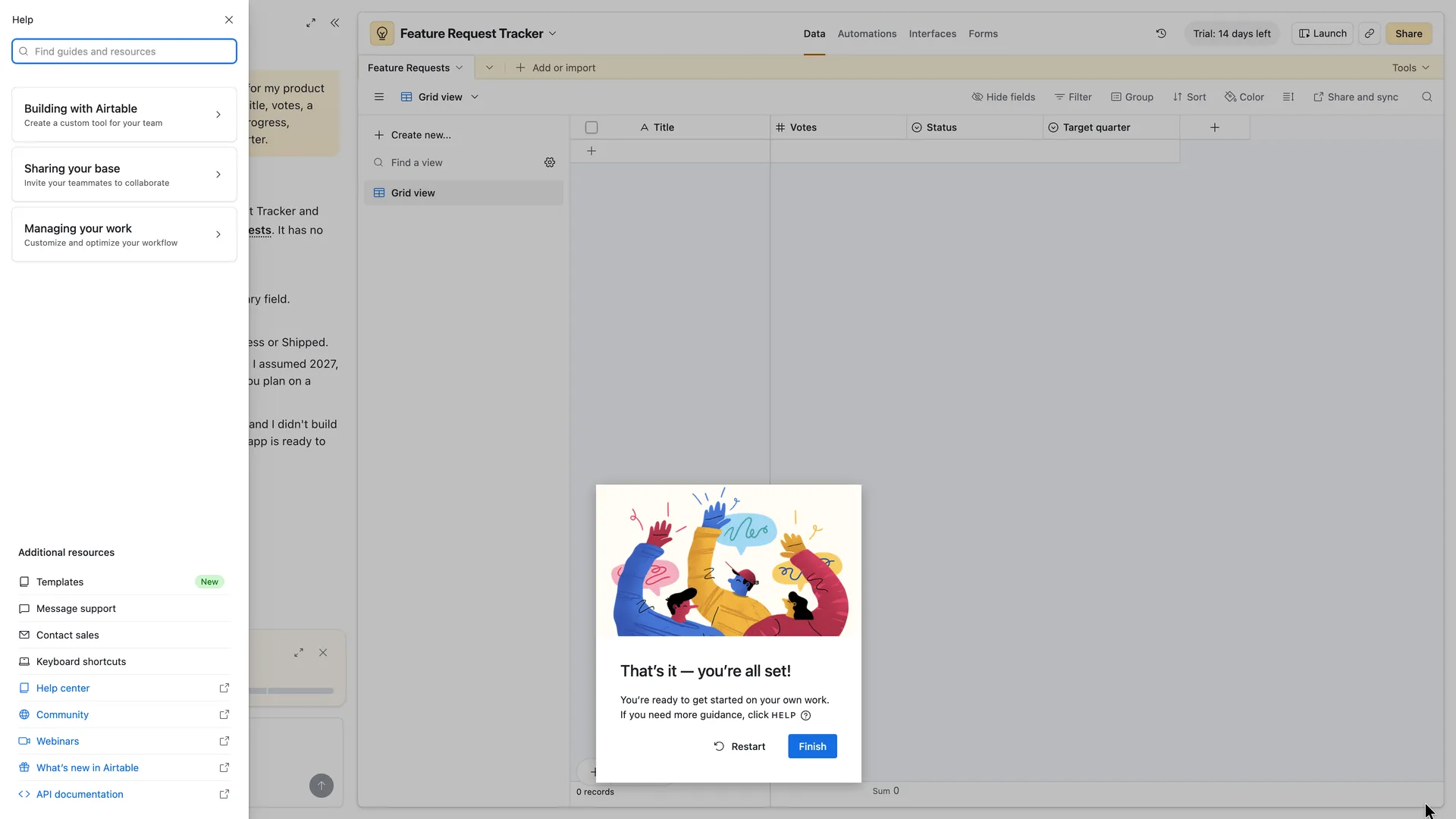 15The tour ends with you're all set and opens Help
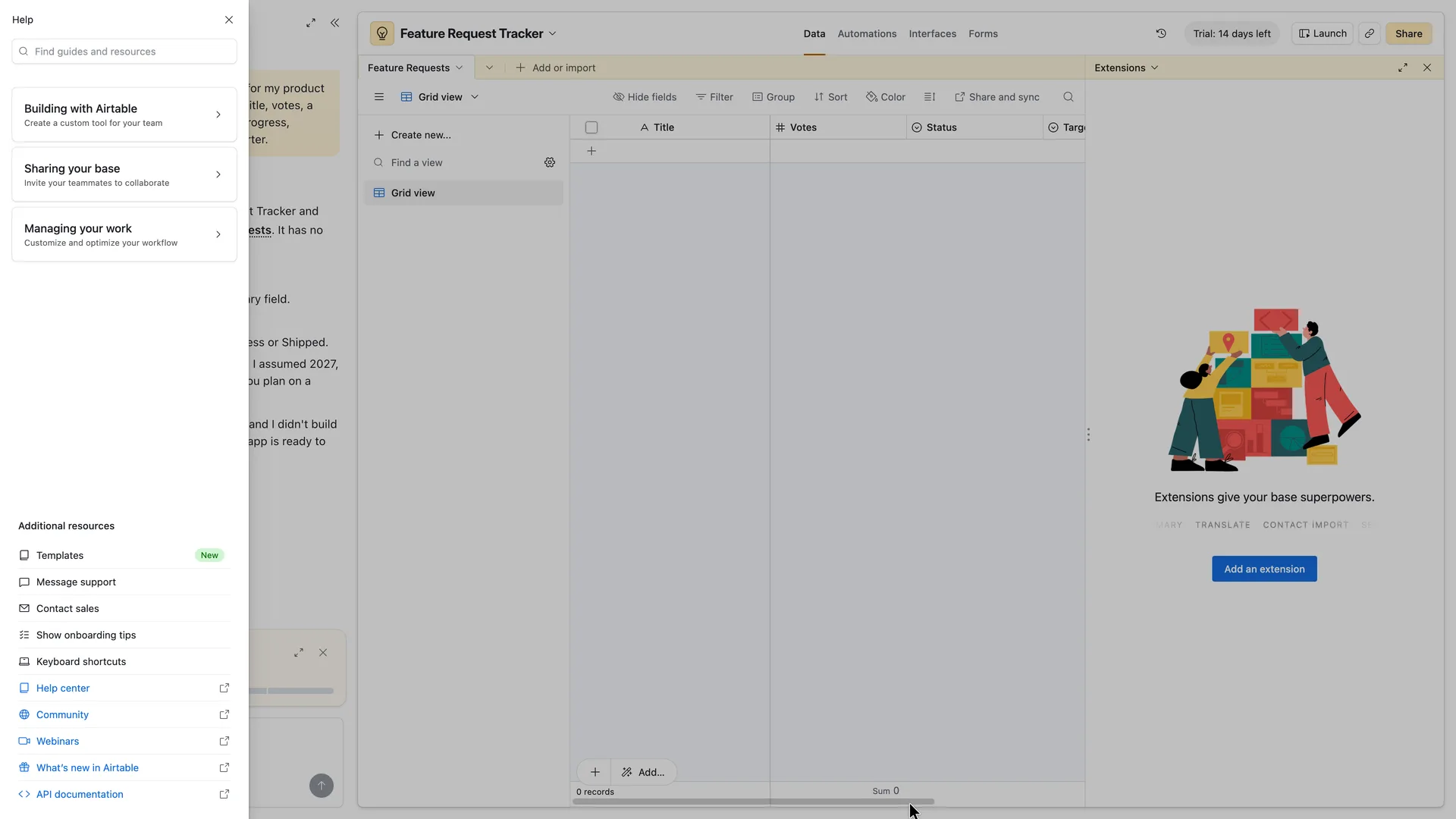 16Finish opens an Extensions panel beside the Help sidebar
 17Robin types a first request; Status offers Omni's four options
 18 · first valueFirst value: Robin's own feature request saved in the grid
Step 1 of 18:Other
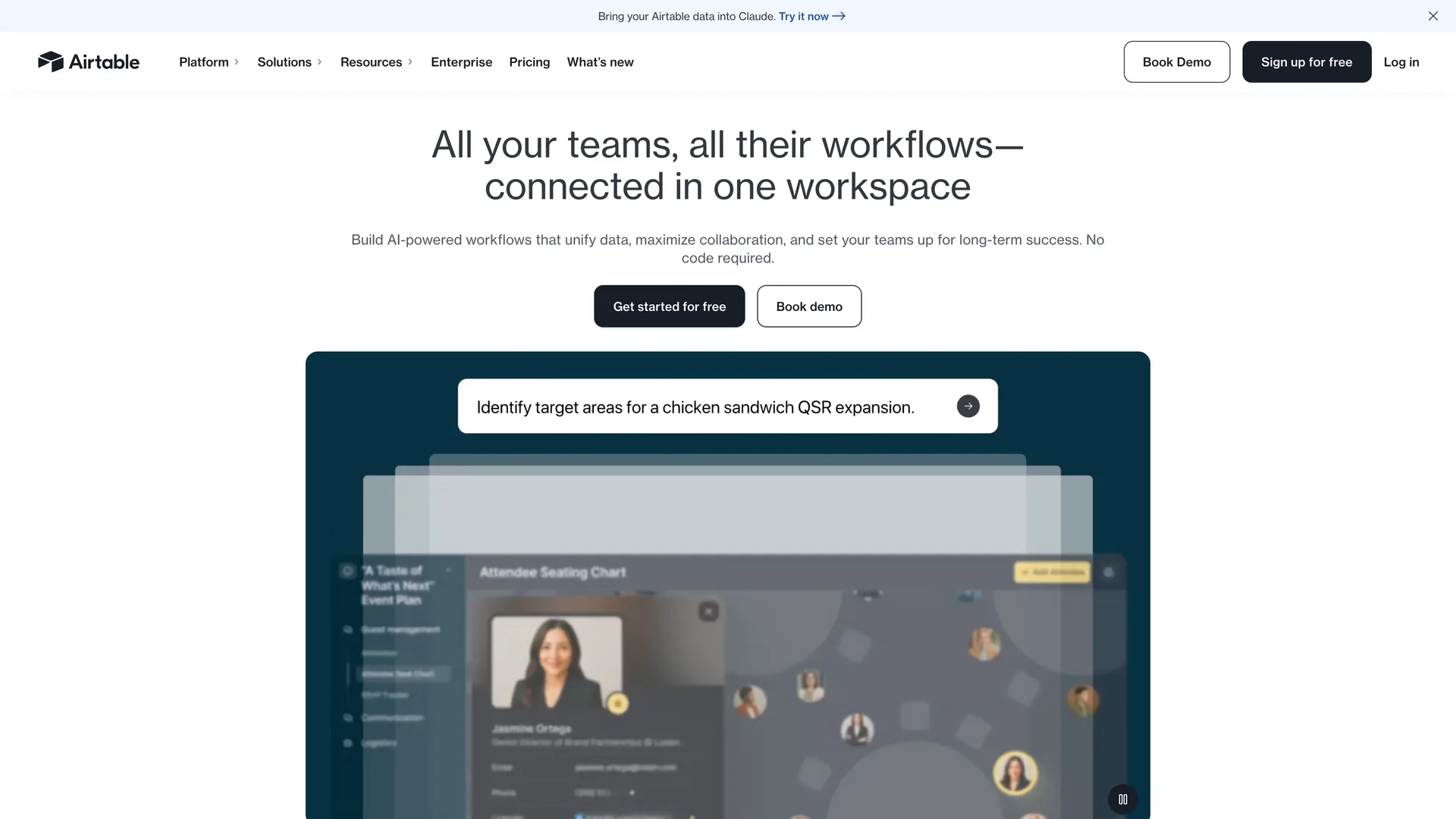
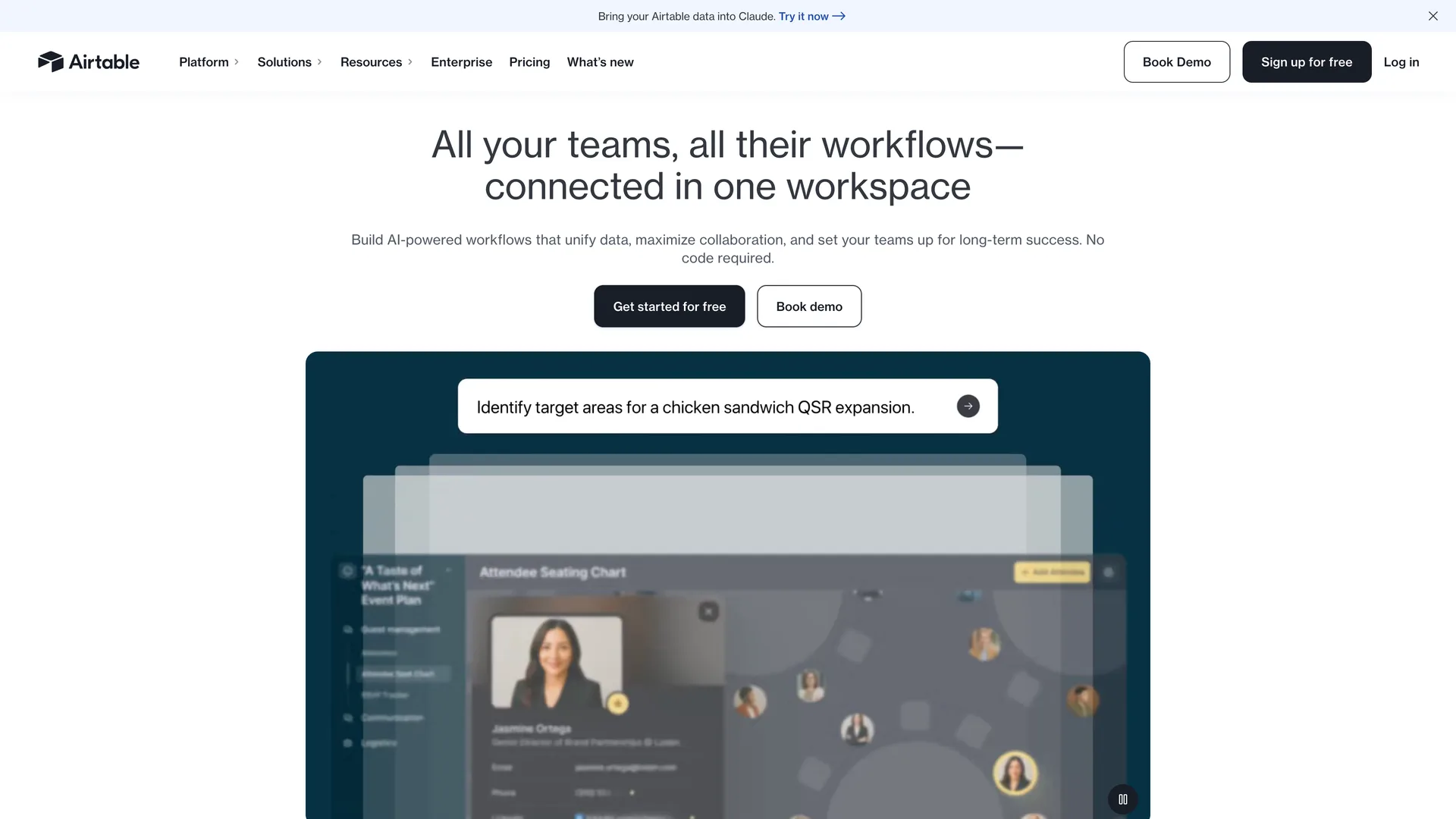
Airtable homepage with Get started for free
Opened airtable.com as a visitor from a search and clicked Sign up for free in the header
Why it works
One promise and one free button in the hero, repeated in the header, so a visitor from search has an obvious next step; the prompt in the video shows that the product starts from a sentence.
What’s on this screen
A blue promo bar reads 'Bring your Airtable data into Claude. Try it now'. The header has Platform, Solutions, Resources, Enterprise, Pricing and What's new, then Book Demo, a black Sign up for free and Log in. The h1 reads 'All your teams, all their workflows, connected in one workspace' over 'Build AI-powered workflows that unify data, maximize collaboration, and set your teams up for long-term success. No code required.' Two buttons: Get started for free and Book demo. Below them a video plays a prompt ('Identify target areas for a chicken sandwich QSR expansion.') over a blurred app. No cookie banner appeared. Every signup link on the page goes to a plain airtable.com/signup.
Step 2 of 18:Signup form
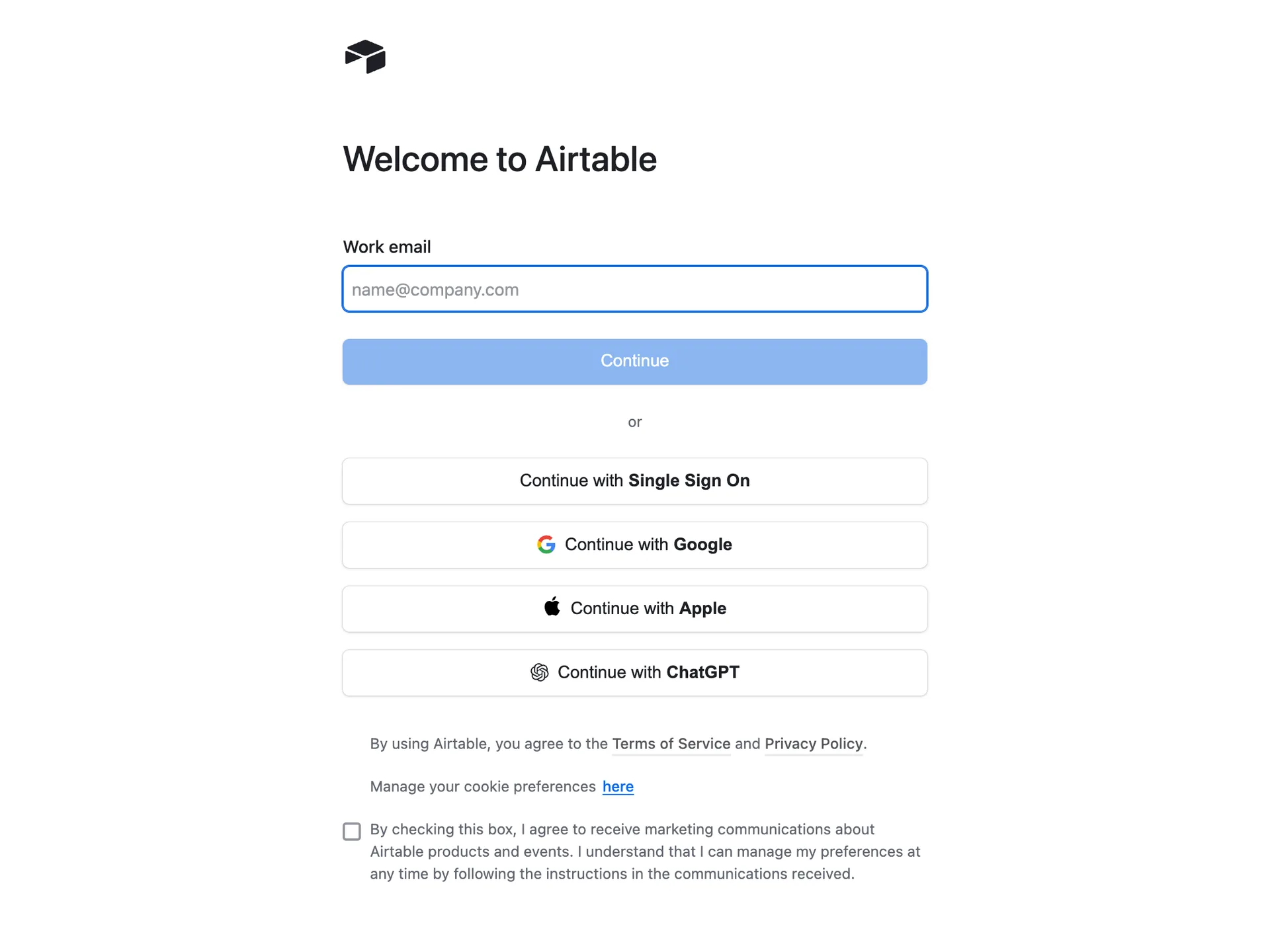
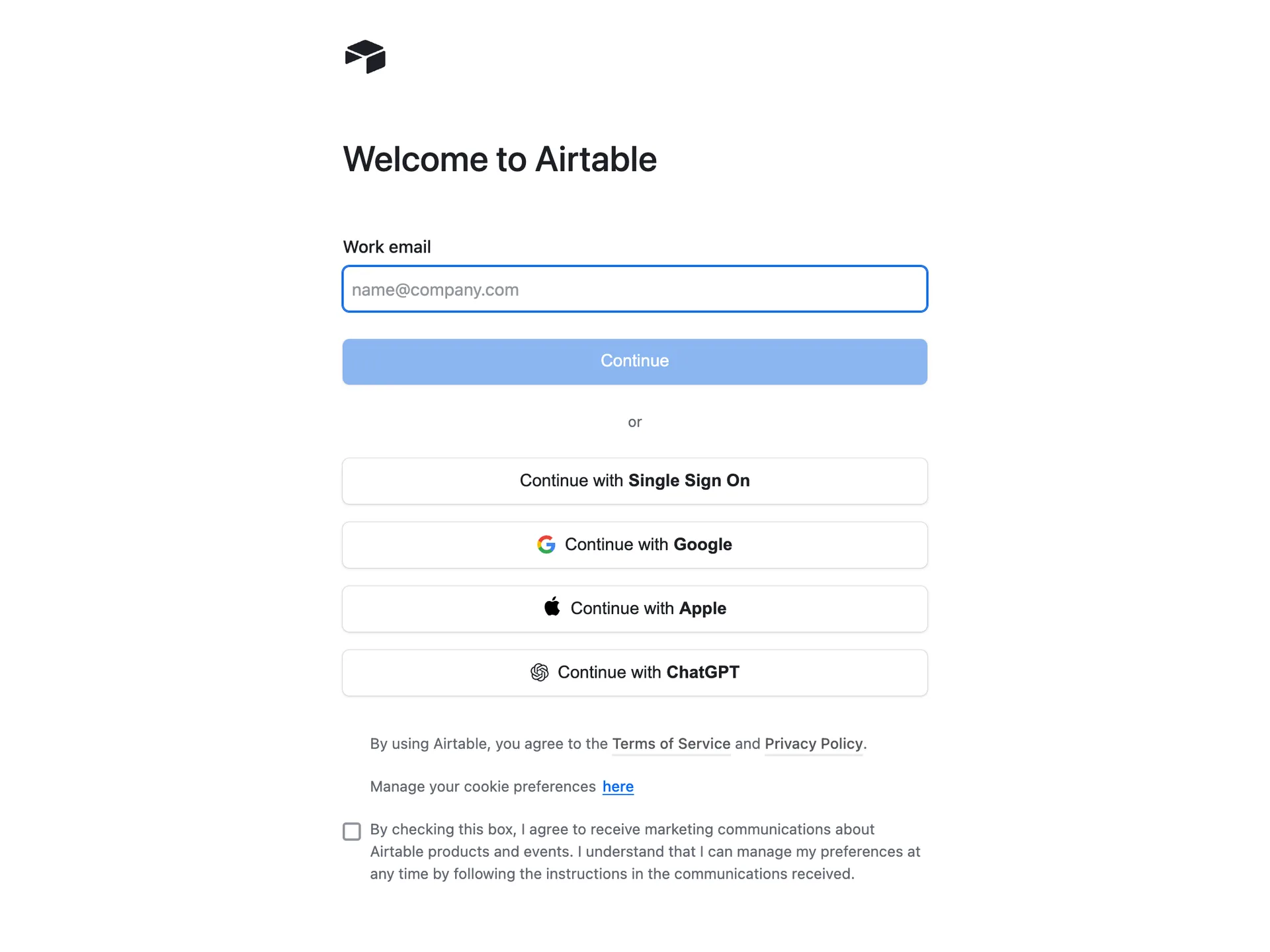
Welcome to Airtable: one work email field
Typed the signup address into Work email
Why it works
One field to start, the field already focused, and the marketing consent left unticked: nothing is decided for the user except what the terms line says.
What gets in the way
The field asks for a work email, which can make someone with a personal address wonder whether they qualify; four single-sign-on buttons take more room than the form itself.
What’s on this screen
A plain white page with the Airtable logo and 'Welcome to Airtable'. One field, Work email (placeholder name@company.com), already focused, and a Continue button that stays disabled until something is typed. Under 'or': Continue with Single Sign On, Continue with Google, Continue with Apple and Continue with ChatGPT. Below them: 'By using Airtable, you agree to the Terms of Service and Privacy Policy.', 'Manage your cookie preferences here', and an unticked box agreeing to receive marketing communications.
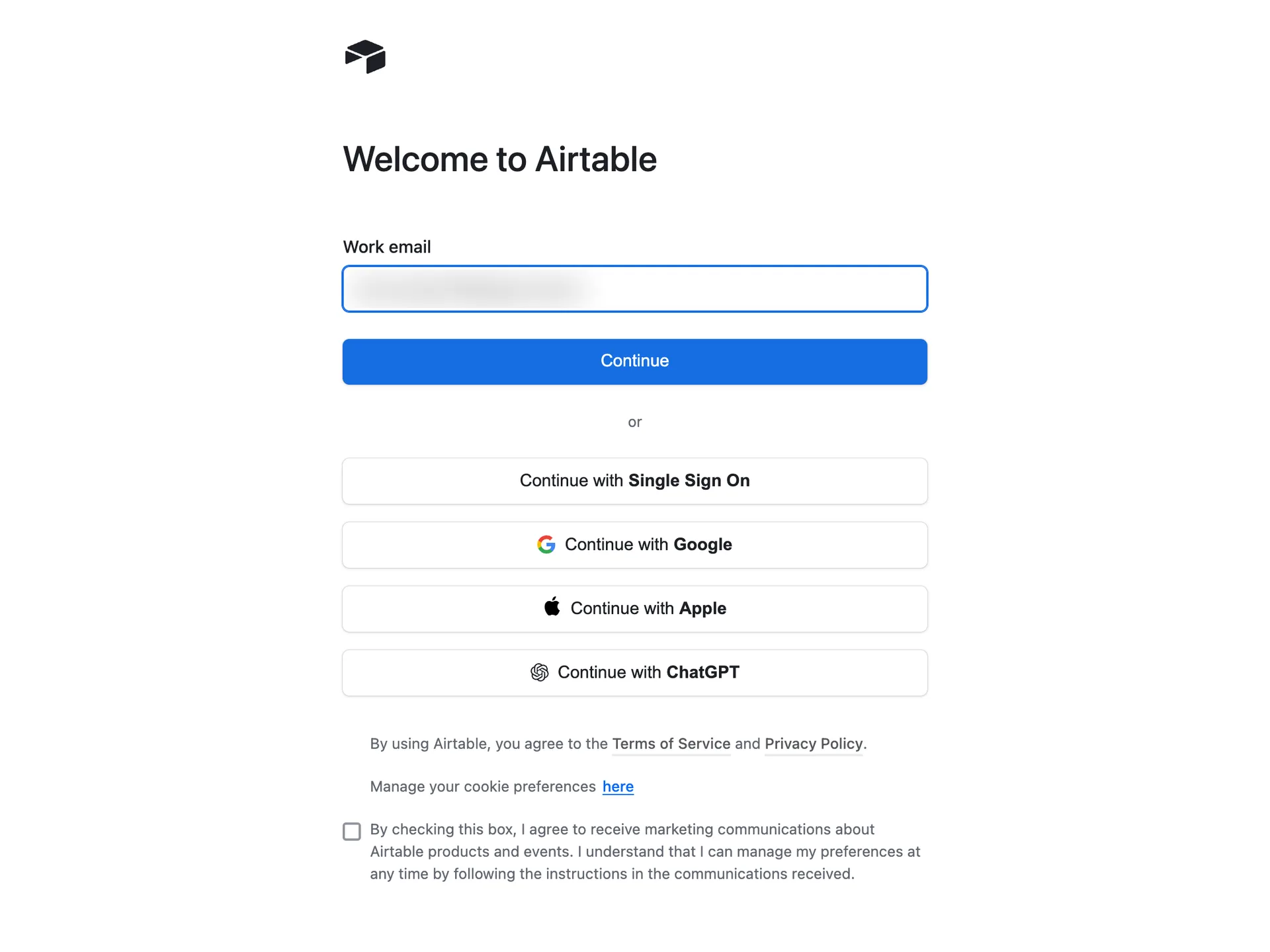
Step 3 of 18:Signup formDone by a person
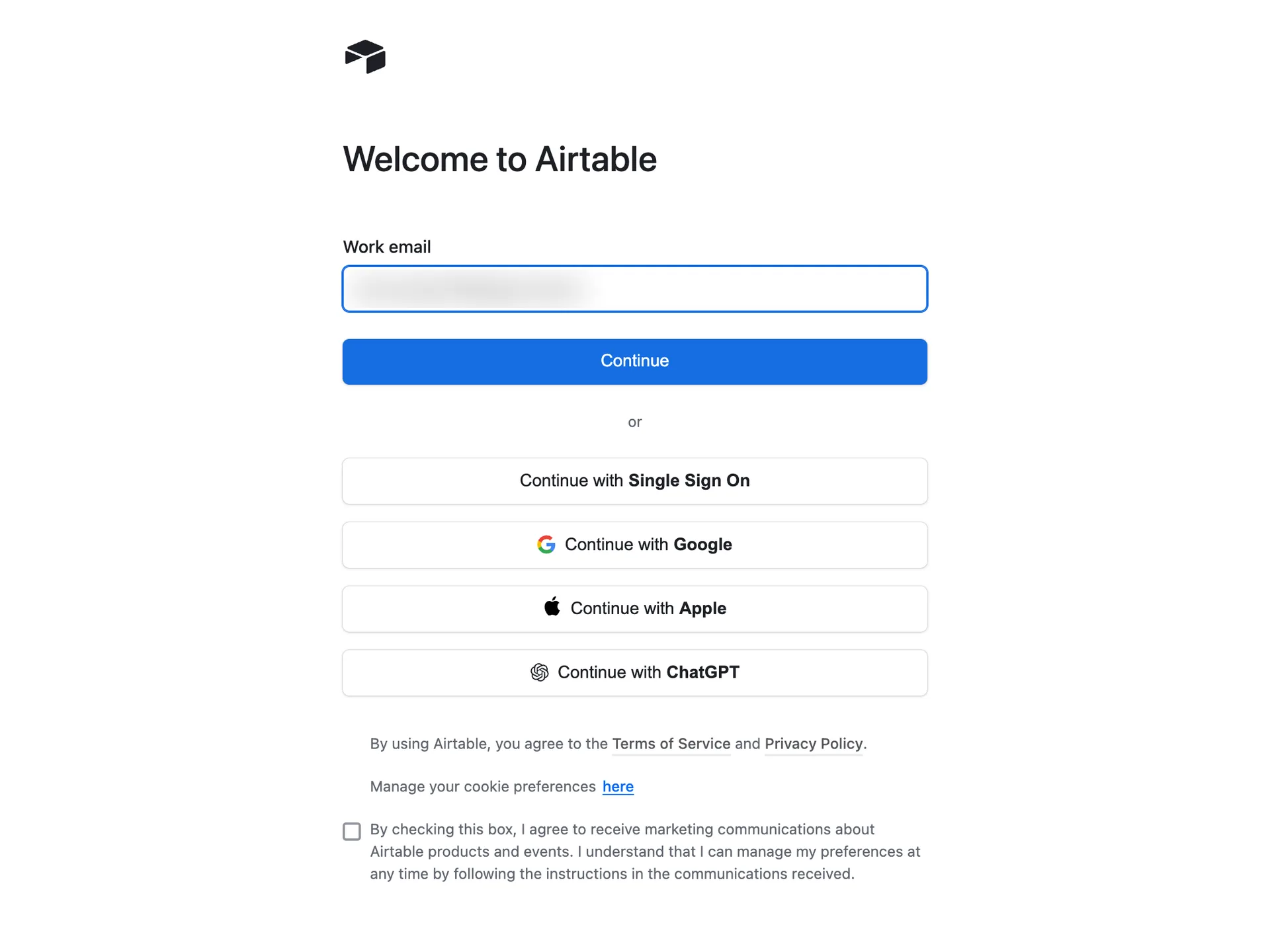
Email entered, Continue under the terms line
A person (Mert) pressed Continue, which sits above the line 'By using Airtable, you agree to the Terms of Service and Privacy Policy'
Why it works
The address goes in first and nothing else is asked until it is checked, so the next screen can be the right one for a new or a returning user.
What gets in the way
The terms are agreed on this screen, but the account is created one screen later by a button with no terms line.
What’s on this screen
The same screen with the address in the field and Continue now blue. The marketing box is still unticked. The terms line sits under the sign-in buttons on this screen only.
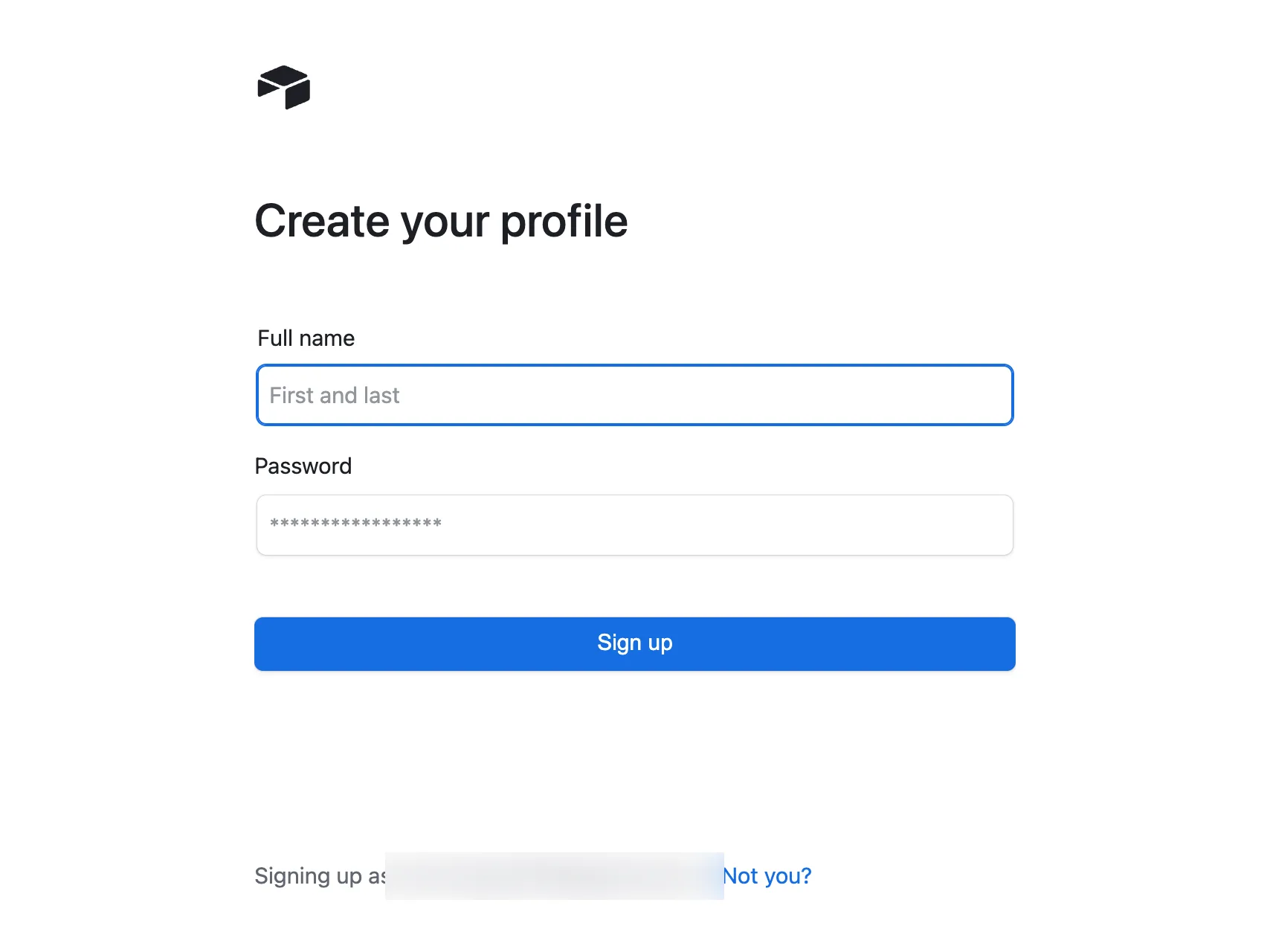
Step 4 of 18:Signup form
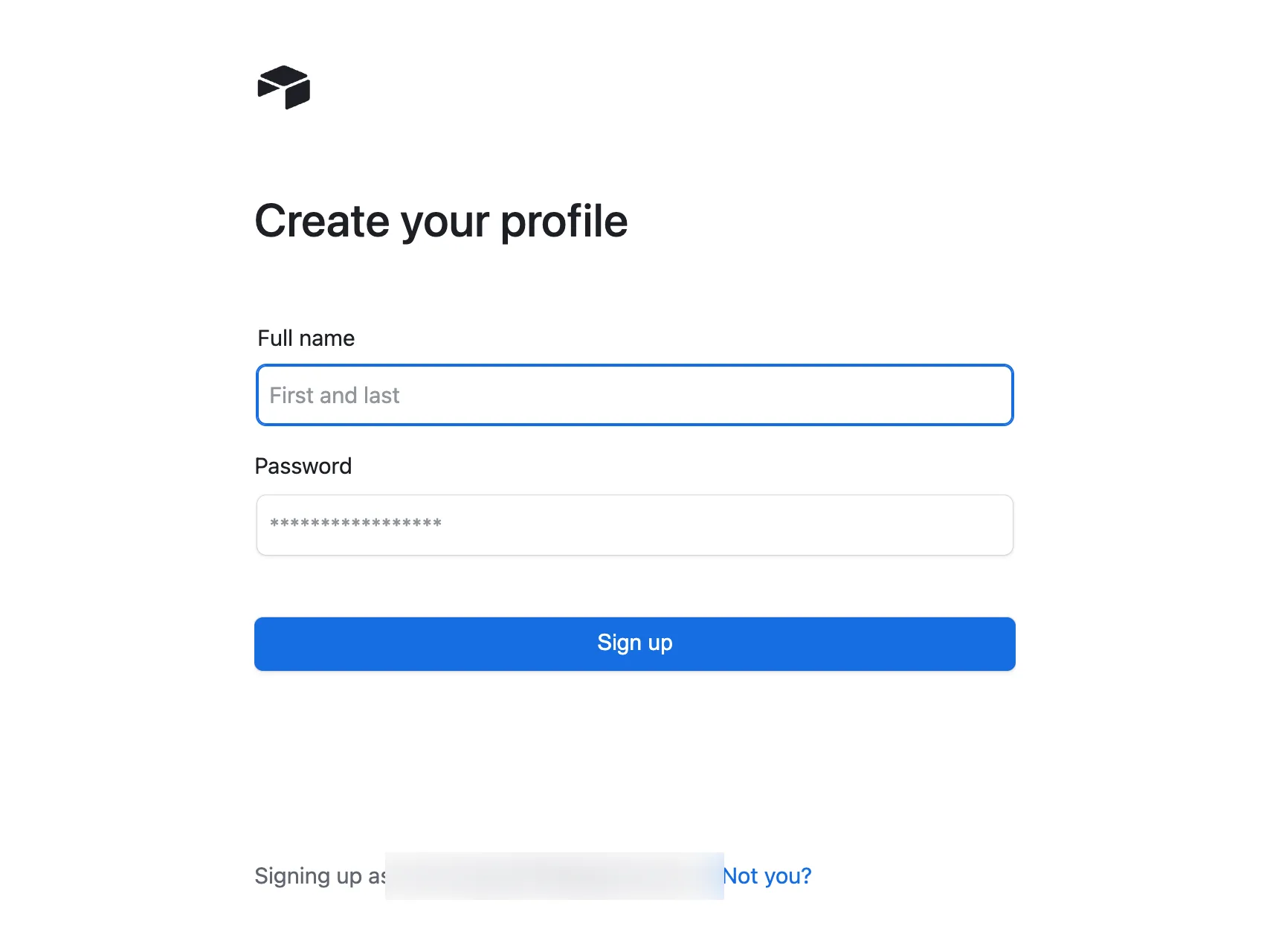
Create your profile: full name and password
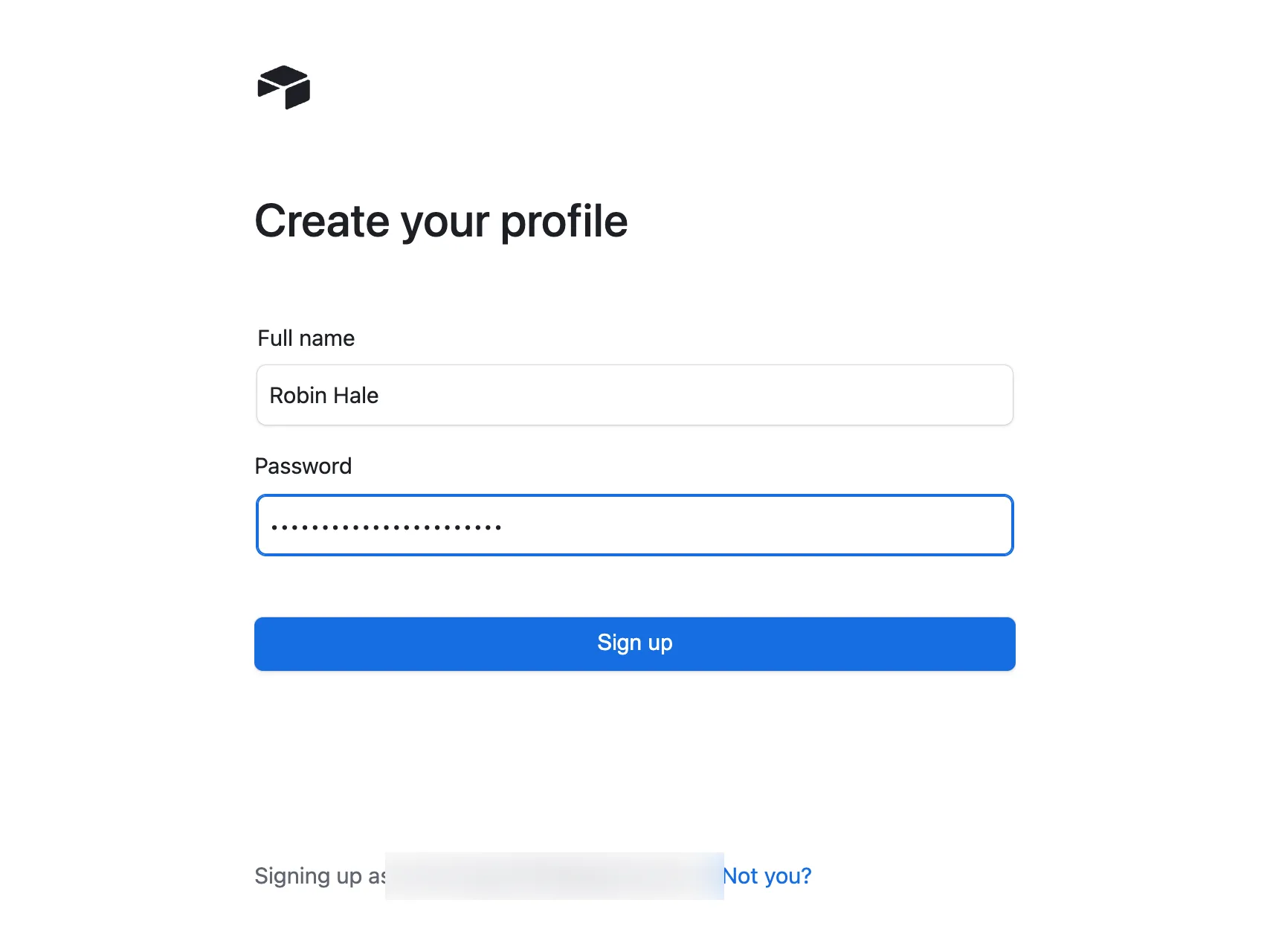
Typed Robin Hale and a random password
Why it works
Two fields only, and the address is shown back with a way out if it is wrong.
What gets in the way
No password rules are shown before typing. The email address is written into the page URL.
What’s on this screen
'Create your profile' with two fields, Full name (placeholder 'First and last', focused) and Password, and a blue Sign up button. Under it: 'Signing up as' and the address, with a Not you? link. No password rules, no terms line and no checkbox on this screen. The page address now carries the email as a query parameter.
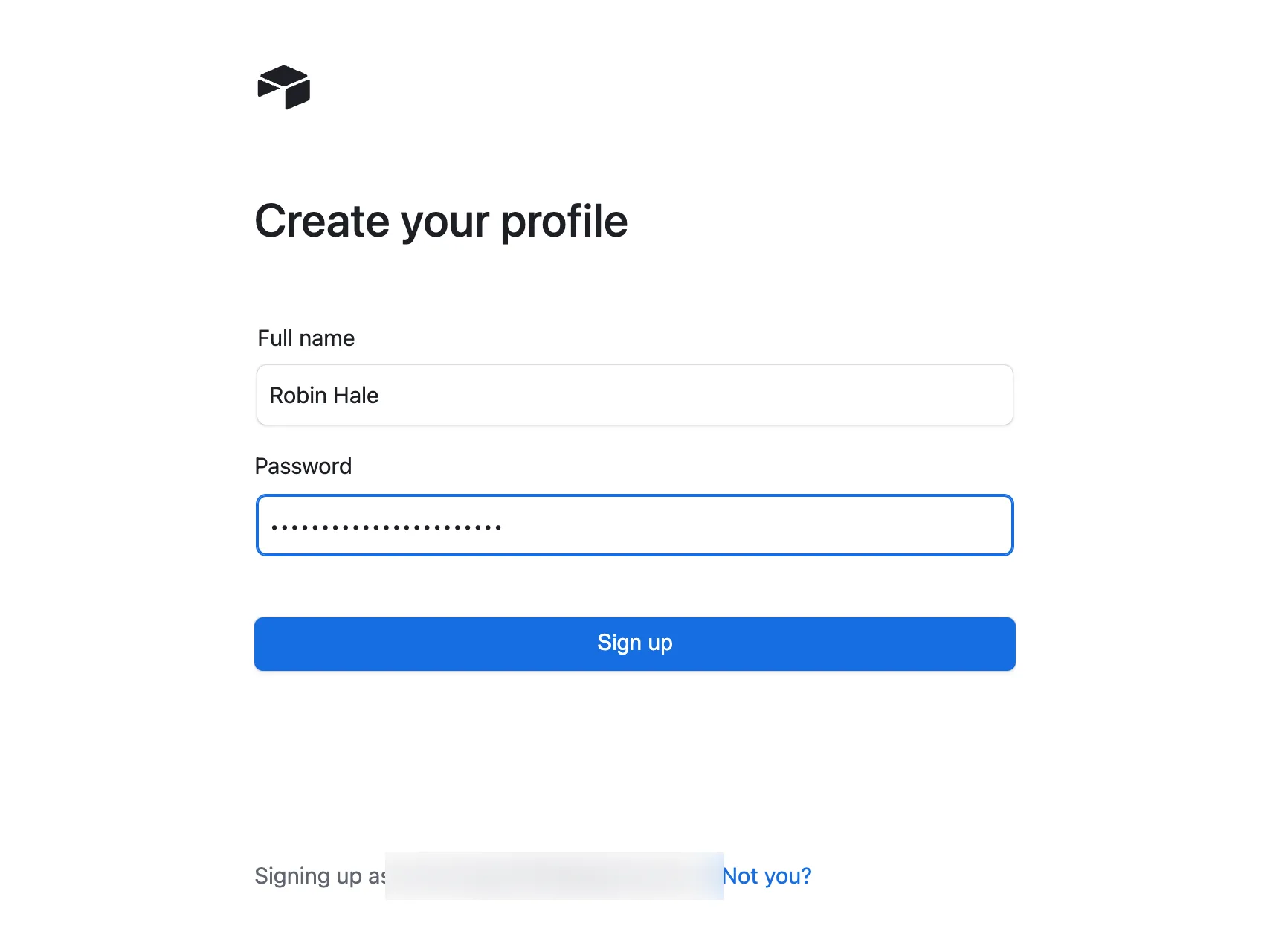
Step 5 of 18:Signup formDone by a person
Profile filled in, Sign up creates the account
A person (Mert) pressed Sign up, which created the account
Why it works
Three fields in all, over two screens, and no verification step in the way: the next screen is already inside Airtable.
What’s on this screen
The same form with Robin Hale and a masked password. Sign up took the user straight into the product, with no CAPTCHA and no code. Airtable sent a 'Please confirm your email' message in the same minute, but nothing in the flow required opening it.
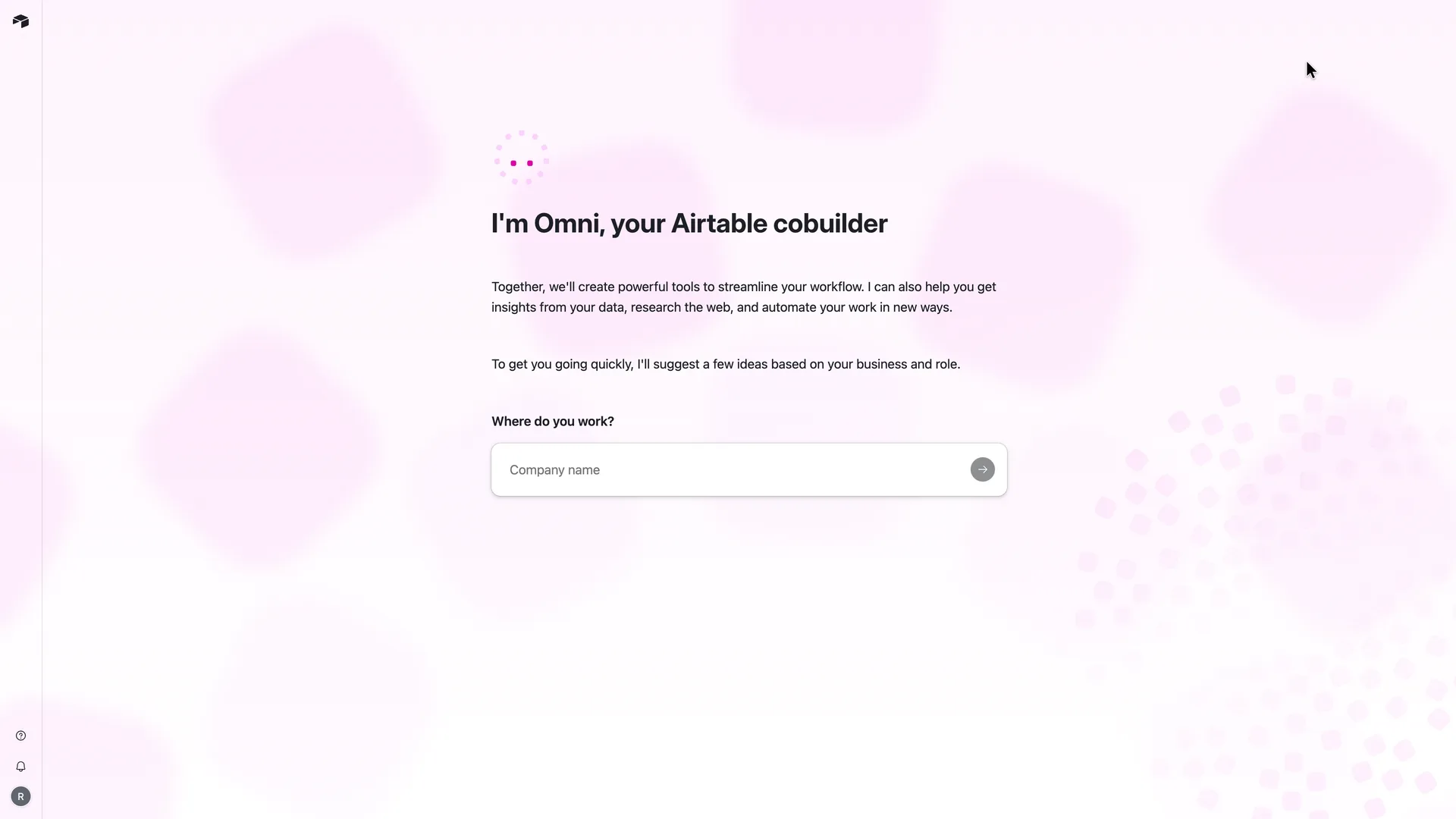
Step 6 of 18:Setup question
Omni introduces itself and asks where you work
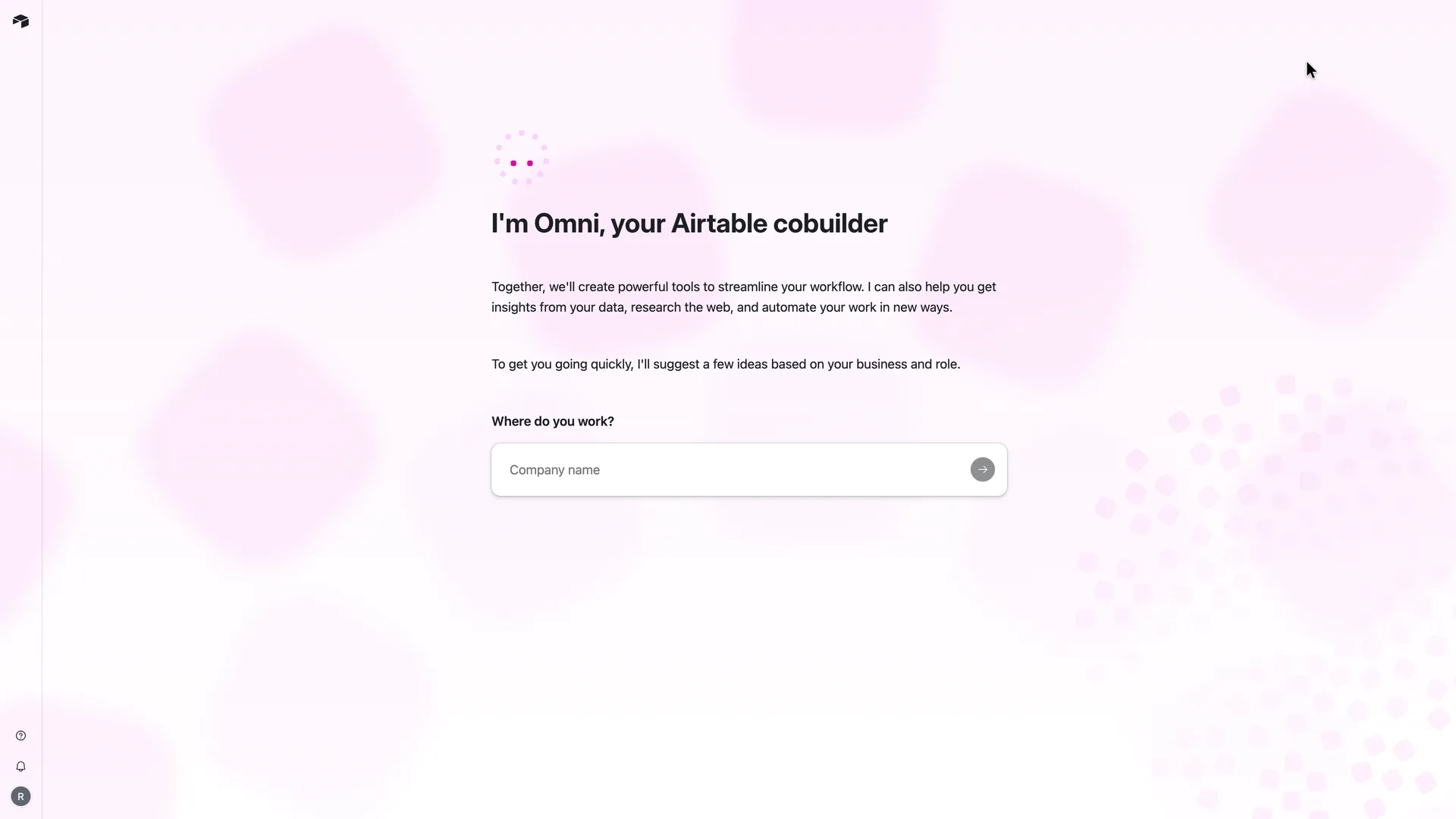
Typed Quillmark into Company name and pressed the arrow
Why it works
The assistant says why it asks before it asks, and the first question is a single free-text box.
What gets in the way
The heading's wording changes while you read it, and there is no progress indicator or Skip.
What’s on this screen
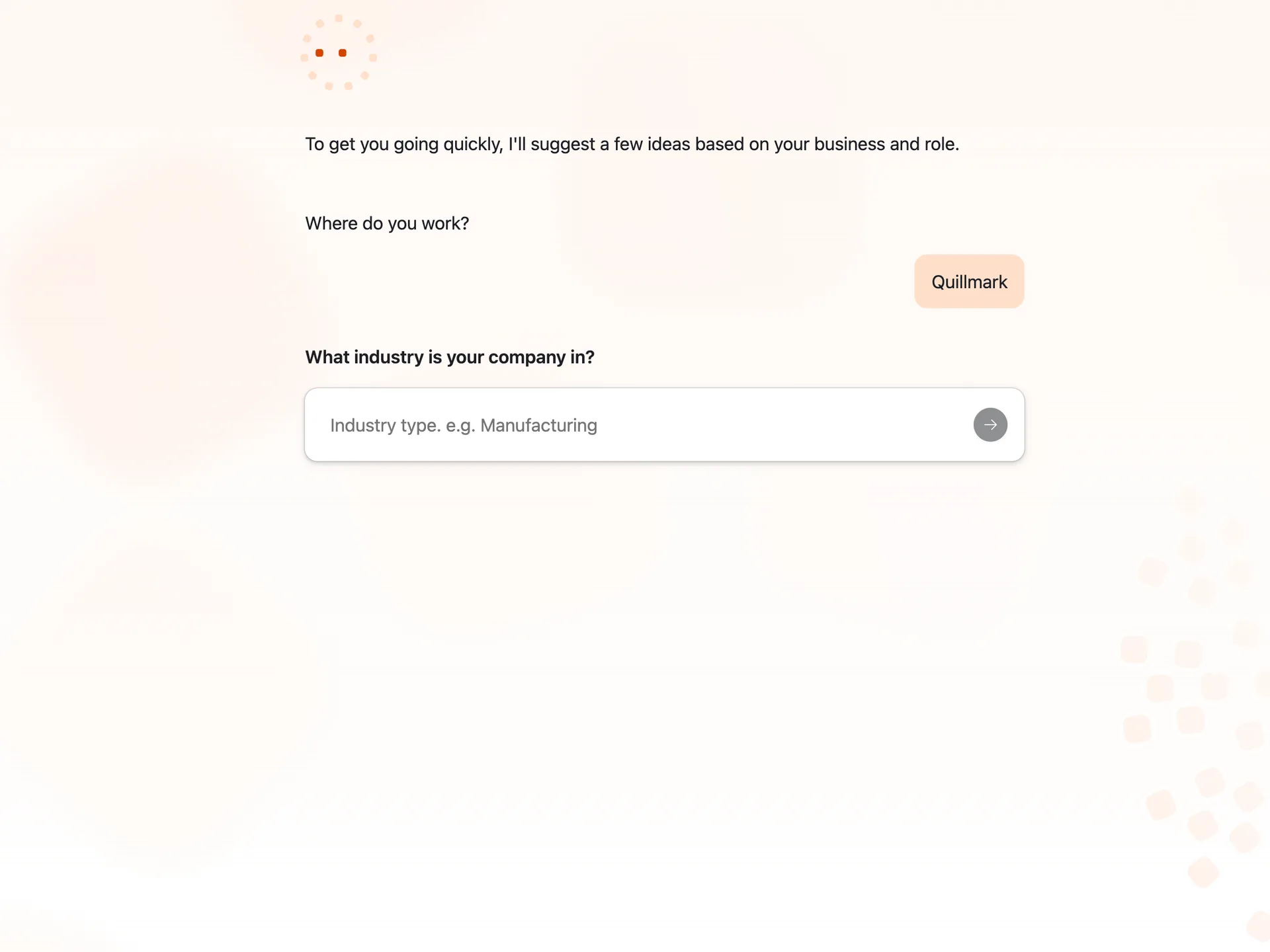
A full-screen pink page with an animated dotted face. The heading reads 'I'm Omni, your Airtable' followed by a phrase that changes while it is on screen ('research assistant' in the page text, 'cobuilder' in the screenshot). 'Together, we'll create powerful tools to streamline your workflow. I can also help you get insights from your data, research the web, and automate your work in new ways.' Then 'To get you going quickly, I'll suggest a few ideas based on your business and role.' and the first question, 'Where do you work?', with a Company name box and an arrow button. A thin sidebar shows only help, notifications and an R avatar.
Step 7 of 18:Setup question
Omni asks which industry the company is in
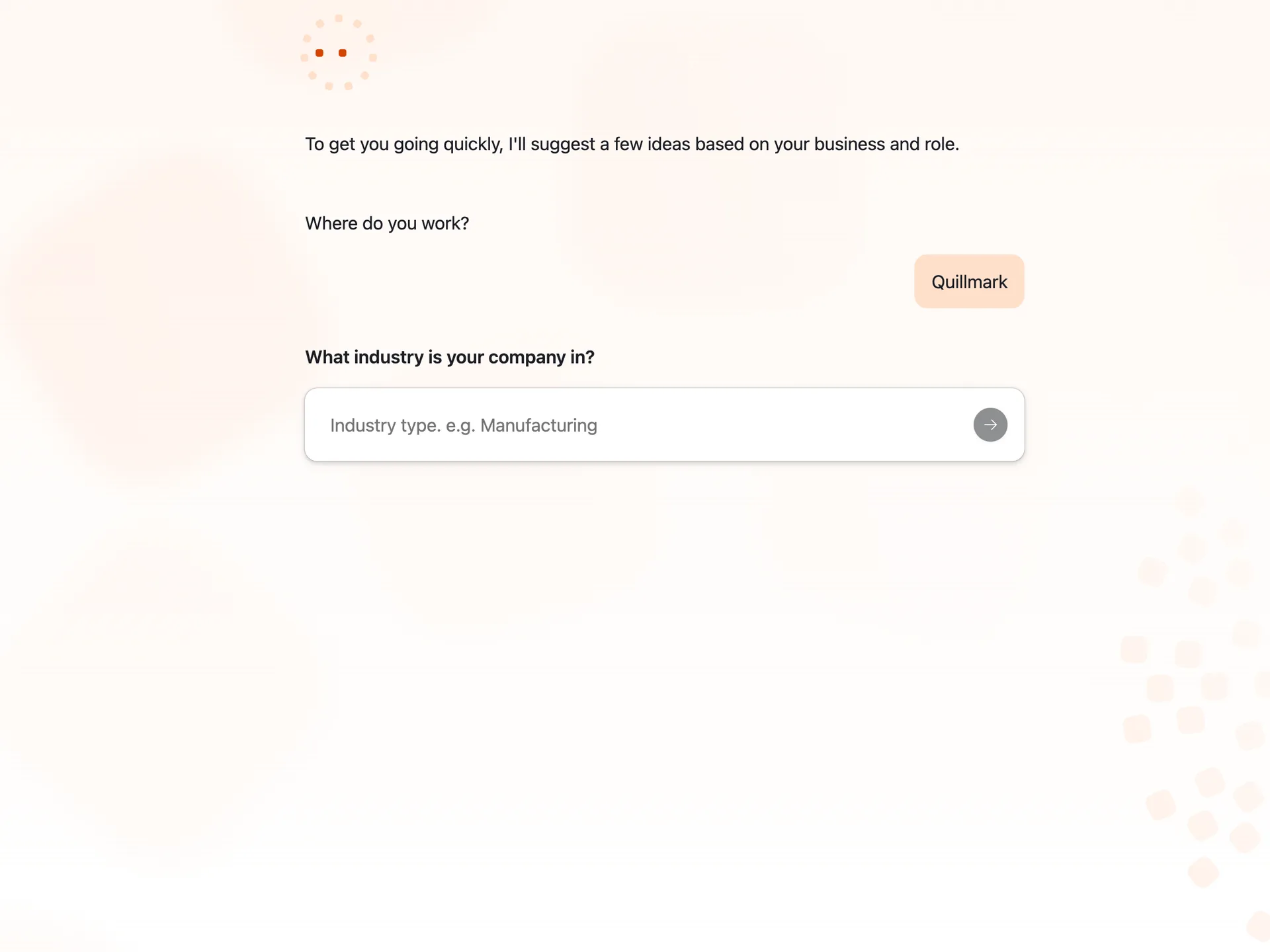
Typed 'B2B software (SaaS)' and pressed Enter
Why it works
Each answer stays on screen as a chat bubble, so the user sees what Omni has been told.
What gets in the way
Free text for industry and team leaves the user to guess how specific to be.
What’s on this screen
The answer Quillmark now sits on the right like a chat message under 'Where do you work?'. A second question appears below it: 'What industry is your company in?', with a free-text box (placeholder 'Industry type. e.g. Manufacturing') and an arrow.
Step 8 of 18:Setup question
Omni asks which team you are on
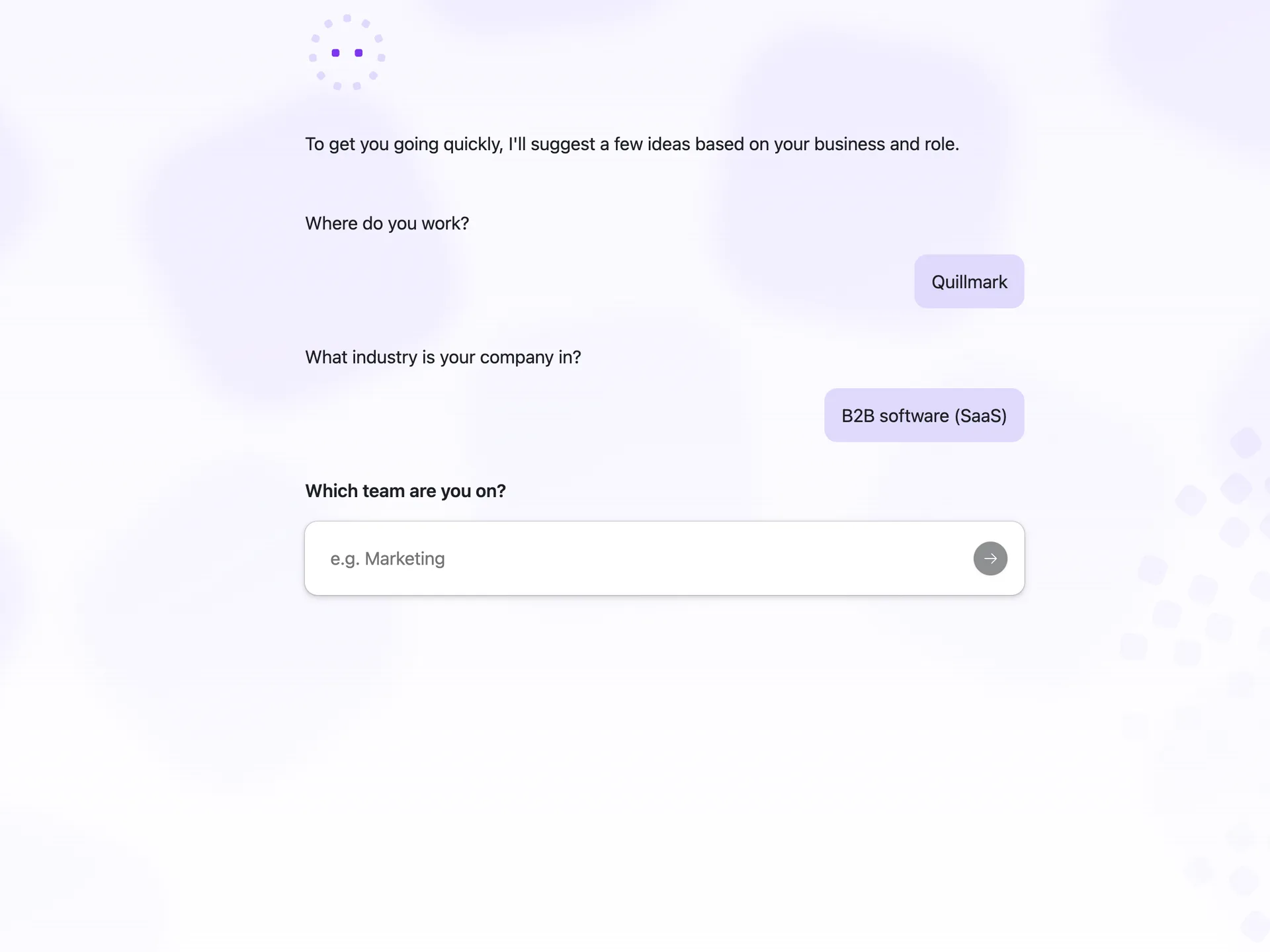
Typed 'Product' and pressed Enter
Why it works
Three short questions, all in one view, each answered in one line.
What gets in the way
No progress indicator, so the user doesn't know this is the last question.
What’s on this screen
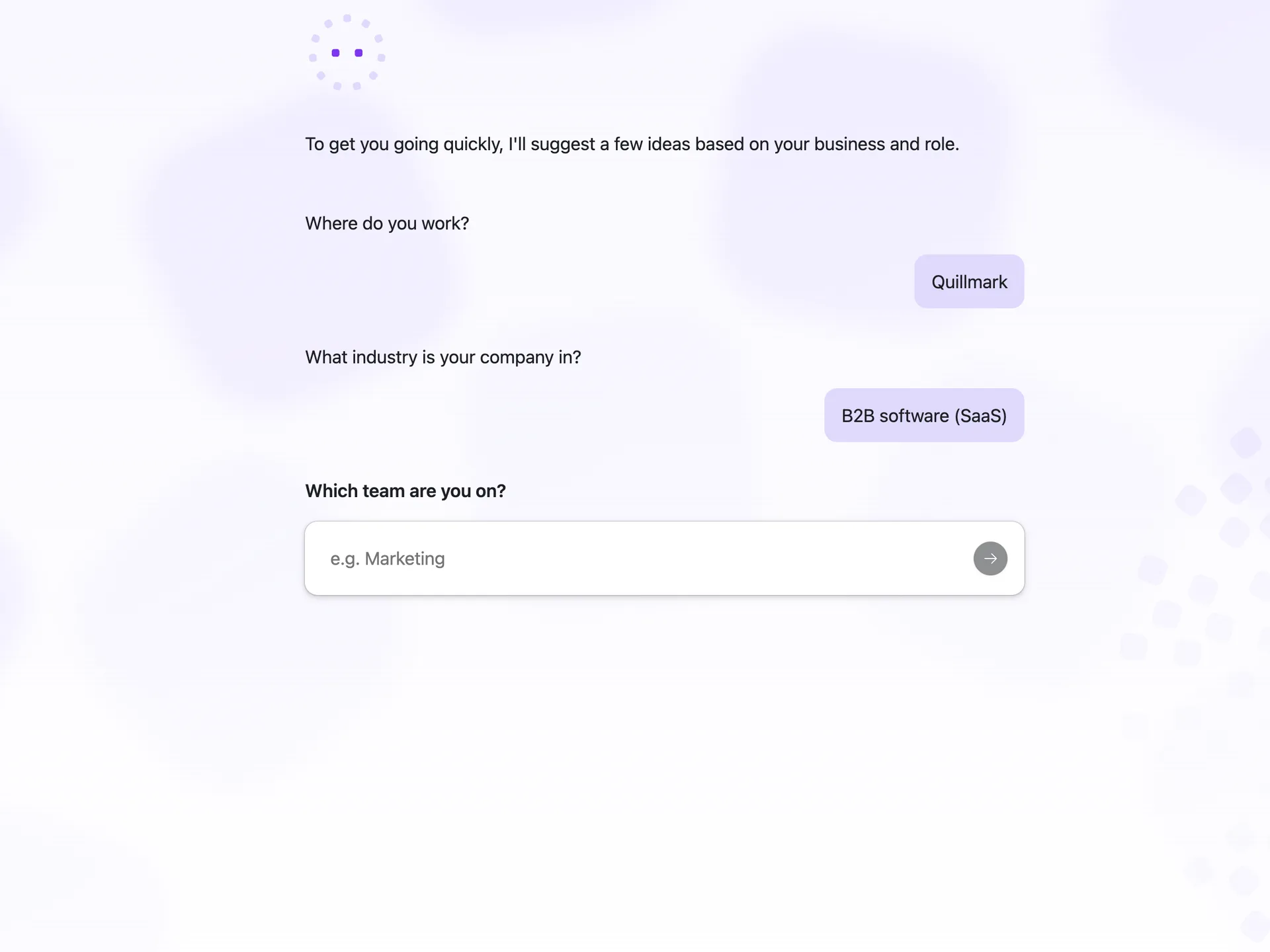
Two answers shown as bubbles (Quillmark; B2B software (SaaS)) and the third question, 'Which team are you on?', with a box whose placeholder is 'e.g. Marketing'. There is still no progress indicator, no count of questions and no Skip.
Step 9 of 18:Plan choice
A 14-day Team plan trial dialog opens after the last answer
Closed the dialog with its X instead of Get started
Why it works
It says plainly that no payment is needed, and it is the first screen to mention that the email still needs confirming.
What gets in the way
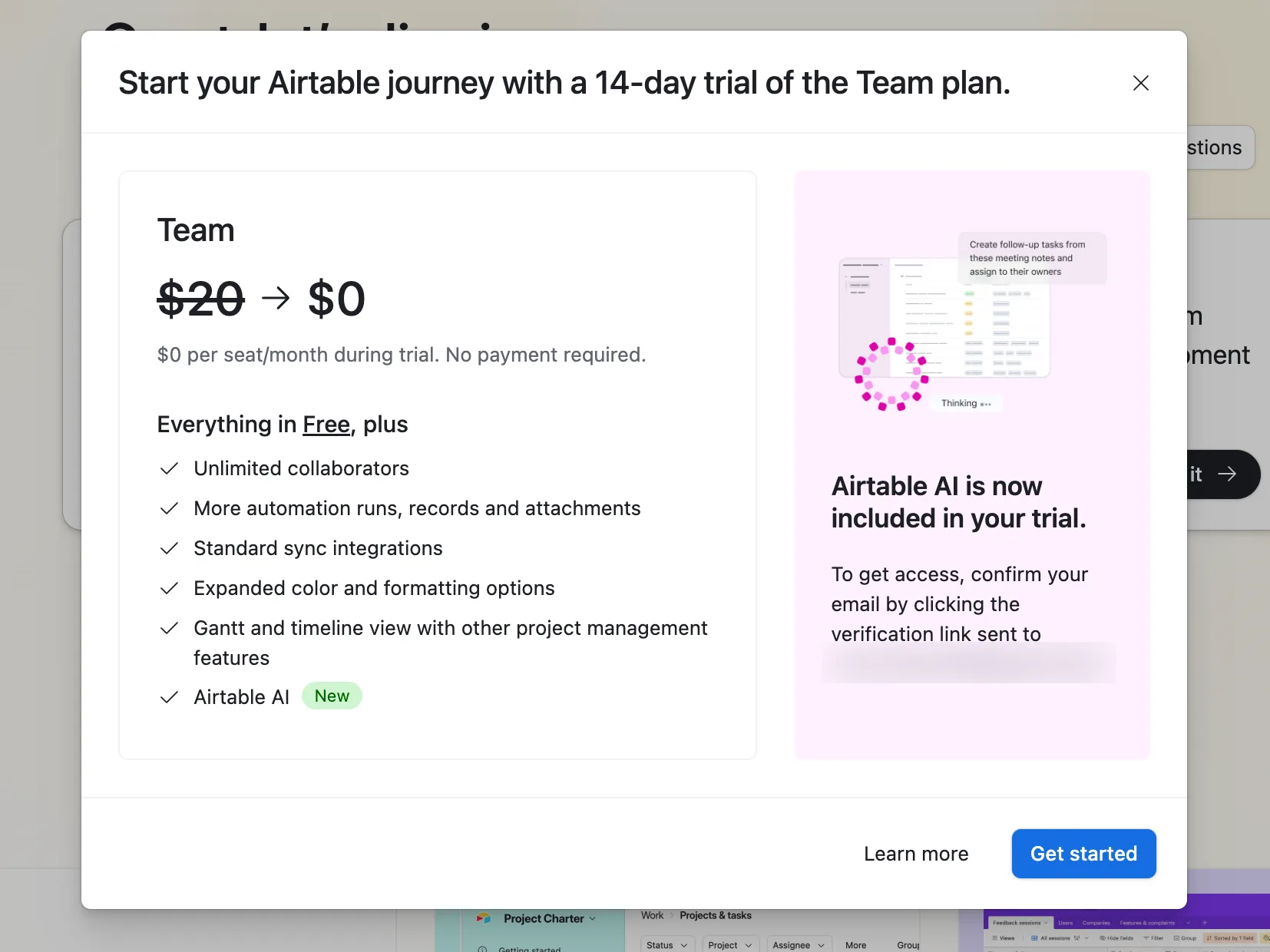
The trial is presented as already chosen, with no Free option, and the dialog says Airtable AI needs the email confirmed, which nothing earlier mentioned. Omni went on to build the base without it.
What’s on this screen
Straight after the third answer a dialog covers the page: 'Start your Airtable journey with a 14-day trial of the Team plan.' A Team card shows $20 struck through, then $0, '$0 per seat/month during trial. No payment required.', and 'Everything in Free, plus' six items (unlimited collaborators; more automation runs, records and attachments; standard sync integrations; expanded colour and formatting options; Gantt and timeline view; Airtable AI, tagged New). A pink panel says 'Airtable AI is now included in your trial. To get access, confirm your email by clicking the verification link sent to' the address. Buttons: Learn more and Get started, plus an X. There is no option to stay on Free.
Step 10 of 18:Plan choice
A second dialog: the Team trial has already started
Closed this dialog with its X too
Why it works
It states what happens when the trial ends (back to Free, nothing charged), which removes the worry a trial usually brings.
What gets in the way
Two trial dialogs in a row, and the first one's X reads like a refusal but changes nothing; there is no way to stay on Free from either.
What’s on this screen
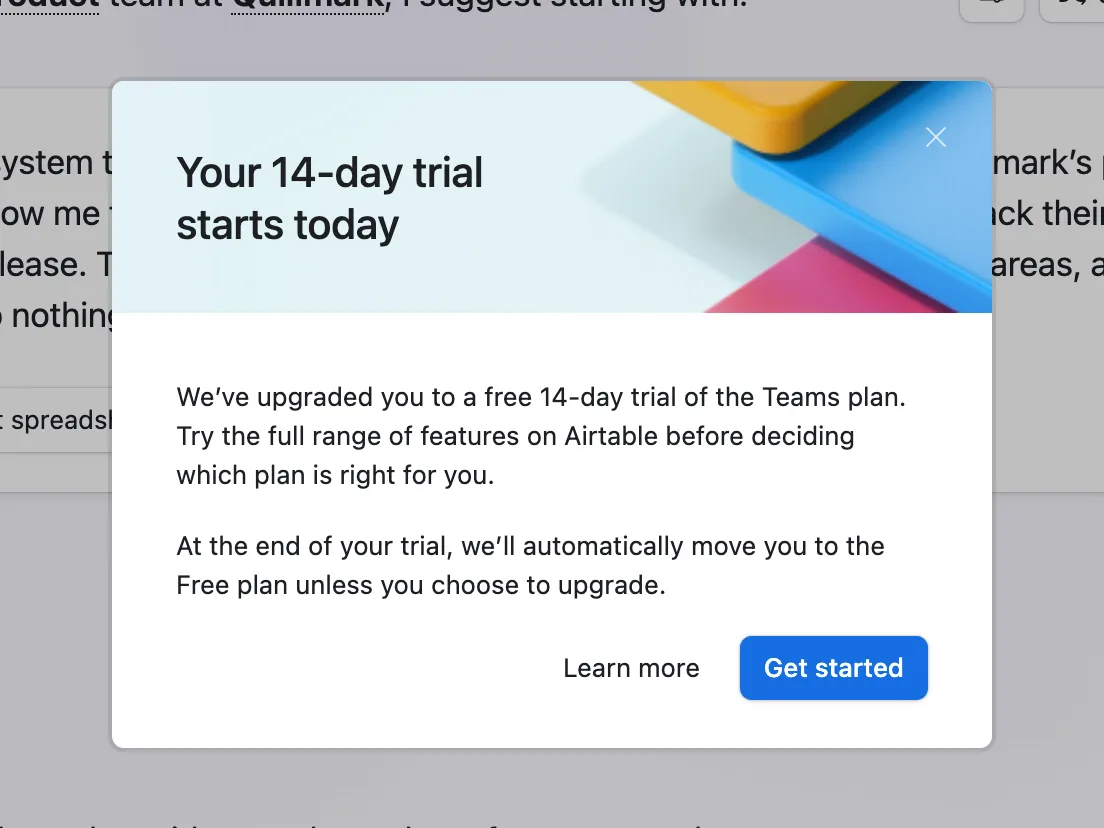
Closing the first dialog opens another: 'Your 14-day trial starts today'. 'We've upgraded you to a free 14-day trial of the Teams plan. Try the full range of features on Airtable before deciding which plan is right for you.' and 'At the end of your trial, we'll automatically move you to the Free plan unless you choose to upgrade.' Learn more, Get started and an X. Closing the first dialog did not decline anything: the trial was already running.
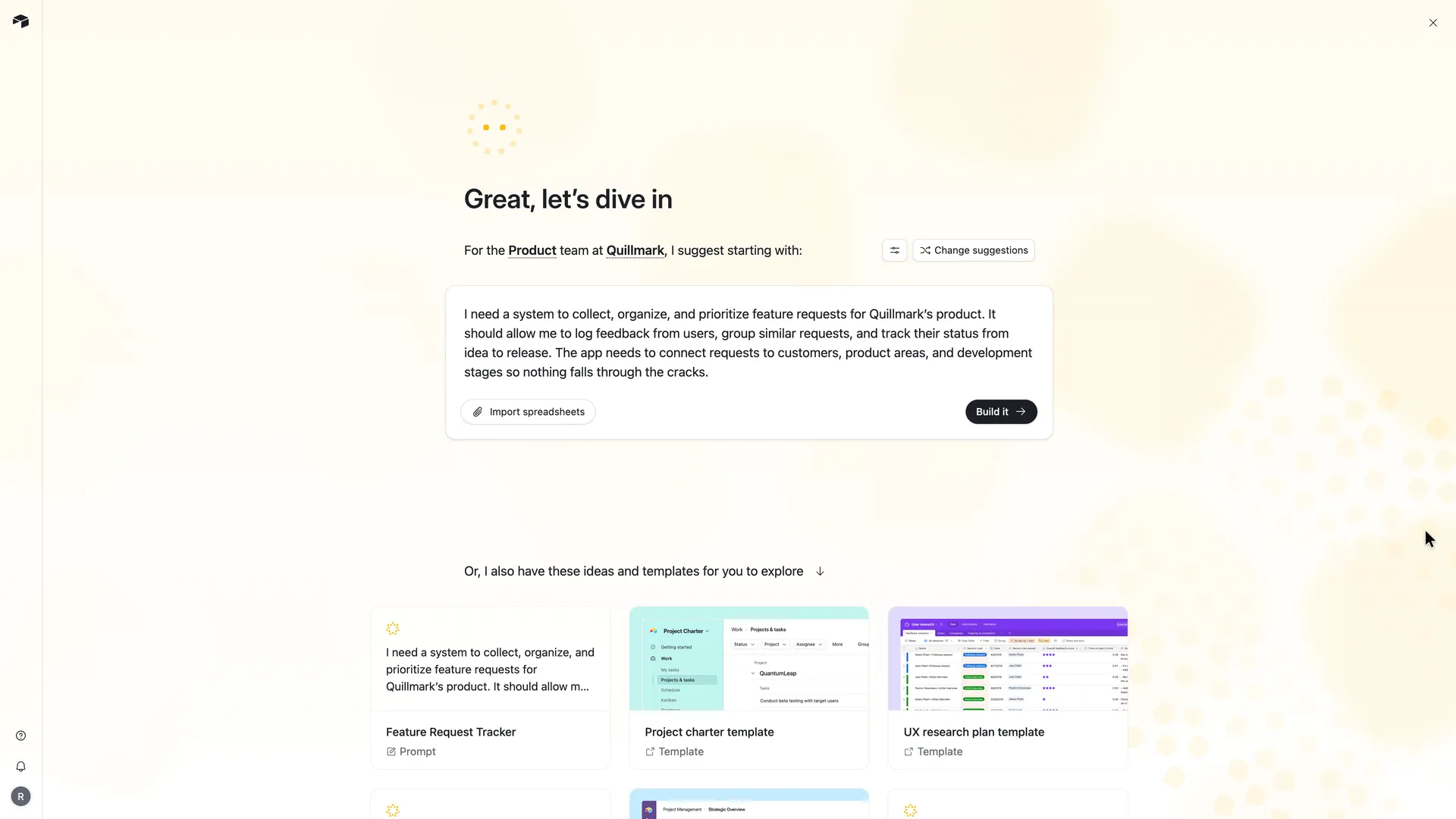
Step 11 of 18:Template picker
Omni suggests a feature-request tracker for the Product team
Replaced Omni's suggested prompt with the planned one-sentence prompt and pressed Build it
Why it works
The three answers turn straight into a concrete, editable starting point written in the user's words (Product team, Quillmark), and templates sit underneath for anyone who doesn't want AI.
What gets in the way
The suggested prompt is long, and nothing says the AI behind Build it needs the email confirmed first.
What’s on this screen
'Great, let's dive in. For the Product team at Quillmark, I suggest starting with:' and a prompt box already filled in: 'I need a system to collect, organize, and prioritize feature requests for Quillmark's product. It should allow me to log feedback from users, group similar requests, and track their status from idea to release. The app needs to connect requests to customers, product areas, and development stages so nothing falls through the cracks.' Under it: Import spreadsheets and Build it. Beside the sentence, an edit button and Change suggestions. Below, 'Or, I also have these ideas and templates for you to explore': Feature Request Tracker (Prompt), Project charter template, UX research plan template, then more cards (Bug Reporting Hub and Product Roadmap Planner prompts, a work breakdown structure template).
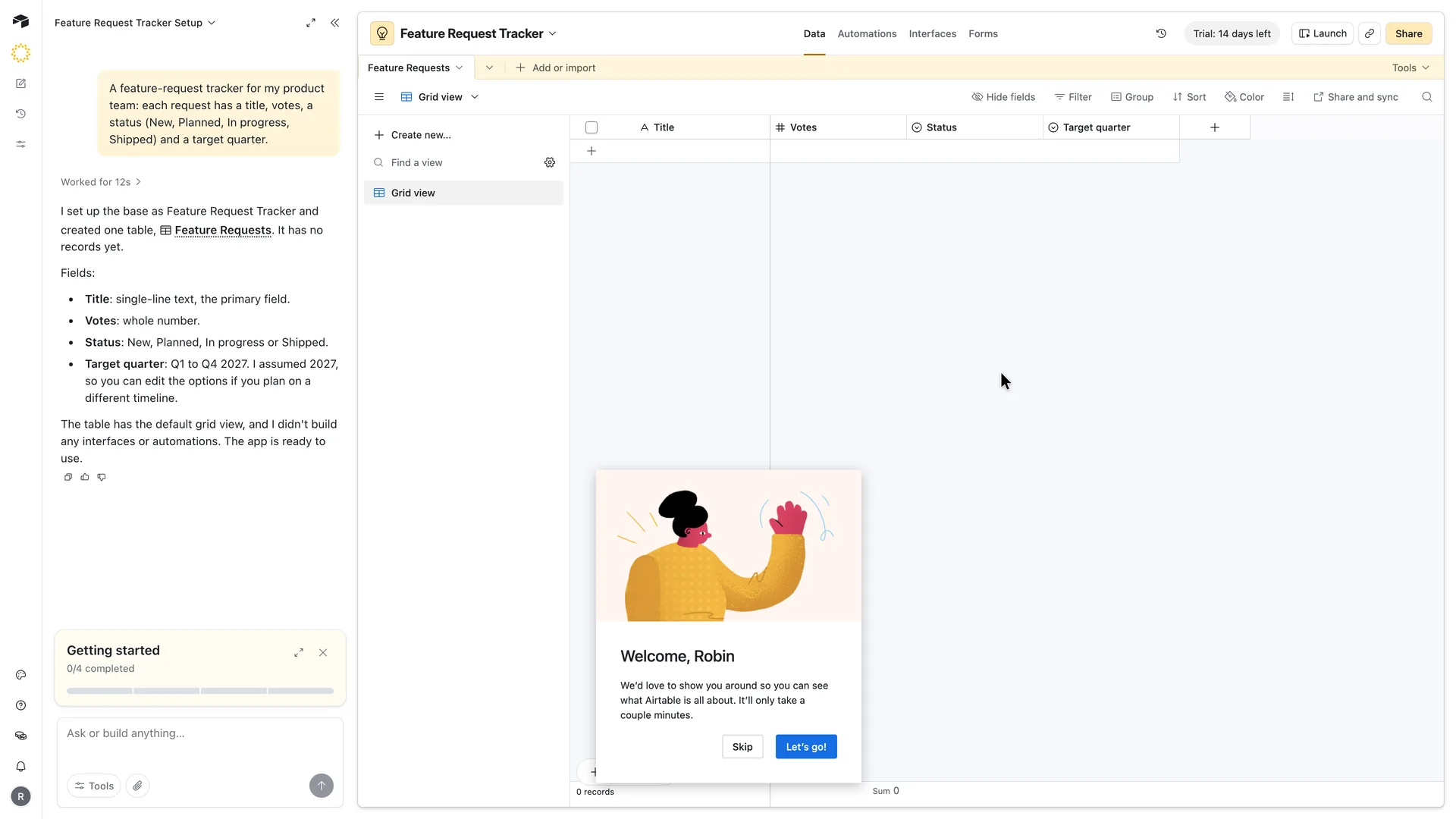
Step 12 of 18:Welcome modal
Omni builds the base in 12 seconds, then a welcome tour
Pressed Let's go! to take the tour
Why it works
The prompt became exactly the table asked for, with the right field types and the four statuses, and Omni explains each choice and the one assumption it made (the year). The table is empty, so nothing the user sees is sample data.
What gets in the way
Three things compete for attention at once: Omni's answer, a four-item checklist and a tour invitation over the empty grid. Omni guessed the year for the quarters.
What’s on this screen
Build it opened a new base. Within seconds the left panel shows the prompt as a message, 'Worked for 12s', and Omni's answer: 'I set up the base as Feature Request Tracker and created one table, Feature Requests. It has no records yet.' It lists the fields: Title (single-line text, the primary field), Votes (whole number), Status (New, Planned, In progress or Shipped) and Target quarter ('Q1 to Q4 2027. I assumed 2027, so you can edit the options if you plan on a different timeline.'), and says it built no interfaces or automations. The grid shows those four columns, no rows and '0 records'. Under the panel: a 'Getting started 0/4 completed' card and an 'Ask or build anything...' box. The top bar reads 'Trial: 14 days left' beside Launch and Share. Over the grid: 'Welcome, Robin. We'd love to show you around so you can see what Airtable is all about. It'll only take a couple minutes.' with Skip and Let's go!. The AI built the base although the email had not been confirmed.
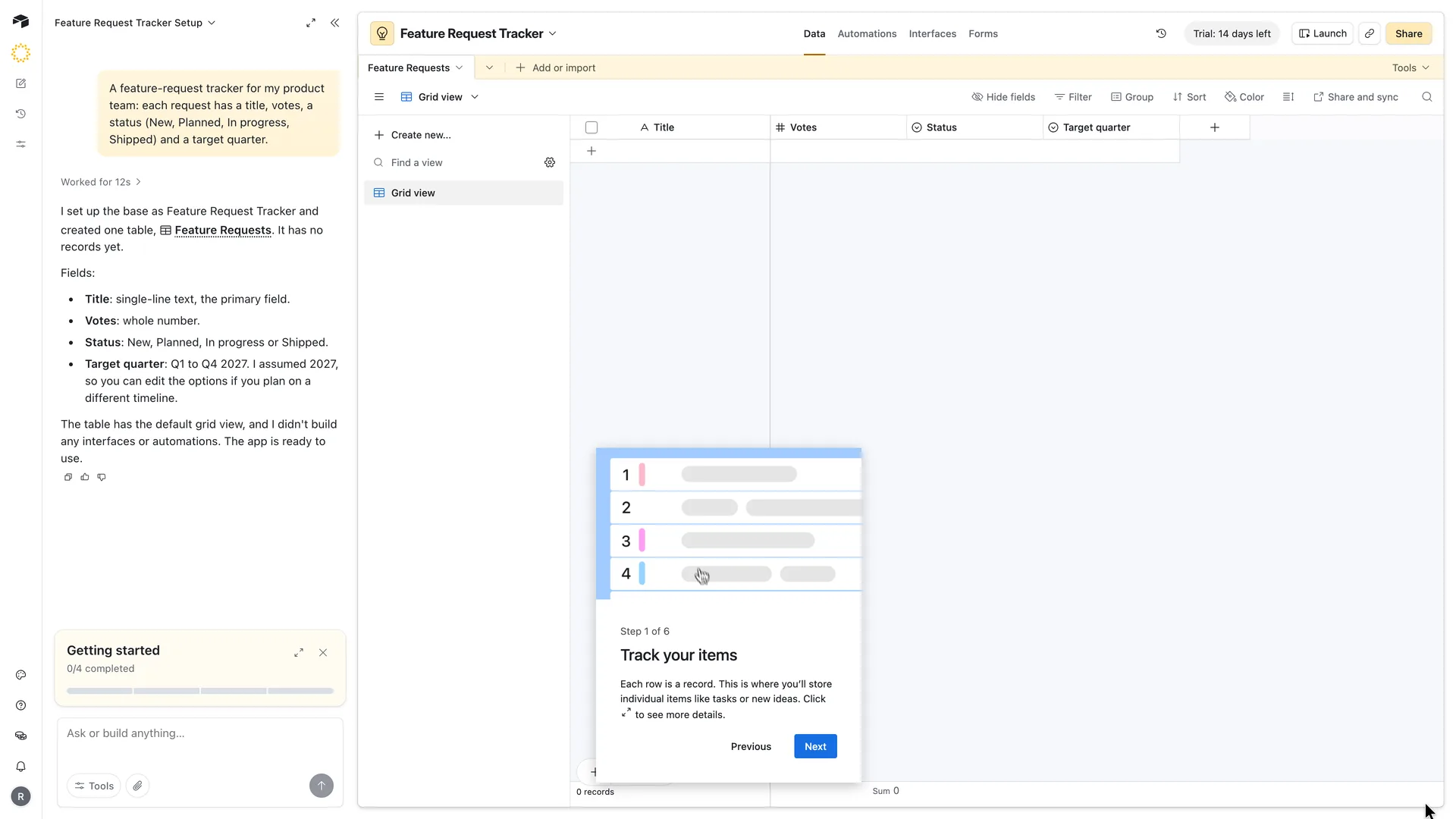
Step 13 of 18:Product tour
Tour stop 1 of 6: Track your items, over an empty table
Pressed Next through stops 2 to 5
Why it works
Six short cards name the four ideas a new user needs (record, field, view, automation) in plain words, with a step count and a way back.
What gets in the way
The tour is generic: it describes rows and tasks in a table that has no rows, never points at the actual grid, and doesn't mention the feature requests Omni just set up. The step counter is the only sign of progress.
What’s on this screen
The welcome card becomes 'Step 1 of 6: Track your items. Each row is a record. This is where you'll store individual items like tasks or new ideas. Click [expand icon] to see more details.' over an illustration of four numbered rows, with Previous and Next. The card stays in the same place at the bottom of the grid and points at nothing; the table behind it has no rows to click. Stops 2 to 5, each in the same card and place: 'Add more details' (each column is a field; 'Try tracking a date or status'), 'Customize your view' ('Try filtering a grid, or adding a calendar'), 'Do more with your data' (extensions for dashboards, reports, pivot tables) and 'Automate repetitive tasks' (from sending emails to managing approvals).
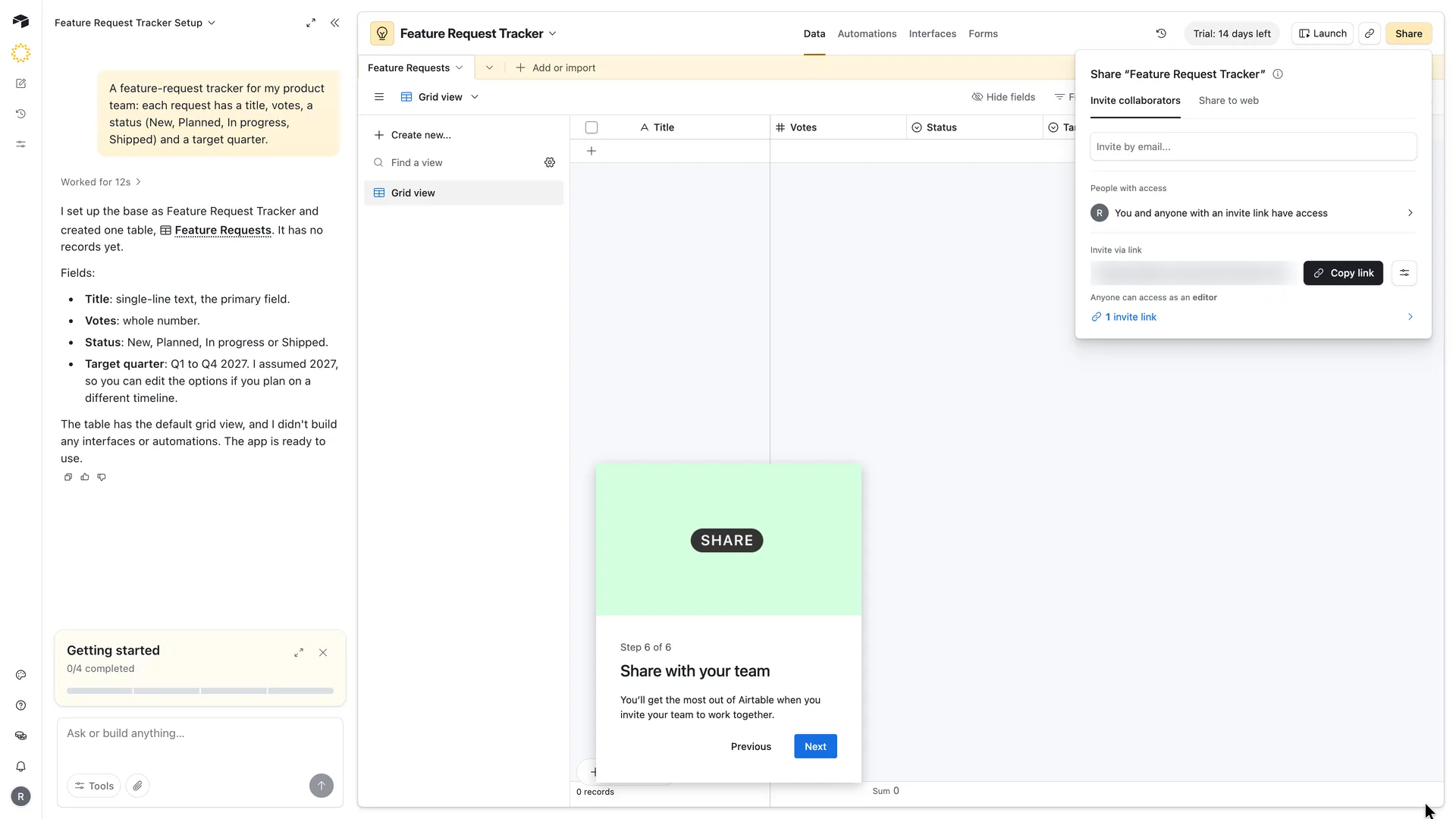
Step 14 of 18:Invite teammates
Tour stop 6 of 6 opens the Share panel with a ready invite link
Pressed Next to end the tour, inviting no one
Why it works
The last stop shows the real control rather than an illustration, so the user knows where sharing lives. The invite link is already created, which makes the task feel smaller: the user only has to copy it.
What’s on this screen
'Step 6 of 6: Share with your team. You'll get the most out of Airtable when you invite your team to work together.' This stop opens the real Share panel at the top right: 'Share "Feature Request Tracker"' with Invite collaborators and Share to web tabs, an 'Invite by email...' field, 'You and anyone with an invite link have access', and an invite link already created with Copy link, 'Anyone can access as an editor' and '1 invite link'.
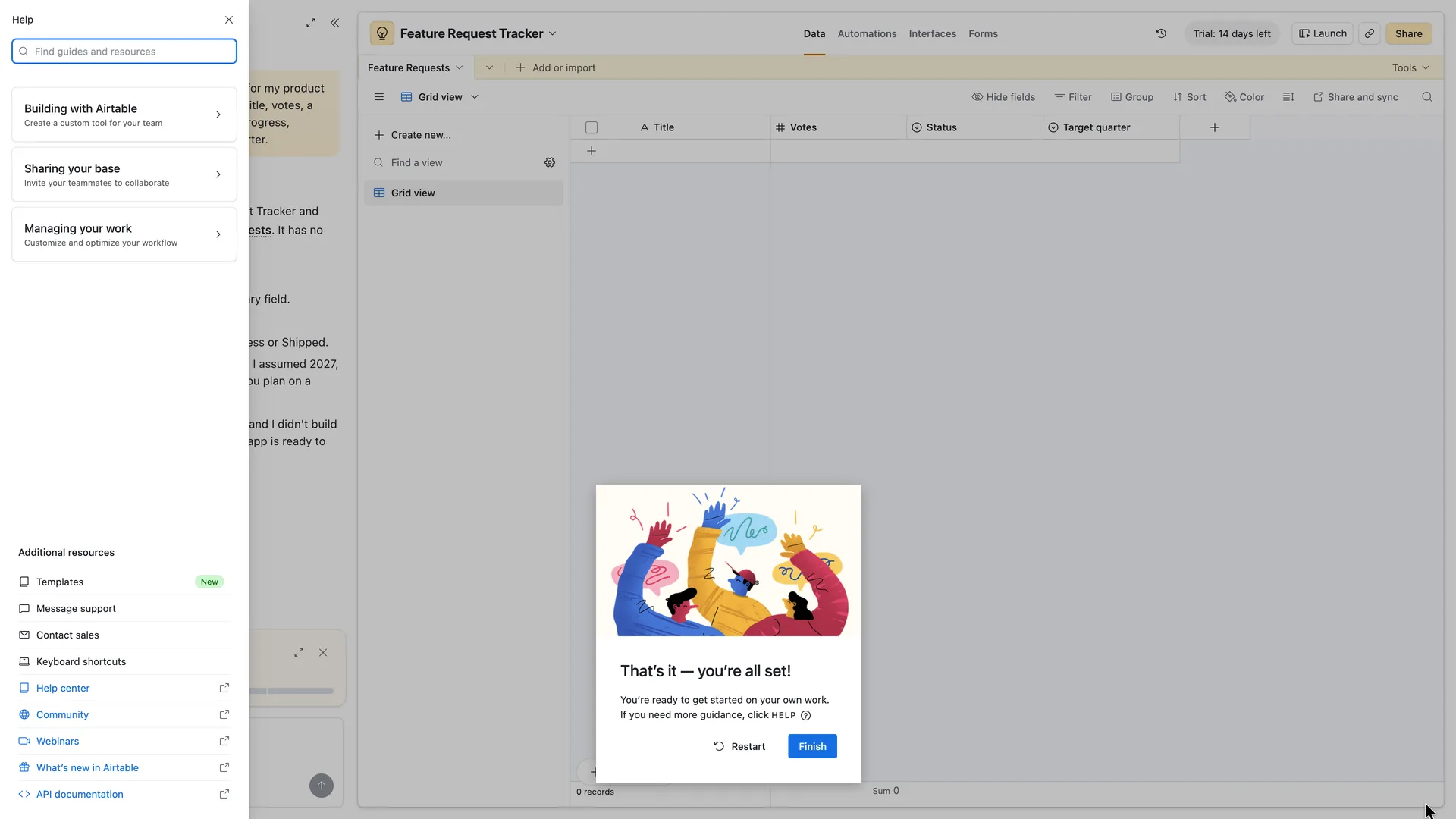
Step 15 of 18:Celebration
The tour ends with you're all set and opens Help
Pressed Finish, then closed the Help sidebar
Why it works
The tour ends cleanly with a way to replay it, and help is shown where it will live from now on.
What gets in the way
The user is told they are all set while the table is still empty, and the Help sidebar covers Omni's summary of what it built.
What’s on this screen
Next on the last stop closed the Share panel and showed a closing card with an illustration of three people cheering: a heading saying that's it and you're all set, then 'You're ready to get started on your own work. If you need more guidance, click HELP', with Restart and Finish. At the same time a Help sidebar slid over Omni's panel on the left: a search box, three guides (Building with Airtable, Sharing your base, Managing your work) and Additional resources (Templates tagged New, Message support, Contact sales, Keyboard shortcuts, Help center, Community, Webinars, What's new in Airtable, API documentation). The grid still has 0 records.
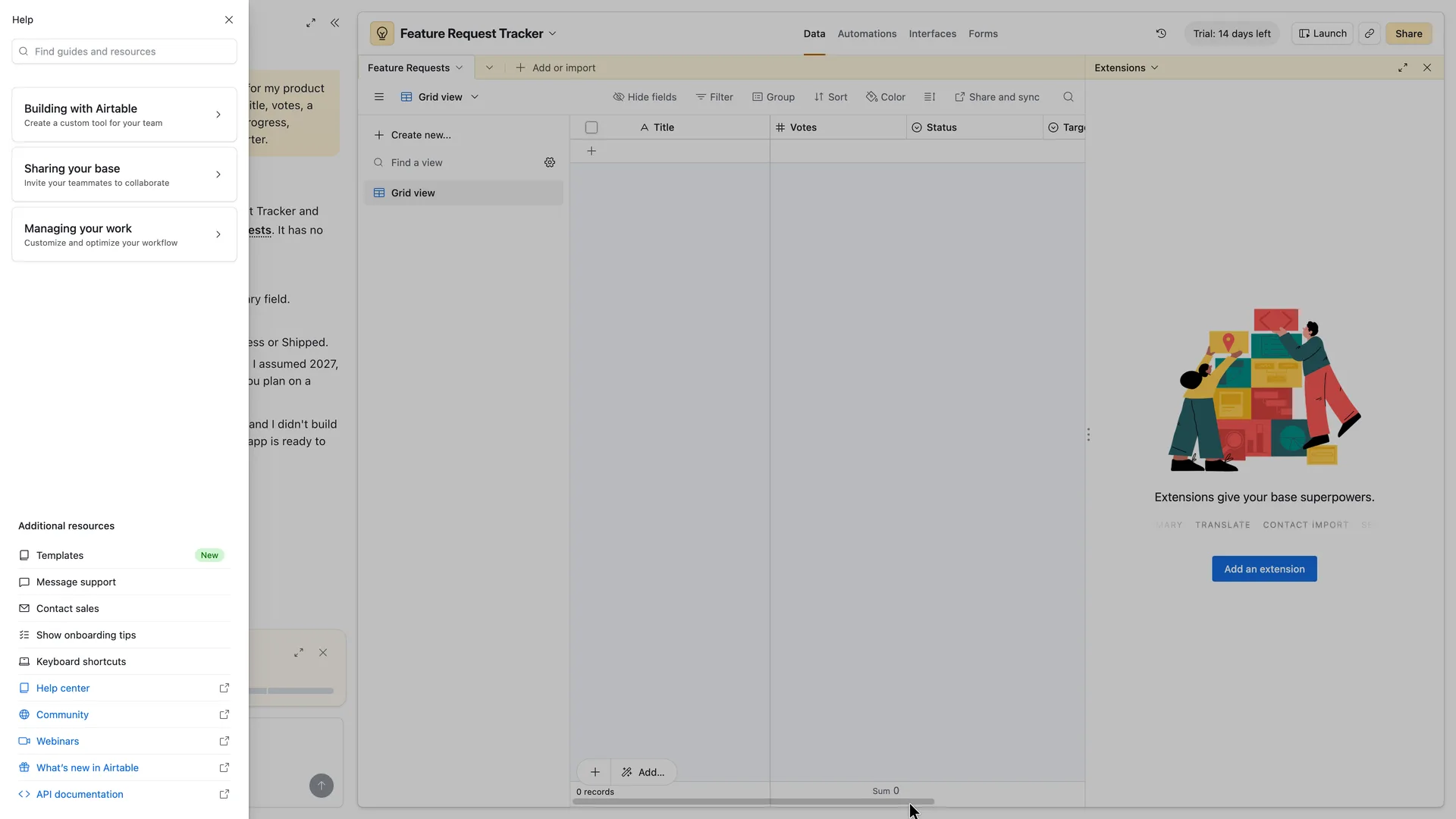
Step 16 of 18:Other
Finish opens an Extensions panel beside the Help sidebar
Closed the Help sidebar and the Extensions panel, then clicked + at the top of the grid to add a row
Why it works
Tour stop 4 mentioned extensions, and this shows where they live. The Help panel now also lists Show onboarding tips, so the tour's tips can be brought back after it ends.
What gets in the way
After 'you're all set', two panels have opened on their own (Help with the closing card, Extensions on Finish), and both must be closed before the empty table is fully visible again.
What’s on this screen
Finish closed the tour card but not the Help sidebar, and opened an Extensions panel on the right: 'Extensions give your base superpowers.' with a scrolling row of names (Translate, Contact import and others) and an Add an extension button. The grid in between is dimmed and narrower, and the Target quarter column is cut off. The Help sidebar now also lists 'Show onboarding tips'.
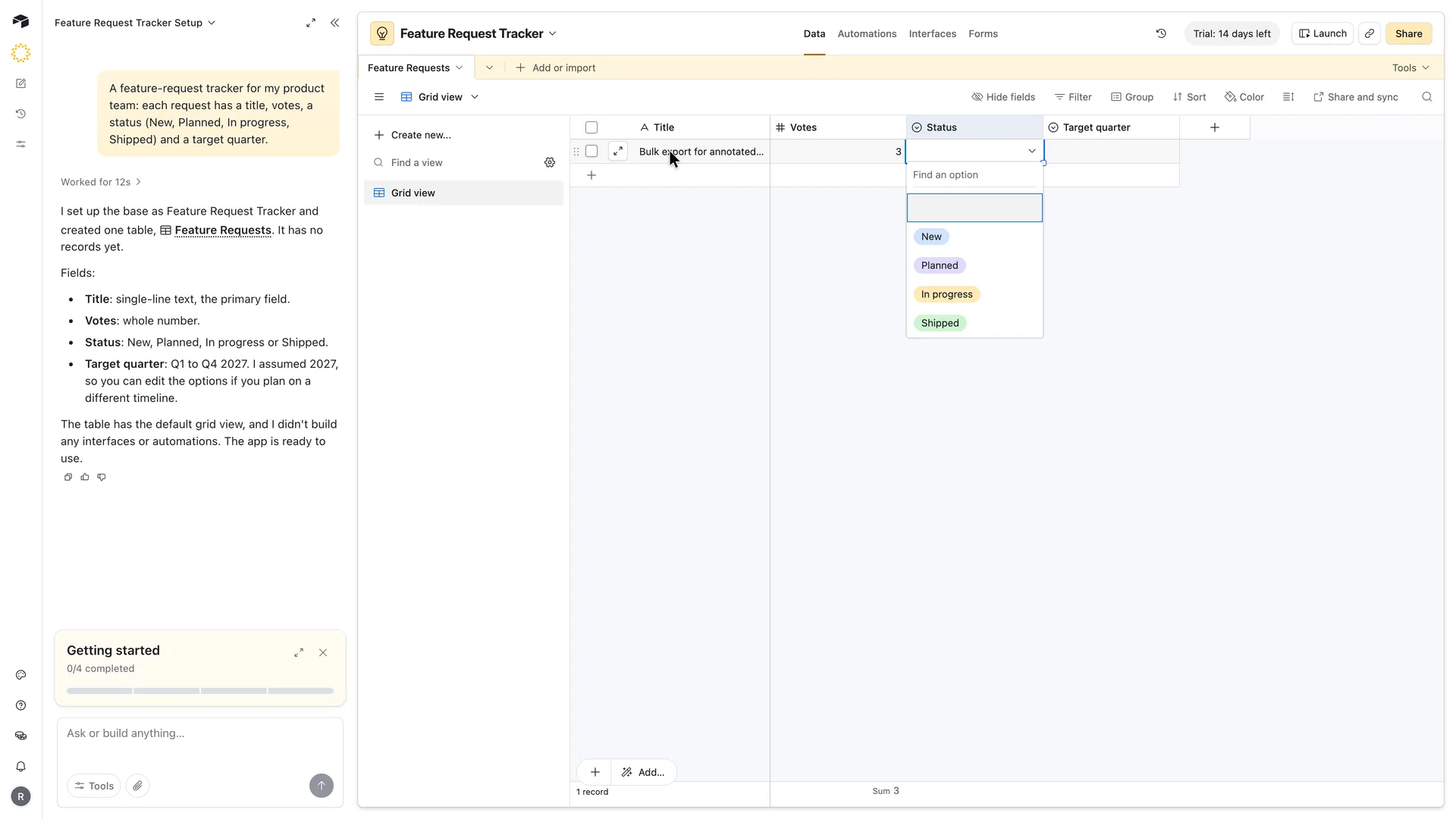
Step 17 of 18:Empty state
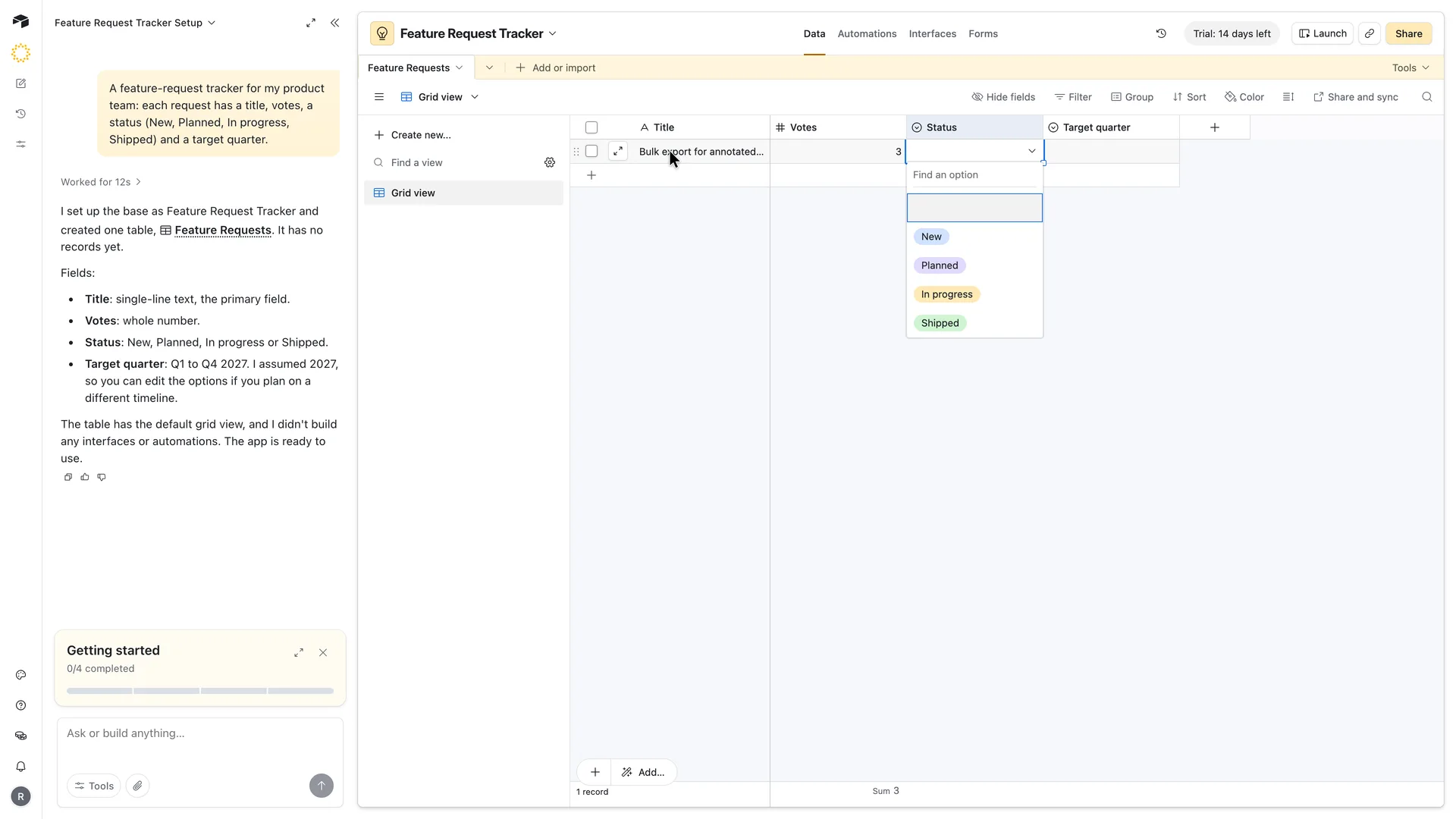
Robin types a first request; Status offers Omni's four options
Typed the title, 3 in Votes, opened Status and chose New
Why it works
Typing goes straight into the cell and Tab moves to the next field, like a spreadsheet, and the status choices are the ones the prompt asked for, already coloured.
What gets in the way
The Title column is too narrow for a typical request title, so it is cut off as soon as it is typed.
What’s on this screen
The + at the top of the empty grid added row 1 with the Title cell already in edit mode. Robin's title, 'Bulk export for annotated documents', fits as 'Bulk export for annotated...' in the narrow Title column; Votes shows 3, the footer '1 record' and 'Sum 3'. Pressing Enter on Status opens a dropdown with 'Find an option', an empty choice and the four coloured options Omni created: New (blue), Planned (purple), In progress (yellow) and Shipped (green). Target quarter is still empty. The Getting started card still reads 0/4 completed.
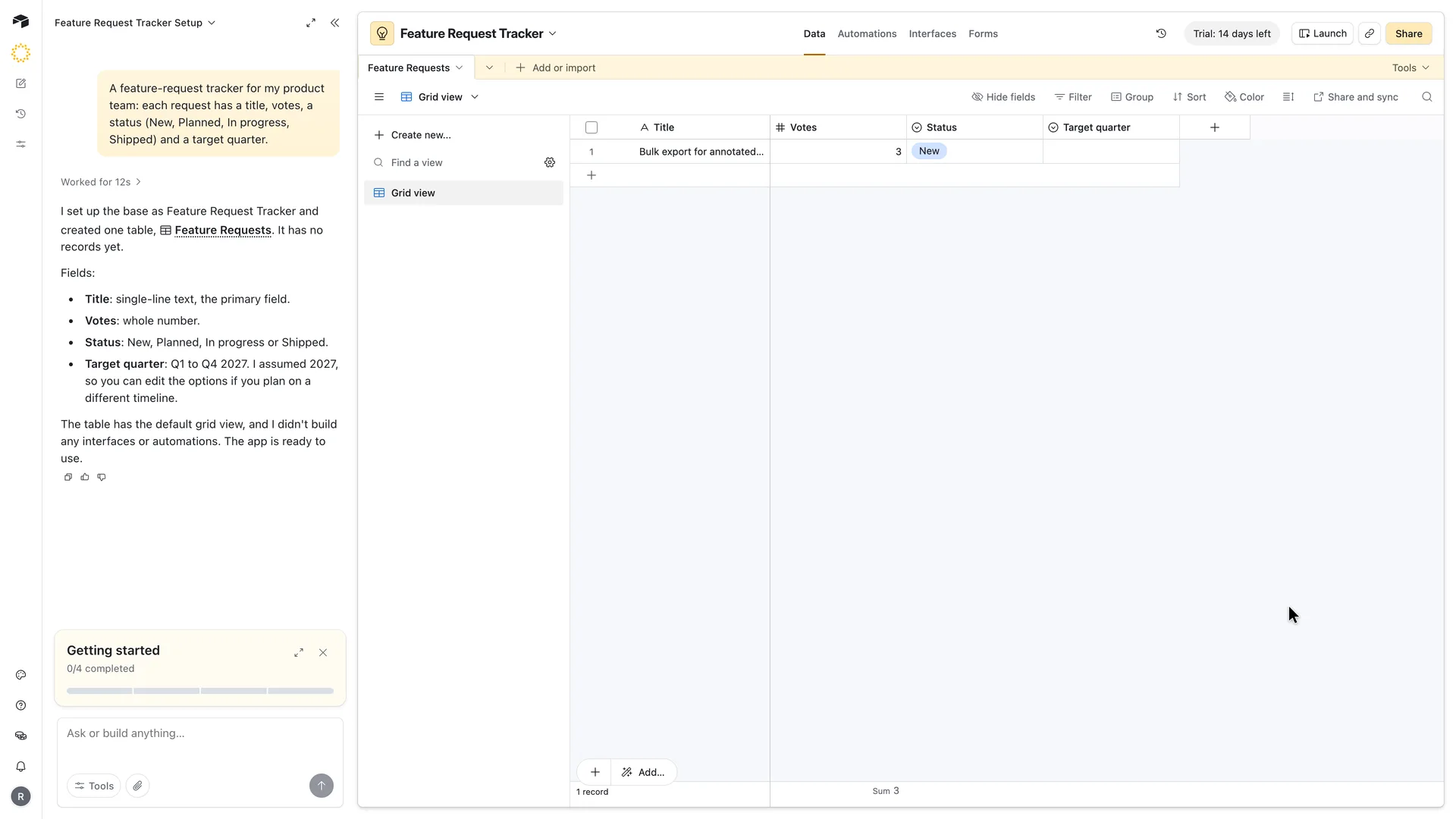
Step 18 of 18:First value
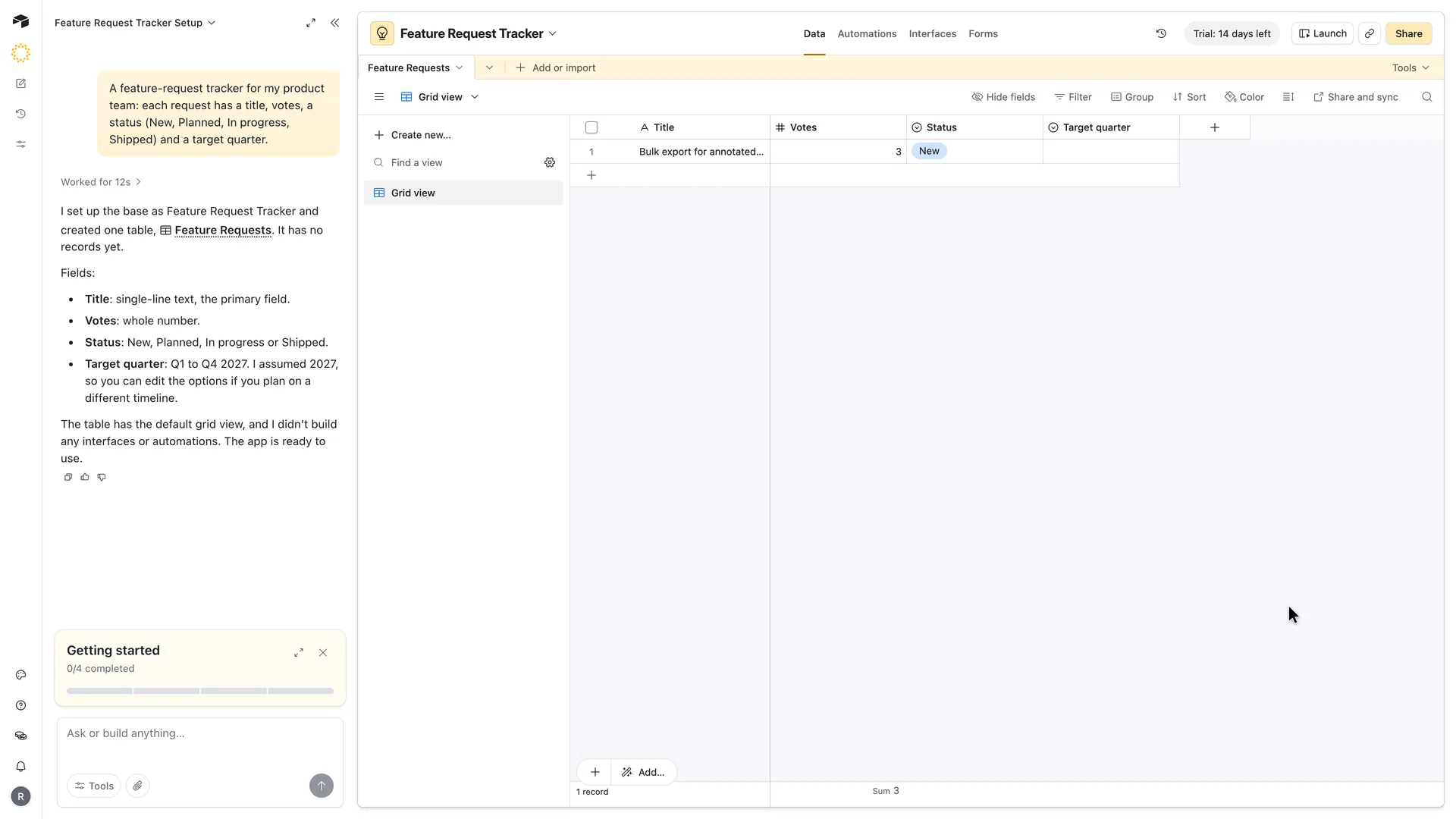
First value: Robin's own feature request saved in the grid
Pressed Escape and clicked an empty part of the grid to leave the cell
Why it works
From a one-sentence prompt to a working, typed record in a table built to the user's own spec, with nothing sample to delete.
What gets in the way
The checklist didn't move when the first record was added, and the narrow Title column hides most of what was typed.
What’s on this screen
Row 1 of Feature Requests reads 'Bulk export for annotated...' (the full title is stored; the column cuts it), Votes 3 and Status New as a blue tag; Target quarter is empty. The footer shows '1 record' and 'Sum 3' under Votes. Omni's summary is still on the left, the Getting started card still reads 0/4 completed, and the top bar still says 'Trial: 14 days left'. No message or tip acknowledged the first record.
Verdict
What Airtable gets right
- Signup is three fields over two screens, the marketing box is left unticked, and no code or confirmation link stands between Sign up and the product.
- Omni's three questions are short and typed in one line each, every answer stays on screen as a chat bubble, and they come straight back as an editable prompt written for 'the Product team at Quillmark'.
- A one-sentence prompt produced exactly the table asked for: the right field types, the four statuses already coloured, and an empty grid with nothing sample to delete.
- Omni explains what it built field by field and names the one assumption it made (the year for the quarters), so the user knows what to check.
- In-app guidance is easy to reach and shows up in context: a welcome tour and a Getting started checklist open inside the new base, and the tour ends by pointing to Help, one click away on every screen after signup, with a search box, guides for building, sharing and managing work and, once the tour is over, Show onboarding tips to bring the tour's tips back.
- The tour's sharing stop opens the real Share panel with an invite link already created, so inviting the team feels like less work: the user only has to copy the link.
- Adding a record works like a spreadsheet: click +, type, Tab to the next field, pick a status from a list.
What we’d change
- Offer the Free plan in the trial dialog, or say plainly that the trial has already started, instead of two dialogs whose X changes nothing.
- Fit the tour to the base Omni just built: point at its Title column and Status options, and skip the explanation of rows while the table has none.
- End the tour without opening panels the user has to close: Help opened over Omni's summary with the closing card, and Finish opened Extensions.
- Tick the Getting started checklist when the first record goes in, and widen the Title column so a typical request title fits.
How we recorded it
- Recorded
- 5 Nov 2026
- Agent
- Claude Opus 5.5 in Claude Code
- Browser
- Chromium driven through Playwright MCP 0.0.84, a 1920 × 1080 window at 2× pixel density
- Signed up as
- Robin Hale, product manager at Quillmark (a made-up B2B SaaS company); a team of 26 to 50 people; wants one base for customer feature requests, with votes, status and target quarter per request
- Stopped at
- Saved a first feature request of Robin's own, 'Bulk export for annotated documents' with 3 votes and status New, in the Feature Requests table Omni built from a one-sentence prompt
- Done by a person
- step 3, email entered, Continue under the terms line and step 5, profile filled in, Sign up creates the account. An agent never accepts a product’s terms or gets past a verification on its own.
The agent answered every setup question as that person and skipped anything that would connect real data or invite real people. Screenshots are cropped to the part of the screen each step is about, and personal data in them is blurred. The figures at the top count the screens up to first value; form fields count every field shown, filled in or not.
Onboarding flows change, and this one is as Airtable showed it on 5 Nov 2026. Seen a different flow, or want this page corrected or removed? Write to hello@useronboarding.academy.
