Product Tour · 7 min read
10 Steps to Create the Best Onboarding Videos with Examples
An onboarding video is a short clip that shows new users one task in a product, placed where they need it: a welcome modal, a tooltip, the help centre or a welcome email. The clips in our examples run from 17 seconds to just over a minute; for "where do I click?", an interactive walkthrough usually works better.
 By Hilal Yıldırım
In short
Make one short video per task instead of one long tour, and place each where the user needs it: in a tooltip, a help panel, the help centre, a welcome email or a trial checklist. Use video to show why and what the result looks like, and an interactive walkthrough to show where to click. Short clips are also cheaper to re-record when your interface changes.
Search for onboarding videos and nearly every result is about welcoming new employees. This guide is about the other kind: videos that help the users of a software product get started. They work best as short clips, each tied to one task and placed where the user needs it, rather than one long tour of everything. In the examples below, the clips run from 17 seconds to just over a minute.
If you're onboarding new hires instead, our guide to virtual onboarding covers employee onboarding, including training videos.
What is an onboarding video?
Video onboarding presents your product's features and your company's value to users through videos during the onboarding period. For example, you could turn some of the steps of your onboarding process into a video that greets users when they start.
Onboarding videos come in a few types, and the right one depends on the job:
- Welcome videos greet new users, often with a real person on camera.
- How-to clips show one task in the product, step by step.
- Demo videos show the whole product to prospects before they sign up.
- Interactive videos let viewers choose a path or pause to try each step.
Each can be animated or live-action (a person, or a recording of your screen). Done well, these videos intrigue new customers, teach new users, and show a product or idea faster than text can.
When should you use a video instead of a product tour?
Use video to show why a feature matters and what the result looks like; use an interactive walkthrough to show where to click. A video can't react to what the user does, and a tooltip can't show emotion or a finished result.
| The user needs to... | Better format | Why |
|---|---|---|
| Understand why the product matters | Welcome video | A face and a finished result build trust faster than text |
| Find a button or field in the interface | Interactive walkthrough or tooltip | They act in the real interface and have nothing to remember |
| Learn a workflow they'll repeat | One short clip per step, plus a checklist | They can pause, replay and try each step |
| Fix a problem in the middle of a task | Help-centre article with a clip | They're looking for one answer, fast |
| Try a new feature | Modal with a short clip and a "try it" button | The clip explains, the button gets them started |
Two examples from our inspirations library show the first and third rows. Hopscotch's welcome modal used a short video of a team member to welcome users and tell them how to get help. Framer's video onboarding played a clip that disappeared when users paused it, so they could try what they had just seen.
Keep maintenance in mind, too. Screen recordings go out of date when your interface changes. With one clip per task, you re-record only the clip that changed, and AI video tools that turn a script into a narrated video make that cheaper than it used to be.
Why should you use onboarding videos?
Onboarding videos convey what you want to say concisely and engagingly, and they welcome users in a way text can't. These are the main benefits:
- Easier for users. A short video can make a complicated feature clear in seconds. If users miss your product's value because the text is long and dull, try video and see how it changes the process.
- Useful for employee onboarding too. A video with a warm welcome, an introduction to your product, company culture and goals, and role-specific training puts new employees on the right track.
- An emotional connection. Videos stay in the memory and can move people, which helps build brand loyalty.
- Users control their learning. Users can watch when it suits them, pause and replay, and explore the product on their own.
- A breather for your support team. Good instructional videos answer questions before they reach support, from new users and from existing users trying a new feature.
How do you create good onboarding videos in 10 steps?
The ten steps below go from choosing a video type to cutting long sessions into short clips, with an example for most of them.
1. Settle on an onboarding video type
Your video needs a purpose. Then decide which type fits it best. Do you want to demo your product to boost sales? Or teach customers with instructional videos? Questions like these decide between interactive, demo, animated and live-action videos.
2. Segment users first
Ask a few questions after sign-up to divide users into segments, because they may want very different things from your product. Then show each segment the videos, and the onboarding checklist, that match its goals.
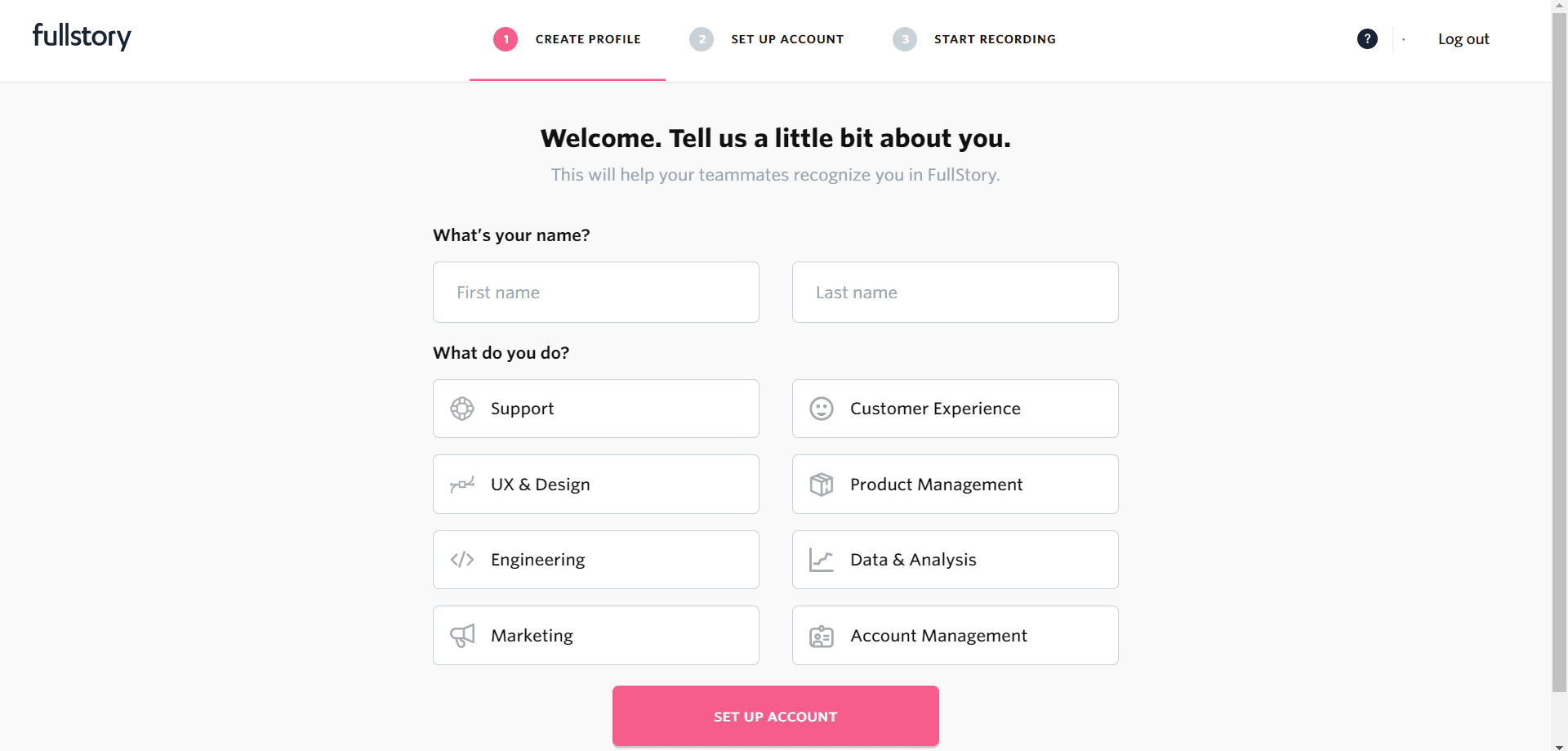
At the time of the screenshot, Fullstory asked new users for their name and their role, from eight options, as the first of three set-up steps, and shaped the rest of their journey around the answers.
3. Use onboarding videos on your homepage
Your homepage is a good place for an onboarding video: prospects can see what your product does and what they could achieve before they sign up. A welcome video or a short product demo both work.
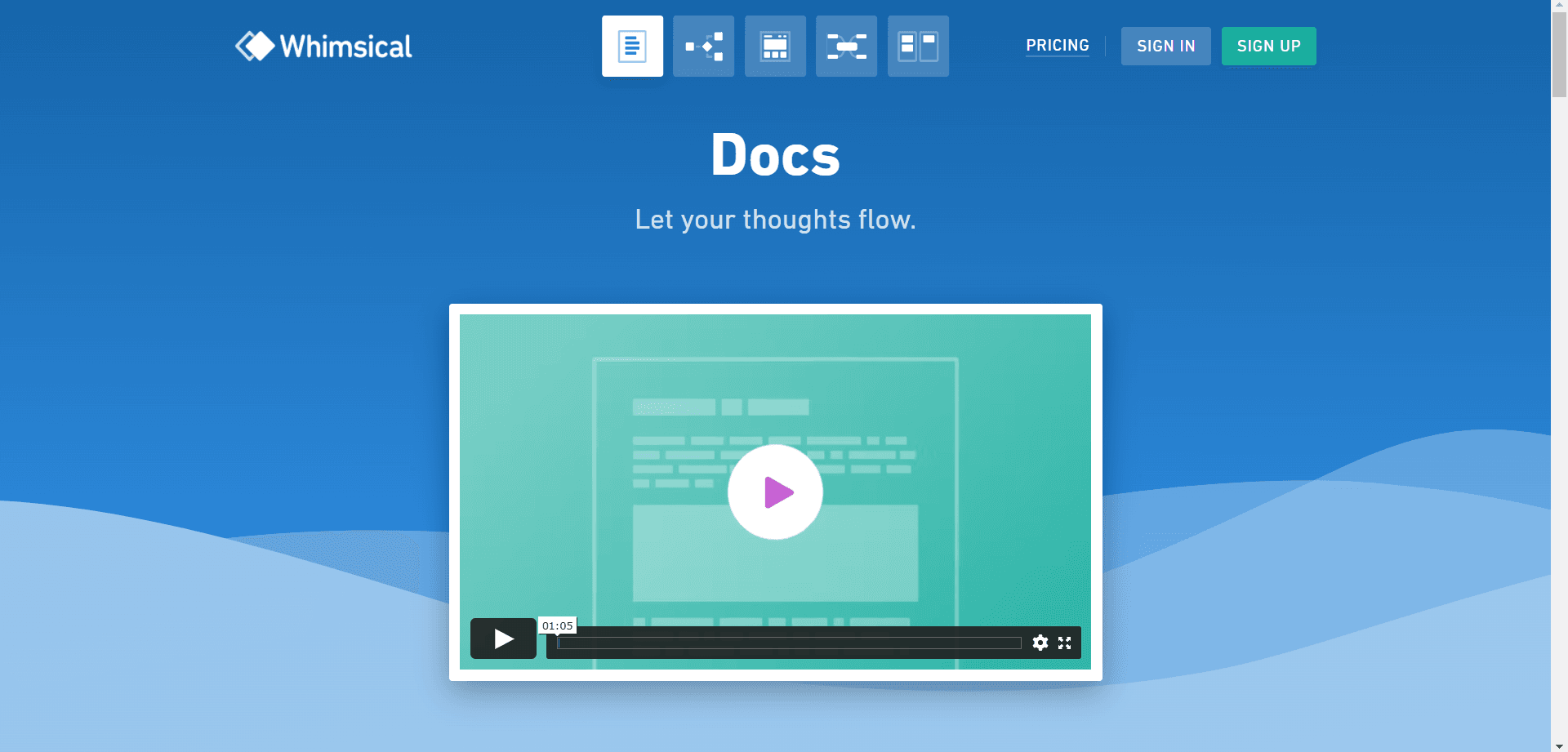
Whimsical brought five formats together in one product. At the time of the screenshot, selecting a format on its homepage showed a short video about it; the Docs video ran just over a minute.
4. Show where your support centre is
However good your onboarding is, users will still have questions. Always show where they can find more information, whether that's your support centre or a page that explains every feature.
5. Add videos to tooltips and help panels
Tooltips are useful for showing a product's core functions, but a long run of them gets dull. A short video inside a tooltip or a help panel lets users watch the action, pause it and replay it.
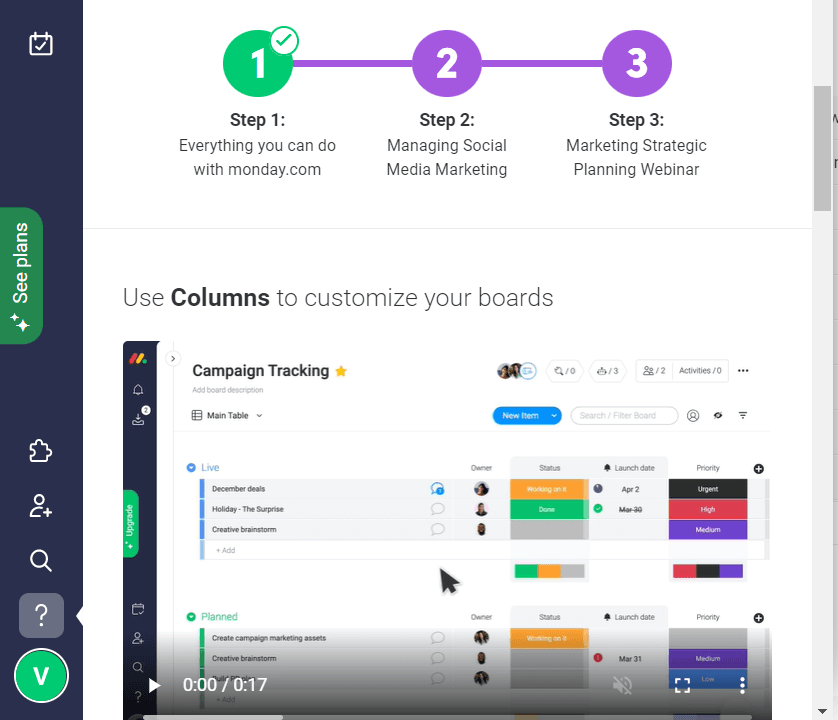
At the time of the screenshot, monday.com's in-product help showed a three-step learning path above a 17-second clip, "Use Columns to customize your boards", so users could repeat the action whenever they wanted.
6. Include videos in your help centre and FAQ
When customers need help, they go to the help centre or the FAQ. Those pages tend to be long walls of text, and customers want answers fast. Short videos help them find what they're looking for and can reduce support costs.
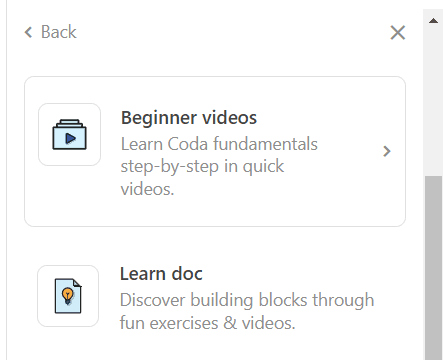
Coda, for example, added a "Beginner videos" section to its learning centre: Coda fundamentals, step by step, in quick videos.
7. Attach videos to welcome emails
New users get a welcome email, and many businesses send a dry list of first tasks. Try a short video instead, so users can watch and listen rather than read. Our email onboarding guide covers where a welcome email fits in the sequence.

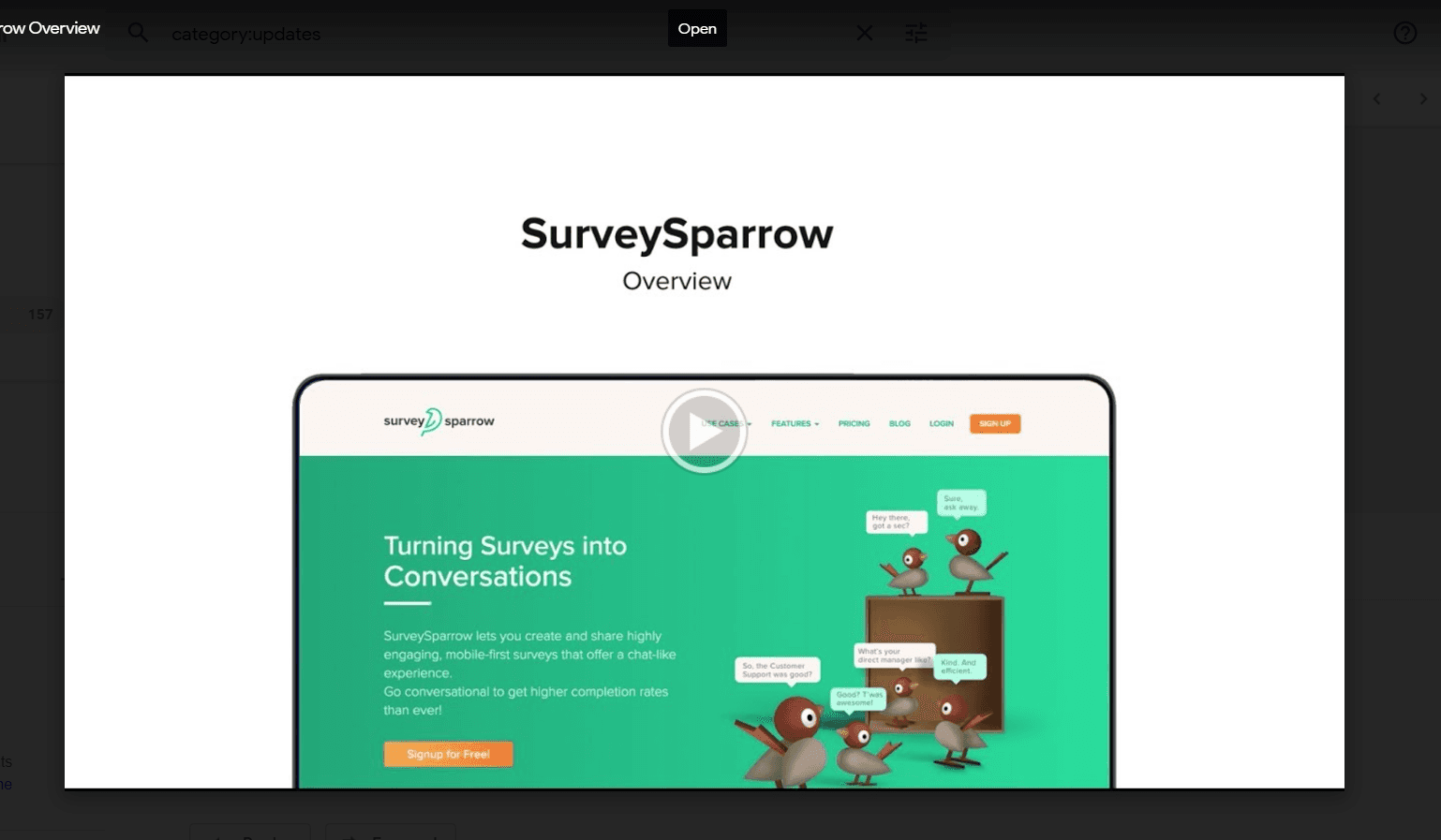
SurveySparrow's welcome email, at the time of the screenshot, came from a named person on its team and attached a SurveySparrow overview video.
8. Offer onboarding videos during free trials
Free trials end, so use the trial to show users enough value to stay. Onboarding videos keep trial users engaged.
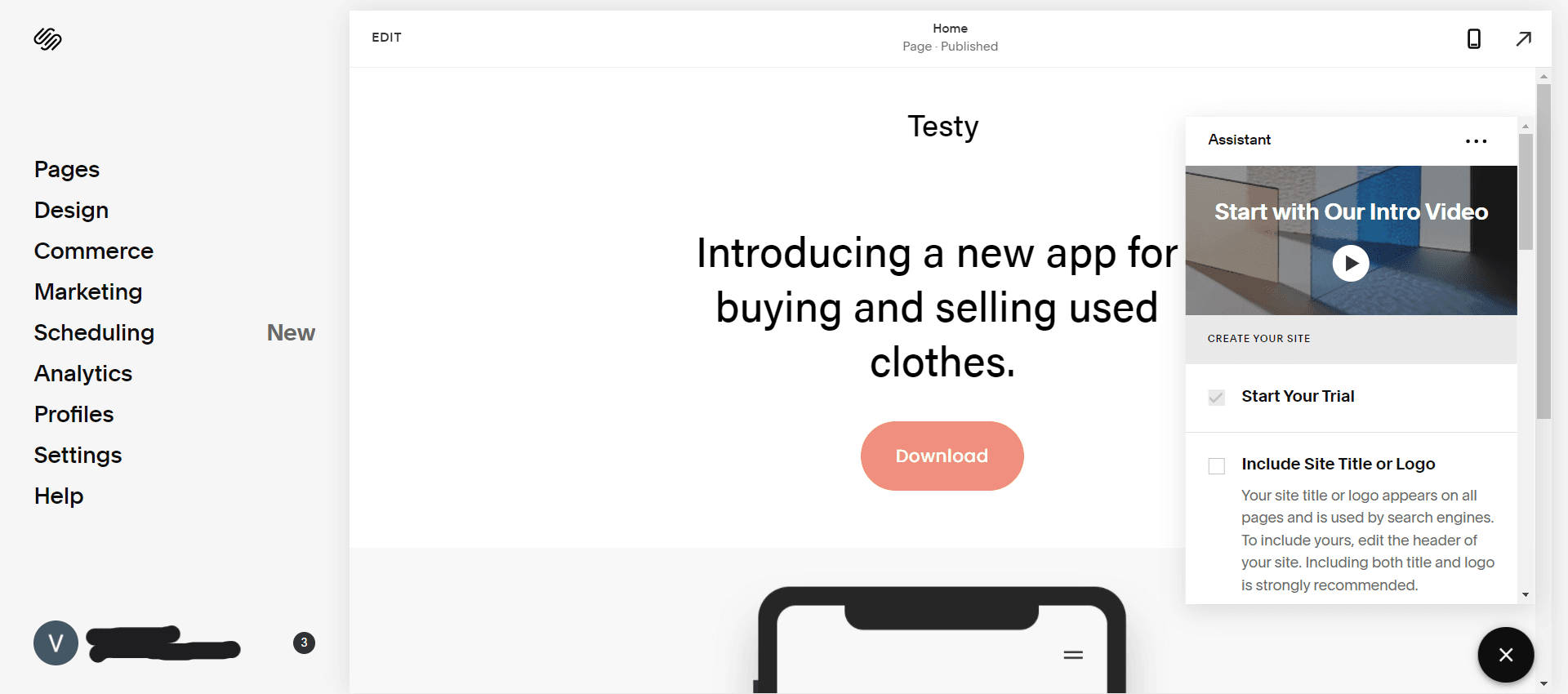
Squarespace did this during its free trial: its Assistant panel opened with "Start with Our Intro Video", placed above a set-up checklist whose first item, starting the trial, was already ticked.
9. Repeat the benefits
You may have shown users what they gain during onboarding, but out of sight is out of mind. Use other chances to repeat the key benefits: instead of another modal or tooltip, try a short video about them on the homepage, a landing page or in an email.
10. Split sessions into shorter chunks
Nobody wants to spend 20 minutes on an onboarding video; they'll stop paying attention or skip it. Split long sessions into short clips, one task per clip. If users are short on time, a compressed experience can stand in: meeting app Around offered first-time guests a 45-second product experience, described in our library, instead of its full demo.
Which tools sit between a video and a product tour?
Some tools turn recorded steps into guidance users click through themselves. One that we review is iorad, which records the steps you click through in a browser or desktop app and turns them into interactive tutorials. As of October 2026, its free plan covers unlimited tutorial capture, public tutorials and learners.
Frequently asked questions
How do you make an onboarding video?
Start from what users need and expect at that point in onboarding. Pick one task, write the steps as a short script, record them in the current version of your interface, and cut anything that isn't part of the task. Then place the clip where users meet that task, in the product or in an email.
Do people watch onboarding videos?
Yes, when the videos are short, optional and placed where they're needed. Users like being able to pause when something else comes up and replay a step they missed. Don't overdo it, though: video everywhere is as tiring as text everywhere. Check play and completion rates in your video host to see which clips earn their place.

About the author
Hilal YıldırımHilal is a creative content writer highly focused on growth, occasionally product, and always onboarding.